You can view the stock quantity of a particular location by turning on the Location Stock view. This is applicable for both Inventory and Asset Stock items.
In this view, you can see the stock quantities by locations – instead of one total quantity per item. Users can enable this view on the Inventory and Asset Stock listing pages.
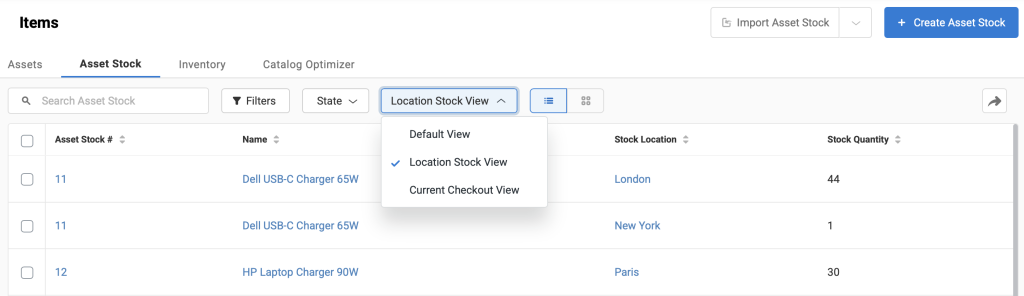
On turning on the Location Stock view, quantities in respective locations will populate. Below is an example of what you would see:
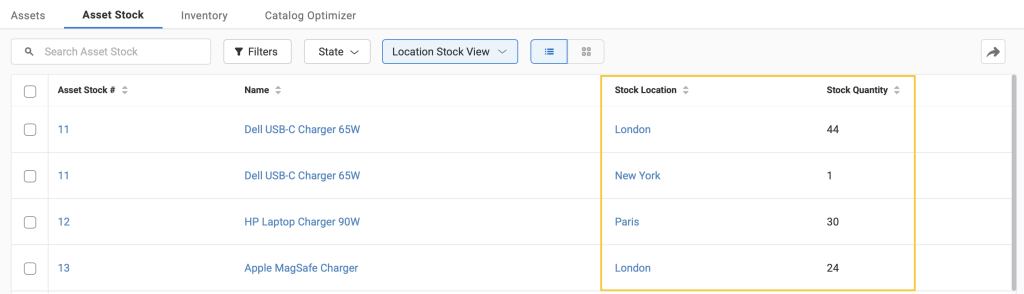
Note: This view also displays stock quantities of items with different default locations.
On turning off the Location Stock view, you will only see Items for locations set as default.
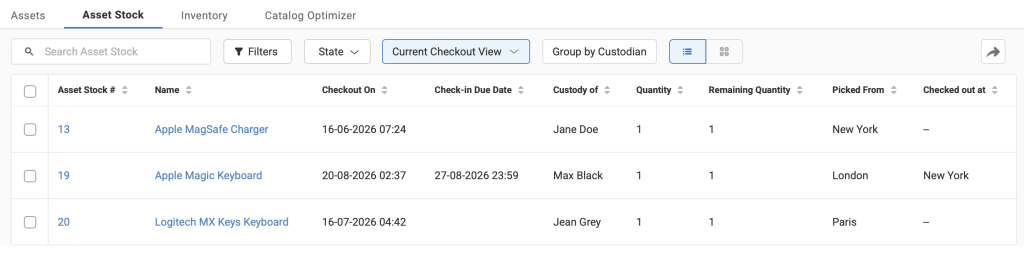
Current Checkout View on Asset Stock
This view shows you all the checked out Asset Stock. You can see details for each checked out stock quantity in this view.
Learn more about changing views on items’ listing pages.
