Jamf Pro is the leading Apple Mobile Device Management (MDM) software used by small businesses, educational institutes, and growing enterprises. It manages iOS and macOS devices by detecting and storing granular details like who last logged onto a device, what is the warranty expiry of a device, and whether it is protected by AppleCare.
The AssetSonar Jamf Pro integration makes it easy to manage your Apple devices in one place. You can mass-import asset data from Jamf, enrich device context inside AssetSonar, and streamline service, compliance, and audit workflows.
With the latest update, AssetSonar now supports connecting multiple Jamf tenants/accounts under a single workspace. This is ideal for organizations using separate Jamf environments for different departments, business units, or geographies. Each Jamf tenant syncs independently while contributing to a unified asset view inside AssetSonar.
This guide walks you through enabling the integration, adding one or more Jamf tenants, syncing Apple devices, and understanding how multi-tenant support appears across listings, asset pages, automations, and reports.
Note: For enterprises with robust security needs, AssetSonar also integrates with Jamf on-premise environments so you can import your Apple devices into AssetSonar without having to worry about security concerns. Please contact support@ezo.io if you’d like to integrate with Jamf on-premise.
1. Benefits of AssetSonar’s Jamf Pro Integration
Our integration with Jamf Pro offers convenience to all IT professionals at the helm of dedicated device management. Here are the benefits:
- Centralized ITAM database: AssetSonar imports data from various MDM software like Jamf and SCCM. This way, you have a consolidated database of both Apple and Windows devices used within your enterprise. You can manage them all from a single space.
- Faster issue resolution: It further integrates with ITSM solutions like Zendesk and Jira. You can access all your Apple devices from within ITSM solutions, view IT asset checkout, and vendor details to speed up ticketing and issue resolution processes.
- Non-intrusive MDM: AssetSonar reduces security risk and facilitates non-intrusive MDM by importing data from the Jamf Pro agent deployed within your enterprise.
- Multi-tenant visibility: Each Jamf tenant syncs independently while still rolling up into unified reporting, filtering, and automation inside AssetSonar.
2. Enabling Jamf integration
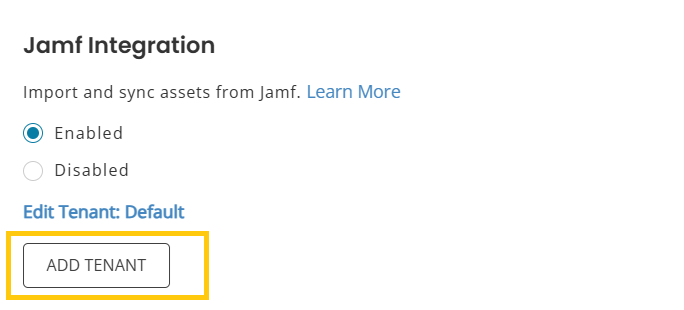
To enable the integration, go to Settings → Integrations → Jamf Integration and select Enabled.
Add Tenant
This allows you to connect multiple Jamf instances, each treated as a separate integration block under the same AssetSonar account.
Click Add Tenant to add credentials.
3. Adding Jamf Credentials (Single or Multiple Tenants)
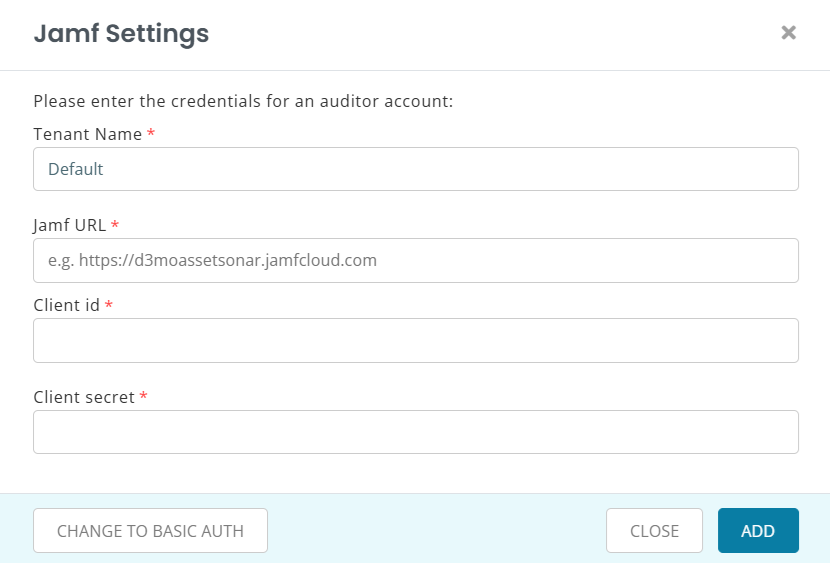
After clicking Add Tenant, a credentials modal opens.
Authentication Methods Supported
AssetSonar supports the same authentication flows for each tenant.
Please take particular note of the following:
- Always include https:// before your Jamf account domain in the Jamf URL field.
Method 1: Basic Auth
Provide:
- Username
- Password
- Complete Jamf Instance URL
Note: Some username/password combinations fail to generate valid Base64 strings due to a Jamf-side issue. If this occurs, either adjust the password or switch to the API Client method. Additionally, you must have the role of an Auditor in your Jamf account to enable the integration.
Method 2: API Client (Recommended)
In Jamf:
- Create an API Role with permissions based on the enabled device types:
- Read Computers
- Read Computer Prestage Enrollments
- Read Mobile Devices
- Read Mobile Device Prestage Enrollments
- Read Computers
- Create an API Client tied to that role.
- Ensure Access Token Lifetime is at least 10 minutes.
In AssetSonar:
- Enter Client ID
- Enter Client Secret
- Enter Server URL
This creates an independent tenant connection.
Once credentials are added, click Update.
3. Syncing with Jamf Pro
Once one or more tenants are connected, each tenant displays its own configuration. To view it, click on Edit Tenanat: [Tenant Name]
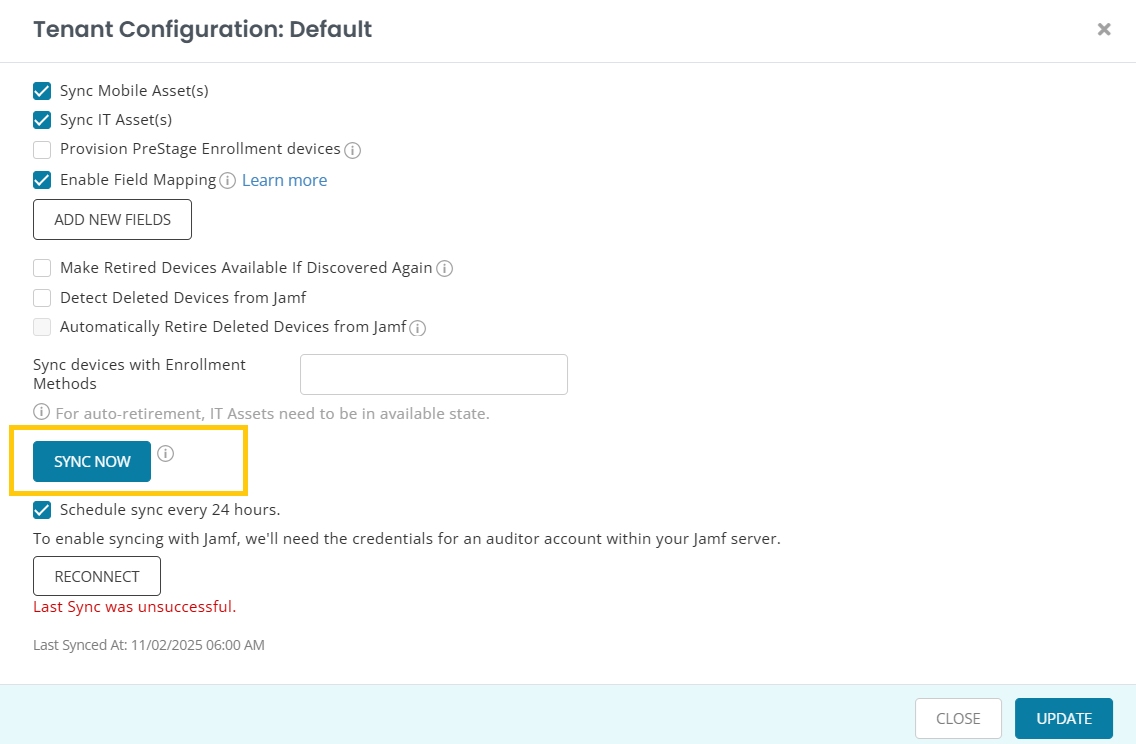
Once you click on Edit Tenant, you will be displayed a modal containing configuration options for that tenant.
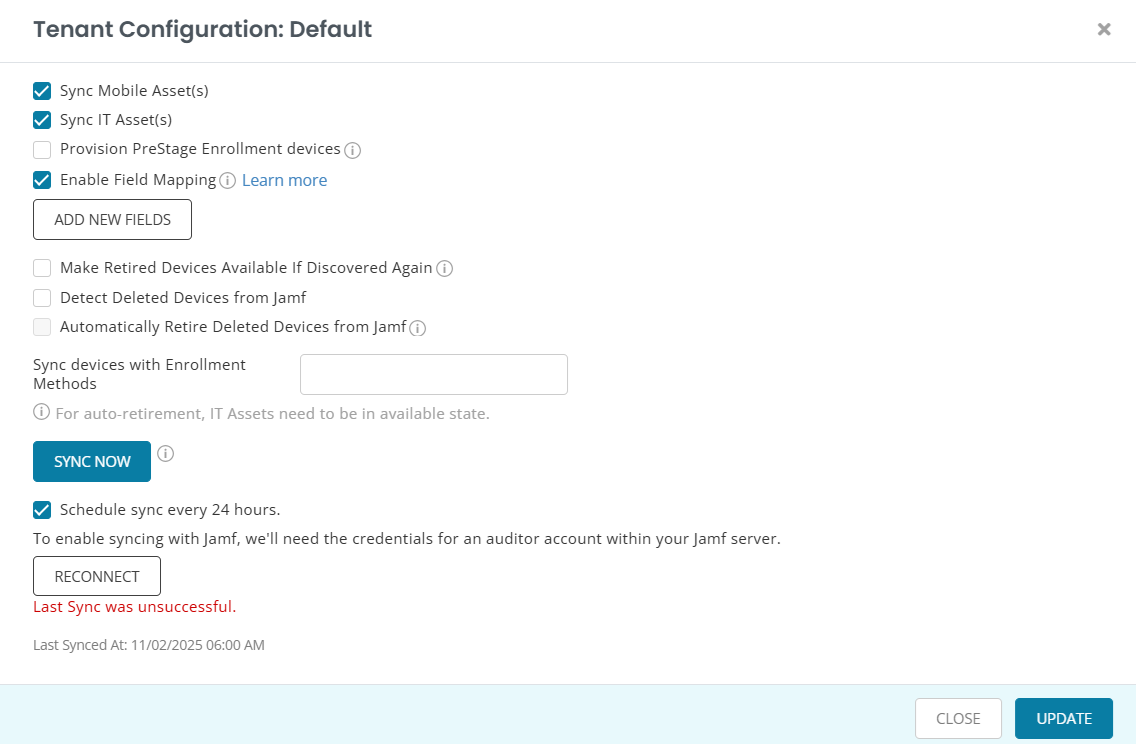
Note: Please ensure you have thoroughly reviewed all settings to avoid importing unwanted devices (type, ownership), which may require additional manual action to reset.
3.1. Importing Data
To import data of your Apple devices into AssetSonar, click on the ‘Sync Now’ button.
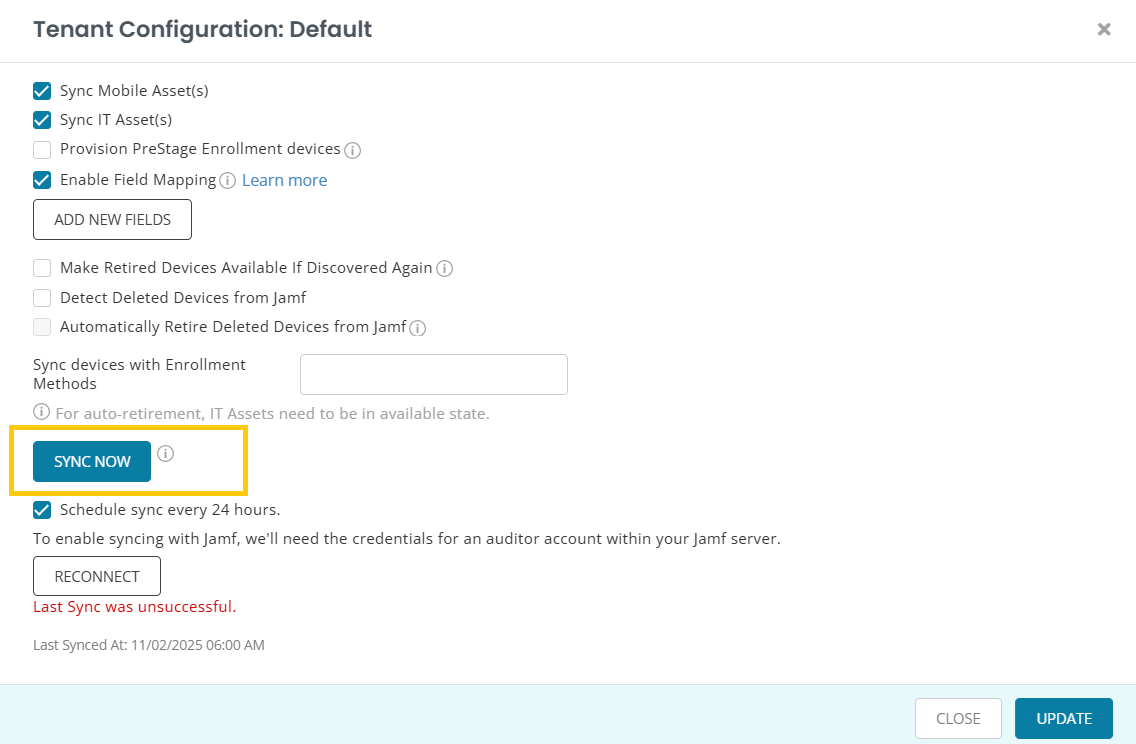
You will receive an email confirming the sync and you may view the devices by clicking on the link provided in the email. Clicking on the message directs you to the Asset Listings page. Here you can view all the Apple devices that have been imported.
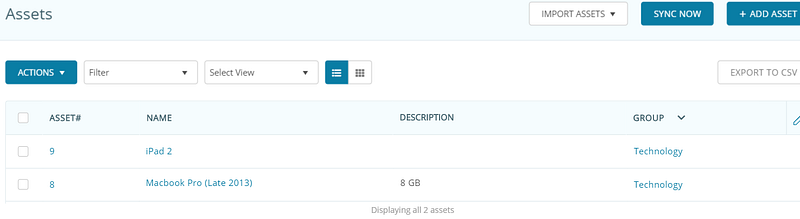
If you wish to see more granular details on the system, hardware, and software configuration of each device, click on the Asset Name.
3.2. Multi-tenant sync behavior
- Each tenant syncs independently.
- Each has its own schedule (24-hour optional auto-sync).
- Devices are tagged with their Tenant Name, ensuring clear source attribution.
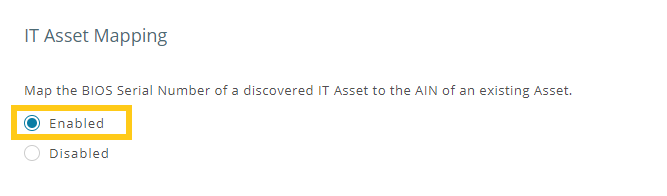
AssetSonar typically records a host of data fields captured from your Jamf account. These include IP and Mac Addresses, BIOS and input device details, etc. You can also map the BIOS serial number of a discovered IT asset to the AIN of an existing asset by enabling this setting:
3.3. Viewing Tenant Information on Assets
A new field is added to all Jamf-discovered assets:
Tenant Name
- Appears on the Asset Details page.
- Only populates for Jamf assets when multiple tenants are connected; other integrations leave this field blank.
- Updates immediately if the tenant name changes.
This allows organizations to distinguish whether an Apple device originated from “Jamf – Finance”, “Jamf – Europe”, etc.
3.5. Scheduling syncs
You can always update your IT asset data at a later time to reflect changes in your Apple device inventory.
Apart from manually syncing your data, you can also choose to sync it every 24 hours. To do this, select the setting shown below:
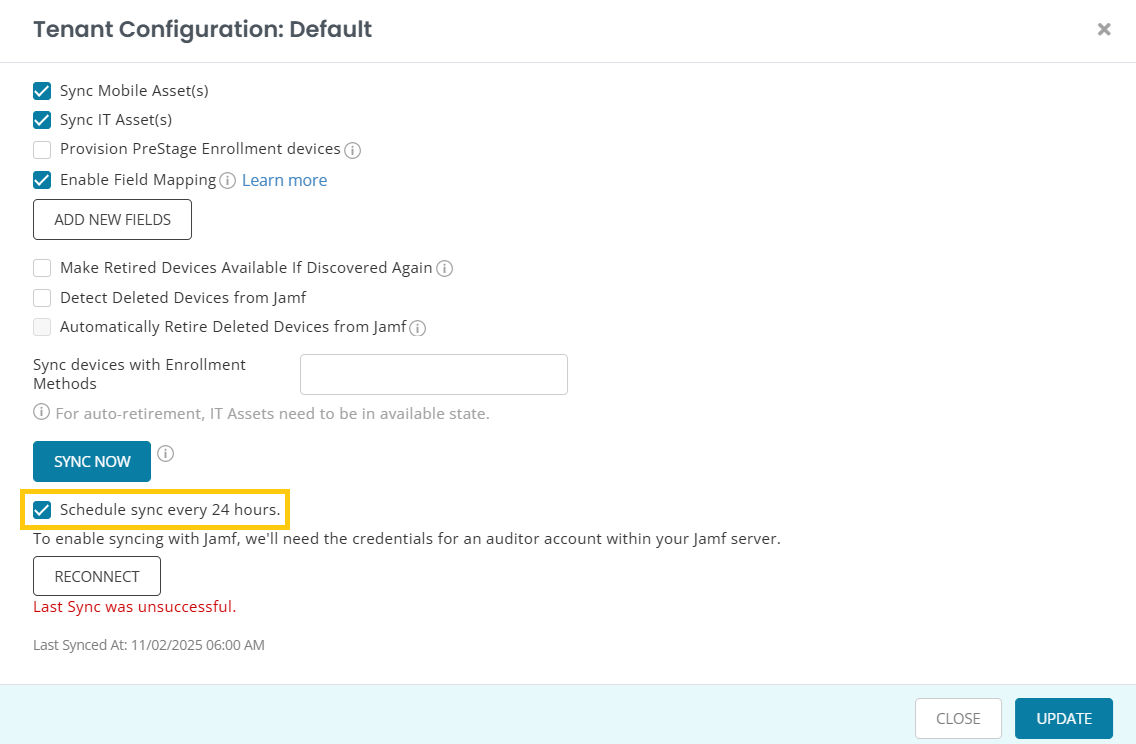
The system shows details of every sync that it does as follows:
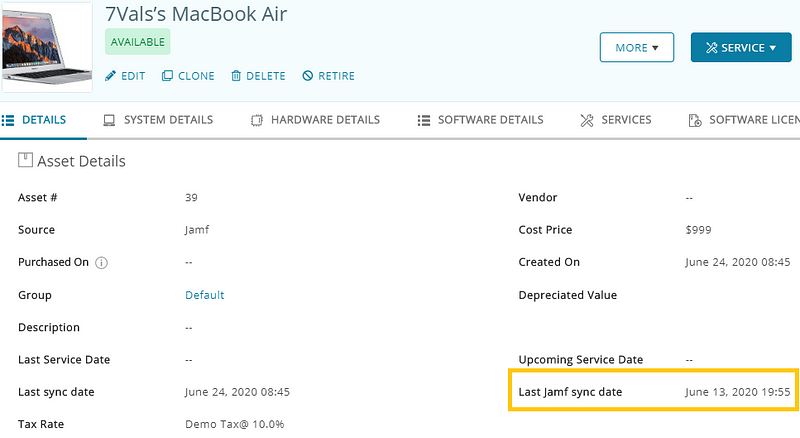
‘Last sync date’ refers to when IT Asset data gets updated in AssetSonar, whereas ‘Last Jamf sync date’ represents when the IT Asset data was last updated in your Jamf account.
4. Detecting Deletion from Jamf and Retiring Devices
4.1. Actions on retired devices
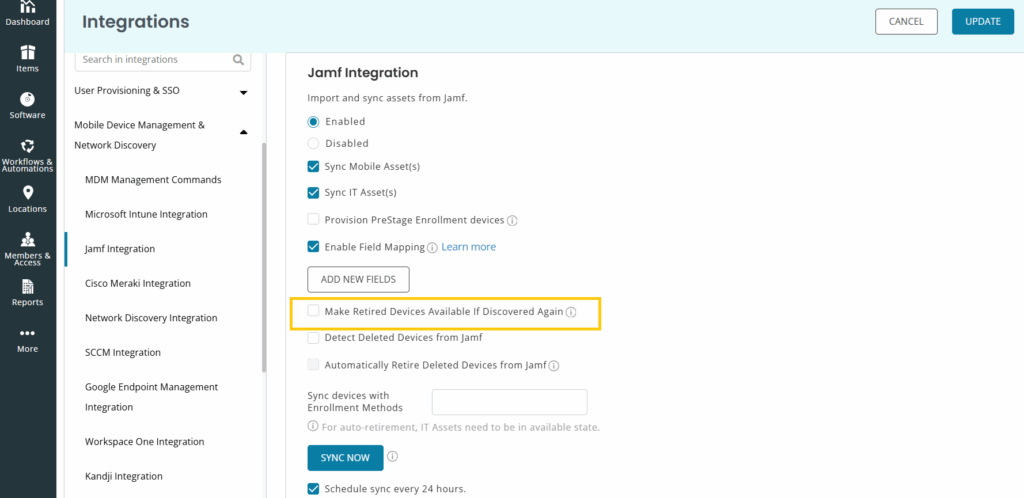
Once you have started syncing the data from Jamf to AssetSonar, you would be able to detect previously retired devices. For example, if you have retired some IT assets but they are picked up by another department where they can be of use, they will be discovered by Jamf. During the next sync, AssetSonar will change the status of these devices from retired to available.
From the Jamf Integration setting, check the box for Make Retired Devices Available if Discovered Again to turn on this option as shown below:
4.2. Actions on deleted devices
AssetSonar helps you detect devices deleted in Jamf Pro and take appropriate actions, such as retiring them, within the platform. If a user has deleted any device in Jamf, you can opt to get details by enabling the Detect Deleted Devices from Jamf setting.
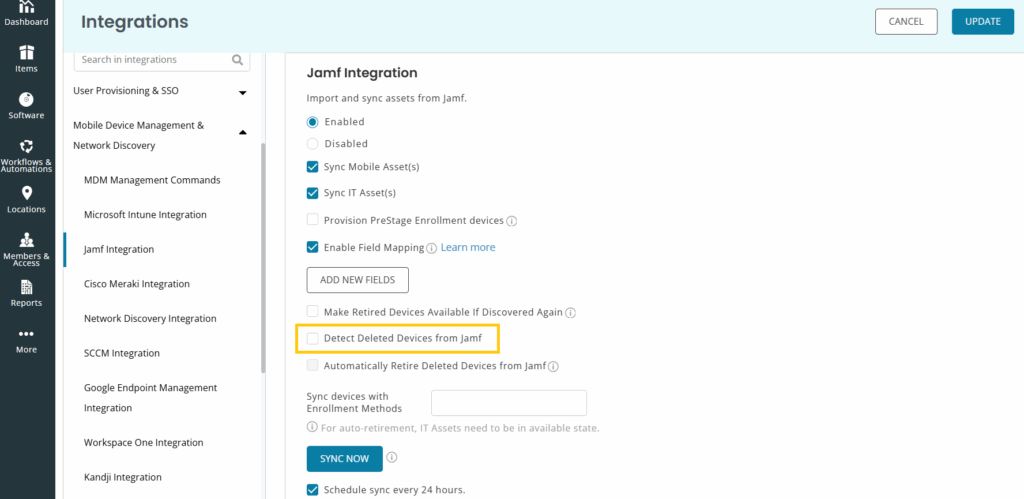
Now, you can get information on deleted devices through several sources.
- From the Assets detail page, apply the filter ‘IT assets deleted from sync source’ and you will get a list of all devices that were deleted in Jamf before the last sync.
- From the Alerts detail page, you can check the notifications for an MDM Assets Deletion Summary. You will be able to get an email notification with details of all deleted devices detected during the last sync.
Checking on ‘Automatically Retire Deleted Devices from Jamf’ frees you from having to take this action manually. However, AssetSonar doesn’t automatically delete devices that are either checked out or are in maintenance.
4.3. Managing PreStage Enrollment Devices
AssetSonar allows you to track Apple devices that are part of PreStage enrollment in Jamf — i.e. devices not yet provisioned but queued for deployment.
To activate this:
- Go to Settings → Integrations → Jamf Integration.
- Enable Provision PreStage Enrollment Devices.
- Click Update to save settings.
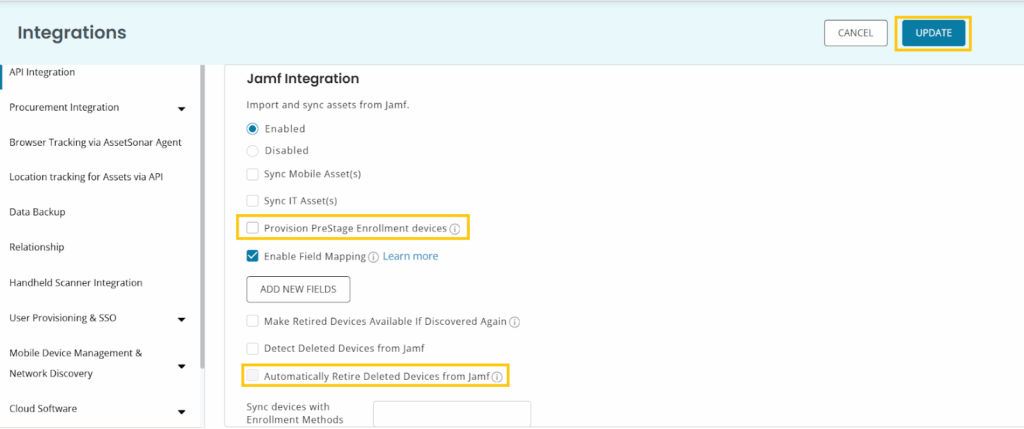
Once the setting is enabled, AssetSonar will fetch devices in the PreStage scope and tag them as PreStage in your asset listings. These devices will also be tagged as PreStage and IT Assets;, making it easier to identify them as part of your inventory.
In combination with the Automatically Retire Deleted Devices from Jamf setting, this ensures AssetSonar accurately reflects your provisioning workflow by retiring devices only when they are fully removed from Jamf, not just reassigned to PreStage.
Take your Apple Device Management up a notch with AssetSonar
With our Jamf integration, you can always keep tabs on the whereabouts of your Apple devices and answer questions like who has the custody of a Macbook or where it is located. It enables you to schedule service on Apple devices, analyze their usage trends, and conduct a thorough audit so you never lose track of your expensive Apple devices.
Data fetched with our Jamf Pro integration:
- Mac OS computers and laptops — and associated hardware and software details
- iOS devices — and associated hardware and software details
Discover more with our additional out-of-the-box integrations
About AssetSonar
AssetSonar is the leading IT asset discovery software that integrates with Jamf Pro. It is used by IT-intensive organizations and businesses all over the globe.
Sign up today for a free 15-day trial.
For more assistance, drop us an email at support@ezo.io. You can also visit our blog for detailed support posts.