
When building automated workflows, the data you fetch from external APIs or internal systems isn’t always ready to be used immediately. You may receive inactive user records, duplicate entries, or data in an unpredictable order.
The Data Transformation Node solves this by allowing you to filter, sort, or deduplicate data based on set conditions before passing it to downstream nodes. By cleaning your data mid-workflow, you prevent errors, reduce unnecessary API calls, and ensure your actions only process relevant items.
Note: This guide focuses specifically on configuring and using the Data Transformation Node. For a complete overview of the Automation Engine, please refer to our master guide: [How-to] Automate IT Workflows in AssetSonar. If you are looking to learn how to fetch the external data first, see our guide on [How-To] Build Web Request Automations.
1. Add the Data Transformation Node
To start processing your data, drag the Data Transformation Node onto your canvas, typically immediately following a Web Request.
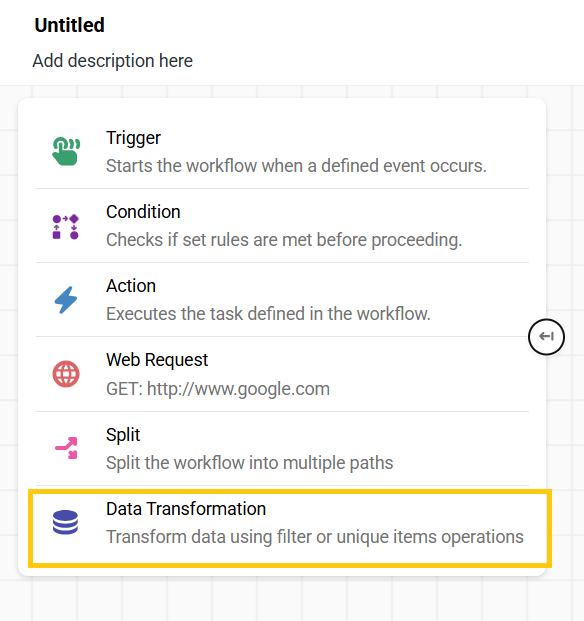
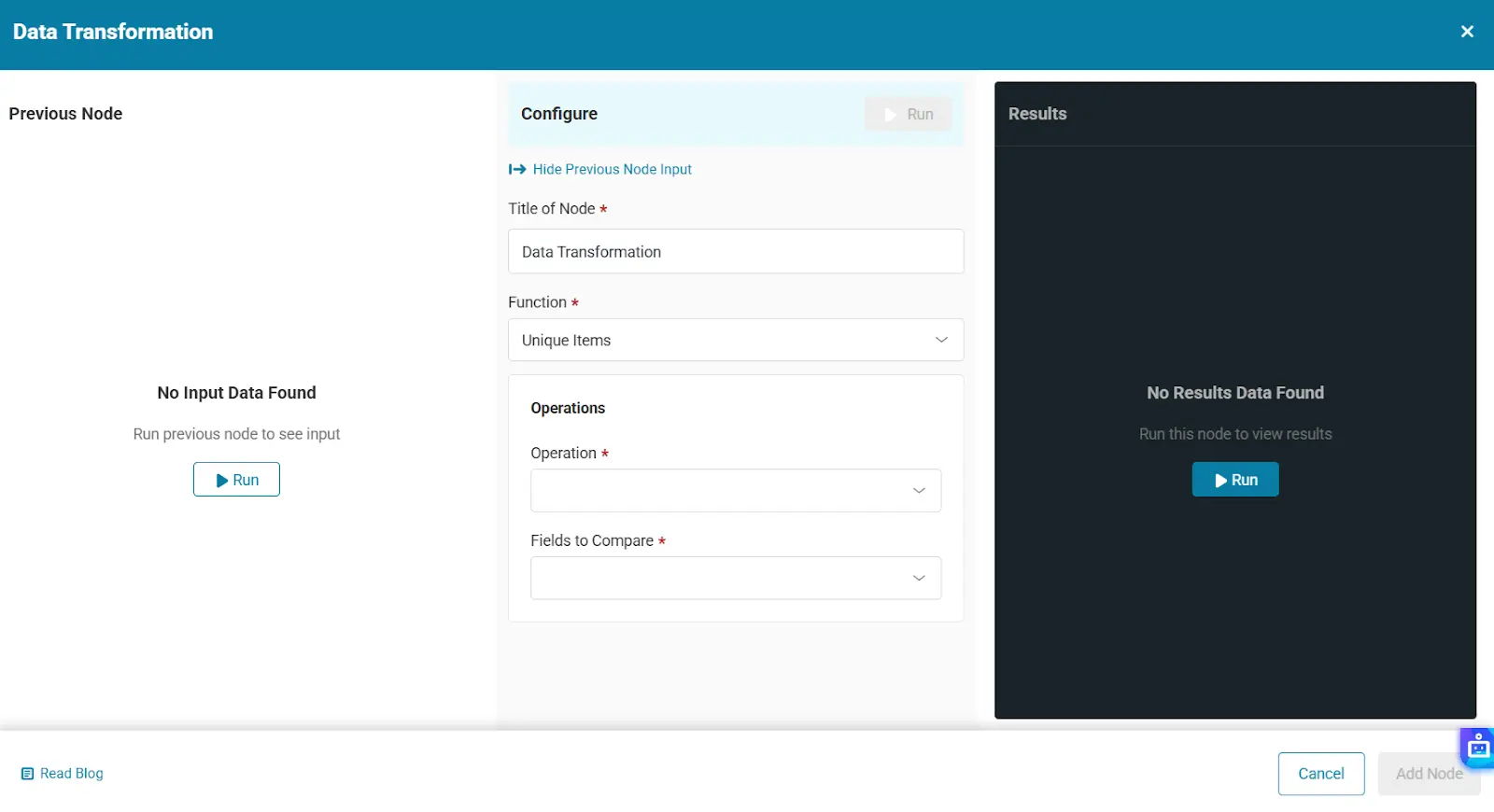
When you click the node to configure it, the first field you will see is the Function dropdown. From here, you must select one of three operations:
- Filter Items
- Unique Items
2. Filter Items
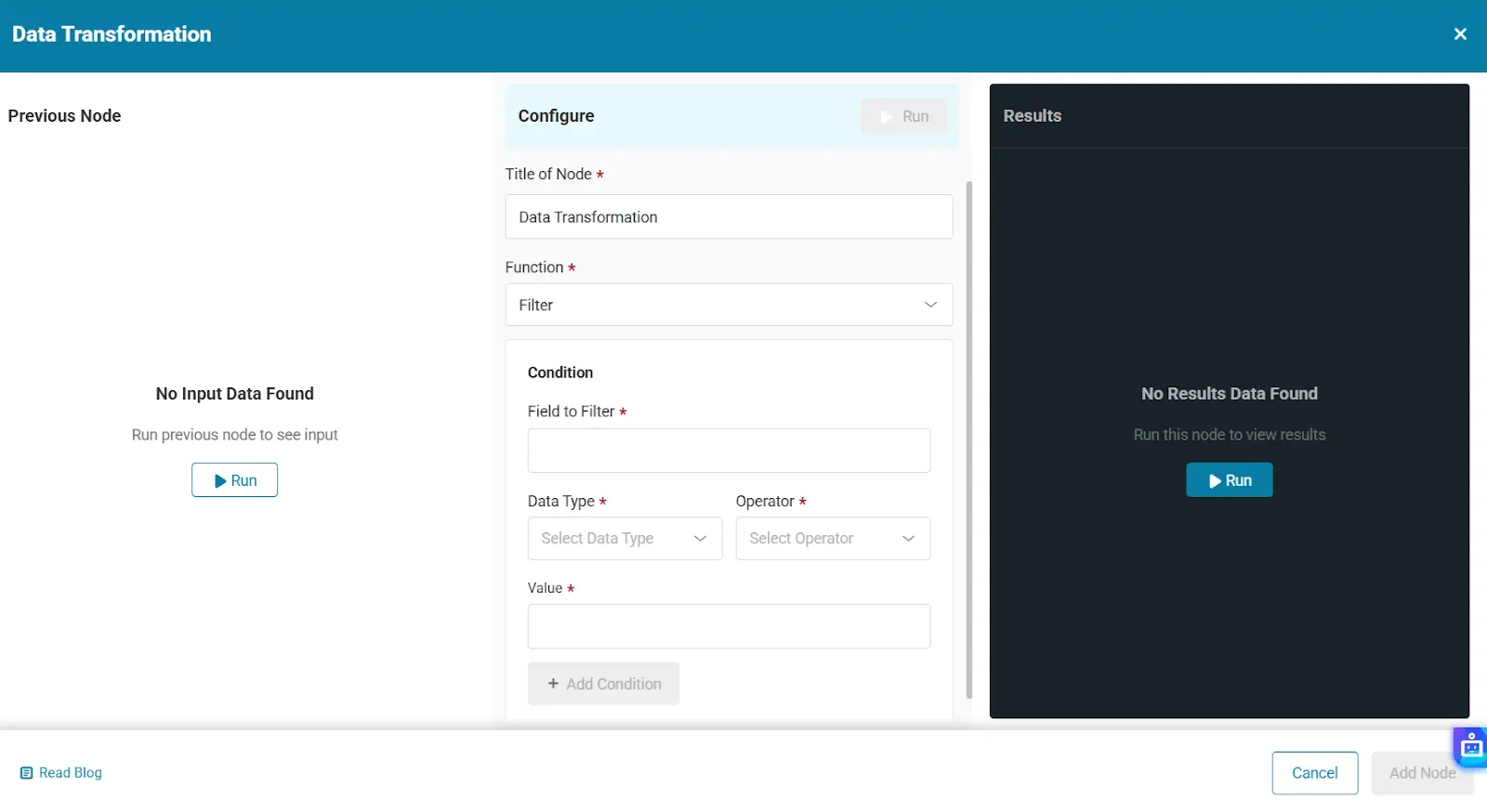
Not all fetched data is relevant to the next API call. Filtering allows you to apply specific conditions to incoming arrays and emit only the items that match. If no items match the conditions, the node simply outputs an empty array.
For example, if you fetch 500 users, you can apply a filter to only forward users where the status is “active,” dramatically reducing noise and API costs.
Configuring Filter Conditions
When Filter Items is selected, you will use the Condition Builder:
- Field to Filter: Select or type a variable from the incoming data.
- Data Type: Select whether it will be a string, number or some other form of data.
- Operator: Choose the comparison logic (e.g., is equal to, contains, is greater than). The available operators change dynamically based on the data type (String, Number, Boolean, etc.).
- Value: Enter a fixed text value or use an expression to pull dynamic data from previous nodes.
You can click Add Condition to stack multiple rules using AND/OR logic. By default, the node uses AND logic.
3. Unique Items (Deduplicate)
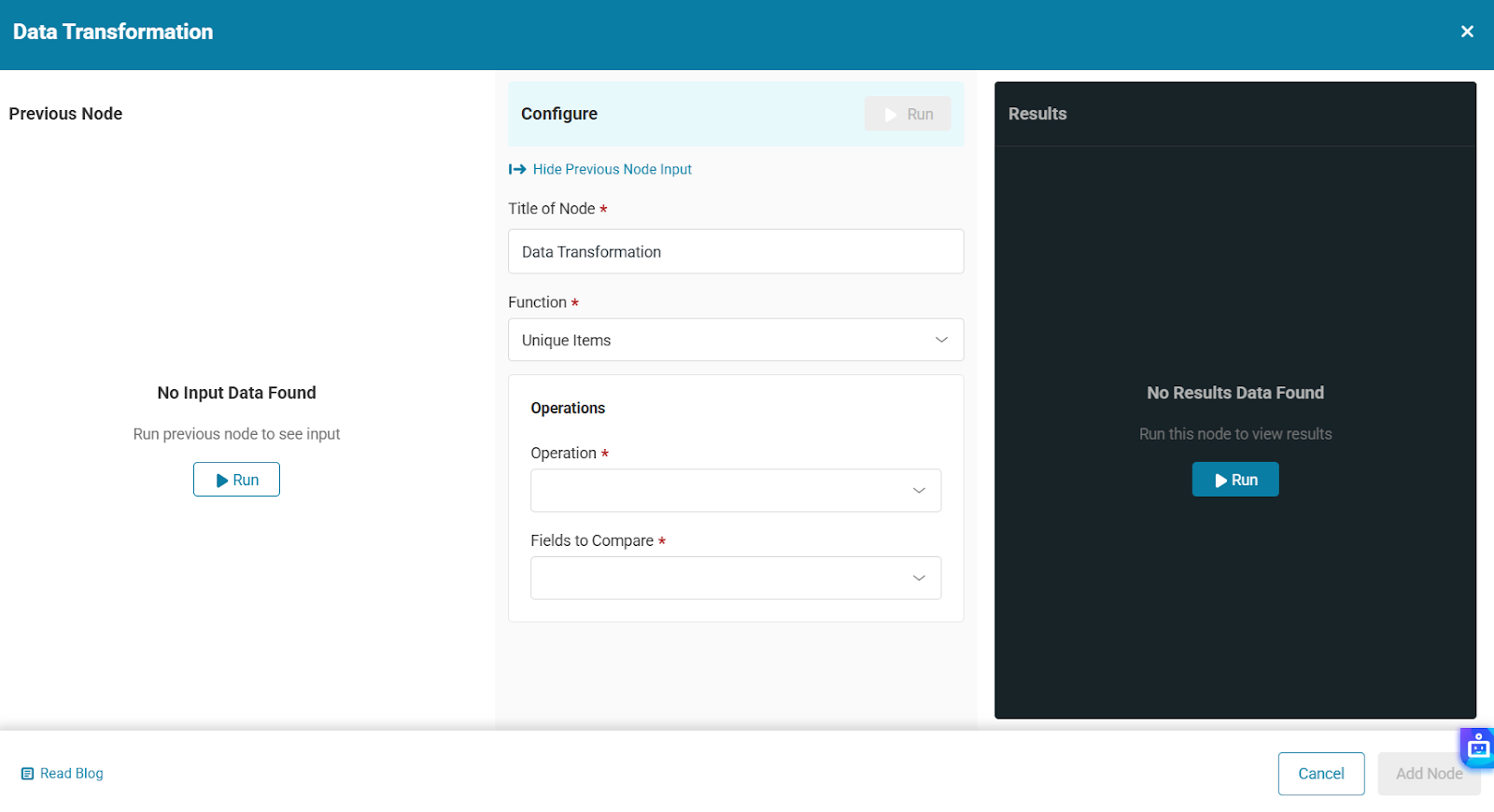
APIs often return overlapping or repeated records across pages or calls. The Unique Items function removes duplicates from the input list and keeps only the first occurrence of each unique item, ensuring data integrity.
Configuring Unique Comparisons
The default operation is “Keep Only Unique Items”. You control how the node identifies a duplicate using the Compare dropdown:
| Compare Mode | Description |
| Match on Entire Item | Compares the entire object; items must match on every single field to be considered duplicates. |
| Match on All Except Selected | Compares all fields except the ones you specify in the “Fields to Exclude” multi-select box. |
| Match on Selected Fields | Compares only the specific fields you list in the “Fields to Compare” multi-select box (e.g., checking only the email field for duplicates). |
The node preserves the original order of appearance and simply drops the subsequent duplicates.
Ready to Build Smarter Workflows?
The Data Transformation Node is an essential tool for maintaining clean, efficient, and cost-effective automations. By filtering out the noise and organizing your arrays, you ensure your downstream ITAM actions are perfectly targeted.
Need help configuring complex filter conditions or deduplication logic? Contact us at support@ezo.io — our team is ready to assist.

![[How-to] Automate IT Workflows in EZO AssetSonar](https://cdn.ezo.io/wp-content/uploads/2024/09/04125918/Automate-IT-Workflows-in-AssetSonar-1.jpg)
![[How-to] Process Arrays and Lists Using the Loop Node in AssetSonar Automation Engine](https://cdn.ezo.io/wp-content/uploads/2026/03/10072110/Loop-Node-EZO-Assetsonar.jpg)
![[How-To] Build Web Request Automations Using the Workflow Automation Engine in EZO AssetSonar](https://cdn.ezo.io/wp-content/uploads/2026/03/09093304/Web-Request-Automations-EZO-Assetsonar.jpg)




