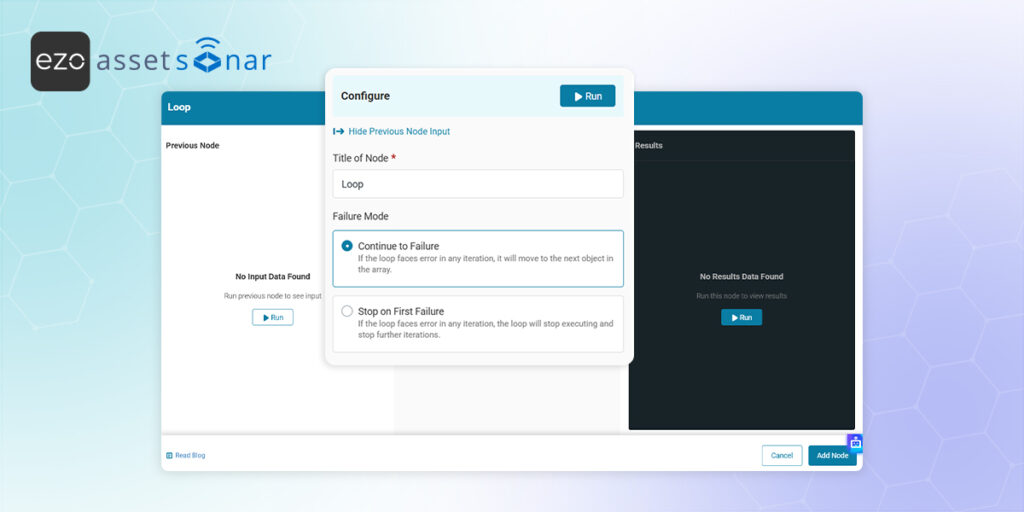
When integrating with external APIs or handling bulk data, your workflow will frequently receive data as a list or array. The Loop Node allows you to iterate through these lists, executing a sequence of actions for each individual item one by one.
For example, you can fetch a list of License IDs, loop through each ID to fetch its associated members, and update entitlements in AssetSonar sequentially.
Related Guides:
- Automation Fundamentals: To learn how to set up basic triggers, conditions, and actions, read [How-to] Automate IT Workflows in EZO AssetSonar.
- Custom API Calls: To learn how to fetch external data and generate arrays from APIs, read [How-To] Build Web Request Automations Using the Workflow Automation Engine in EZO AssetSonar.
If you already have a workflow that outputs a list of data and you are ready to loop through it, read on below.
1. Connect the Loop Node
To begin an iteration, the Loop Node must receive a valid list or array as its input.
- Add a Loop Node to your canvas.
- Connect it downstream from a node that outputs an array, such as a Web Request, Data Transform, or Split node.
- If the input is a valid list, the loop begins. If the list is empty, the loop completes immediately without running.
2. Configure Loop Settings
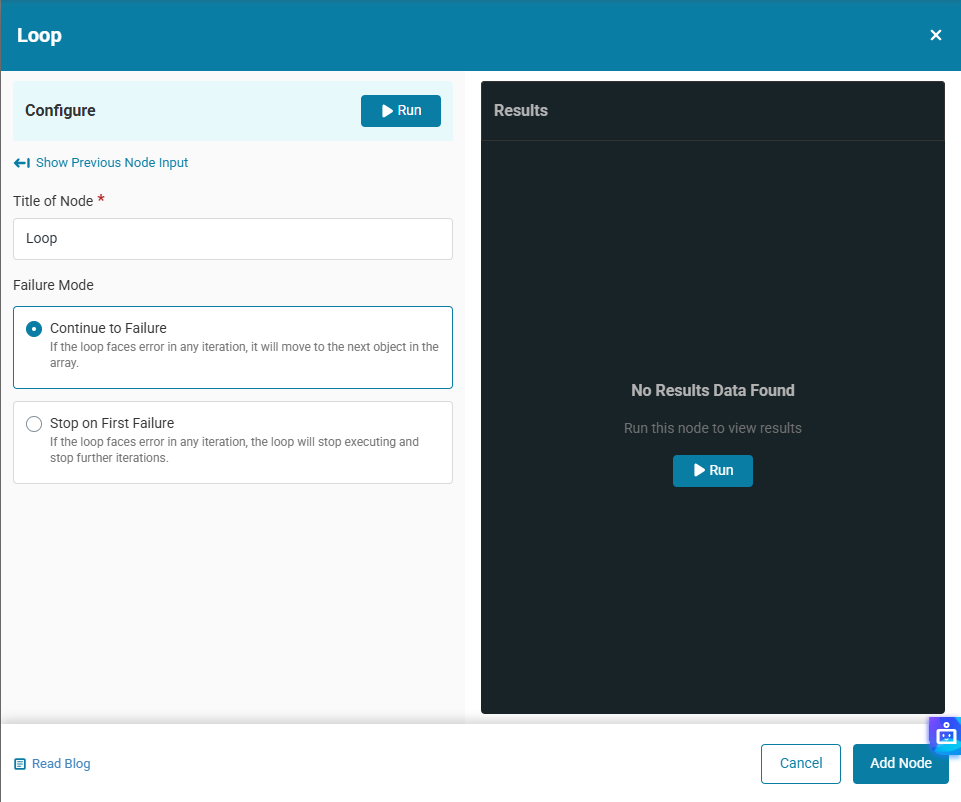
Click the Loop Node to open its configuration panel and define how the iteration behaves.
Failure Handling
Decide how the workflow should react if an individual item fails during the loop:
- Continue on failure: If the loop faces an error, it skips to the next object in the array.
- Stop on first failure: If an error occurs, the loop stops executing immediately and halts all further iterations.
Output
The output of the loop will be as following
- Array with loop iteration status and each object input: Outputs a new array containing the success/failure status, error messages, and original input (Default).
3. Build the Visual Loop Path
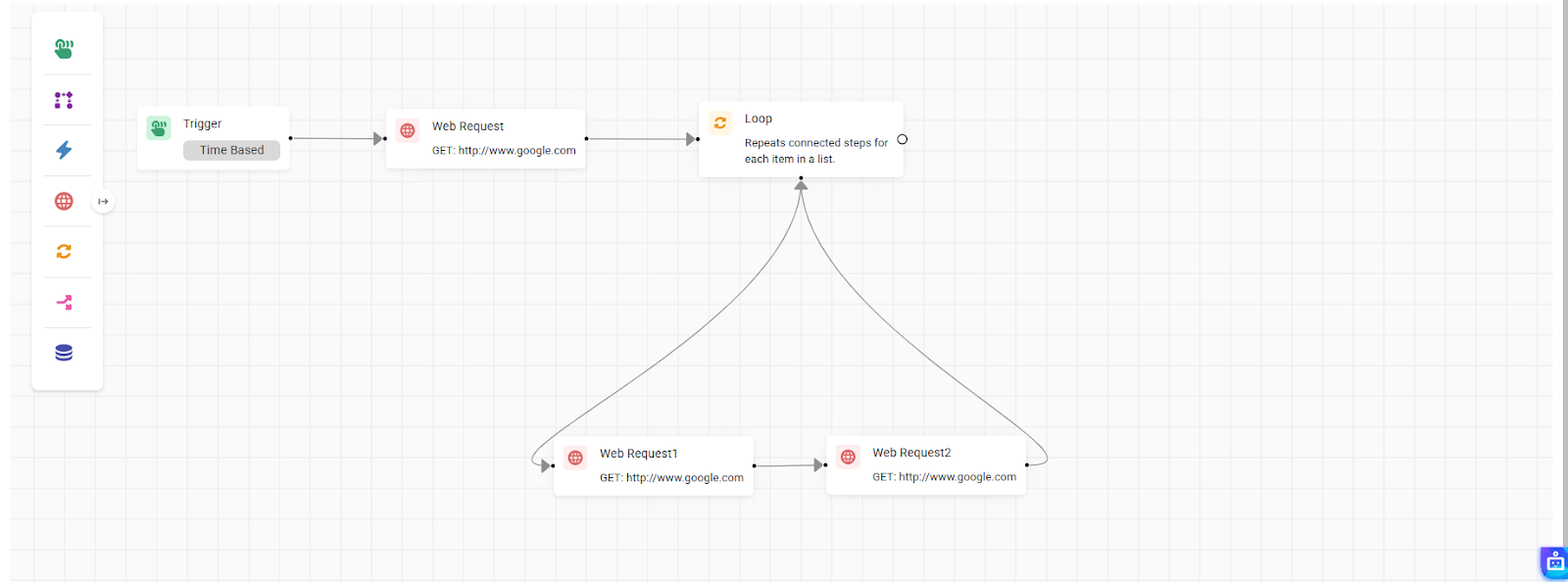
Unlike standard nodes that flow in a straight line, the Loop Node requires you to visually close the circuit on your canvas.
- Drag a connection from the “Loop” end of the Loop Node to your first inner action (e.g., a Web Request).
- Chain any additional nodes required for that specific item.
- Drag the output of your final inner node back to the Loop Node to close the loop.
- (Note: Nested loops—placing a Loop Node inside another Loop Node—are not currently supported).
4. Reference the Current Item
Any node placed inside the circular loop path will execute exactly once per iteration.
To ensure your inner nodes act on the specific item currently being processed, use the Expression input type and reference the {{$<LoopNodeTitle>_current}} variable. Replace <LoopNodeTitle> with the title of your loop Node.
- For example, to fetch details for the current license in the loop, you would configure your inner Web Request URL using {{ $loop.current.id }}.
5. Handle Post-Loop Logic
Once the Loop Node finishes iterating through every item in the array, it exits the circle.
Use the right end branch on the Loop Node to connect to downstream nodes that should only execute after the entire batch is finished.
6. Monitor Loop Executions
Because loops process multiple items, tracking success and failure requires detailed logging.
Navigate to your Execution Logs to view a double-nested breakdown of your loops.
- Expand the parent Loop Node row to reveal every individual iteration.
- Expand a specific Iteration row to see the success, failure, and execution details of the individual nodes that ran during that specific cycle.
Ready to Process Data in Bulk?
The Loop Node transforms your workflows from single-item tasks into powerful, batch-processing engines.
Would you like me to review our completed set of blogs to ensure all terminology and node references are perfectly consistent before we finalize the project?

![[How-to] Automate IT Workflows in EZO AssetSonar](https://cdn.ezo.io/wp-content/uploads/2024/09/04125918/Automate-IT-Workflows-in-AssetSonar-1.jpg)
![[How-To] Build Web Request Automations Using the Workflow Automation Engine in EZO AssetSonar](https://cdn.ezo.io/wp-content/uploads/2026/03/09093304/Web-Request-Automations-EZO-Assetsonar.jpg)
![[How-to] Orchestrate IT Workflows Using App Connectors in AssetSonar Automation Engine](https://cdn.ezo.io/wp-content/uploads/2026/03/10102115/IT-Workflows-Using-App-Connectors.jpg)




