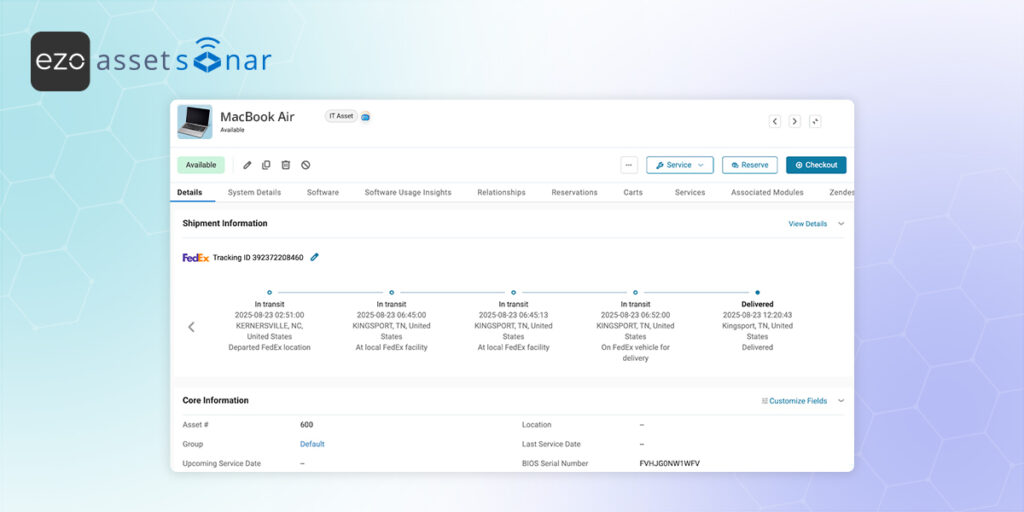
When devices are sent out for repair, replacement, or return, IT teams often lose visibility once the asset leaves their custody. Tracking shipment status across carrier portals often requires switching between tools and asset records, which can make it harder to maintain consistent visibility during repair and return workflows.
With the FedEx integration in EZO AssetSonar, you can track shipment status across the entire lifecycle, whether you are waiting for new procurement orders to arrive or tracking assets sent out for repair.
This guide covers the beta release of the FedEx integration: tracking shipment status for assets in AssetSonar.
1. Enable the FedEx Integration
- Go to Settings → Integrations → Shipment Integration and locate FedEx Integration.
- Click Enable and then click Update.

2. Track Inbound Procurement Shipments (Connection Integration)
Note: You can skip this step if you do not have Connection integration with AssetSonar.
You can track the shipment status of assets before they are even discovered or received. If you use Connection for procurement, AssetSonar can automatically pull FedEx tracking numbers from your Purchase Orders.
To enable this:
- Go to Settings → Integrations → Connection.
- Locate the setting Track Procurement Shipment Status.
- Check the box to enable it.
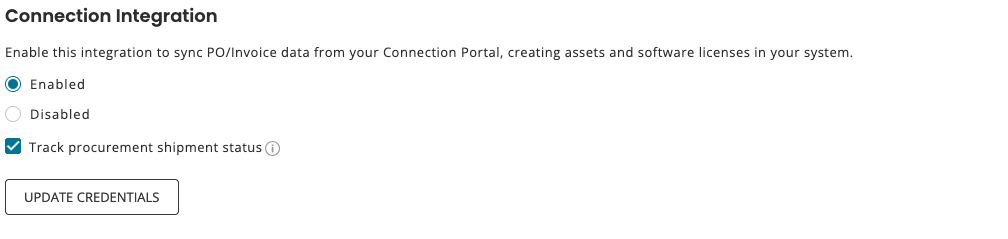
- Click Update.
Once enabled, if a Purchase Order in Connection includes a FedEx tracking number, AssetSonar will automatically use it to populate the shipment status for the associated items. This provides your team with immediate visibility into when the ordered assets are scheduled to arrive, eliminating the need to manually look up tracking numbers in vendor emails.
3. Add Tracking IDs to Assets
For AssetSonar to track a shipment through FedEx, a Tracking ID must be associated with the asset. You can add tracking IDs in the following workflows:
- Asset Checkout: When shipping a device out.
- Asset Check-in: When receiving a device back.
- Service/Maintenance: When sending an asset for repair.
- Asset Creation or Edit: Manual entry on the asset detail form.
- Bulk Import: During mass asset creation or update via CSV.
Each tracking ID added is tied directly to the asset’s lifecycle.
4. View Shipment Information on an Asset
Once a Tracking ID is added, AssetSonar fetches shipment data from FedEx and displays it in a new section on the asset’s detail page.
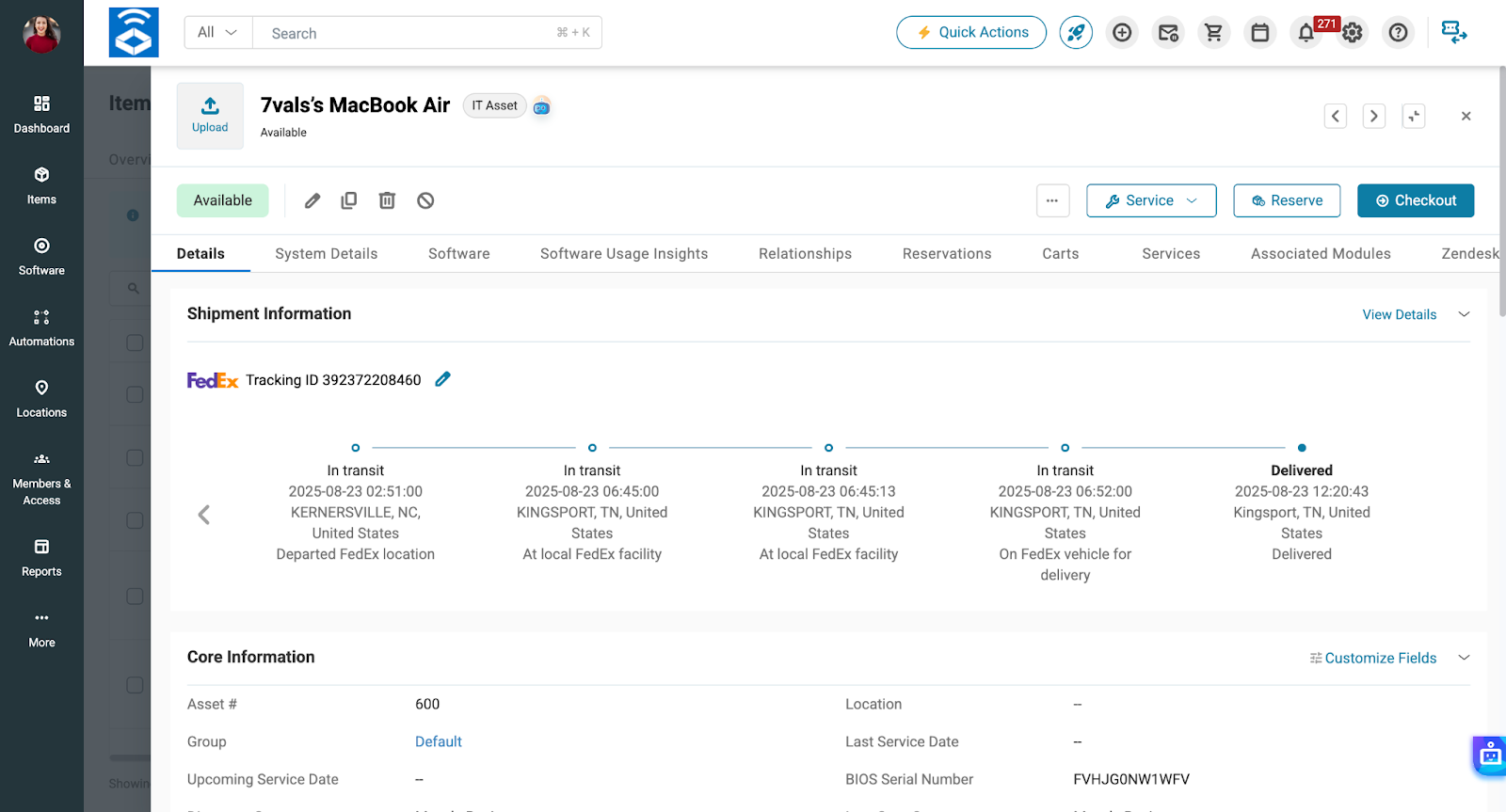
For each tracking ID, AssetSonar shows a shipment timeline with scan events returned by FedEx. Shipment events are displayed newest first, making the current status immediately visible.
This timeline helps you quickly answer:
- Has the device left the origin?
- Is it still in transit?
- Has it reached the destination?
5. Reporting on Shipment Data
Shipment Information is also available in Custom Reports.
You can:
- Add Shipment Information as a sub-module for Assets
- Include shipment fields as report columns
- Build reports for assets currently in transit or recently delivered
This is useful for audit trails, repair tracking, and logistics oversight.
With shipment tracking now tied directly to assets, teams can monitor repair and return workflows without switching tools or manually checking carrier portals.
Ready to Track Asset Shipments Inside AssetSonar?
With the FedEx integration enabled, you no longer need to jump between carrier portals to check shipment status. AssetSonar keeps shipment updates tied directly to the asset’s lifecycle—helping you reduce delays, losses, and manual follow-ups.
If you need help setting up the FedEx integration or troubleshooting shipment data, contact support@ezo.io.





