Why It Matters
Automated workflows act as an invisible dispatcher, instantly analyzing incoming tickets and dropping them into the correct technician’s queue so agents don’t have to waste time manually sorting the inbox.
How to Set It Up
Instead of using complex backend settings, ticket routing is handled by the visual, drag-and-drop Workflow Automation Engine located on the ITAM side of your account:
- Access the Engine: In AssetSonar ITAM, navigate to Automations → Workflows & Automations and create a new workflow.
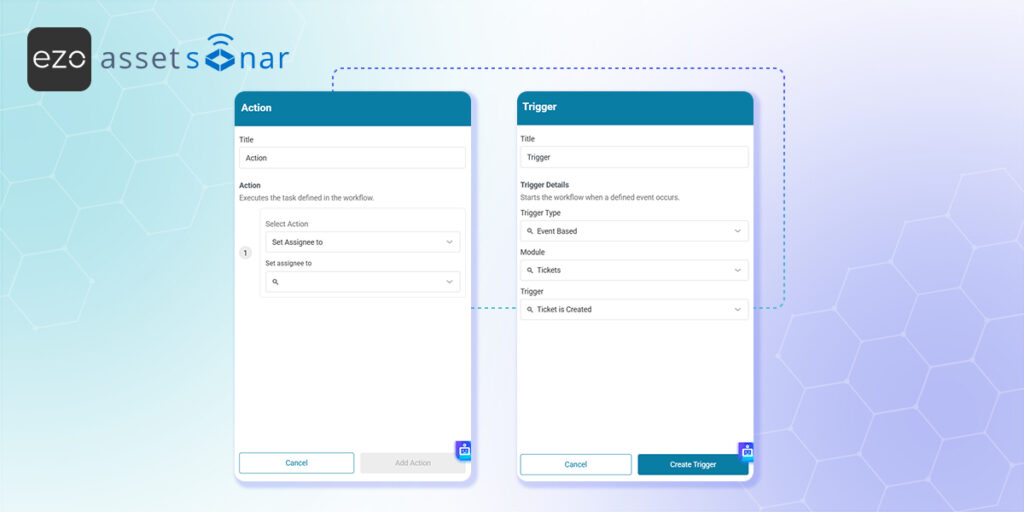
- Set the Trigger: Select an event-based trigger from the node menu, such as “Ticket is Created.”
- Define Conditions: Drag a Condition node onto the canvas to establish your rules—such as checking if the ticket title contains the word “Printer” or if the source is an email from a specific department.
- Assign the Action: Drag an Action node onto the canvas, connect it to your condition, and configure it to automatically assign that specific ticket to the “Hardware Support” group or elevate its priority to high.
- Activate: Toggle the workflow status switch to Active to push your new routing rule live.
(Note: For an in-depth look at all available triggers, conditions, and nodes, check out our complete guide to the Workflow Automation Engine.)
Next Steps
Submit a test ticket containing your designated keyword to confirm the automation successfully catches it and routes it directly to the designated support group.
Was this helpful?
Thanks for your feedback!





