Why It Matters
Not all documentation is meant for everyone. Restricting visibility ensures end-users only see helpful FAQs, while sensitive IT procedures and server passwords remain safely hidden from the public to prevent security risks.
How to Do It
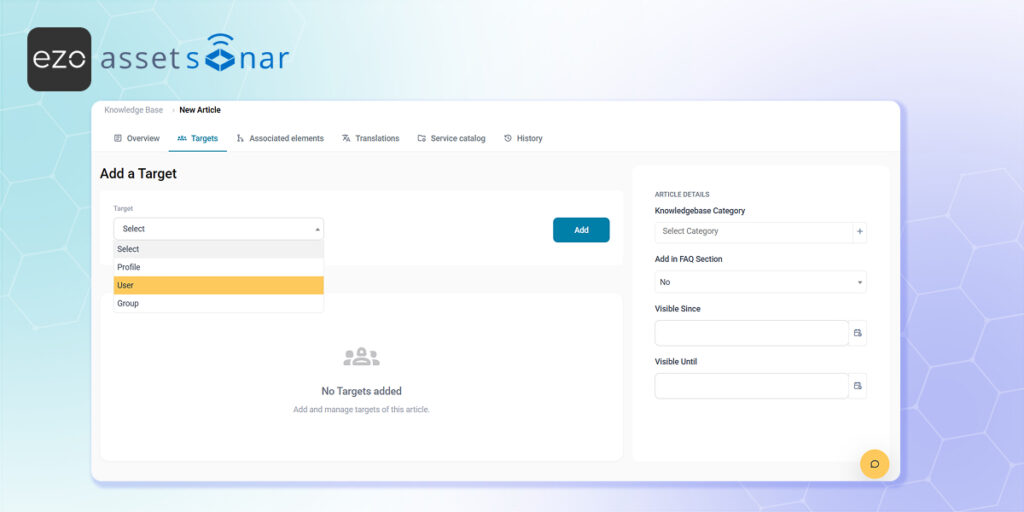
- Access the Targets Tab: Navigate to Tools → Knowledge Base and open the specific article you want to restrict, then click on the Targets tab.
- Select the Audience: Use the dropdown menus to select exactly who can view the document by targeting a specific Profile, Group, or User.
- Set the Rule: Set your visibility rule by adding the “Self-Service” profile for all portal users, restricting it to a specific department group like “HR,” or setting it strictly to your “Admin” or “Technician” profiles so only backend agents can access the troubleshooting guide.
- Save: Click Add to lock in your visibility rules.
Next Steps
Create a restricted IT-only article, then log into the standard employee portal to verify that the article is completely hidden from regular users’ search results.
Was this helpful?
Thanks for your feedback!





