Why It Matters
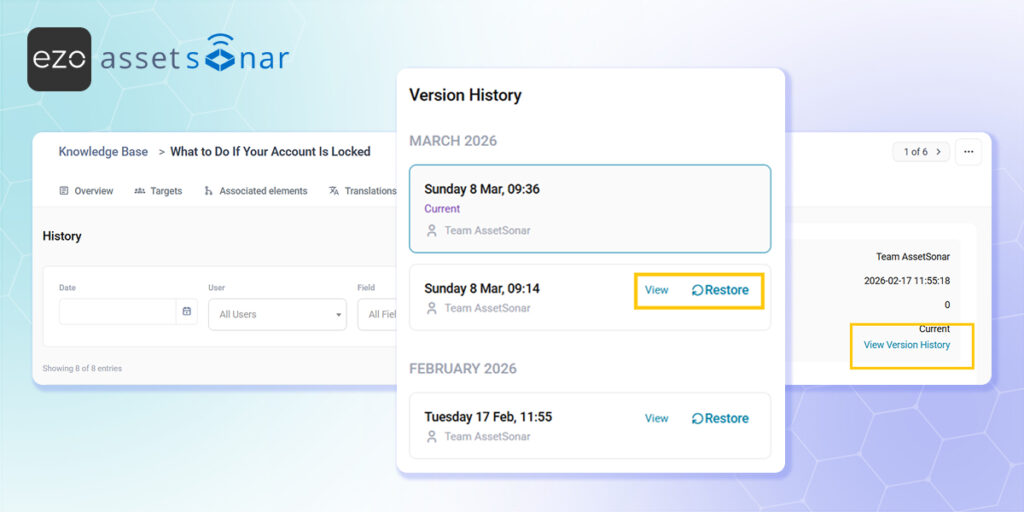
As company procedures evolve, keeping an exact audit trail of who edited an article prevents lost knowledge. It allows you to easily roll back to a previous version if incorrect information is accidentally published, ensuring your team isn’t relying on outdated or inaccurate fixes.
How to Do It
- Access the Article: Navigate to Tools → Knowledge Base and open an existing article that has recently been updated.
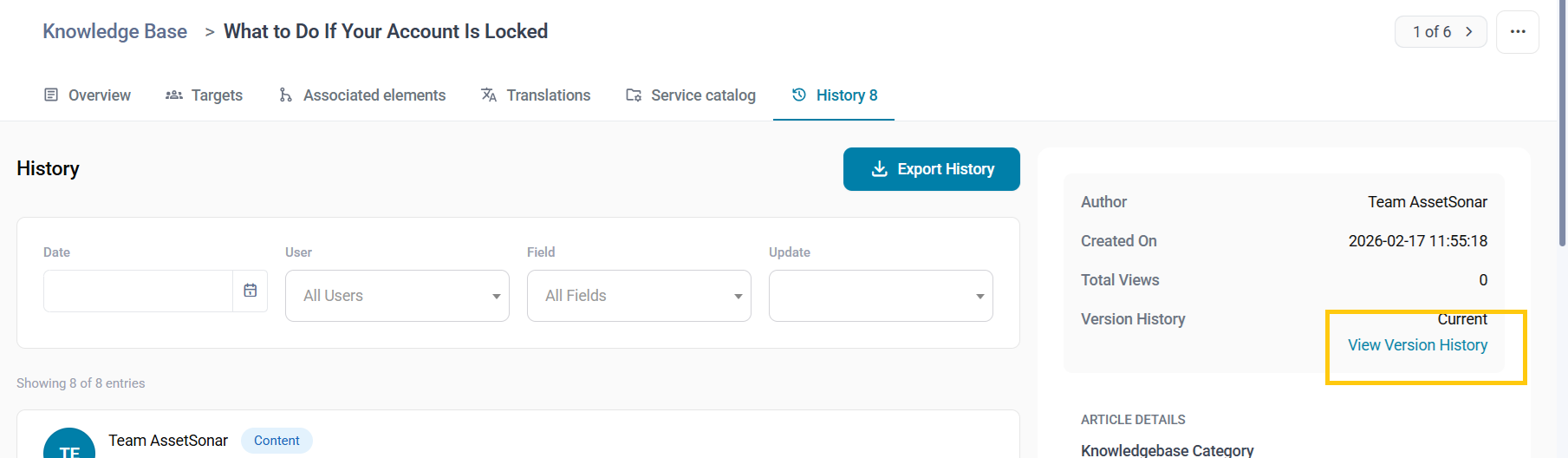
- View the Audit Trail: Click on the History tab to view a complete chronological log of every modification made to the document’s settings, including the user who made the change and the exact timestamp.
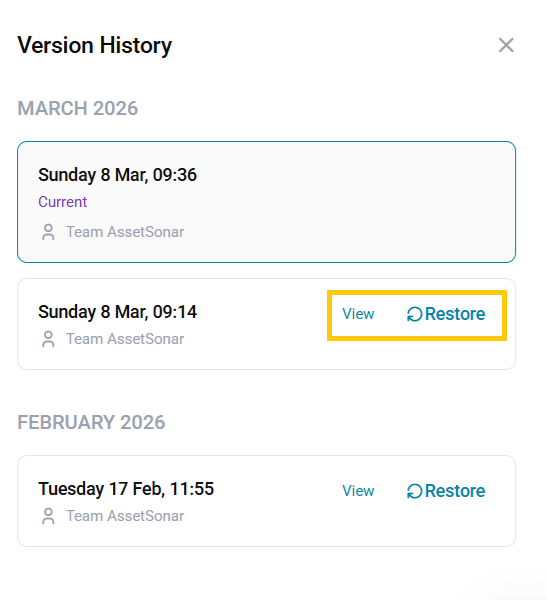
- Restore Previous Versions: To manage the actual text content, click the View Version History link located in the side panel to display a list of all previous iterations. You can click View next to any specific version to see exactly what it looked like, or hit the Restore link to instantly revert the article back to that older state.
Next Steps
Make a minor text edit to an existing KB article, save it, and immediately check the View Version History link within the History tab to verify that the system successfully logged your modifications and created a restorable version.
Was this helpful?
Thanks for your feedback!





