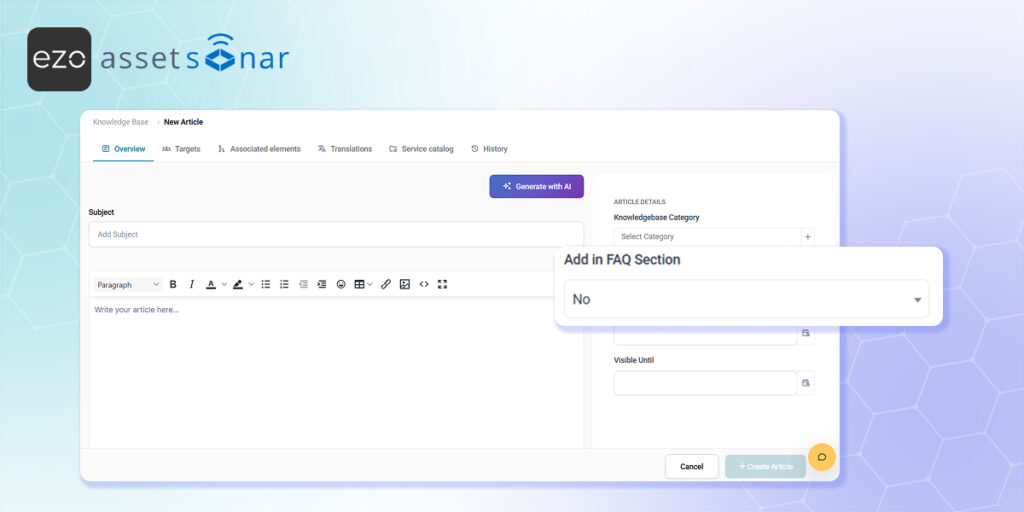
Why It Matters
Separating internal IT documentation from public-facing employee guides ensures your technicians have access to sensitive server passwords and advanced troubleshooting steps without exposing them to the entire company.
How to Set It Up
- Access the Article: Navigate to Tools → Knowledge Base and open an existing article or click New Article.
- Publish to the Public FAQ: If you want the article to be publicly available to end-users on the employee portal, locate the Add in FAQ Section field on the main article form and set it to Yes.
- Restrict for Internal Use: To keep the document strictly internal for your IT team, leave it out of the public FAQ. Instead, click on the Targets tab in the side panel. From there, you can select specific users, profiles, or groups (like “Admin” or “Technician”) to grant exclusive access.
Next Steps
Create a quick internal-only article by restricting its targets and keeping it out of the FAQ section, then log into the standard employee portal to verify that regular users cannot find it in their search results.
Was this helpful?
Thanks for your feedback!





