Why It Matters
Converting a well-documented ticket resolution directly into a KB article prevents your team from having to rewrite solutions from scratch. This allows you to rapidly and organically grow your knowledge base using real-world fixes.
How to Do It
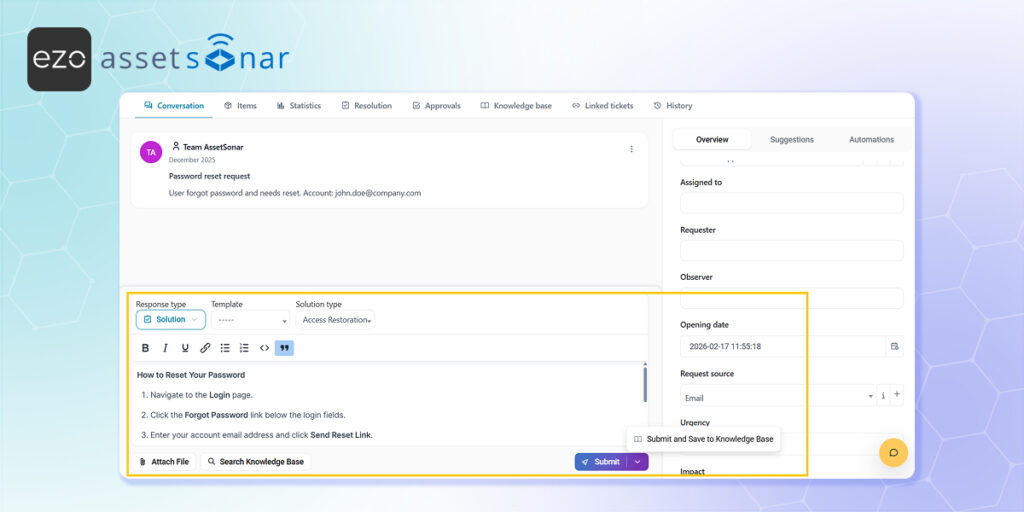
- Resolve the Ticket: Navigate to Assistance → Tickets and open the active ticket you are ready to resolve. Locate the main response box within the ticket’s timeline view and use the dropdown menu above the text input box to select Solution.
- Draft the Fix: Write out your high-quality fix in the text box.
- Save to Knowledge Base: Instead of clicking the standard submit button, click the down arrow right next to it. Select Submit and save to Knowledge Base from the dropdown menu.
- Publish the Article: This instantly resolves the ticket and automatically copies your notes into a new Knowledge Base draft, where you can clean up the formatting, categorize it, and publish it for future use.
Next Steps
Resolve a test ticket using the dropdown arrow to convert its solution into a KB article, then check Tools → Knowledge Base to confirm the new article successfully retained the original fix details.
Was this helpful?
Thanks for your feedback!





