It’s 9:03 am on a Monday. Alex, your newest IT support technician, is already drowning in work.
His Slack is buzzing with messages. Support tickets are piling up, and he’s constantly hopping between half-finished Google Docs, old Asana tasks, and “tribal knowledge,” which is stored in three different technicians’ heads. Every answer feels like a scavenger hunt to him. Does this sound familiar?
This chaos is exactly why modern IT teams, especially the mid-market ones, are turning to a centralized knowledge base (KB) as their resort—their quiet superpower.
According to McKinsey, nearly 20% of an employee’s week goes into finding information, meaning a full workday is wasted looking for resources that are already available internally.
Now imagine this: Alex logs into a single, organized, searchable knowledge hub. Within seconds, he is able to find the exact Google Doc with troubleshooting steps to the issue he needs. There is no guesswork. No escalations at work. No Slack messages needed. He is able to solve the issues on his own quite confidently. His team members have also started following the same playbook, delivering consistent, accurate support across the board.
That’s the difference a real knowledge base makes.
Every day, IT teams are bombarded with repetitive requests. Whether it’s a user needing a password reset or an employee trying to set up their VPN access, these tasks quickly pile up, consuming time and energy that could be spent on more strategic work.
Knowledge often lives in people’s heads, which makes it prone to loss, especially when staff members leave the organization or go on vacation. Remote teams further aggravate delays, and as users expect instant responses, the IT department becomes overburdened.
For IT leaders, support teams, and knowledge managers, this situation is a growing challenge. Having the right tools in place to handle user issues efficiently and consistently is essential.
So what’s the solution? A centralized knowledge base. Better? An AI-powered, centralized knowledge base.
In this article, we’ll break down what a centralized knowledge base is, what makes a knowledge base an AI-powered one, why it matters, and the six reasons it’s becoming every IT team’s secret weapon.
What a centralized, AI-driven knowledge base actually is
A centralized knowledge base (KB) is a single, structured, searchable source of truth where your IT team documents troubleshooting steps, solutions, how-to guides, policies, and FAQs. Instead of information scattered across shared drives, Slack threads, wikis, email archives, or a senior technician’s head, a knowledge base brings everything together in one place. It’s clean, organized, and easy to search. All connections depend on the configured permissions and access controls.
For IT teams, it’s the difference between “Who knows how to fix this?” and “It’s already documented. Here’s the exact article.”
A centralized KB is built for scale, meaning it organizes information using categories, metadata, internal linking, and clear structure so technicians and end-users can find answers quickly. This includes everyday IT queries like:
- “How do I reset my password?”
- “How do I set up the VPN on my computer?”
- “How do I request access to a new software tool?”
- “What’s the fix for this recurring printer issue?”
Unlike static wikis or document dumps, a knowledge base is intentionally designed to reduce the volume of tickets, speed up the process of resolving them, and make knowledge repeatable. This is especially important for mid-market IT teams with lean staffing.
How a knowledge base differs from other internal tools
Knowledge base vs service catalog
A service catalog tells users what kind of services the IT team offers (e.g., “Request Laptop,” “Request VPN Access”).
The knowledge base, on the other hand, explains how to fix or understand things (e.g., “How to set up a VPN connection?”)
Knowledge base vs runbooks
A knowledge base holds solutions to recurring issues, whereas runbooks contain structured, step-by-step operational procedures, especially for on-call or incident response.
Together, they complement each other, but they serve different operational needs.
So what makes a knowledge base an AI-powered one?
Traditional knowledge bases rely on people knowing:
- Which article to search for?
- Which keywords to type?
- Where does information live?
But an AI-powered knowledge base works completely differently.
An AI-driven KB doesn’t just store information; it understands, retrieves, and delivers answers like a digital subject-matter expert.
Here’s what it can do:
- Connect to all your information sources
From documents, emails, shared drives, Slack/Team messages, and wikis to ticketing systems and internal apps, an AI-driven KB can pull everything into one consolidated knowledge layer.
- Understand context and user intent
Thanks to Natural Language Processing (NLP), AI-driven KB can interpret natural questions like:
“How do I fix VPN drops when I’m on hotel Wi-Fi?”
Rather than just looking at keyword matches like “VPN.”
- Deliver actual answers, not hundreds of search results
Using Retrieval Augmented Generation (RAG), an AI-driven KB can pull relevant information, synthesize it, and provide a direct, context-aware response. RAG retrieves only approved internal content. It reduces hallucinations by grounding responses in existing documents.
A technician asks, “Why did this laptop fail its security check?” The AI-driven KB uses RAG to pull the device’s compliance status, recent policy changes, and the most relevant KB article, then responds:
“The laptop failed because disk encryption is disabled. Enable BitLocker and re-run the compliance check.”
- Learn from interactions
When technicians correct answers, update articles, or choose alternative steps, the AI-driven KB can continuously improve suggestions.
An AI suggests restarting a service to resolve a recurring login issue, but technicians consistently fix it by updating a configuration file instead. The AI learns from these corrections and begins recommending the configuration update as the first step for similar issues.
- Maintain conversation context
An AI-driven KB remembers what you’re working on, so follow-up questions feel natural:
“Okay, what about password resets on mobile?”
“Does this bug affect Mac users differently?”
In simple terms, a legacy knowledge base is a library, whereas an AI-powered one is a librarian who has read the entire library and answers your question instantly.
Why centralized knowledge matters for IT teams
Traditionally, building and maintaining a dynamic knowledge base meant depending on developers, custom pipelines, and endless manual updates; something mid-market IT teams rarely have time or budget for.
AI-driven knowledge bases flip the model. They give support leads, knowledge managers, and IT technicians the ability to create, grow, and use knowledge effortlessly, without needing a single engineer.
Here’s what that looks like in practice. Your team can:
1. Build knowledge bases in minutes
Example: A knowledge manager can upload a PDF troubleshooting guide, a few Slack threads, and a set of old Word docs. The AI automatically structures them into categories like “Network Issues,” “Access Requests,” and “Hardware Troubleshooting,” tags them, links them, adds relevant troubleshooting steps, and makes the KB ready to use.
No manual formatting or weeks of migration required.
2. Update content without technical skills
Example: A support lead notices technicians are using a slightly different set of steps for onboarding MacBook users. They simply paste the correct steps into the KB, and the AI automatically rewrites, formats, and updates linked articles.
No HTML editing or version control headaches.
3. Deliver accurate answers instantly
Example: An IT technician types: “How do I fix Microsoft Teams auth failures on Wi-Fi?”
Instead of getting 12 old wiki pages, the AI synthesizes the exact root causes and the recommended steps from multiple sources: ticket history, Slack, existing KB articles, and returns a single actionable answer.
The technician can resolve the issue in minutes, not hours.
4. Reduce reliance on tribal knowledge
Example: A senior network engineer is the only person who knows the workaround for intermittent VPN drops during peak hours. Instead of that knowledge living in one person’s head, the AI extracts the steps from past tickets, emails, or even meeting notes and adds them to the KB automatically, preserving it for the entire team.
No more “Ask Alex, he’s the only one who knows.”
5. Scale support without scaling headcount
Example: A 6-person IT team supports 1,200 employees. Instead of hiring more technicians, they can deploy an AI-assisted KB that answers routine questions like password resets, printer setup, software installation, and VPN troubleshooting. After deploying the AI-assisted KB, the organization reported reductions in ticket volume by 30 to 40 percent. This allowed the team to handle growth without additional staff.
No burnout. No new hires. Just efficiency.
Download a one-page checklist for IT Teams, Support Leads & Knowledge Managers here.
Six reasons a centralized knowledge base is becoming every IT team’s secret weapon
A centralized knowledge base can be the strongest tool in your shed, especially if you wear many hats as an IT service desk manager. Here’s why:
Reason no. 1: Faster issue resolution and fewer repeat tickets
As a knowledge manager for an IT team, you’re responsible for ensuring that your team has the right tools to manage incoming support tickets. A knowledge base streamlines this by providing easy-to-find solutions for recurring issues, meaning users can often resolve problems on their own.
For example, if a user needs a password reset, they can simply search for “reset password” in the knowledge base and follow the instructions. This reduces the number of tickets logged for common issues like these and frees up IT resources to handle more complex problems.
A well-structured knowledge base reduces back-and-forth and allows IT teams to focus on higher-priority issues. It also improves First Contact Resolution (FCR) by allowing users to resolve their issues instantly without needing to wait for IT support.
Reason no. 2: Prevents knowledge loss when people leave
As an IT technician, you likely rely on the experience and knowledge of senior team members to solve complex problems. But what happens when that technician leaves? Having all critical knowledge documented in a centralized knowledge base prevents this knowledge from walking out the door.
For example, if a senior technician leaves, their expertise in handling network setup or software deployment is still available to the team through documented processes. This ensures continuity and allows new or junior technicians to resolve issues quickly without needing to shadow or rely on the previous technician.
Reason no. 3: Scales support without increasing headcount
As a support lead, you’re constantly faced with the challenge of handling increased support demand while not being able to scale the team quickly. A centralized knowledge base helps by automating the support process. With a self-service knowledge base, your support team can handle a larger volume of requests without adding headcount.
For example, when a user needs access to a specific software, they can follow the step-by-step guide in the knowledge base rather than submitting a ticket. This reduces the load on your team, enabling you to handle more users without hiring additional support staff.
Reason no. 4: Improves ticket quality and reduces back-and-forth
As an IT technician, you know how frustrating it can be when a ticket lacks context or details. For example, when a user logs a ticket saying “My laptop is not working,” it’s difficult to diagnose the problem without more information. A knowledge base can guide users to submit more detailed tickets by providing templates or step-by-step instructions for submitting issues.
By following the knowledge base articles, users can provide more specific details, such as error messages or the steps they’ve already tried. This improved ticket quality can speed up resolution time, as your team has the context they need right from the start.
Reason no. 5: Creates consistency and reduces risk
As a knowledge manager, ensuring that everyone on your team follows the same processes is critical to reducing errors and maintaining compliance. A centralized knowledge base ensures that all team members, whether new or experienced, follow the same steps when solving issues. This consistency is crucial during audits, as every process is documented and can be referenced.
For example, if your organization needs to comply with data privacy regulations, having a standardized, documented process in the knowledge base for handling user data ensures that everyone follows the same protocol and reduces the risk of errors.
Reason no. 6: Speeds up onboarding for new IT staff
As a new IT technician, learning all the systems, tools, and processes of your organization can be overwhelming. With a knowledge base, onboarding becomes much smoother. For example, if you’re tasked with setting up a new employee’s equipment, you can quickly consult the knowledge base for the exact procedure, including all the tools, software, and steps required.
This reduces the time spent shadowing senior staff and allows new hires to become productive more quickly. By having all this information in one place, you can onboard new technicians faster, reducing training costs and ramp-up time.
How to build a knowledge base that actually works
Creating a knowledge base isn’t about dumping documents into a shared folder; it’s about building a living, constantly improving system that your support leads, knowledge managers, and IT technicians actually rely on. Here’s how to do it the right way.
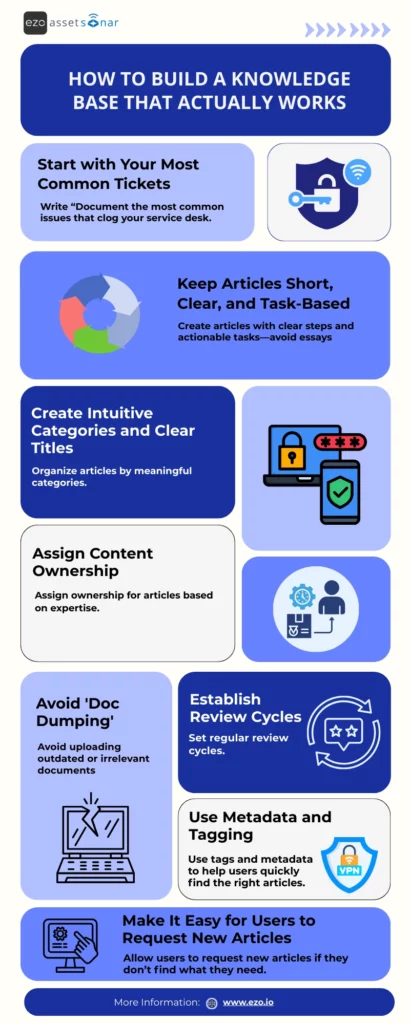
1. Start with your most common tickets
Begin by documenting the issues that clog your service desk every week—password resets, VPN setup, MFA problems, printer configuration, software access requests, device enrollment, etc.
Consider this example: A support lead reviews the past 90 days of tickets and discovers that a majority of requests (~18%) are “Can’t connect to VPN.” That becomes the first article series: VPN Setup, VPN Troubleshooting, Common MFA-VPN Conflicts.
2. Keep articles short, clear, and task-based
Your knowledge base should read like instructions, not like an essay. Users want steps, not long paragraphs.
Instead of a long explanation of “Why printers go offline,” you should create a:
KB Article: How to Fix the “Printer Offline” Issue (Windows & Mac)
With:
- A short intro
- Step-by-step actions
- Quick checks
- Screenshots or short GIFs
This format enhances the scannability of the content and can dramatically increase self-service success.
3. Create intuitive categories and clear titles
A knowledge base succeeds or fails based on how easily people can find information.
Organize articles into meaningful sections such as Access & Permissions, Network Issues, Hardware Troubleshooting, Software Installations, Security & MFA, etc.
You can rename “General Issues” to “Network Connectivity” because users search “network,” not “general.” This slight shift can improve search accuracy by a significant percentage.
4. Assign content ownership
Someone must be accountable for each article. Not the whole KB, but each piece of content.
You can assign different specialists the responsibility to draft and update different kinds of content:
- Access-related articles → Service desk lead
- Networking articles → Network engineer
- Device provisioning → Endpoint management team
Ownership ensures that articles remain accurate and prevents them from becoming outdated.
5. Establish review cycles so nothing goes stale
This is where most IT teams fail. A knowledge base needs a content lifecycle management process. Set monthly or quarterly review cycles depending on article type.
You can set the review cadence as follows:
- Security/MFA articles → review every 30 days
- Software installation guides → review quarterly
- Hardware troubleshooting → review twice a year
This ensures that updates like new OS versions, UI changes, or policy shifts don’t break your content.
6. Avoid doc dumping at all costs
A common mistake is uploading every document the team has: old PDFs, outdated runbooks, random screenshots, and outdated SOPs.
This overwhelms the search and leads to misinformation.
Consider this example: You might audit your KB and end up finding 72 duplicate or outdated articles that you later replace with 12 structured, clean guides. Ticket deflection instantly improves.
7. Use metadata and tagging and keep it simple
You don’t need a heavy technical taxonomy. But tagging articles with simple labels like:
- “Windows”
- “Mac”
- “VPN”
- “MFA”
- “Onboarding”
This semantic clarity helps AI-powered or regular search engines return answers faster.
Consider this example: A new technician searches “Zoom login failure Mac” and instantly pulls up the right troubleshooting guide, thanks to tags/keywords like Mac, Zoom, Authentication, and SSO.
8. Make it easy for users to request new articles
Don’t guess what the knowledge gaps are; simply ask.
A small button inside the portal that asks:
“Didn’t find what you needed? Request a new article.”
This ensures that your KB grows based on real user needs, not assumptions.
Common mistakes to avoid and what to do instead
Even well-intentioned knowledge bases fail when teams fall into predictable traps. Here are the most common mistakes and real examples of how to avoid them.
1. Overly long or vague articles
Nobody wants to read a 2-page explanation before getting to the solution. Long, unfocused articles overwhelm users and lead to more tickets, not fewer.
Here’s an example: A support lead notices that the “VPN Not Working” article is six paragraphs of context and zero actionable steps. Users still submit tickets because they “couldn’t find the fix.” The team rewrites it into a 6-step task-based article with screenshots, and ticket deflection improves immediately.
Avoid this by: Keeping articles short, direct, and instructive—one issue per article with one outcome.
2. No review process
A knowledge base is useless if it becomes outdated. Software UI changes, security policies evolve, and operating systems update, but articles remain the same unless someone owns their upkeep.
Here’s an example: A knowledge manager realizes half the onboarding articles still reference an old MDM tool the company stopped using months ago. New technicians keep getting confused and escalating basic questions.
Avoid this by: Establishing review cycles—monthly for security content, quarterly for software guides, semi-annually for hardware articles.
3. Writing for IT instead of users
Some articles assume too much technical knowledge, leaving non-technical users confused.
Here’s an example: An article says, “Authorize the certificate chain and clear cached policies.”
End-users have no idea what this means, and submit more tickets.
Avoid this by: Using plain language, simple steps, and separating “User Steps” vs. “IT Steps” when needed.
4. Not using analytics to improve the KB
Teams often fail to check which articles users read, which they ignore, and which topics cause repeated tickets.
Here’s an example: A support lead discovers via analytics that the “Password Reset” article gets traffic, but users exit quickly. They update the steps and add screenshots, and completion rates climb.
Avoid this by: Reviewing search analytics monthly and updating weak or confusing content.
Final thoughts
A centralized knowledge base isn’t just a nice-to-have anymore. Rather, it’s a foundational requirement for modern IT teams, especially mid-market organizations that are expected to scale support without adding more headcount. When employees can find answers quickly, and technicians can rely on consistent, validated documentation, IT operations become faster, cleaner, and dramatically more efficient.
But the real transformation happens when your knowledge base doesn’t live in a silo.
This is where an ITAM solution complements your service desk by integrating directly with platforms that bring real-time asset context into the same environment where teams manage KB articles, tickets, and workflow automation.
The result: technicians troubleshoot faster, agents rely less on guesswork, and knowledge articles become more accurate because they’re connected to live device and software data.
For mid-market IT teams balancing high ticket volume, limited staff, and growing complexity, this combination, i.e, centralized knowledge + asset intelligence, creates a unified, high-performance support ecosystem.
Invest in a knowledge base your team can trust.
Pair it with ITAM software to give your technicians the context they need.
And you’ll reduce errors, improve service quality, and create a smoother, more scalable IT workflow for everyone involved.

![[How to] Mass Deploy the AssetSonar Agent Using Microsoft Intune](https://cdn.ezo.io/wp-content/uploads/2021/09/20060637/As-blog-banner-19-Aug-scaled.jpg)
![[How-to] Configure Azure AD Single Sign-on (SSO) Integration With AssetSonar](https://cdn.ezo.io/wp-content/uploads/2020/10/Configure-Azure-AD-Single-Sign-on-SSO-Integration-With-AssetSonar.png)
![[How-to] Effectively Manage Users on Zendesk Through Direct Integration with AssetSonar](https://cdn.ezo.io/wp-content/uploads/2025/03/05103454/AS-support-blog-Zendesk-1-scaled.jpg)




