You can now customize the Low Stock Alert page as per your requirements. For example, users can track which vendor is responsible for restocking particular items.
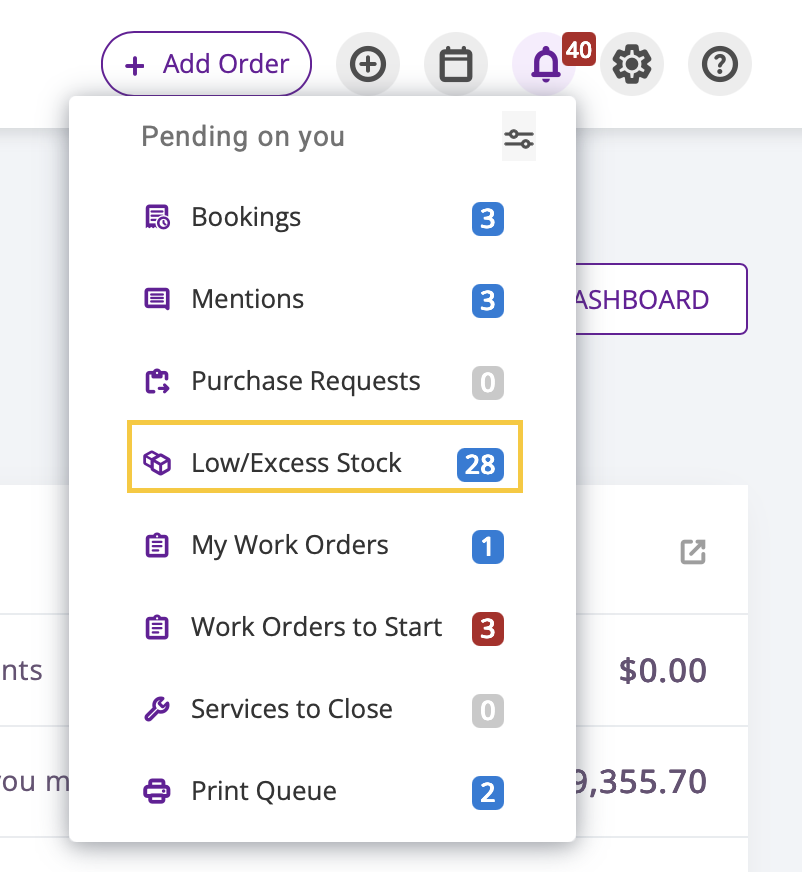
To customize the page, access it from the bell icon in the top-right corner and click on ‘Low Stock’.
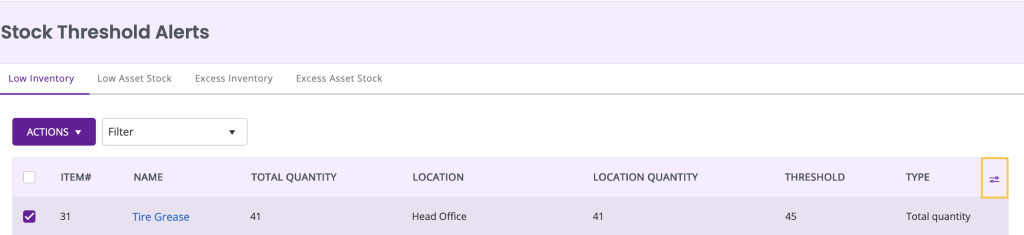
This takes you to the Low Stock Alert page. Once there, click on the slider icon as shown below to customize the columns displayed on the page.
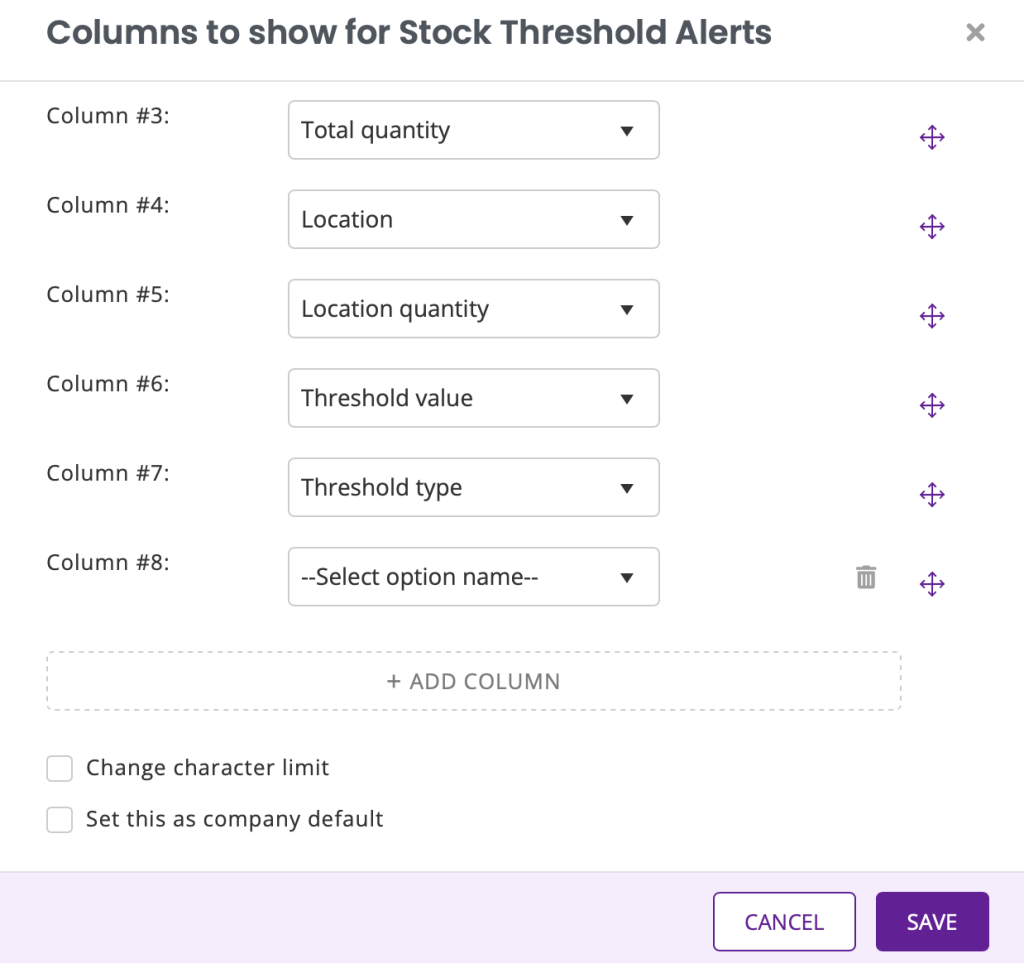
To add a new column, click on the ‘Add Column’ button. The new column, in this case, is named ‘Column #8’. To name the column, select from the list of options available in the dropdown menu. Don’t forget to hit the ‘Save’ button so all your settings are applied successfully.
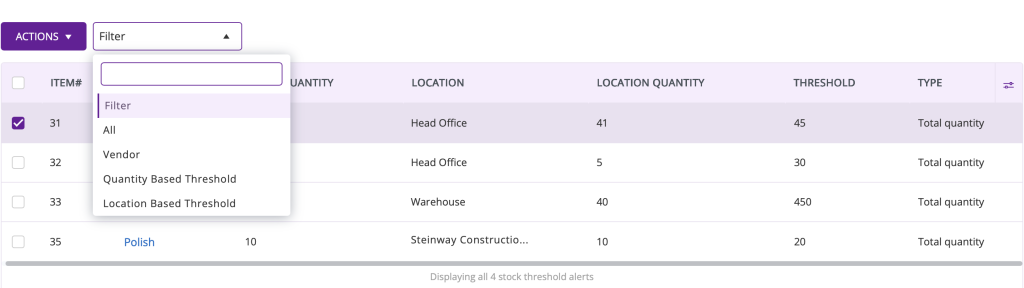
You can also add filters to narrow your results by choosing from the filters dropdown: