Why It Matters
Using reply templates ensures your team provides consistent, professional, and accurate information every time. It drastically reduces manual typing for common issues, allowing agents to resolve high-volume requests in seconds rather than minutes.
How to Set It Up
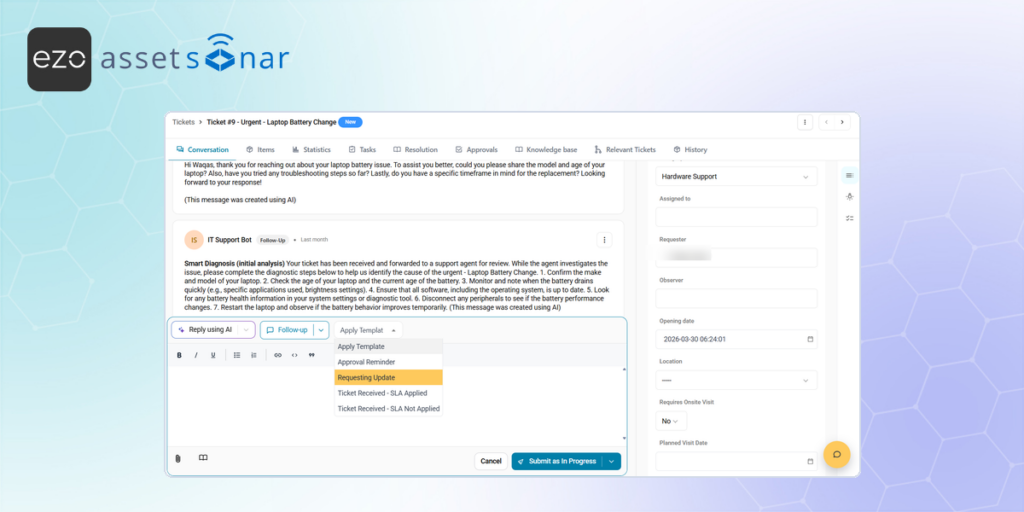
- Access the Response Box: Navigate to Assistance → Tickets and open an active ticket. Locate the response box within the ticket’s timeline and ensure the dropdown is set to either Followup or Solution.
- Select a Template: Instead of typing from scratch, look for the Templates dropdown menu beside the Response Type. Select the relevant template from your pre-configured list to automatically populate the message body with standardized text.
- Review and Submit: Review the populated text to ensure it fits the specific context of the user’s issue, make any necessary minor adjustments, and click the Submit button to send your response.
Next Steps
Open a test ticket and apply a “Password Reset” or “General Greeting” template from the Templates dropdown to see how quickly it formats your response.
Was this helpful?
Thanks for your feedback!