You can print labels for Items associated with a Location from the Location details page. To do this, go to Locations → Select a Location.
Here, you’ll see Items’ tabs belonging to this Location.
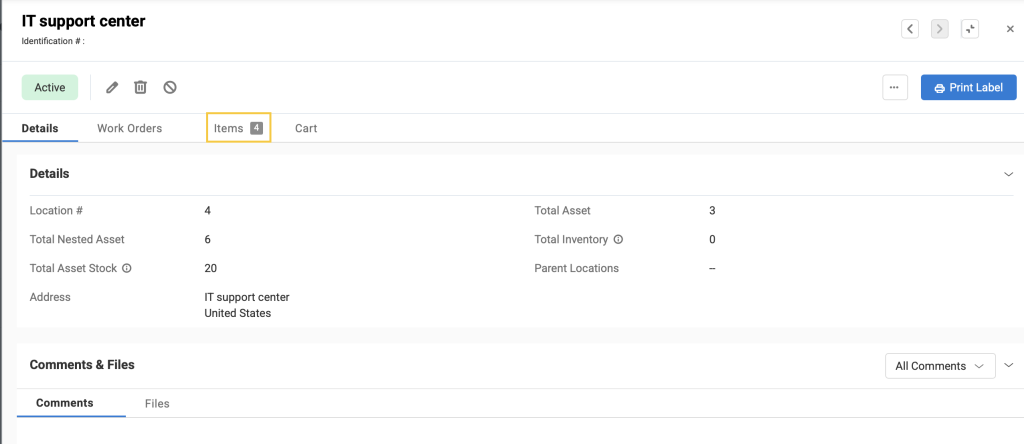
Note: The ‘Print Label’ button on the right of this page only generates labels for this location. This will play out only if you have a template set up for Locations in More → Printout templates.
To print labels for Items e.g. only Assets, follow the below-mentioned steps:
- Select the Assets in the Assets tab.
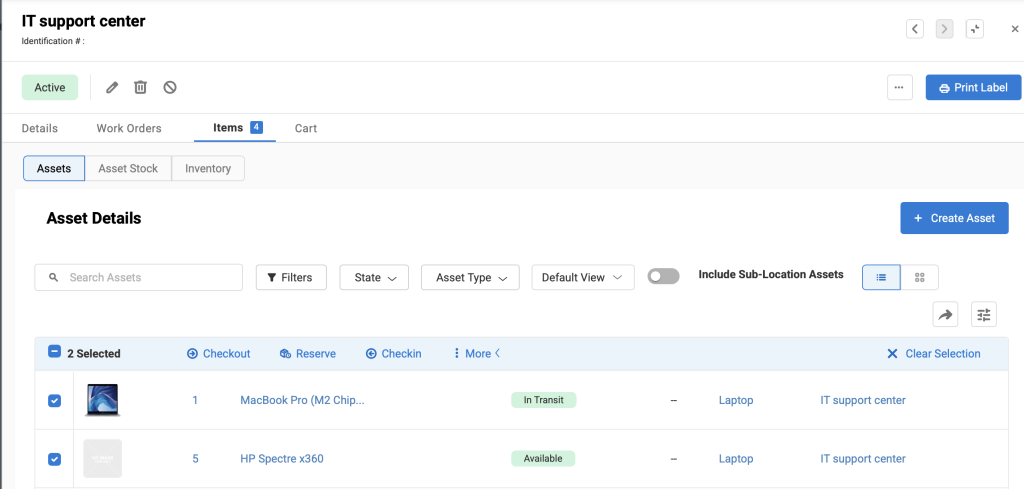
2. Click on the Actions dropdown button → Choose ‘Print Label’.
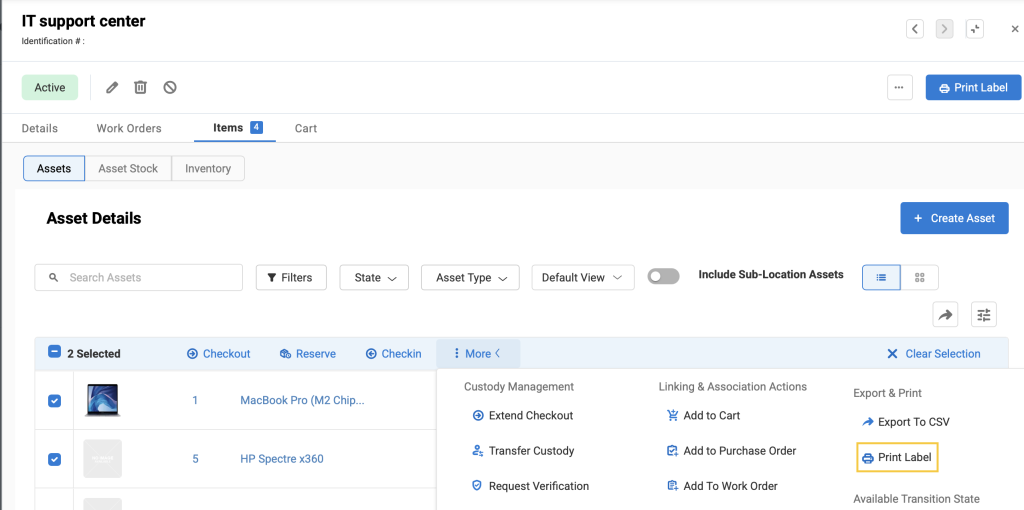
3. You can access these labels from the Notifications bell → Print Queue. See ‘Recently Printed Labels’ on the right of this page.

You can also receive these print labels via email. This will work if you have enabled the ‘Email Print Labels’ alert in More → Alerts → Locations.
You can also print labels for Asset Stock and Inventory belonging to a Location – from its details page.
Learn more about Print Labels.
