Employees often request IT support from the same place they communicate with the rest of the team. The Slack integration for AssetSonar ITSM connects your service desk with Slack so employees can request help, view suggested knowledge base articles, create tickets, receive updates, and respond to IT without switching tools.
The integration has two parts. First, the Slack workspace is connected to AssetSonar ITSM by an Account Owner or an authorized admin. Once that setup is complete, employees can find the EZO IT Support bot inside Slack and use it to start support conversations.
This guide explains how the Slack integration works, how to confirm the setup, and how employees can use the bot after it is available in their Slack workspace.
1. What the Slack Integration Does
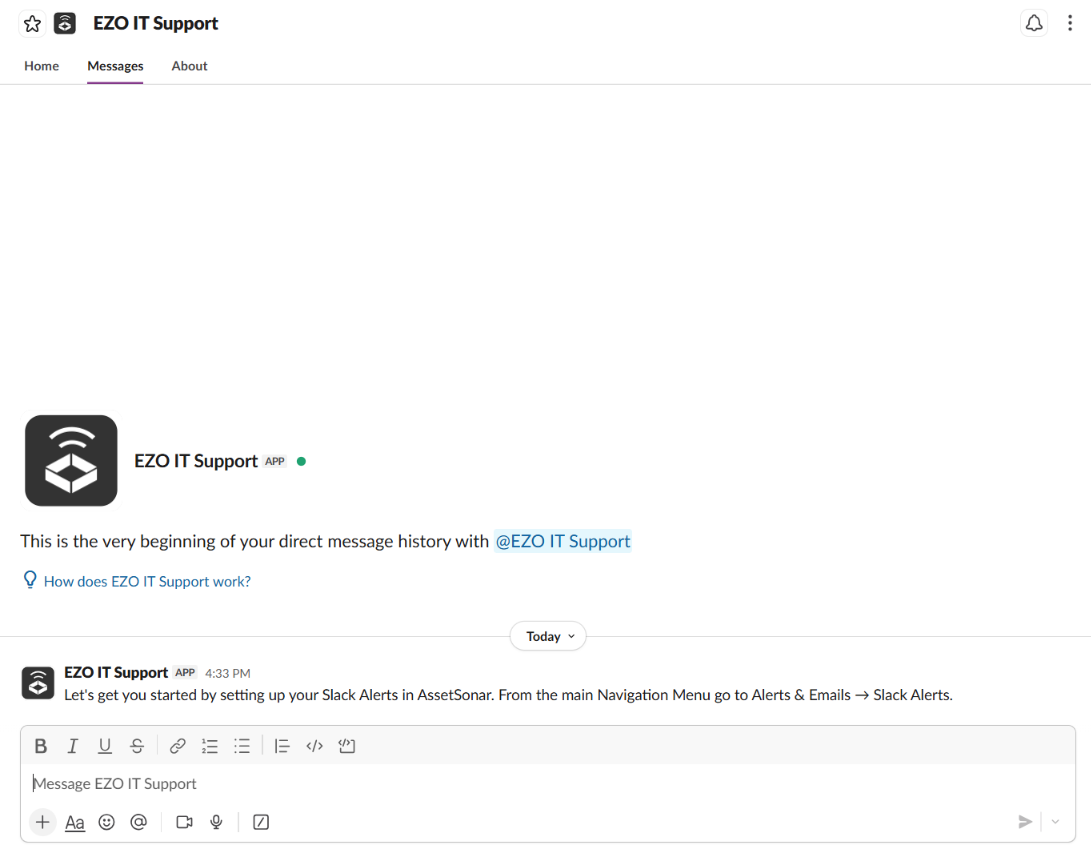
The Slack integration brings AssetSonar ITSM support intake into Slack. Once the app is connected to your workspace, employees can send a direct message to the EZO IT Support bot and describe the issue they need help with.
Depending on the request and your account setup, the bot can suggest relevant knowledge base articles, show the correct ticket form, or help the employee create a ticket. After the ticket is created, agents can continue managing the ticket in AssetSonar ITSM while employees receive updates and respond from Slack.
Use this integration when you want to:
- Let employees request IT support from Slack.
- Reduce tool switching for employees.
- Route Slack-based requests into AssetSonar ITSM.
- Share ticket updates with employees in Slack.
- Let employees reply to agent messages from Slack.
- Collect solution responses and satisfaction feedback after ticket resolution.
2. Before You Begin
Before configuring the Slack integration, make sure you have an active AssetSonar account with ticketing/ITSM enabled.
If you do not see ITSM options in your account, contact AssetSonar support before continuing.
3. Set Up the Slack Integration
The Slack integration is configured at the account/workspace level before employees can use the EZO IT Support bot in Slack. Depending on your implementation flow, this setup may be completed by your AssetSonar Account Owner or an authorized admin. You may also reach out to us for assistance at support@ezo.io.
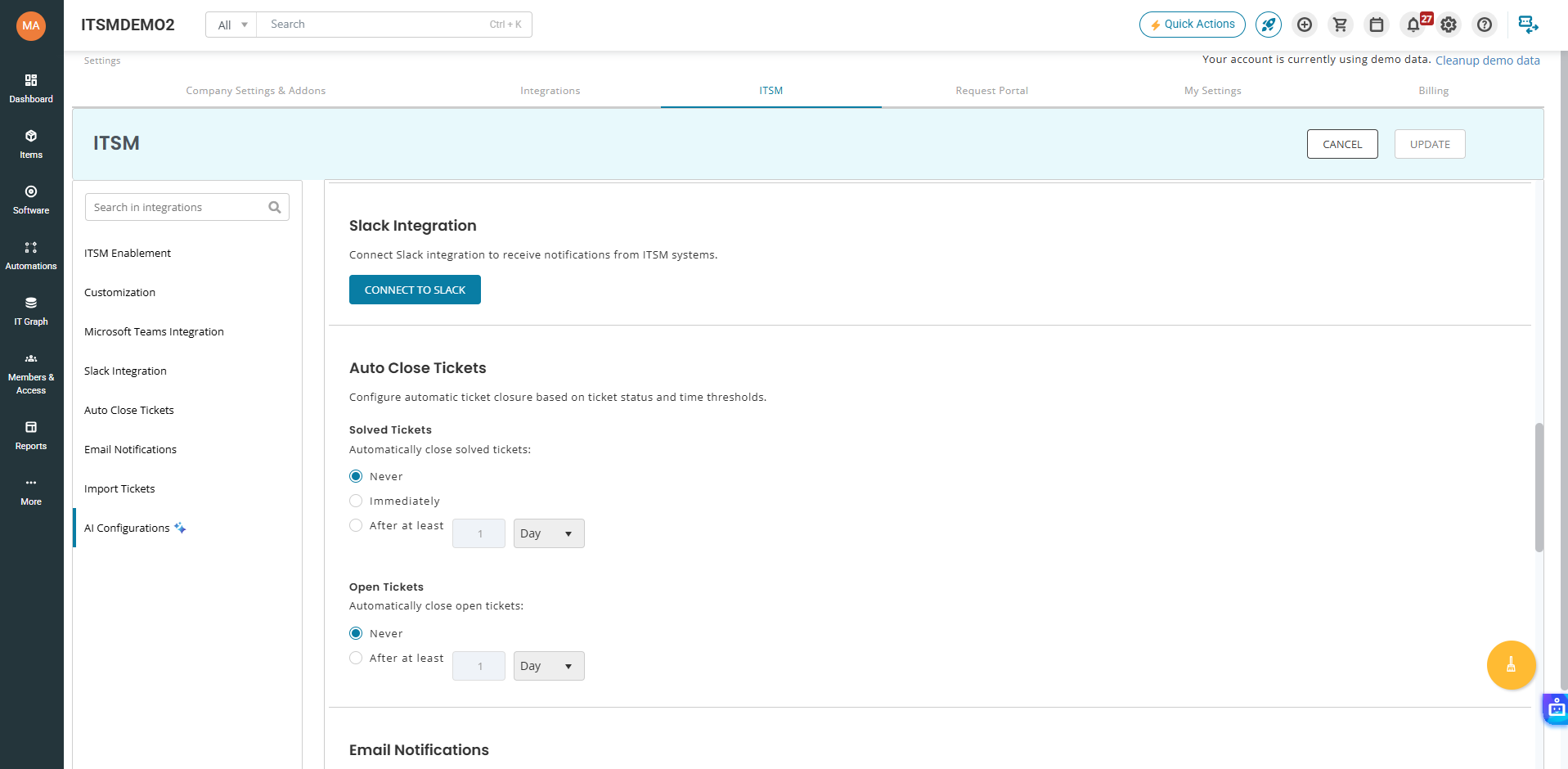
To check the integration status in AssetSonar ITSM, go to Settings → ITSM → Slack Integration.
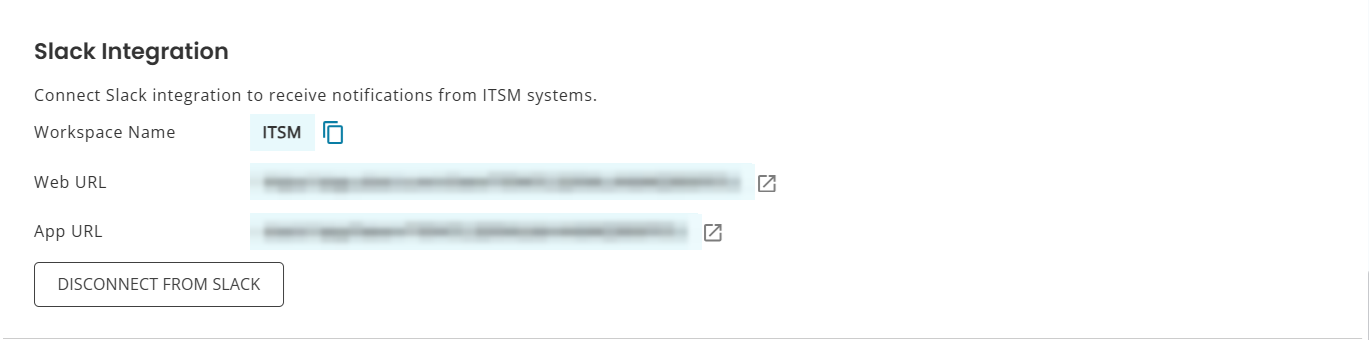
Use this page to confirm whether your Slack workspace has been connected to the correct AssetSonar ITSM account. Once the integration is active, the page will show workspace details such as the Workspace Name, Web URL, App URL, and the option to disconnect Slack if needed.
Use the Web URL to open the connected Slack workspace in a browser, or use the App URL to open the EZO IT Support app directly in Slack.
4. Confirm the Setup Before Rollout
Before asking employees to use the bot, confirm that the Slack integration is working as expected.
Check that:
- The EZO IT Support bot appears in Slack for test users.
- The Slack workspace is connected to the correct AssetSonar ITSM account.
- Employee email addresses match across Slack and AssetSonar.
- Users have the required permissions to access the relevant forms, tickets, and knowledge base articles.
The email match is important because AssetSonar ITSM uses it to identify the Slack user and show the correct support options.
If a user cannot find the expected forms, create a ticket, or access suggested knowledge base content from Slack, check whether their Slack profile email matches their AssetSonar user account email.
Note: Employees do not need to install the app individually once the Slack workspace has already been connected. They only need to find and use the EZO IT Support bot in Slack.
Note: Permission-based access still applies. Users only see the forms, tickets, and knowledge base articles they are allowed to access in AssetSonar ITSM.
5. Find the EZO IT Support Bot in Slack
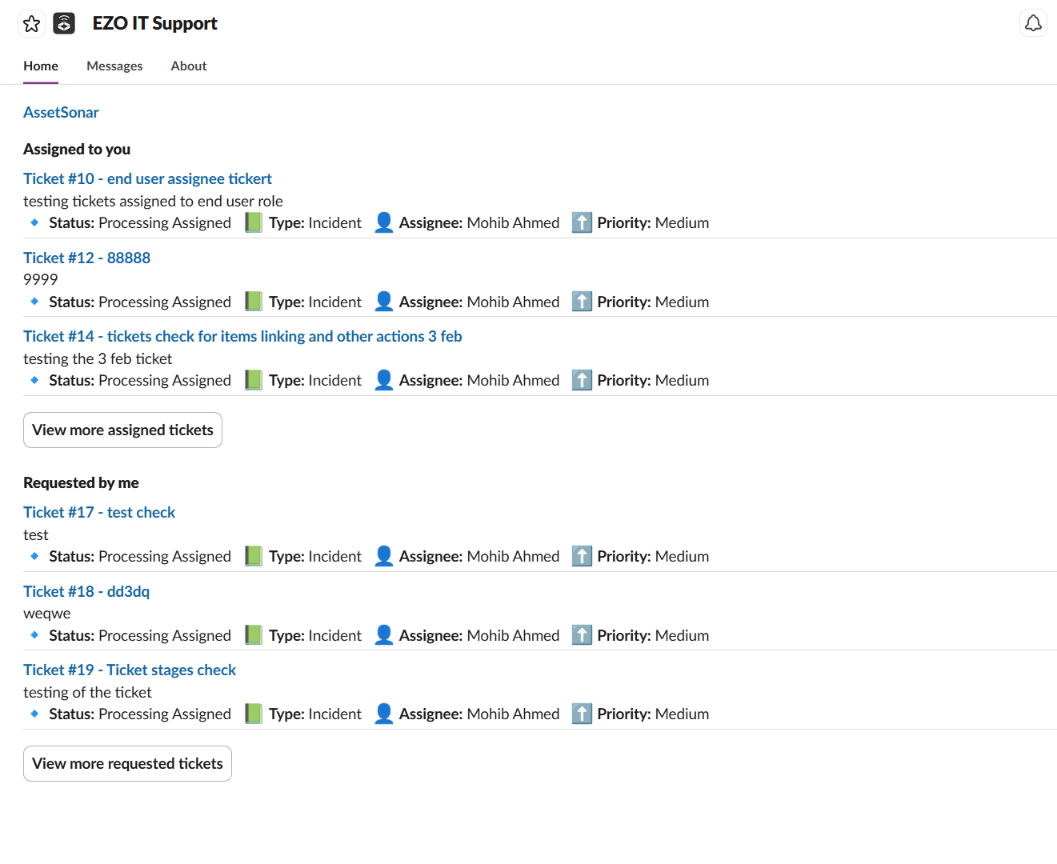
Once the Slack integration is configured, employees can access the bot from Slack.
To get started:
- Open Slack.
- Go to Apps.
- Search for EZO IT Support.
- Open the app or direct message.
- Send a message describing the issue or request.
For example, an employee can send:
- “I need help with my laptop battery.”
- “I cannot access my assigned software.”
- “I need a new mouse.”
- “My device is not connecting to Wi-Fi.”
The bot uses the employee’s message to guide the next step. Depending on the request, it may show a suggested help article, display a ticket form, or ask for more details.
6. View Knowledge Base Suggestions
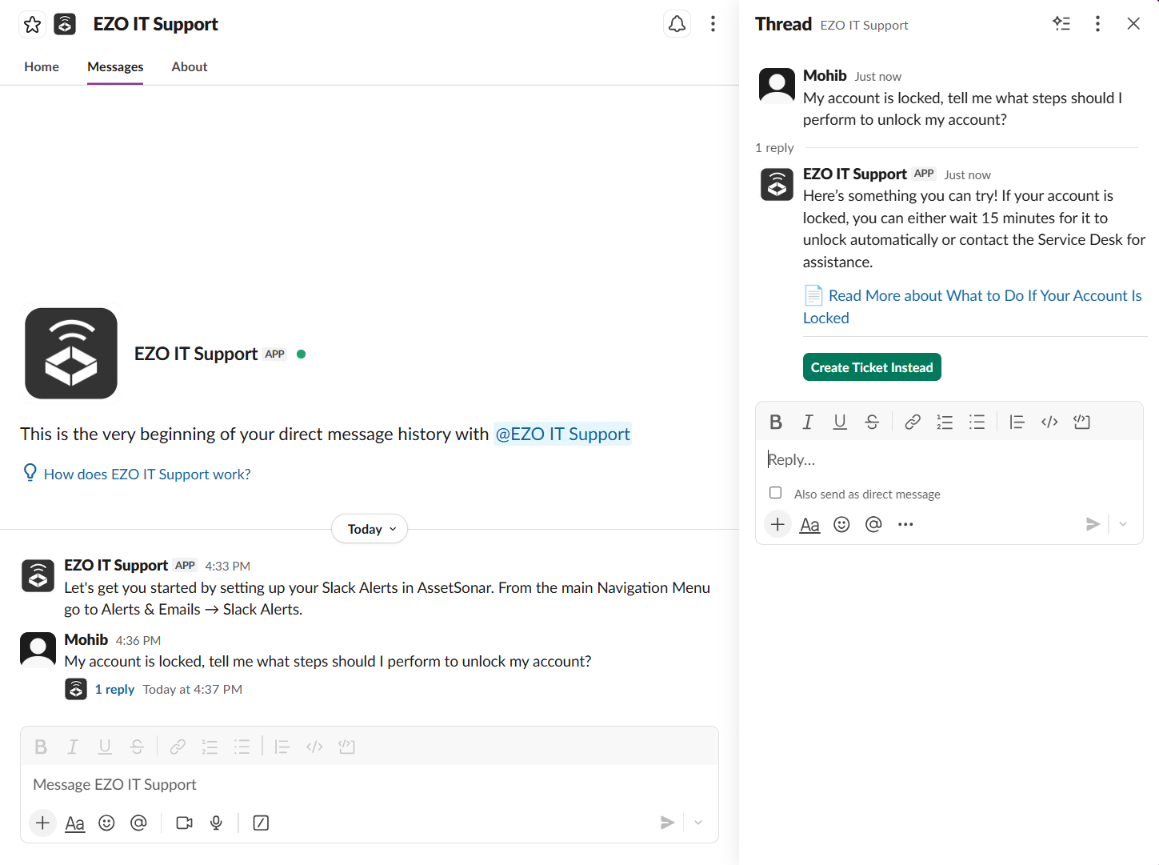
When an employee sends a request, the bot can suggest relevant knowledge base articles before a ticket is created. This helps employees resolve common issues on their own when a useful article is available.
If the suggested article solves the issue, the employee can follow the article and avoid creating a ticket. If the issue still needs IT support, the employee can continue with ticket creation from Slack.
7. Create a Ticket from Slack
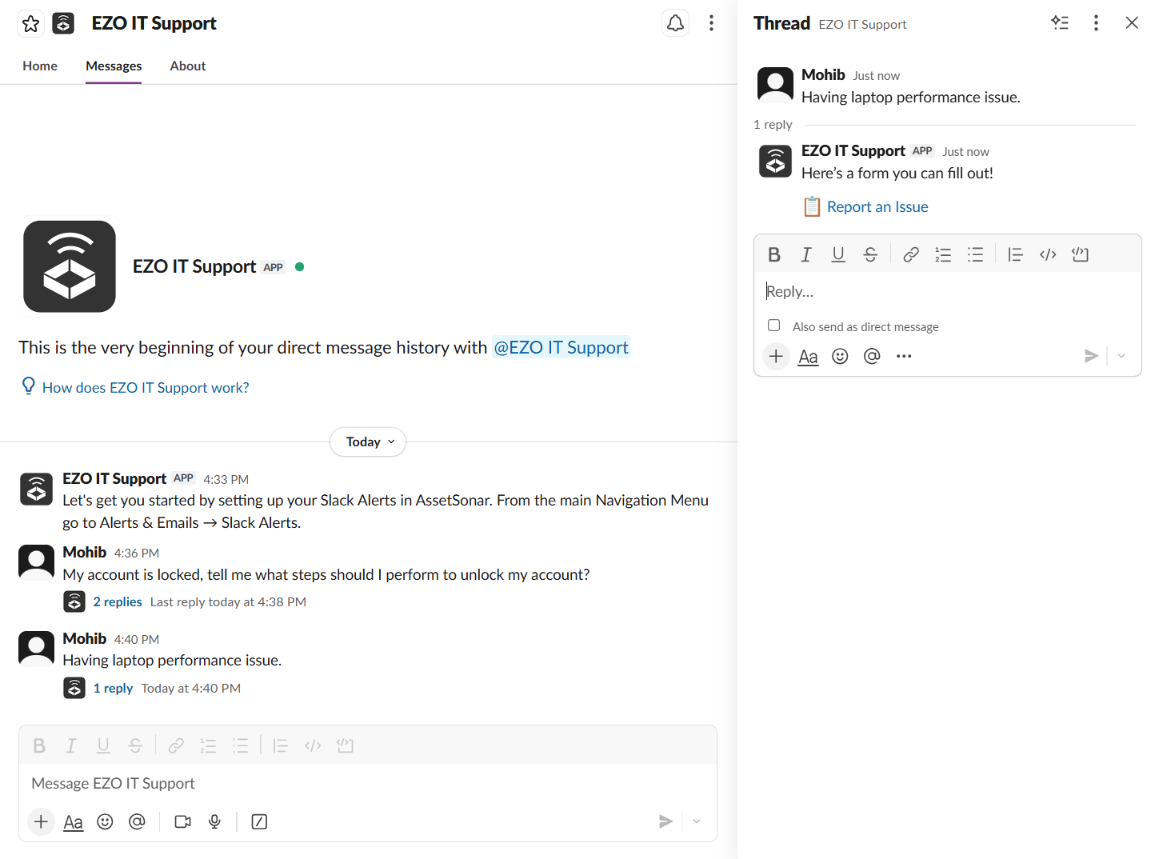
If the issue needs IT support, the employee can create a ticket from the Slack conversation.
The bot shows the relevant ticket form based on the employee’s request, permissions, and your ITSM configuration. The employee can enter the required details and submit the request.
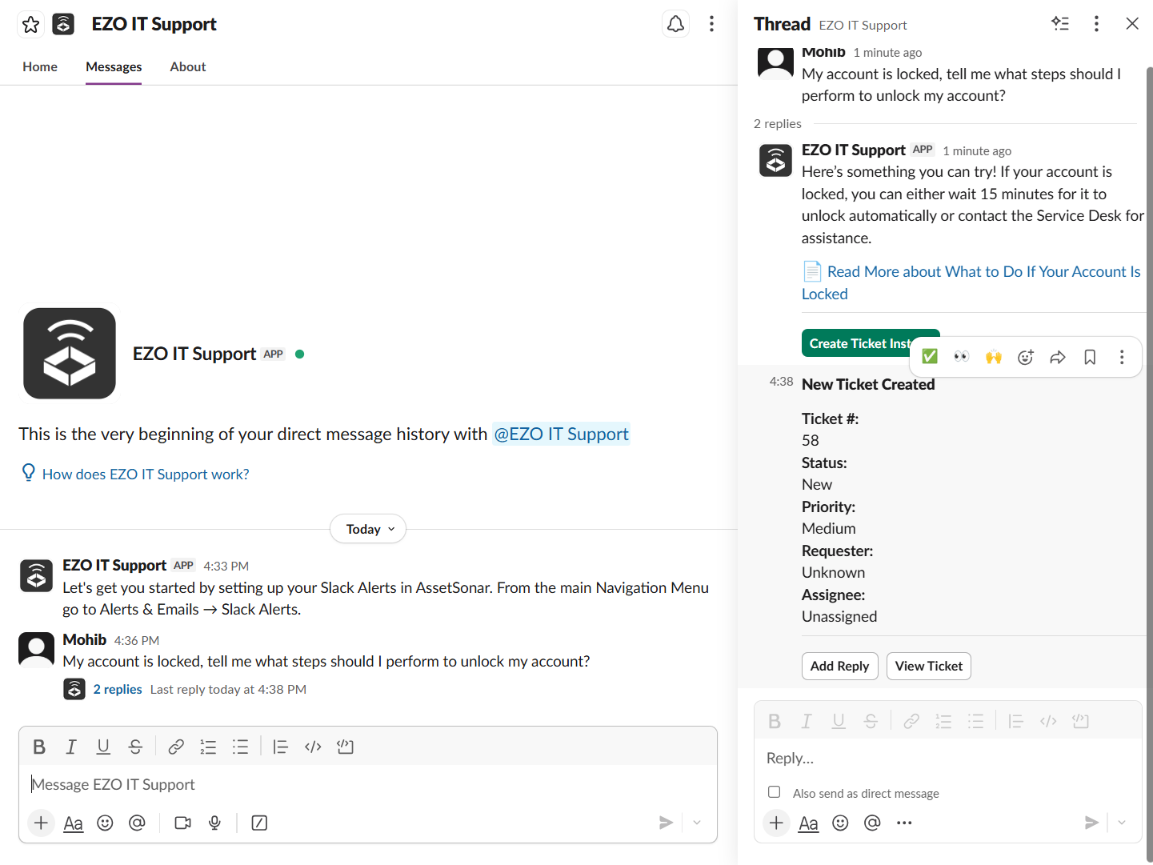
Once submitted, the ticket is created in AssetSonar ITSM for the support team to review, assign, and resolve.
Note: The form is submitted and managed inside AssetSonar ITSM even though the employee started the request from Slack. However, they will still receive relevant notifications for the ticket in Slack and will be able to respond to them as usual.
8. Receive Ticket Updates and Reply from Slack
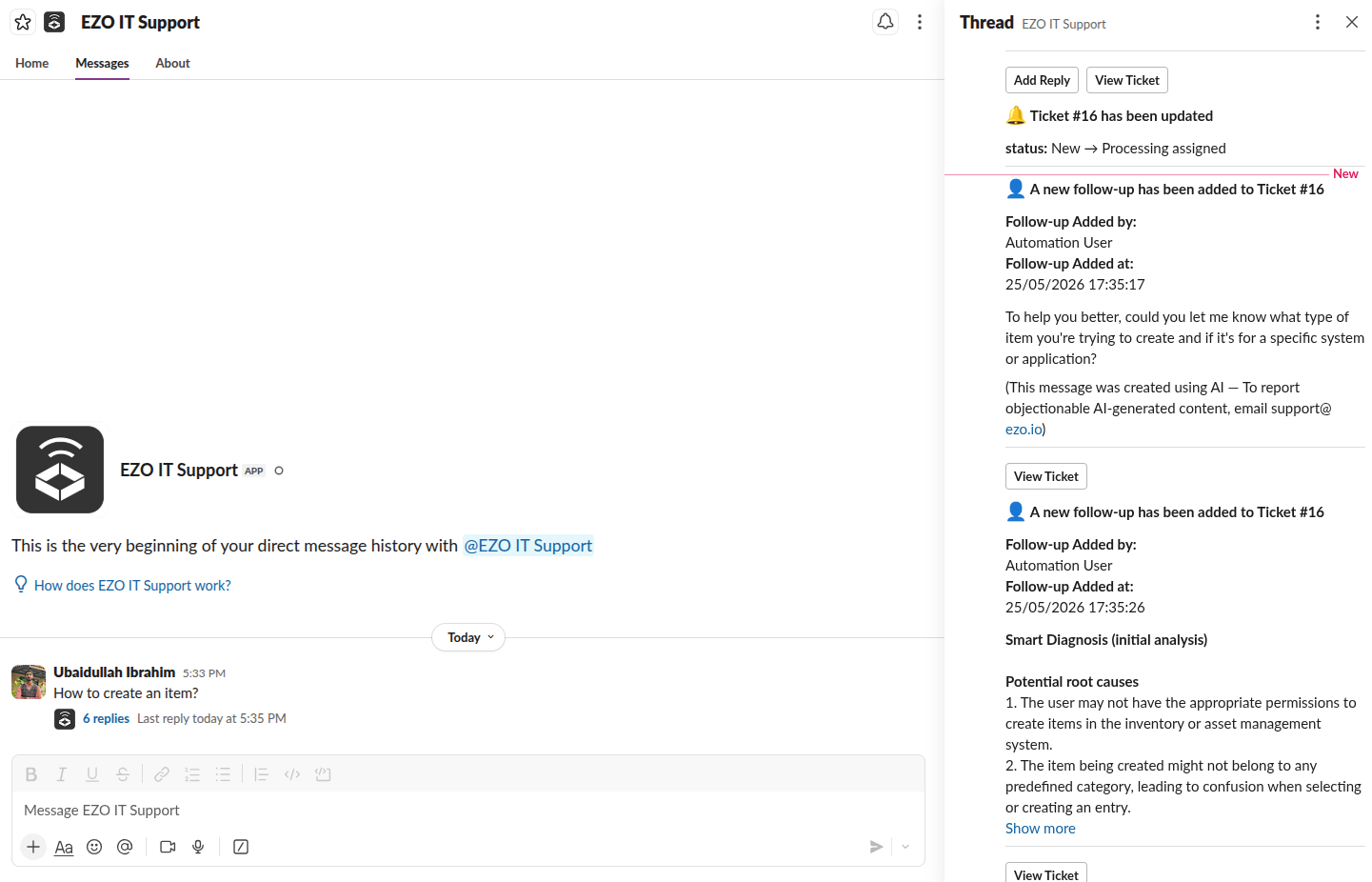
After the ticket is created, employees can receive updates in Slack. This keeps them informed without requiring them to open AssetSonar ITSM separately.
When an agent replies from AssetSonar ITSM, the employee can view the response in Slack. The employee can also reply from the Slack conversation, and that response is added back to the ticket in AssetSonar ITSM.
This keeps the conversation connected across both tools:
- Employees can communicate via Slack.
- Agents can manage tickets from AssetSonar ITSM.
- Ticket history remains available in the service desk.
9. Confirm Solutions and Submit Feedback
When an agent proposes a solution, the employee may receive response options in Slack, such as:
- Solution works
- Solution doesn’t work
If the employee confirms that the solution works, AssetSonar ITSM can close the ticket and send a satisfaction survey through Slack. If the solution does not work, the conversation can continue so the agent can provide further help.
This helps IT teams close the feedback loop while keeping employees updated in Slack.
10. Disconnect or Reconnect Slack
If you need to remove or refresh the Slack integration, go to Settings → ITSM → Slack Integration in AssetSonar ITSM.
You may need to disconnect or reconnect Slack if:
- The wrong Slack workspace was connected.
- Your organization changed Slack workspaces.
- Slack permissions need to be refreshed.
- The integration needs to be reconfigured after testing.
After reconnecting Slack, ask a test user to find the EZO IT Support bot in Slack and send a test request to confirm that the workflow is working.
11. Privacy and Support
The AssetSonar ITSM Slack integration uses Slack workspace and user information to connect employees with the correct AssetSonar ITSM account, support forms, tickets, and knowledge base content. Access to ITSM content continues to follow the permissions configured in AssetSonar.
Review the AssetSonar Privacy Policy to learn more about how AssetSonar handles data.
Ready to Bring IT Support into Slack?
With the AssetSonar ITSM Slack integration, employees can request help, receive ticket updates, respond to IT, and submit feedback from Slack. Your support team can continue managing tickets in AssetSonar ITSM while employees stay connected through the workspace they already use.
To get started, confirm that the Slack workspace is connected in Settings → ITSM → Slack Integration, verify user email matching, and ask employees to search for EZO IT Support in Slack.
For help with setup, access, or troubleshooting, you may reach out to us at support@ezo.io.
