Why It Matters
Connecting AssetSonar ITSM with Slack lets employees request support from the communication workspace they already use every day.
With the Slack integration enabled, users can interact with the EZO IT Support bot, submit tickets, receive updates, and stay connected to IT without switching tools.
How to Set It Up
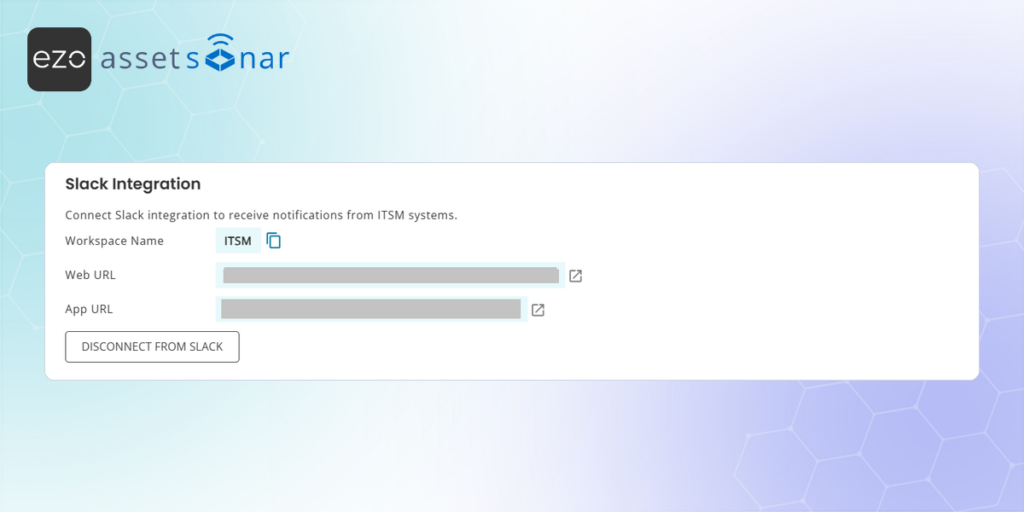
First, go to Settings → ITSM from the AssetSonar ITAM side and enable the Slack integration.
Next, install the EZO IT Support app in your Slack workspace. A Slack workspace admin may need to approve or install the app, depending on your organization’s Slack permissions.
After the app is installed, verify that employee email addresses match across Slack and AssetSonar. AssetSonar uses this email match to authenticate users and show the correct forms, tickets, and knowledge base content.
Note: If a user cannot access the bot or see the expected forms, check that their Slack email address matches their AssetSonar user account.
Next Steps
Install the app in your Slack workspace, verify your own email address across Slack and AssetSonar, and send a test message to the bot to confirm that the integration is working.

![[ITSM | How-to] Using the MS Teams Bot for IT Support in AssetSonar](https://cdn.ezo.io/wp-content/uploads/2026/03/18092656/microsoft_teams_message_assetsonar_banner.png)
![[ITSM | How-to] Setting Up the MS Teams Integration in AssetSonar](https://cdn.ezo.io/wp-content/uploads/2026/03/18092837/microsoft_teams_integration_assetsonar_banner.png)