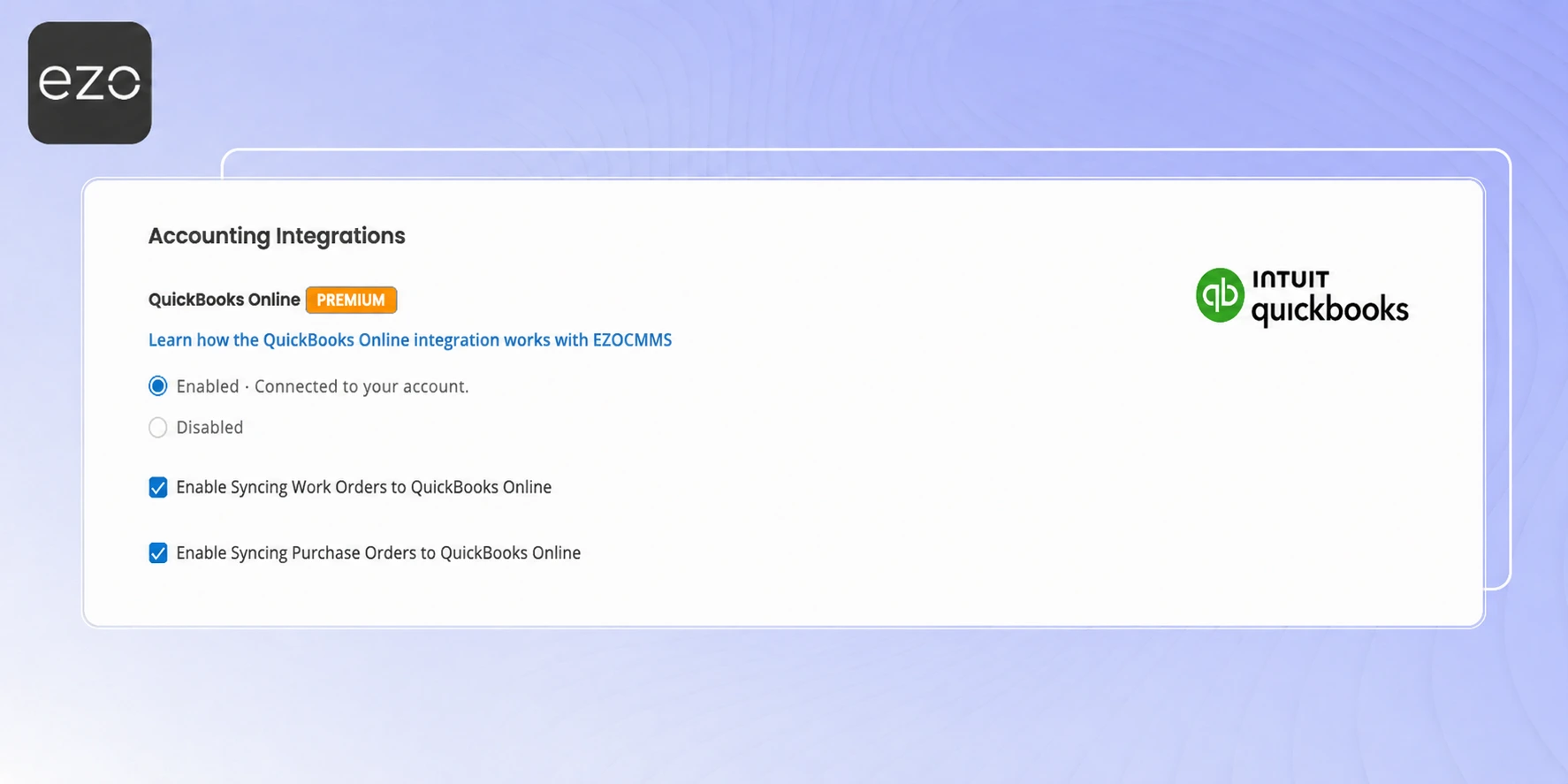
With the QuickBooks Online integration, you can sync Work Orders from EZO directly into QuickBooks Online as expenses, keeping your maintenance costs and accounting records aligned.
This guide walks you through connecting QuickBooks Online with EZO, mapping your accounts, and syncing Work Orders.
1. Connecting to QuickBooks Online with EZO
To start, connect your QuickBooks Online account with EZO.
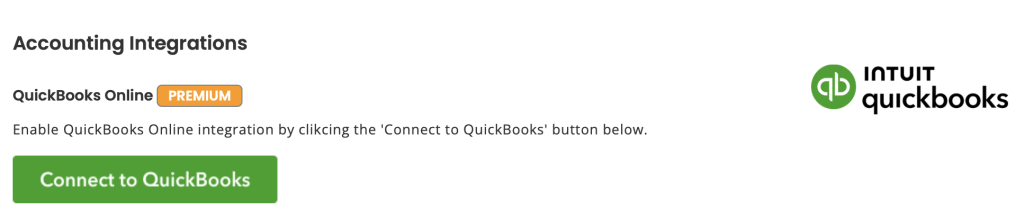
- From your EZO account, go to Settings → Integrations → Accounting Integrations.
- Click Connect to QuickBooks.
3. The Intuit App Center pop-up will appear. Click Connect to allow Intuit to securely share your QuickBooks data with EZO.
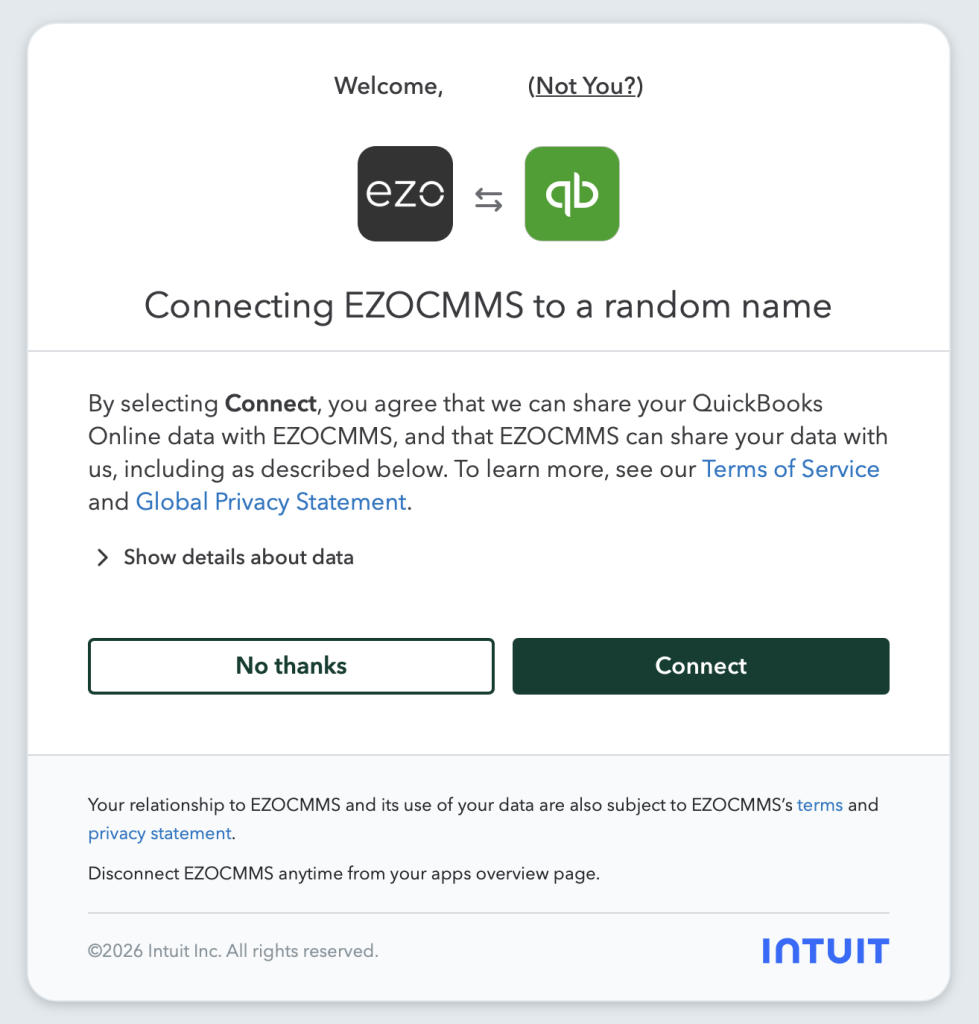
Once authorized, EZO will connect with QuickBooks Online.
Note: This process is quicker if you are already signed in to QuickBooks Online before starting the connection.
4. After signing in, specify the Chart of Accounts.
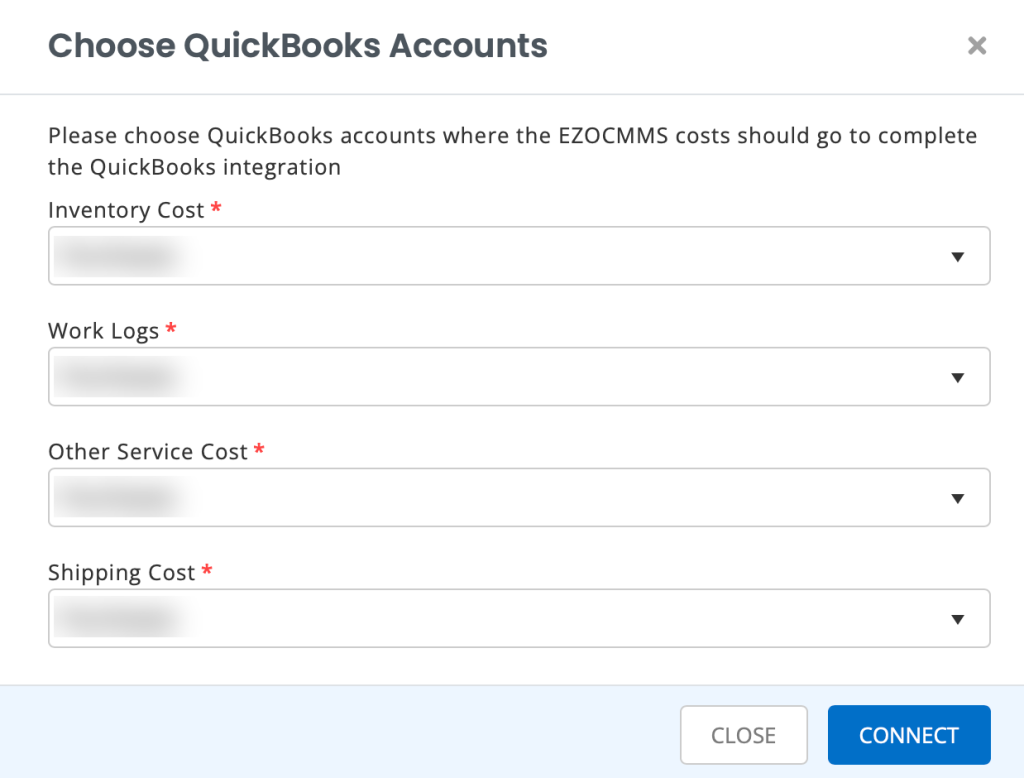
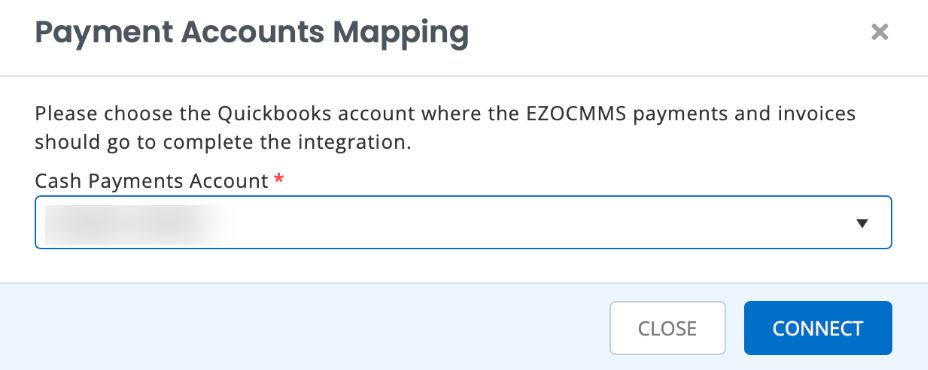
These mappings decide where EZO transactions appear in QuickBooks Online. For example, inventory cost from EZO can be mapped to the relevant account in QuickBooks Online. Most businesses configure these mappings once during setup and only update them if their accounting structure changes.
2. Sync Work Orders to QuickBooks Online
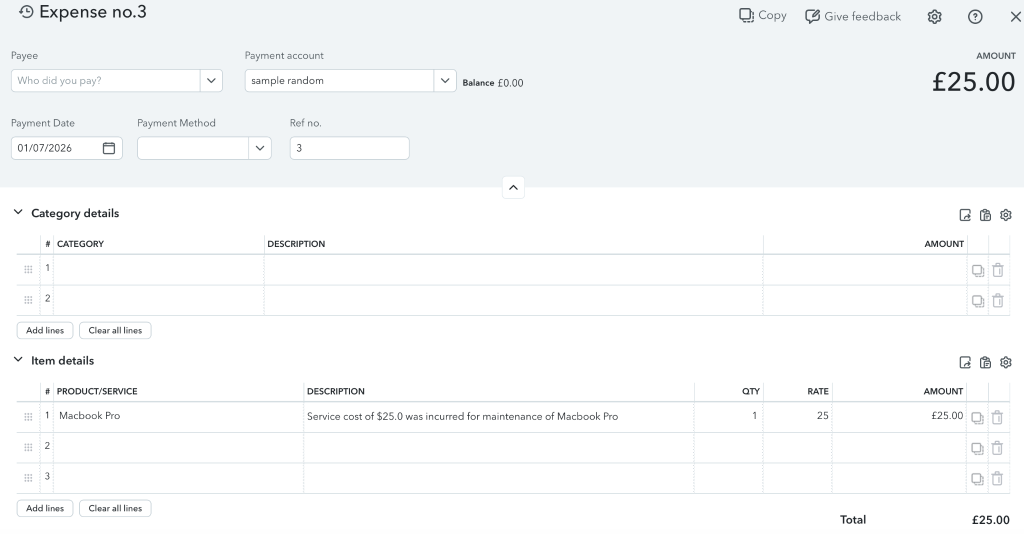
Once a Work Order is ready, you can sync it to QuickBooks Online. EZO will create a corresponding Expense in QuickBooks with any associated costs listed as separate line items.
Note: You can only sync Work Orders to QuickBooks Online if you have the CMMS add-on enabled for your account.
Follow the steps given below to sync your Work Orders with QuickBooks:
- Navigate to CMMS → Work Orders and choose a Work Order (WO) from the Work Orders listing page.
- Click “Start Work Order” to proceed.
- Once the WO has been started, click “More” and select “Sync Work Order With QuickBooks” from the drop-down menu.
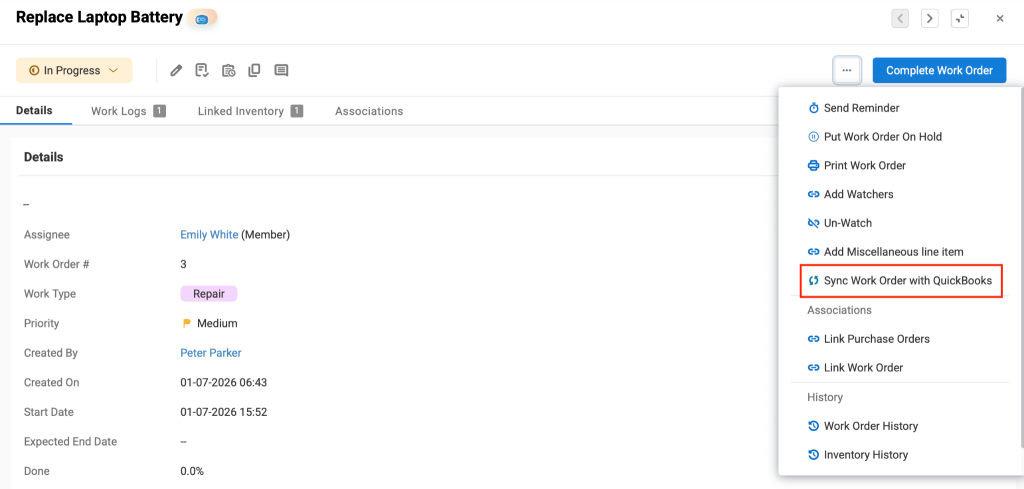
Your WO has now been successfully synced with the QuickBooks Online integration. To view it in QuickBooks, click the number generated against the QuickBooks Expense field. This will redirect you to your QuickBooks Online account, where you can view the expenses associated with the Work Order.
2. Sync Purchase Orders to QuickBooks Online
Keeping your procurement and accounting records in sync shouldn’t mean double the work. If your team manages purchase orders in EZO and tracks financials in QuickBooks Online, you can now sync Purchase Orders (POs) created in EZO directly into QuickBooks Online. So, what’s recorded in EZO is automatically reflected in your accounting system, without manual re-entry.
With this integration, PO details like sales terms, invoice numbers, and memo notes are mapped to the appropriate QuickBooks fields automatically. EZO also handles Item syncing, which means that if an Item on a PO doesn’t exist in QuickBooks, EZO automatically creates it for you.
2.1 Enable Purchase Order Syncing for QuickBooks Online
To allow EZO to sync your purchase orders with QuickBooks Online, navigate to Company Settings → Integrations → QuickBooks Online and check the box next to Enable Syncing Purchase Orders to QuickBooks Online. Click the Update button to save your changes.
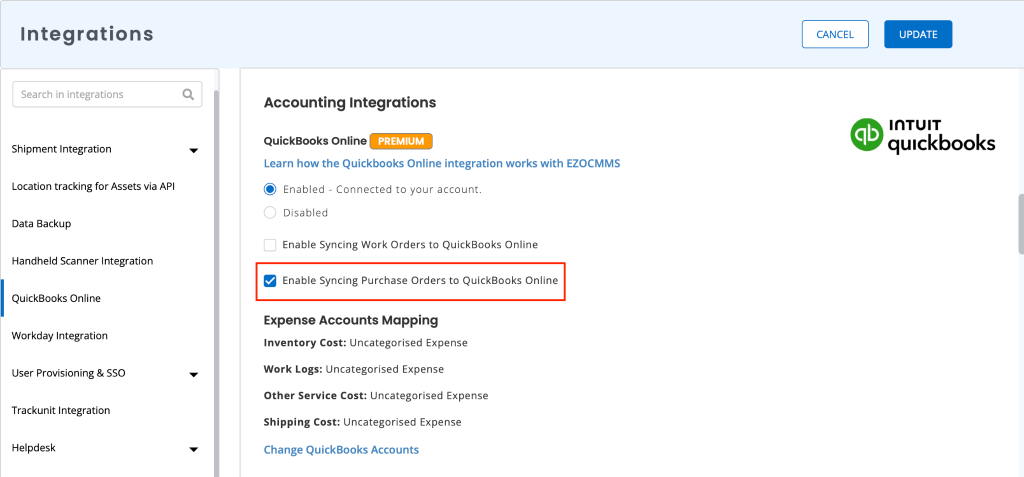
Once enabled, EZO will be able to sync POs to QuickBooks according to the field mappings outlined below.
2.2 Sync a PO into QuickBooks Online
You can sync a Purchase Order from EZO into QuickBooks Online once it is in a Confirmed or higher state.
To sync a Purchase Order with QuickBooks Online:
- Navigate to Purchase Orders and open the relevant Purchase Order.
- Open the More dropdown and select Sync Purchase Order with QuickBooks.
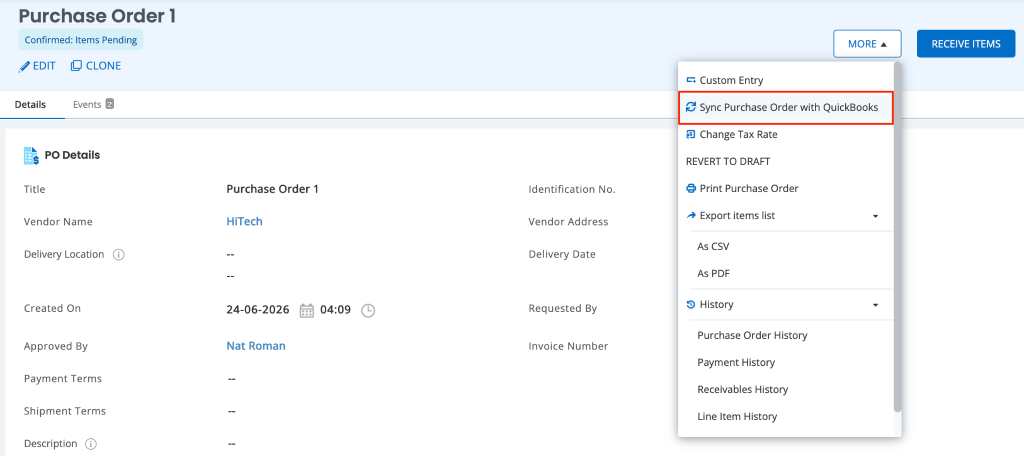
Once synced, you’ll see a “Successfully synced with QuickBooks” pop-up.
2.3 Field Mapping
When a Purchase Order is synced from EZO to QuickBooks Online, the following fields are mapped automatically:
| EZO Field | QuickBooks Online Field |
| PO Number | Doc Number |
| Created On | Transaction Date |
| Requested by | Custom Field |
| Vendor | Vendor |
| Vendor Address | Vendor Address |
| Delivery Location | Shipping Address |
| Delivery Date | Due Date |
| Approver | Custom field |
| Invoice Number | Private note |
| Payment Terms | Payment Terms |
| PO Notes | Private Note |
| PO Status | PO Status |
| Tax Rate | Tax Code |
Line Item Mapping
Individual line items on a Purchase Order are mapped as follows:
| EZO Line Field | QuickBooks Online Line Field |
| Item Name | Product/Services |
| Quantity | Qty |
| Unit Cost | Unit Price |
| Total | Amount |
| Expense Account | Account Reference |
2.4 Validations & Error States
Not every sync goes through on the first try, and that’s by design. Before sending a Purchase Order to QuickBooks Online, EZO validates your data to ensure everything is in order. If any of the conditions below aren’t met, the sync will be blocked and an error message will appear to guide you on what needs to be fixed.
| Scenario | Error Message | How to Resolve |
| Selected expense account is not of type Expense | “Only Expense accounts can be selected for Purchase Orders. Please choose a valid expense account in QuickBooks.” | Go to QuickBooks Online and ensure the selected account is categorized as an Expense account. |
| Vendor does not exist in QuickBooks Online | “Vendor not found in QuickBooks Online. Create this vendor in QBO or map to an existing vendor.” | Create the vendor in QuickBooks Online before retrying the sync. |
2.5 What a Successful Sync Looks Like
Once a Purchase Order has been synced, you can verify the results on both sides:
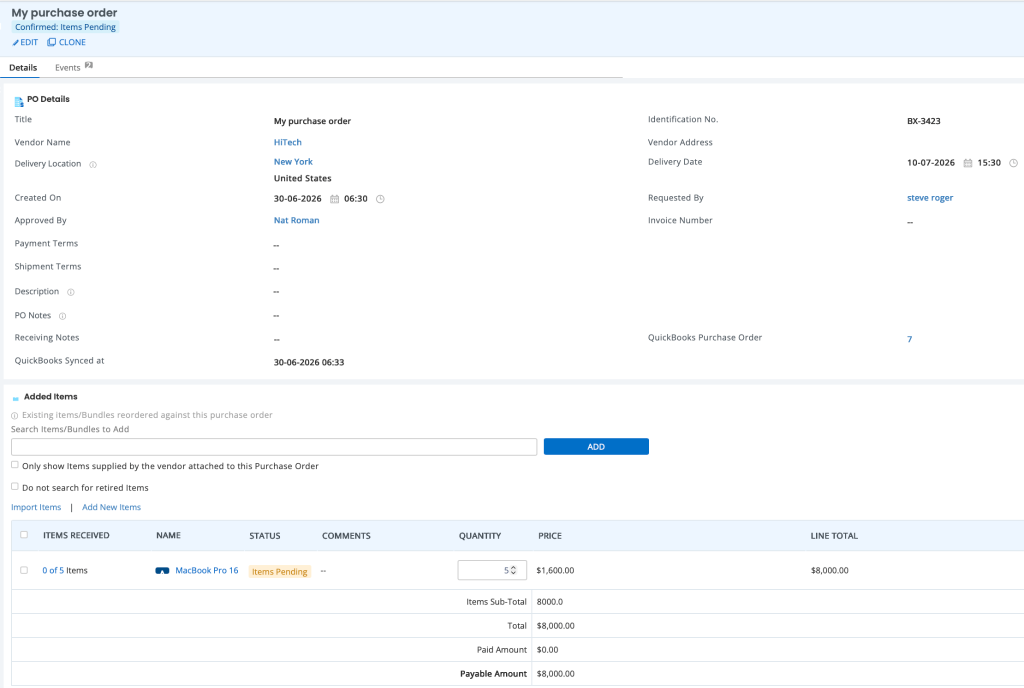
In EZO, once the Purchase Order is synced, the QuickBooks Purchase Order field will be populated. Clicking on it takes you directly to the Purchase Order in QuickBooks Online.
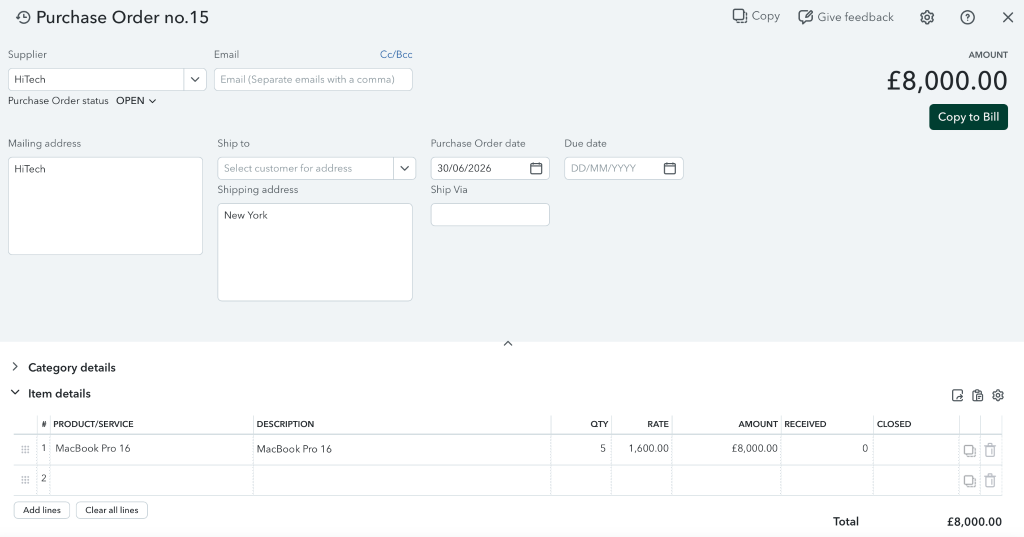
In QuickBooks Online, the same Purchase Order will appear with the mapped fields populated — vendor, line items, amounts, and notes all matching what was entered in EZO.
Get Started with QuickBooks Online
The QuickBooks Online integration keeps your maintenance costs and procurement records in sync with your accounting system. There is no manual data entry, no mismatched numbers, and no extra work for your finance team. Once connected, your team can sync Work Orders and Purchase Orders directly from EZO and review all associated details in QuickBooks in just a few clicks.
If you run into any issues during setup or syncing, reach out to us at support@ezo.io. We’re happy to help.