Why It Matters
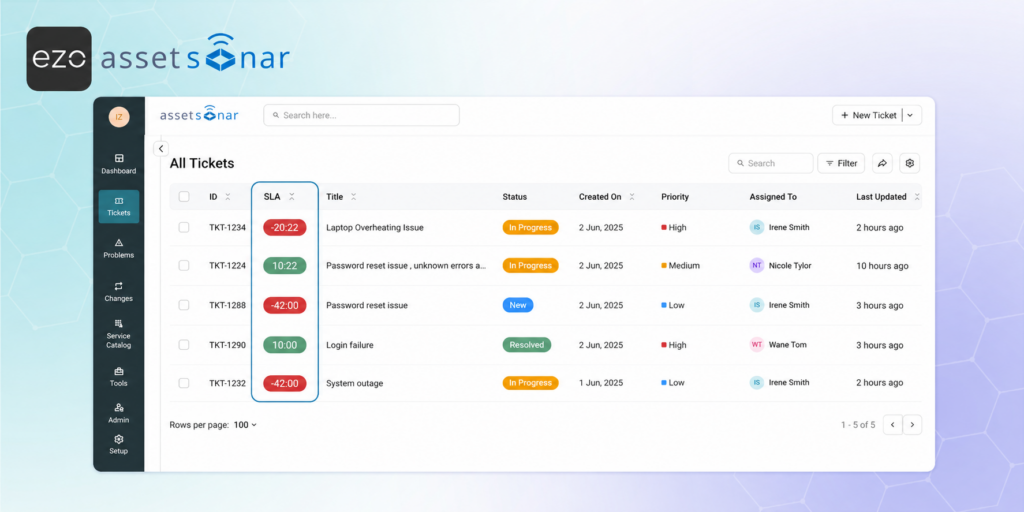
Giving agents clear, highly visible countdown timers directly on the ticket interface helps them prioritize their queue see exactly how much time they have left to respond to or resolve an issue before it breaches its SLA.
How It Works
- SLA Column in the Ticket Listing: When viewing your ticket list, the SLA column displays the time remaining for tickets with an applicable SLA, such as 1h 12m Remaining.
- If no SLA applies to a ticket, the SLA column remains blank.
- Hover Details: Hover over the SLA status to see which target the timer is tracking, such as Time to Own: 18m remaining or Time to Resolve: 3h 12m remaining.
- Visual Breach Alerts: When a ticket misses its deadline, the SLA status updates to Breached. The timer turns red and displays how much time has passed since the breach. Hover over the breached status to review the affected SLA target.
- Ticket Detail View: Open a ticket to review its SLA information alongside details such as the ticket priority and the exact date and time its first response and resolution are due.
Next Steps
Go to the ticket listing and review the SLA column for active tickets. Hover over an SLA countdown to check the applicable response or resolution target and identify tickets approaching a breach.
Was this helpful?
Thanks for your feedback!

![[ITSM | How-to] Configuring SLA Escalations and Actions in AssetSonar](https://cdn.ezo.io/wp-content/uploads/2026/05/15112437/Configuring-SLA-Escalations-and-Actions-in-AssetSonar.png)
![[ITSM | How-to] Creating and Scoping SLA Policies in AssetSonar](https://cdn.ezo.io/wp-content/uploads/2026/05/15111700/Creating-and-Scoping-SLA-Policies-in-AssetSonar.png)