“Integrates with QuickBooks Online” sounds reassuring until a rental gets extended, equipment comes back in stages, a deposit needs to be refunded, or someone edits the invoice in the wrong system.
A QuickBooks Online integration for equipment rental should do more than send a clean invoice from one platform to another. It needs to keep working as the order changes, payments arrive, fees are added, and finance closes the books.
This article explains:
- How rental orders, customers, equipment charges, invoices, and payments move between rental software and QuickBooks Online
- What software partners actually mean when they claim to offer a “two-way” integration
- Which system should control each record to prevent conflicting updates
- Where integrations commonly fail during extensions, partial returns, equipment swaps, refunds, tax changes, and credit adjustments
- What rental businesses should test before relying on a QuickBooks Online integration for day-to-day accounting
What a QuickBooks Online integration for equipment rental should do
A rental platform and an accounting system solve different parts of the same transaction. The rental software runs the order. QuickBooks Online records its financial impact. A reliable integration keeps those responsibilities separate while passing the right information between them.
1. Rental software manages the operational workflow
The equipment rental platform should remain the source of truth for what is happening with the equipment and the customer order.
That includes confirming availability, reserving equipment, recording rent-out and return, processing partial returns, swapping items, and managing recurring rentals. It should also apply rental rates, discounts, damage charges, deposits, and any changes to the customer or order.
These details belong in rental software because they affect whether equipment can be promised to another customer, what the current renter owes, and what the rental operations team needs to do next. QuickBooks Online is not designed to manage equipment availability, custody, or changing rental timelines.
2. QuickBooks Online manages the accounting record
Once the rental activity creates a financial transaction, the relevant accounting details should move into QuickBooks Online.
Depending on the integration, this may include:
- Customers
- Invoices
- Payments
- Discounts
- Taxes
- Income-account mappings
- Credit memos
- Store or branch locations
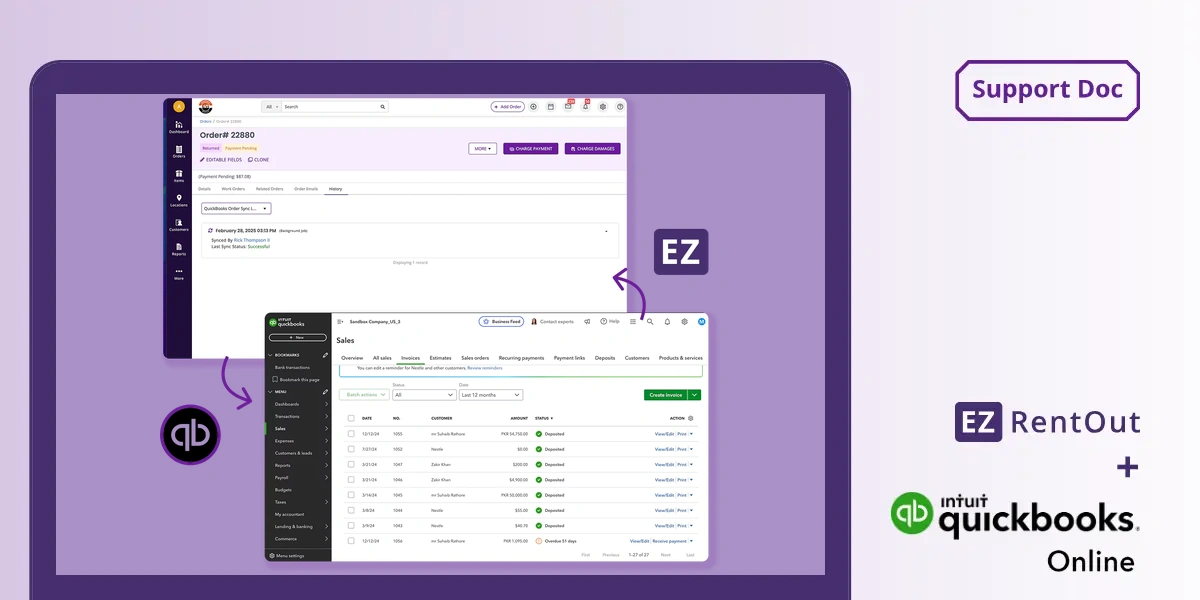
For example, EZRentOut maps rental orders to QBO invoices, customers to customer records, payments to payments, and equipment-related charges to service items. Payments and invoices can sync in both directions, while customer records primarily move from EZRentOut into QuickBooks Online.
It is also important to note that new customers in EZRentOut are automatically created in QuickBooks Online. However, customers in QBO are imported into EZRentOut.
That distinction matters. “Two-way integration” does not necessarily mean every field and record can be created or edited in either system.
3. The integration connects operations to accounting
The goal is not simply to send an invoice to QuickBooks.
A useful integration should remove the need for office staff to finish a rental in one system and then rebuild the same transaction for finance. When an order is booked, extended, paid, discounted, returned, or adjusted, the accounting record should reflect the change without someone re-entering customer details, invoice lines, taxes, or payments by hand.
The best setup therefore has a clear division of ownership:
- Rental software controls the operational order.
- QuickBooks Online holds the accounting record.
- The integration transfers financial changes without creating duplicate work or conflicting versions of the transaction.
When that division is unclear, teams end up checking both systems, correcting mismatched invoices, and relying on spreadsheets to explain what should have synced automatically.
How QuickBooks Online integration for equipment rental actually works
A QuickBooks Online integration is built around record mapping and sync rules. Before any invoice can move between systems, the rental company must decide what each record becomes in QuickBooks, which accounts receive the revenue, and which actions cause data to update.
Here is how that process typically works.
Step 1: Connect the rental platform to QuickBooks Online
The process starts by enabling the integration inside the rental platform and authorizing access through Intuit. The user signs in, selects the relevant QuickBooks Online company, and allows the two systems to exchange permitted data.
Authorizing the connection is usually quick. It’s the decisions made immediately afterward that require more attention.
During setup, you need to define:
- The QuickBooks Online company connected to the rental account
- The accounts that receive each type of transaction; not only income accounts, but the liability and control accounts that rental accounting depends on (covered below)
- How should equipment and sellable stock appear in QBO
- Whether taxes should be calculated or retrieved through QuickBooks
- Whether branch or store locations should be included
- Which order events should initiate a sync
In EZRentOut, you connect through Settings → Integrations → Integrate QuickBooks Online. You then select accounts for sales, payments, and items, configure tax behavior, and choose the actions that should initiate synchronization.
Watch the QuickBooks Online integration video demo
This initial configuration determines where transactions appear in the chart of accounts later. When account mappings are incomplete or overly broad, the integration may still send an invoice successfully, but finance can end up with rental revenue, equipment sales, delivery fees, and service charges grouped under the wrong account.
That is why many apparent sync problems are really setup problems. The data moved, but it did not land where the accounting team expected it to.
Read More: [How-to] Integrate QuickBooks Online with EZRentOut
Step 2: Map rental records to accounting records
Your rental platform and QuickBooks Online use different record structures. The integration translates your operational records into accounting equivalents.
| Rental software record | QuickBooks Online record |
| Equipment, Asset Stock, or inventory | Service item |
| Rental order | Invoice |
| Customer or business | Customer |
| Payment | Payment |
| Discount | Invoice discount |
| Delivery fee or damage charge | Service item |
| Store or rental location | QBO location |
In the EZRentOut QuickBooks integration, your Assets, Asset Stock, and inventory map to service items, while rental orders become invoices. Customers and payments map to their equivalent QBO records.
This mapping may initially seem counterintuitive because the equipment itself is not a service. However, QuickBooks Online is built primarily to record sales and accounting transactions, not to manage equipment rentals, custody, or availability. As a result, EZRentOut creates a service item in QBO for each item included on the invoice.
That service item represents the billable charge for renting or selling the equipment, not the physical unit or its operational status. You continue to manage availability, location, meter readings, maintenance status, and current custody inside your equipment rental software.
Step 3: Route rental and sales income correctly
You may rent equipment while also selling consumables, accessories, replacement parts, used machines, workshop services, or delivery-related services.
Your invoice total does not tell your finance team where that revenue came from.
A single order could include:
- Rental income
- Equipment sales
- Delivery and pickup fees
- Insurance or damage-waiver charges
- Workshop or repair services
- Consumable sales
- Damage or cleaning charges
A reliable QuickBooks integration for a rental business should preserve these distinctions through account mapping.
You may need to configure the integration at several levels:
- Company-level mapping gives you the default income accounts used across the business.
- Equipment-group mapping lets you post different categories to separate rental or sales accounts. You may, for example, want heavy equipment, power tools, and temporary structures reported independently.
- Line-item mapping lets you direct individual charges, such as delivery, rental insurance, or repair fees, to their own QBO accounts.
EZRentOut lets you assign sales and rental income accounts at the equipment-group level. You can also map internal invoice line items to separate QBO accounts rather than sending every charge to one default account.
If you eventually sell a rental asset, EZRentOut also keeps previously collected rental revenue separate from the sales proceeds. This prevents your rental income from being absorbed into a single equipment-sales figure.
Transferring the correct invoice total is not enough if every charge is classified in the same way.
Step 4: Turn rental orders into QuickBooks invoices
Once you have mapped the records and routed rental and sales income accurately, your equipment rental QuickBooks integration can translate an active order into an accounting transaction.
A typical sequence looks like this:
- You book the rental order or mark the equipment as rented out.
- EZRentOut creates the corresponding invoice.
- It adds the customer, billing details, rental dates, equipment charges, discounts, taxes, and additional fees.
- It is then synced to QuickBooks Online, and a corresponding invoice is created there as well.
- The invoice remains open, partially paid, or paid according to the transaction status.
- Later changes update the same invoice.
That final step is what separates a rental integration from a basic invoice export.
Your rental orders may change after equipment leaves the yard. A customer might extend the rental, return one unit early, request additional equipment, swap a machine, incur another delivery charge, damage an item, or return the order late.
Each change can affect the amount due. Your integration should therefore update the invoice already linked to the order rather than create a separate accounting record every time the rental changes.
With EZRentOut, synchronization can occur when you book or rent out an order, record a payment, mark the invoice as paid in QuickBooks Online, or manually initiate a sync from the order.
Step 5: Synchronize payments without duplicating them
Payment sync is often one of the most valuable parts of a rental software QuickBooks Online integration because your rental and finance teams may collect or record money in different systems.
For example:
- Your counter staff may collect payment when the customer picks up equipment.
- Your customer may pay an online invoice.
- Your finance team may record a bank transfer directly in QuickBooks.
- A long-term rental may involve several payments against one invoice.
- A customer may pay part of the balance before settling the remainder.
- A refund or adjustment may change the final amount you retain.
Your integration must recognize that these entries relate to the same invoice. Otherwise, a payment entered in one system may be entered again in the other, overstating the amount received.
In EZRentOut, a payment you record in either EZRentOut or QuickBooks Online can sync to the other system, provided the order invoice already exists in EZRentOut.
This two-way payment flow keeps both systems aligned and reduces the risk of the same payment being recorded twice against one rental order.
Step 6: Handle discounts, taxes, and payment terms
The amount on your rental invoice may depend on more than the daily, weekly, or monthly equipment rate.
It may also include:
- Order-level discounts
- Item-level discounts
- Customer-specific pricing
- Net 30 or net 60 payment terms
- Custom due dates
- State and local taxes
- Customer tax exemptions
- Calculations from Avalara or another tax engine
Your integration needs to send these details to QuickBooks in a format your accounting team can use.
In EZRentOut, order-level and item-level discounts map to the discount section of the QBO invoice instead of appearing as unrelated negative line items.
You can also map payment-term names, invoice due dates, order descriptions, and selected custom fields to corresponding fields on the QBO invoice.
Tax handling is more involved because the final amount may depend on your QBO configuration, the customer’s tax status, the rental location, or an external tax service.
When you enable QBO tax sync in EZRentOut, the process can involve:
- Sending or updating the rental invoice.
- Retrieving the applicable tax calculation from QuickBooks Online.
- Applying that tax to the EZRentOut order.
- Updating the connected invoice with the calculated amount.
Your tax records need matching names and rates in both systems. If the tax name, percentage, or amount differs, the record may fail to sync until you correct the configuration.
You must also explicitly configure tax-exempt status in QBO before the customer is treated as tax-exempt in EZRentOut.
You can run Avalara alongside the QBO integration. In that setup, EZRentOut can pass the Avalara-calculated amount into QBO through a tax override, subject to the relevant QuickBooks tax settings.
Tax sync is therefore not simply a percentage moving from one field to another. You need compatible settings, consistent naming, and a clear decision about which system calculates the final amount.
Step 7: Preserve location-level rental revenue
If you operate several stores or branches, a companywide revenue total may not give your finance team enough detail.
You may also need to determine:
- Which branch originated the order
- Which store generated the invoice
- Where overdue receivables are concentrated
- Whether one site is generating more rental revenue than another
- How financial performance differs across locations
Without location mapping, all your invoices may arrive in QBO under the same companywide record, even when the rental activity originated at different stores.
When you enable location synchronization, the order location in EZRentOut can be passed to the corresponding location field in QuickBooks Online. You need to use the same location name in both systems for the mapping to succeed.
For example, invoices from Store A and Store B can retain those labels in QBO. Your finance team can then filter and report on revenue by store without reviewing individual rental orders or maintaining a separate branch spreadsheet.
At that point, you have a complete data path: your rental platform captures the operational transaction, the integration translates its financial components, and QuickBooks Online receives an accounting record that remains connected to the original order, customer, payment, income category, and location.
Where QuickBooks Online integration for equipment rental breaks
The real gaps appear when records change, configurations drift, or two systems interpret the same transaction differently.
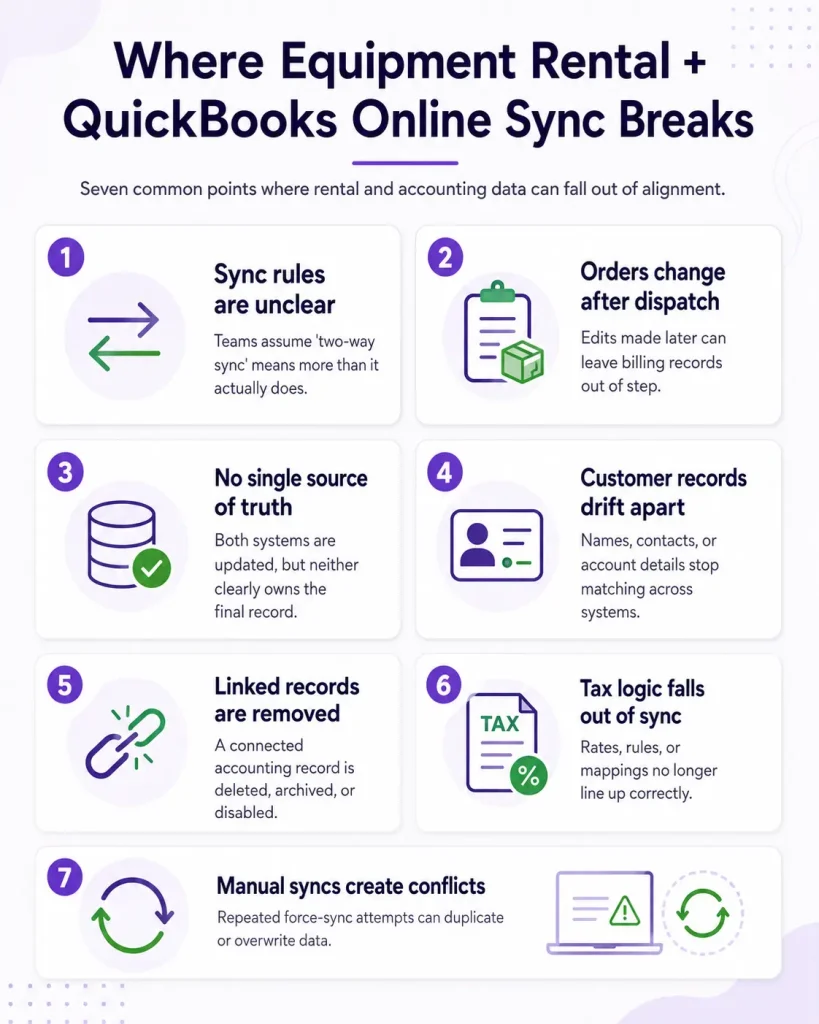
1. “Two-way sync” is left undefined
“Two-way” is often used as a blanket description, even when it applies to only one type of record.
For example, payments may move in both directions while invoices, customers, items, and credit memos follow different rules. Instead of asking whether an integration is two-way, ask:
Which records move in each direction, and which system is allowed to update them?
That question gives you a much clearer picture of what the integration can actually support.
2. Rental orders change after dispatch
A basic invoice connector may handle a straightforward one-day rental without trouble. Equipment rental becomes more demanding when:
- One item returns early while another stays out
- The customer extends the rental
- A unit is swapped mid-order
- A damage or late fee is added afterward
- The billing cycle changes
- A no-charge day affects the final amount
These are not unusual exceptions. They are routine rental events. Your integration needs to reflect them on the existing accounting record without producing duplicate invoices or leaving finance to reconcile the difference manually.
3. The two systems disagree about the source of truth
Problems arise when users edit the same transaction in both places.
Someone may update the rental order while another person changes the connected invoice in QuickBooks. Customer details, invoice numbers, item names, notes, or dates can then conflict, or one system may overwrite a field entered in the other.
You need clear ownership rules for each record. The integration should also preserve QBO fields that the rental platform does not manage, such as finance notes or invoice messaging, instead of clearing them during the next sync.
4. Customer records do not match
Customer mapping can fail even when the same company exists in both systems.
Common causes include:
- Duplicate customer names
- Different business and contact names
- Missing or inconsistent display names
- Different email addresses
- Separate billing entities
- Several contacts under one business account
This becomes especially important in B2B equipment rental, where one customer organization may have multiple jobsite contacts, shipping addresses, and billing relationships.
EZRentOut uses the QuickBooks Display Name as the unique customer identifier between the two systems, helping reduce ambiguity during synchronization.
5. A connected QuickBooks Online record is deleted or deactivated
A sync may stop when a related customer, service item, account, tax, or payment record has been deleted or marked inactive in QuickBooks Online.
The rental transaction may still be valid, but the accounting reference it depends on no longer exists in an active state. This is why visible sync history and actionable error messages matter.
EZRentOut lets you review sync status and failure details, including errors linked to inactive or deleted QBO records.
6. Tax settings no longer match
Tax synchronization depends heavily on configuration.
It can break when:
- Tax names differ between systems
- Percentages or amounts do not match
- QuickBooks Online automated tax conflicts with a custom tax
- State and local taxes are structured differently
- A customer’s tax-exempt status is incomplete
- An Avalara override is not configured correctly
Tax sync should therefore be tested with real customers, locations, exemptions, and order types, not only a generic sample invoice.
7. Users repeatedly force manual syncs
When an update does not appear instantly, users may click the manual sync option several times.
That can lead to temporary failures, unclear status messages, repeated troubleshooting, and uncertainty over which update was processed.
EZRentOut runs automated synchronization every minute. Starting another manual update before the existing sync finishes can generate a failure message, even when the underlying connection is working.
The better approach is to check sync history before retrying the transaction.
8. Credits, deposits, and refunds are treated as exceptions
Some integrations work well until the business needs to reverse or adjust money already recorded.
The gaps usually appear around:
- Credit memos
- Partially used credits
- Security-deposit refunds
- Deposit settlements
- Partial refunds
- Damage deductions
- Overpayments
These are normal parts of equipment rental accounting, not rare edge cases. An integration should show what was originally charged, what was retained or returned, and what balance remains.
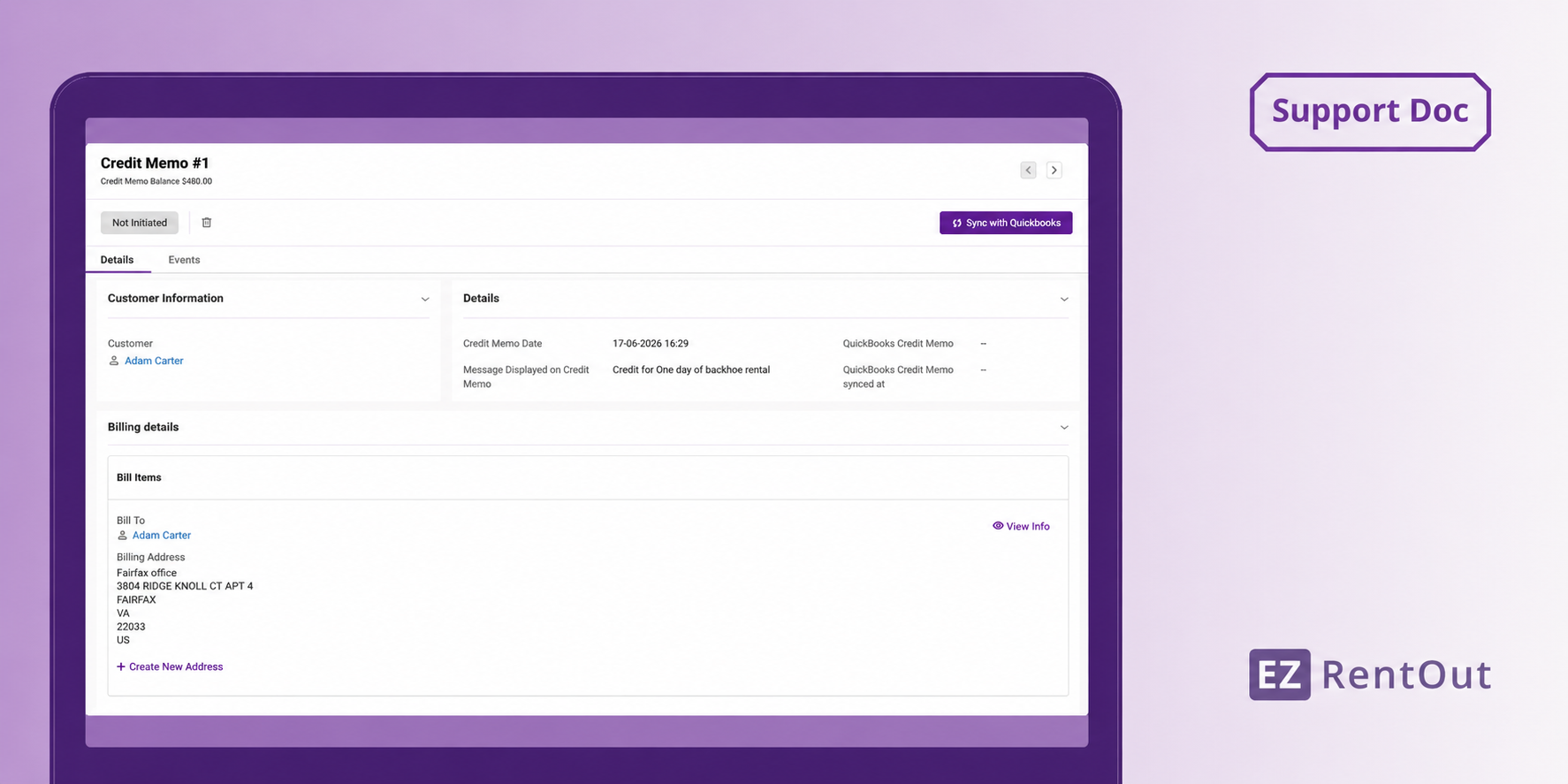
EZRentOut includes dedicated QBO workflows for credit memos and security-deposit refunds or settlements, so the connected invoice does not continue showing an amount as due after it has been resolved.
The practical lesson is simple: do not evaluate an integration only by whether it can create an invoice. Test what happens when records change, users work in both systems, and the transaction needs to be corrected after the initial sync.
The evaluation checklist
A product demo can make any integration look seamless with one customer, one item, and one fully paid invoice. Run these tests against your own workflow instead. Each maps to a failure mode above, so use it as a checklist rather than a script.
| Test | What to confirm | Covers |
| Record direction | Get a record-by-record answer (invoices, payments, customers, items, taxes, credit memos, locations) on which move both ways, which originate in the rental platform, and which are read from QBO. | “Two-way” undefined |
| Invoice-update trigger | Whether invoices update automatically on book/rent-out/return/pay/edit or need a manual sync; how fast it runs; whether users see it processing; what happens with several close-together changes; whether one order can resync without affecting others. | Source-of-truth conflicts |
| Order change after rent-out | Add a charge or item after dispatch and confirm the existing QBO invoice is updated, no second invoice is created, the amount posts to the correct account, order and invoice stay linked, and the change appears in sync history. | Orders change after dispatch |
| Partial returns and extensions | Walk a mixed-status order (one item back, one still out, remainder extended) and confirm which charges ended, which are still accruing, whether the due date changes, how the revised balance appears in QBO, and whether the next billing period is handled. | Orders change after dispatch |
| Rental vs. sales income | Review the chart-of-accounts mapping and confirm you can separate revenue by rental vs. sale, equipment category, delivery/pickup, repairs, damage/cleaning, and consumables, without reclassifying after the fact. | Income routing |
| Inactive or deleted QBO record | Learn where the failed sync appears, whether the error names the affected record, whether you can filter failed orders, whether the record must be restored or remapped, how the order is resubmitted, and whether a retry could duplicate an invoice or payment. | Deleted/deactivated records |
| Sync history and failures | Confirm you can see the last successful sync timestamp, separate invoice and payment statuses, a record of later updates, the exact failure reason, filters for unresolved transactions, and which user or action triggered the update. | Forced manual syncs/observability |
| Reversals and adjustments | Demonstrate a partially used credit memo, a full or partial deposit refund, a deposit retained against damage, a payment refund, an added damage charge, and an overpayment applied elsewhere. Confirm both systems show the same remaining balance afterward. | Credits, deposits, refunds |
Combine this with a scenario-based demo using your actual workflow: an order that changes after dispatch, receives payments in more than one system, and requires a financial adjustment. That will tell you far more than a standard integration checklist.
The best integration is the one that survives real rental workflows
A QuickBooks connection should not only work when an order follows the original plan. Its real value appears when the rental changes and your accounting records still remain accurate.
That means your team can manage exceptions without rebuilding invoices, chasing mismatched balances, or maintaining a spreadsheet to explain what happened between systems.
Before choosing an integration, test it with the transactions your business actually handles, not a perfect demo order. The right setup should let operations keep the rental moving while finance receives a clear, traceable record of its financial outcome.
When that happens consistently, the integration stops being a data-transfer feature and becomes part of how your rental business closes the gap between the yard and the books.