EZO Blog General Requests

[How-to] Create General Requests Using the EZO Request Portal

General Requests in EZOfficeInventory

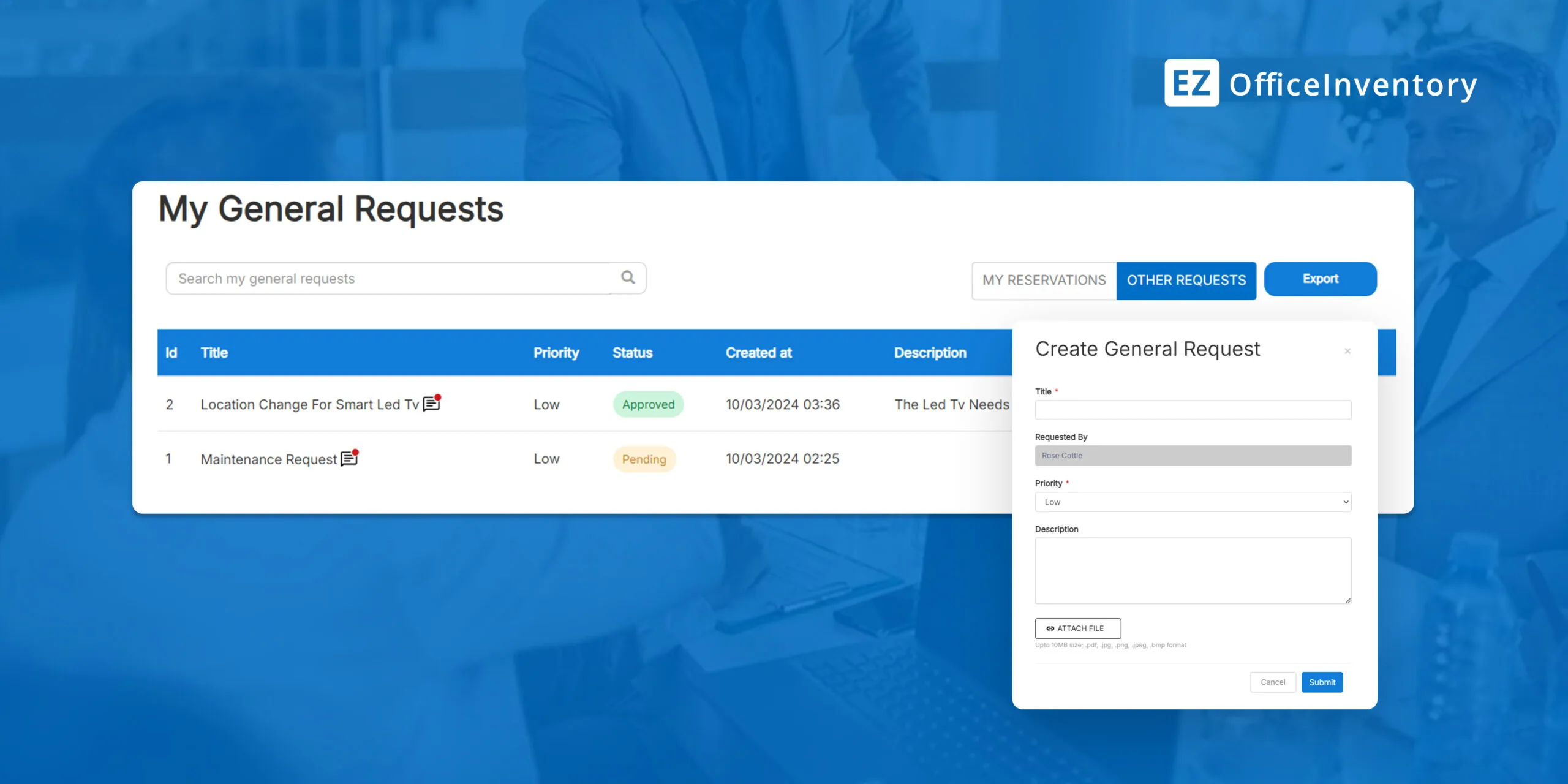
Staff users can now create General Requests on their Request Portalโ€™s homepage easily and quickly. They can submit a request for actions that donโ€™t fit into predefined categories or system requests (such as check-in or transfer request) from the General Requests tab. 

This simplifies the process of request generation and makes it easier for the user to create any request, especially when the urgency is high. 

Benefits of General Requests

Here are some ways the General Request module in Request Portal can help improve your efficiency and request management:

1. Enhanced accessibility and flexibility

The navigation system for General Requests is designed to provide easy accessibility to users. They can access the general requests tab from the main menu on their Request Portal without having to search extensively. This way, they can place miscellaneous requests directly from the portal which makes the requesting process smooth, flexible and versatile.

2. Reduced delays and improved response time

The ability to create any type of request, such as maintenance or check-in requests, clears potential roadblocks in productivity. Users can create special requests without being held back by the generic requests already available in the system. 

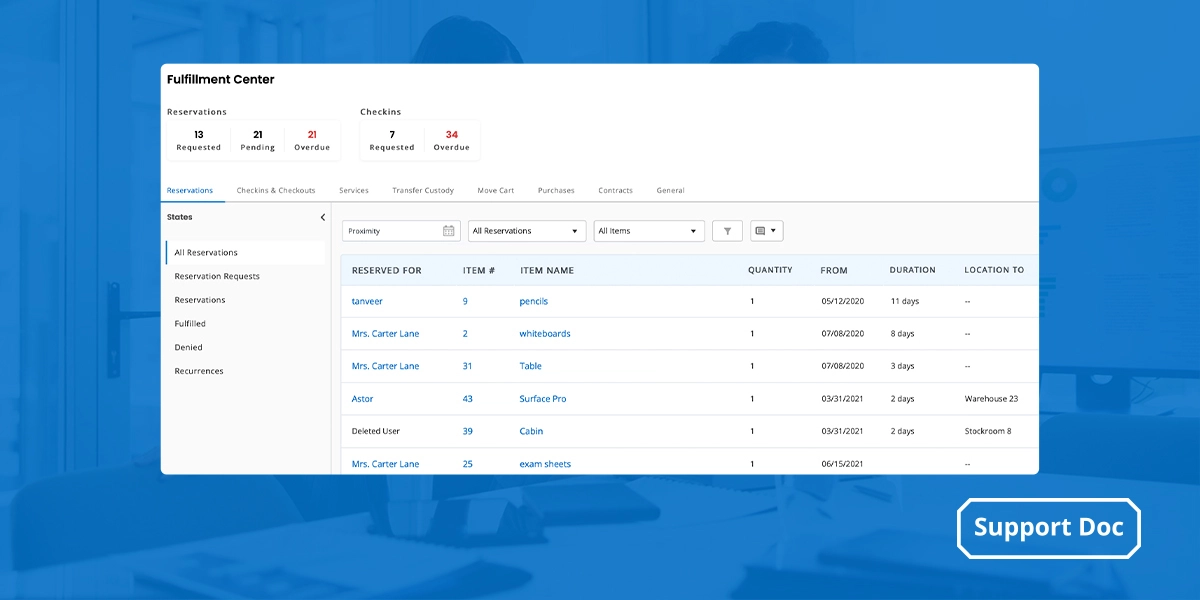
Additionally, with all requests routed to a centralized request management center with inline actions, admins can respond faster to requests.

3. Increased transparency and tracking

Once a user has created a general request, they can track its status from their Request Portal. This enables requesters to stay updated with the progress of their request and follow up with the admin(s) if needed. Any comments or updates are also updated automatically to avoid confusion. 

Also, logging all events that take place in response to a general request improves admin ability to track and account for actions taken to cater to general requests. This enables admins to respond to a general request in accordingly.

4. Timely alerts 

Admins and staff users can receive real-time updates about the request if they enable the General Request Alerts. They can receive email alerts at the time of request generation, denial, approval, and/or if a comment is added to know the exact status of a request. 

Now, letโ€™s walk you through the process of creating a General Request using your EZO Request Portal:

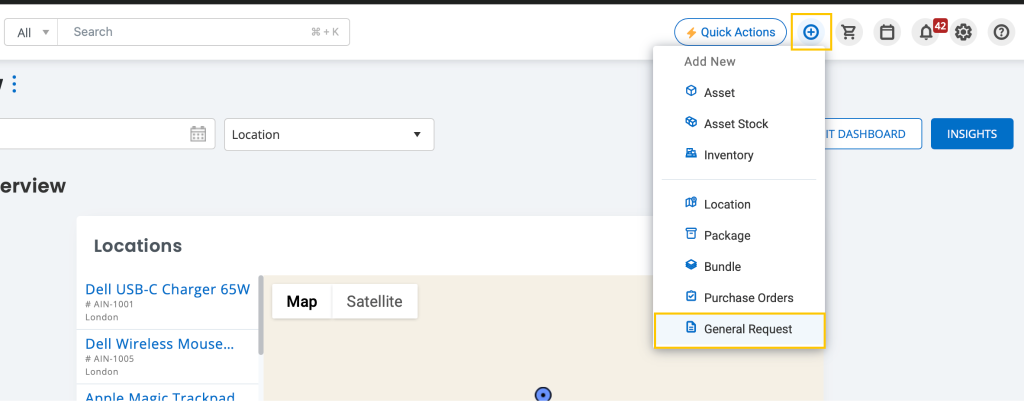
1. Creating a General Request 

2. Taking Actions on a Request

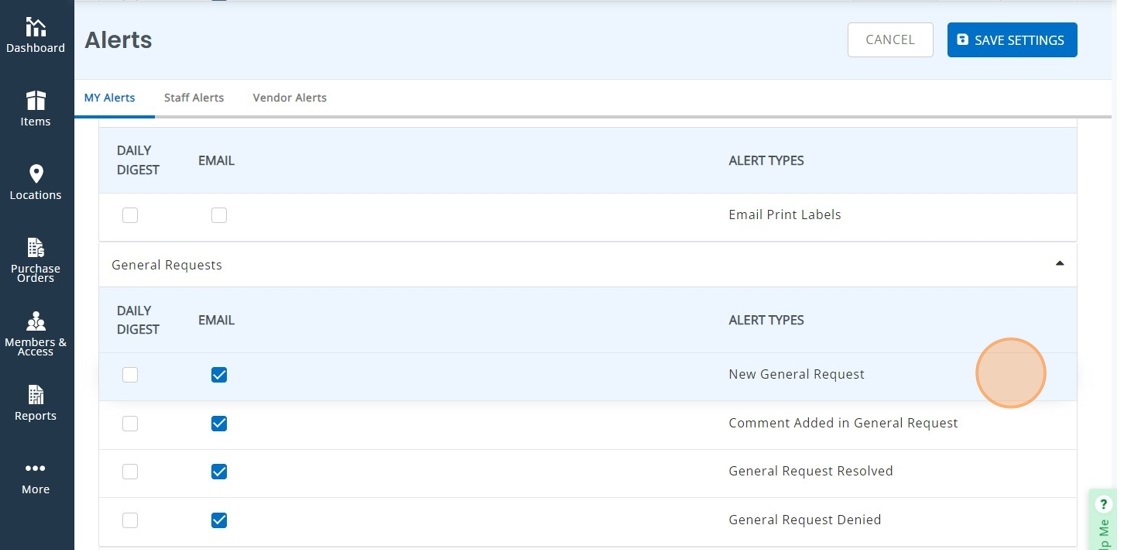
3. Setting Alerts for General Requests

Email alerts can be sent out for general requests. You can choose which email alerts you would like to enable. The following table explains which email alert is received by an admin and a requester. 

Email AlertReceiver
New General RequestAdmin
Comment Added in General RequestAdmin and Requester
General Request ResolvedAdmin
Status changed to DeniedAdmin 

Enable the alerts by going to the navigation bar โ†’ More โ†’ Alerts โ†’ My Alerts โ†’ General Requests. 

This way, you will never miss out on a general request and stay updated on its current status. 

4. Creating a General Request Menu Card

Following these simple steps, you can easily create a general request in no time.

5. Custom Fields for General Requests

You can set up custom fields for your General Requests to capture accurate data. Go to the Main Menu Bar > Customize > Custom Fields > General Requests. Create the required Custom fields:

The custom fields will be visible in the General Requests form as shown below:

Was this helpful?

Thanks for your feedback!
Picture of Rida Fatima
Rida Fatima
Senior Information Development Associate, EZO
She/her/hers
Rida works as a content marketing specialist at EZO. Her expertise lies in curating dynamic and meaningful content that is aligned with the trends of the SaaS industry. She defines professional success of a content marketer as โ€œthe ability to create engaging and evergreen content that addresses buyer pain points.โ€ Her work is based on a broad variety of topics, ranging from rental asset to physical and IT asset management. Outside work, Rida loves to travel, try different cuisines, and engage in deep philosophical discussions.

Frequently Asked Questions

  • What is the EZO Request Portal?

    The EZO Request Portal is a user-friendly tool that allows employees to submit, track, and manage requests for assets, equipment, or supplies. It automates the request-to-approval workflow, ensuring that all requests are routed to the correct approvers and tracked in real-time for visibility and efficiency.
  • How do I create a general request in the EZO Request Portal?

    To create a general request, simply log into the EZO Request Portal, fill out the required fields like asset type, quantity, and purpose, and submit the request. Once submitted, the request will be routed for approval based on the workflow set up by your organization.
  • What types of requests can I submit through the EZO Request Portal?

    You can submit requests for assets, equipment, office supplies, software, and more. The portal is customizable to fit the needs of various departments, allowing you to request anything that requires approval and tracking within your organization.
  • How does the EZO Request Portal help with request approvals?

    The portal automates the approval process by routing requests to the appropriate approvers based on predefined criteria. Approvers are notified when a request needs their attention, and they can approve, reject, or provide comments directly within the portal.
  • Can I track the status of my request in real-time?

    Yes, once you submit a request, you can track its status in real-time. The EZO Request Portal updates you on whether the request is pending, approved, or rejected, and you can also see any comments or actions taken by approvers.
  • Can I modify or cancel a request after submission?

    Depending on your organizationโ€™s settings, you may be able to modify or cancel your request. In most cases, requests can be edited or withdrawn before they are approved. If changes are needed after approval, you'll need to work with the approver to revise the request.
  • How do approval workflows work in the EZO Request Portal?

    Approval workflows in EZO are set up based on your organizationโ€™s needs. Requests are routed automatically to the correct approvers based on criteria such as department, budget, or asset type. Approvers can approve or reject requests directly within the portal, and all actions are logged for transparency.
  • What happens if my request is rejected?

    If your request is rejected, youโ€™ll receive a notification with the reason for the rejection. Depending on the portal setup, you may have the option to revise and resubmit the request or provide additional details to address the concerns.
  • What to use for request-to-approve workflows?

    For request-to-approve workflows, use a system like EZO Request Portal, which automates the process, ensuring that requests are routed to the right approvers, tracked in real-time, and streamlined to reduce delays and errors. It provides visibility and helps manage approvals efficiently.
  • Can I add attachments to my requests in the EZO Request Portal?

    Yes, you can add attachments to your requests in the EZO Request Portal. Whether itโ€™s quotes, specifications, or any other supporting documentation, the portal allows you to upload and attach files to provide context and ensure that approvers have all the necessary information to make an informed decision.

Achieve Higher Asset Control with EZO

Cloud-based asset management software that helps minimize costs with efficient asset organization and tracking.
capterra
software-advice-2026
Leader
High Performer Mid market

Talk to Us

Need help getting started or have questions? Get in touch with one of our product specialists!