EZO assigns an Item # to every item that you add to your account. This can also be referred to as the Asset # and Inventory #, depending on the context. The first item that gets added is #1, the second is #2, and so on.
We’ve also designed a special field called Asset Identification Number (AIN) for businesses that have their own sequence numbers. To enable this, go to Settings → Company Settings → Advanced Settings → AIN Options → Use Asset Identification Number (AIN).
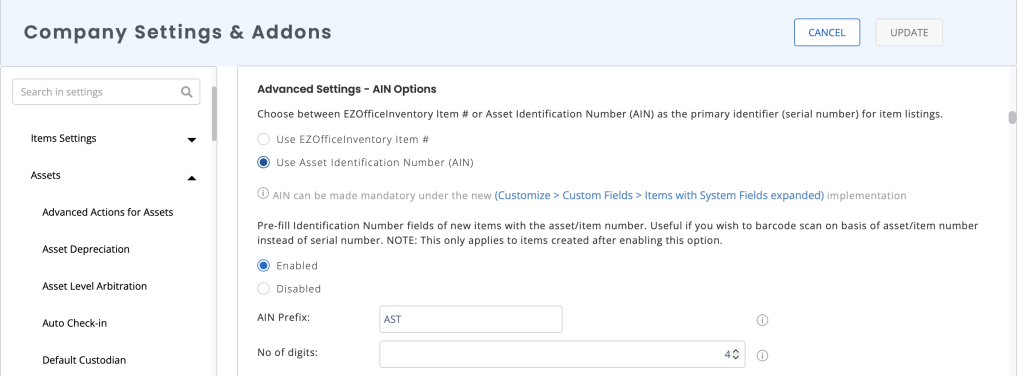
Enable the Pre-fill Identification Number option to automatically populate the Identification Number field for new items with the asset/item number, allowing you to use the asset/item number for barcode scanning instead of the serial number. This applies only to items created after this option is enabled.
Some key features of AINs are below:
- AINs are unique to every item.
- You can type in @ followed by an AIN in the Search Bar to go directly to the details of the relevant item and take necessary actions.
- AINs can be used in Barcoding (Read More).
- Your item listing can be customized to show AINs instead of the Item #.
- Items are also referenced by their AIN in all alert emails.
If you have more than one serial number to refer to an item, you can always add a text field custom field (under More –> Custom Fields –> Items –> Add Custom Field). These custom attributes also appear in the search results.
You might find it helpful to read about scanning existing barcodes using the mobile app.
