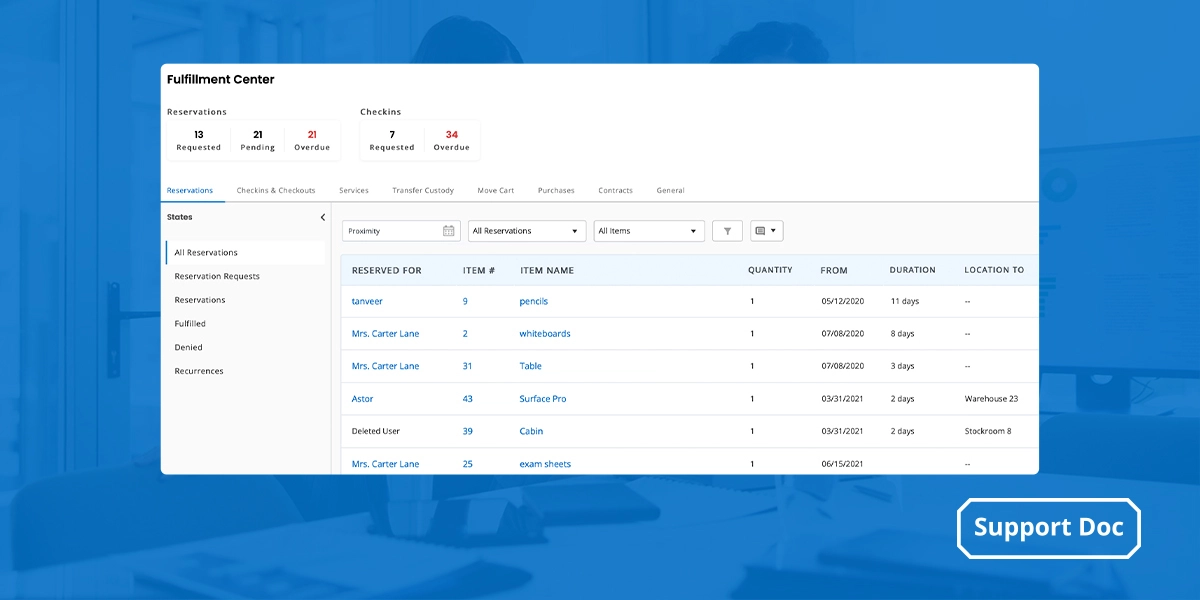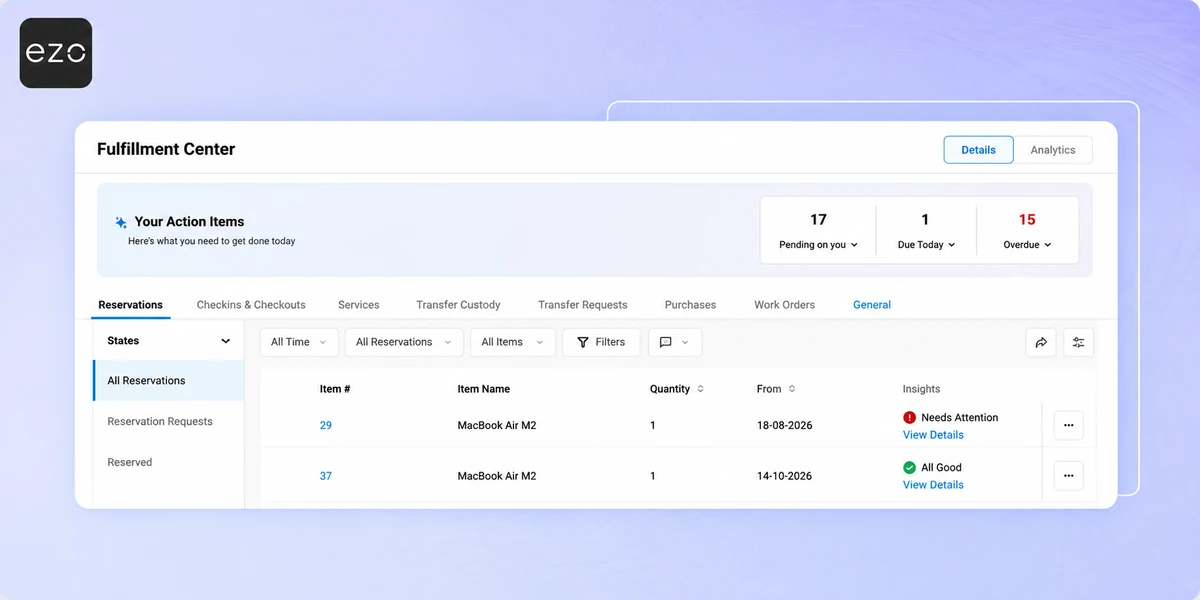
The Fulfillment Center in EZO gives you a centralized view of requests that need your attention, helping you manage approvals, checkouts, reservations, and check-ins from one place. You can also use Insights to identify potential issues with a request before fulfilling it, such as equipment maintenance conflicts, overdue approvals, or a requester’s history of delayed returns, damaged items, or outstanding overdue items.
With configurable insights, admins can also decide which conditions should be flagged, how long they should be flagged for, and how severe each flag should be.
1. Find Requests That Need Your Attention
The Fulfillment Center includes dedicated views for managing reservations and other requests throughout the fulfillment process. Go to the Fulfillment Center from the left navigation bar or from the bell icon in the top right.
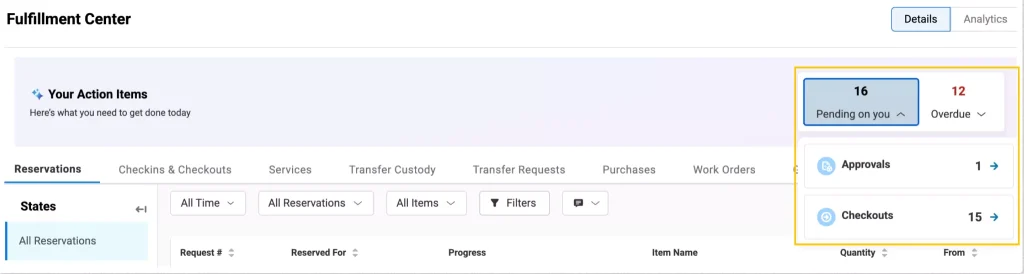
At the top of the Fulfillment Center, the Your Action Items section provides an overview of requests that need your attention.

The overview includes:
- Pending on you: Requests waiting for your action, including pending Approvals and Checkouts.
- Due Today: Reservations and Check-ins due today.
- Overdue: Reservations and Check-ins that are past their due date.
Click a KPI to view its available sub-KPIs. Selecting a sub-KPI filters the Fulfillment Center listing to show the relevant requests.
2. Review Request Insights
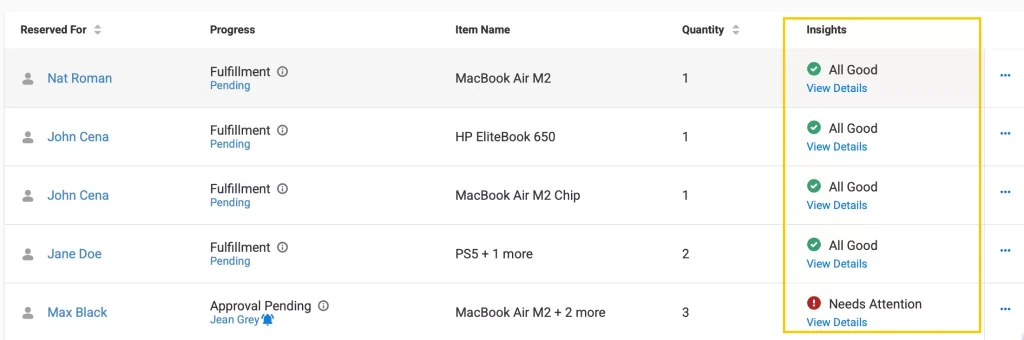
The Insights column in the Reservations listing helps you identify potential issues before fulfilling a request. Each request is assigned one of three labels:
- Needs Attention: A condition requires immediate attention before the request can be fulfilled.
- At Risk: A condition may require attention but does not currently require immediate action.
- All Good: No conditions requiring attention were identified.
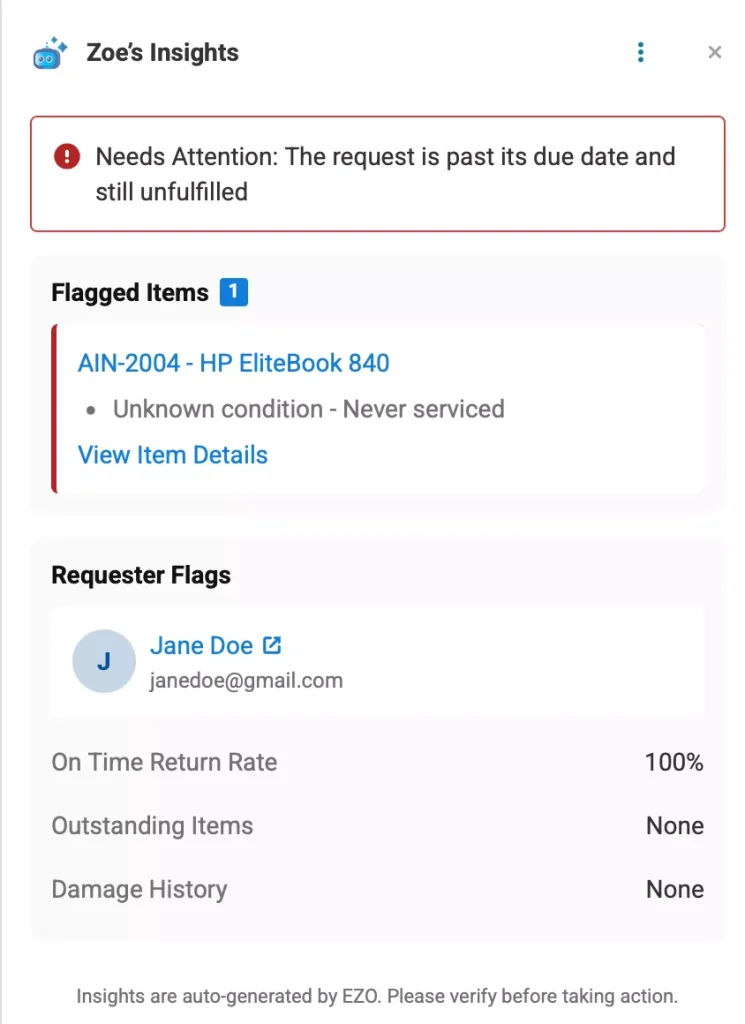
Click the View Details button in the Insights column to open the Insights pop-up and review the conditions identified for the request.
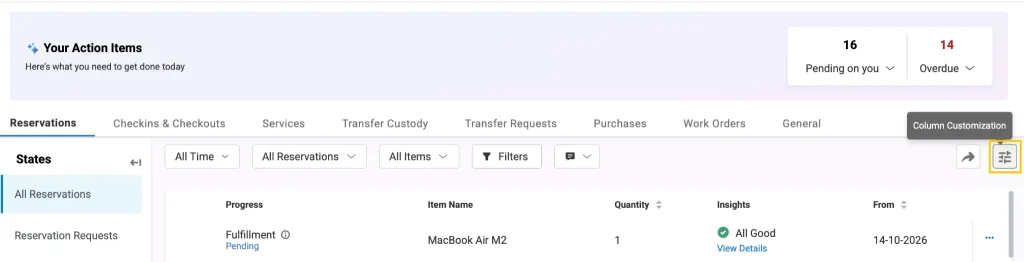
Note: The Insights column may not be visible by default in the Fulfillment Center. If you don’t see it,
- Click the Column Customization button.
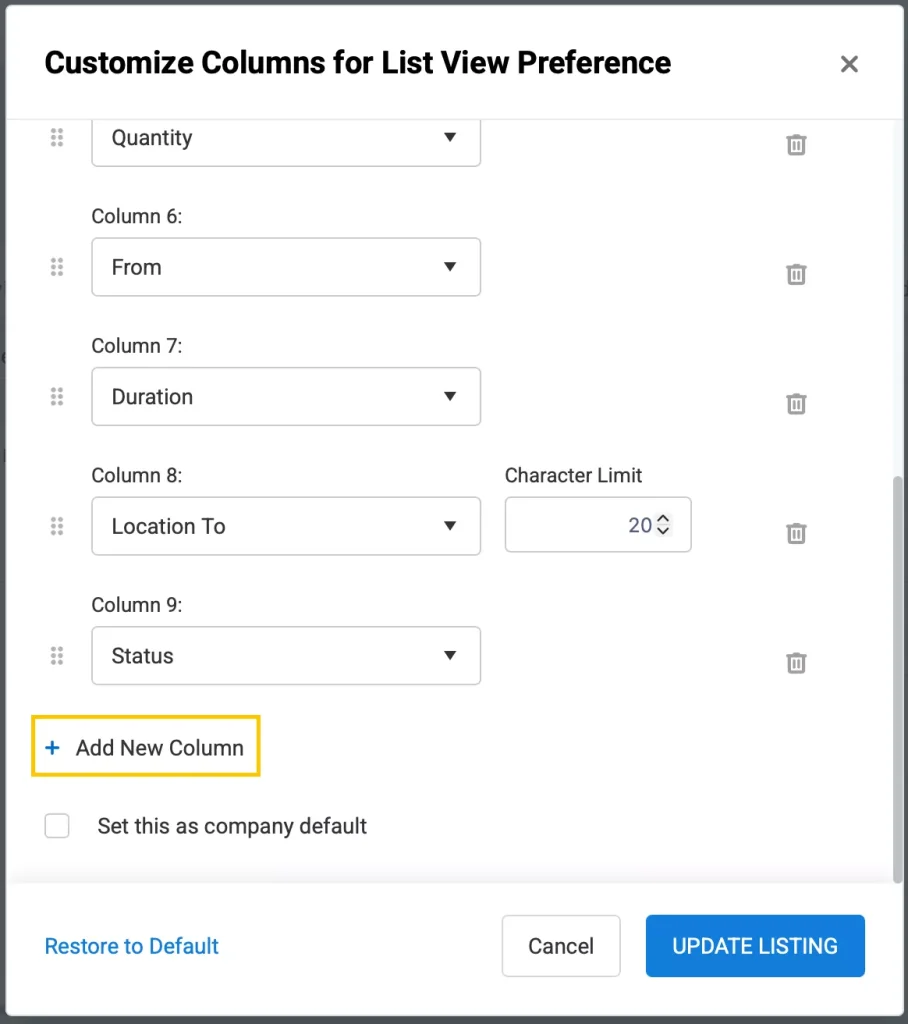
- In the Customize Columns for List View Preference pop-up, click the + Add New Column button.
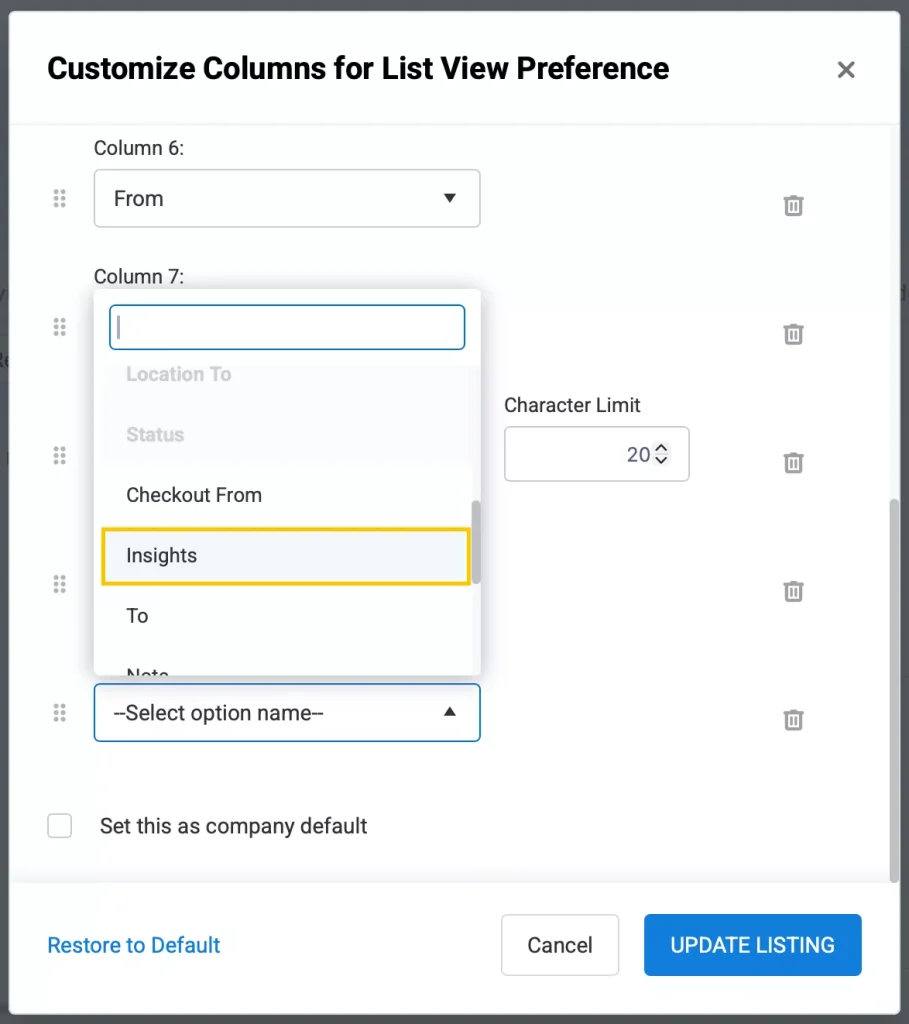
- Select Insights from the given drop-down and then click UPDATE LISTING.
Insights can relate to the requested items, the requester, or the request itself. For example, an insight may identify that:
- An item has not been verified or maintained for an extended period.
- An item has an active Work Order or Service.
- An item has a conflicting reservation.
- The requester has a history of delayed returns or damaged items.
- An approval is still pending close to the checkout date.
- The request is past its due date and remains unfulfilled.
When available, the Insights pop-up also provides recommended actions, such as viewing item details, opening a related Work Order, reviewing a reservation conflict, or sending an approval reminder.
To view Insights for a Request:
- Go to the Reservations tab in the Fulfillment Center.
- Find the request you want to review.
- Click the View Details label in the Insights column.
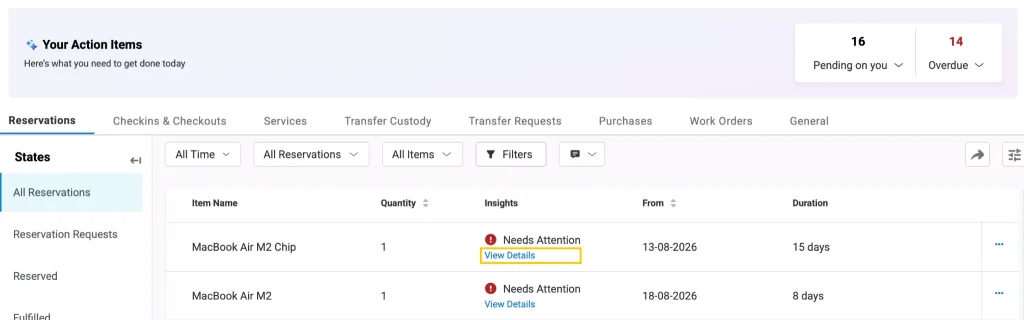
In the insights pop-up, review the flagged conditions, affected items, and recommended actions.
2.1 View Insights in the Request Detail Pane
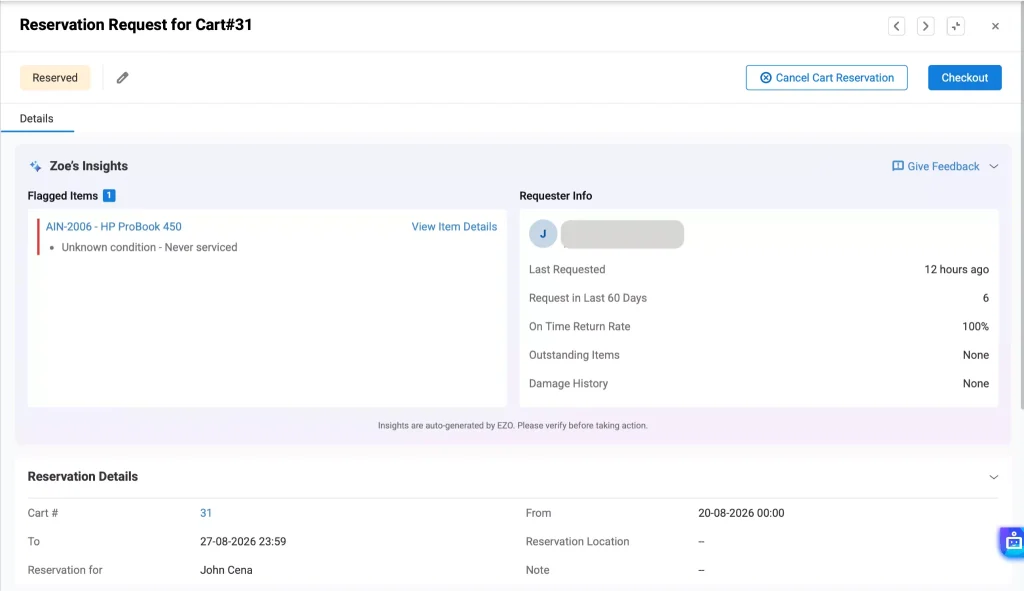
You can also review insights directly from the request detail pane.
- Click the Request # of a request in the Fulfillment Center listing.

- Locate Zoe’s Insights in the request detail pane.
- Review the flagged conditions and recommended actions.
The detail pane provides the same insight information available in the Insights pop-up, along with additional requester information.
Note: Insights are auto-generated by EZO. Please verify the information before taking action.
3. Configure Request Insights
Admins can customize which conditions are used as request flags and how they are classified.
You can configure insights from either the Insights pop-up or the request detail pane.
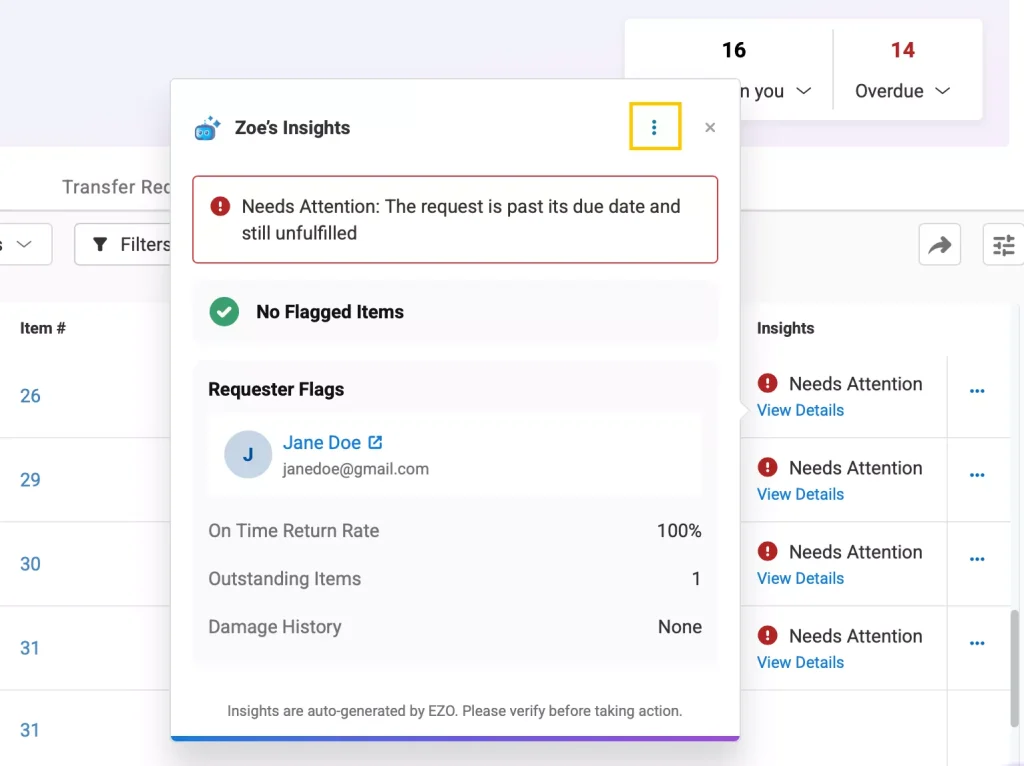
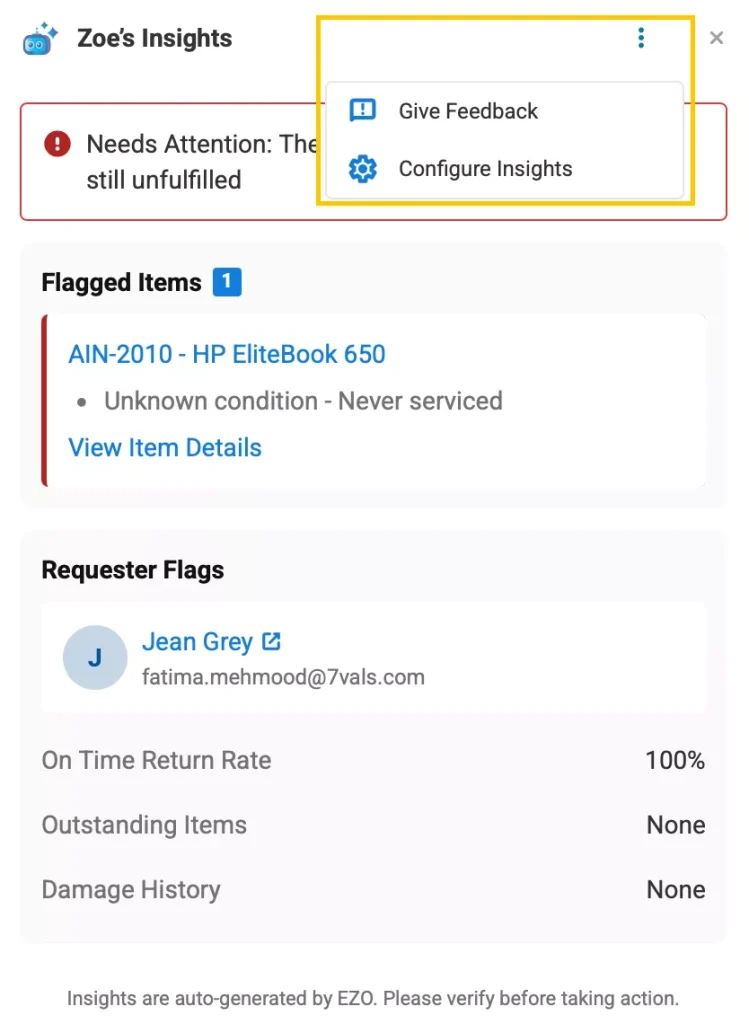
- Open the Insights pop-up for a request, or open Zoe’s Insights in the request detail pane.
- Click the More Options (…) icon.
- Select Configure Insights.
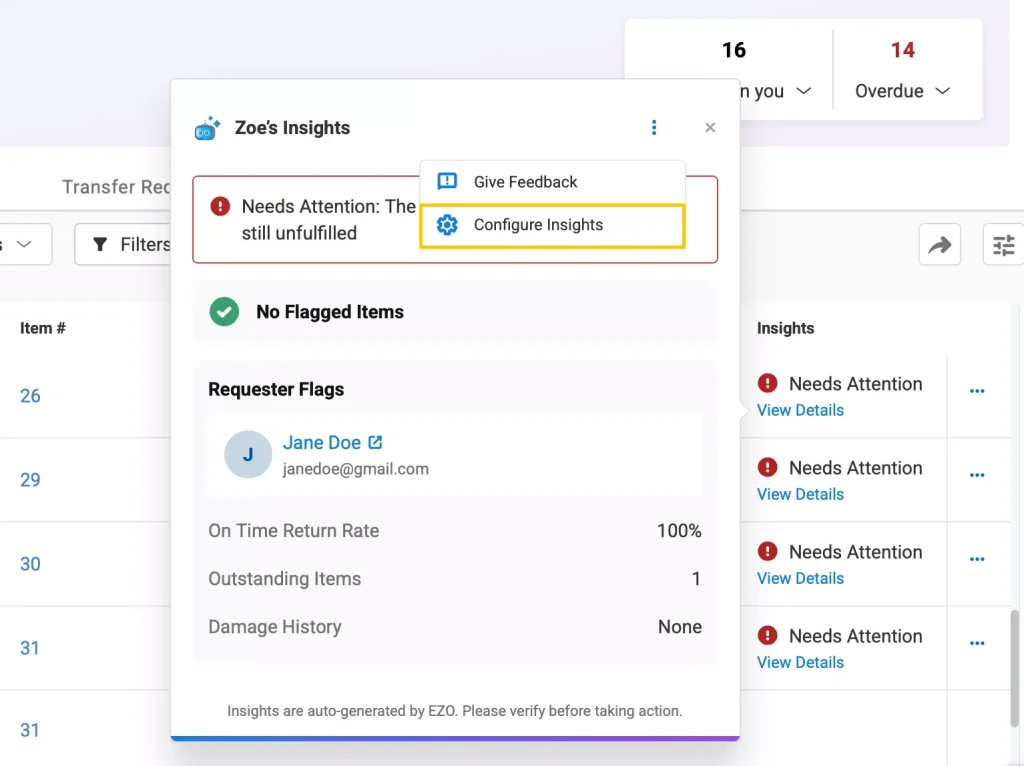
- In the Configure Zoe Insights pop-up, review the available insights.
- Use the toggle next to an insight to enable or disable it as a flag.
- Where applicable, configure the relevant time or frequency threshold.
- Select the severity for the insight:
- Needs Attention
- At Risk
- Save your configuration.
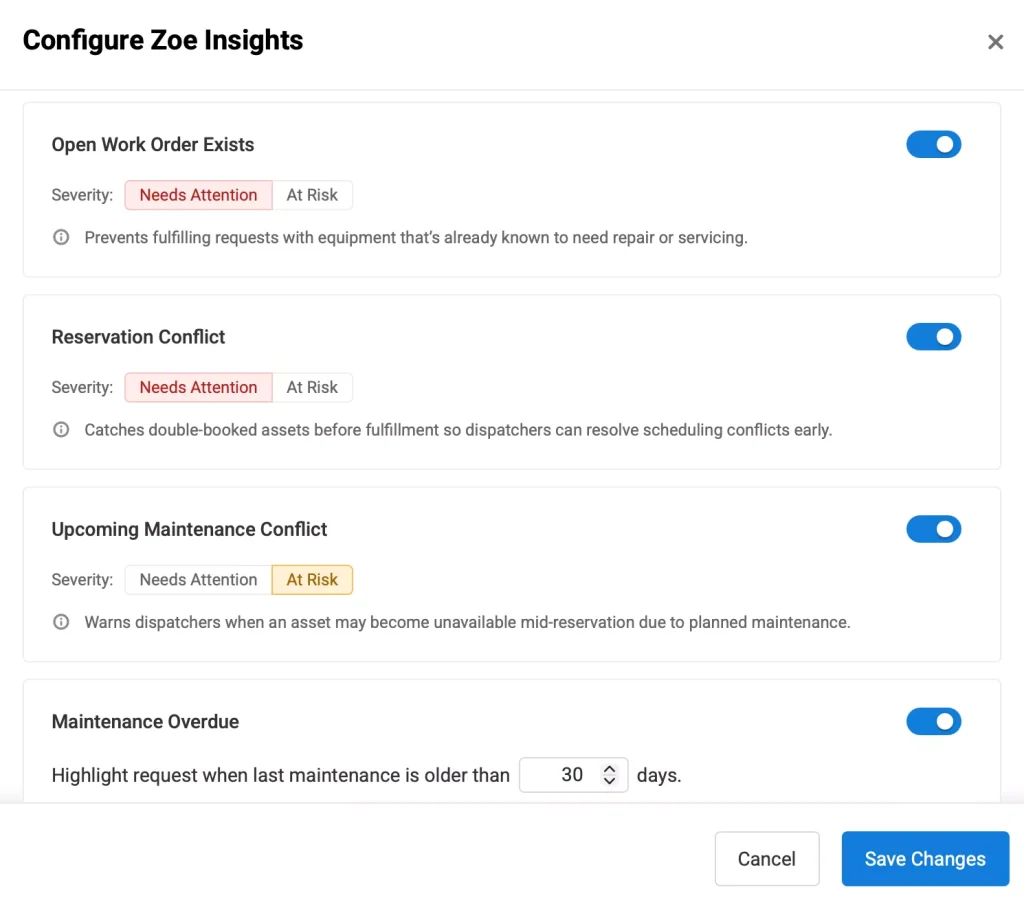
All available insights are enabled by default.
3.1 Customize Insight Thresholds
For insights that depend on a time period or frequency, you can define the threshold that determines when the condition becomes a flag.
For example, you can configure how far in the past an item’s maintenance or verification activity should be considered when determining whether it needs attention.
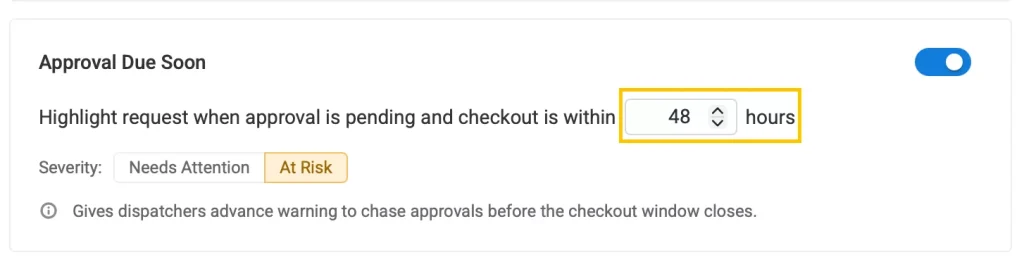
For conditions measured in days in the past, the maximum configurable value is 180 days.
3.2 Choose Insight Severity
You can also decide how an enabled insight should be classified.
- Needs Attention flags conditions that require more immediate attention.
- At Risk flags conditions that may require attention but are less urgent.

This allows your team to prioritize the issues that matter most to your fulfillment process.
4. Give Feedback on Insights
If you have feedback about the insights or recommended actions shown for your requests, you can submit it directly from the Insights pop-up.
- Open the Insights pop-up.
- Click the More Options (…) icon.
- Select Give Feedback.
- Enter your feedback and submit it.
Your feedback helps improve the usefulness and accuracy of the insights provided in the Fulfillment Center.
Streamline Request Fulfillment with Insights
The Fulfillment Center brings the requests your team needs to act on into one place, while Insights helps surface potential issues before they affect fulfillment. With configurable flags, admins can tailor these insights to their organization’s workflows and decide which conditions and severity levels are most relevant to their team.
Use the Your Action Items overview to prioritize work, review Insights before fulfilling reservations, and configure flags to make the Fulfillment Center work better for your team’s day-to-day processes.
If you have any questions or need help getting started, reach out to us at support@ezo.io. We are happy to help.