EZO enables you to assign items to specific locations. You can set up parent-child locations, and nest locations so you can track items from a country to a state, city, street, warehouse, all the way down to a single shelf.
Asset Stock and Inventory can be assigned two location types: Default Locations and Stock Locations. These two item types are tracked in bulk, making it possible for items within the same inventory or asset stock category to be spread across multiple locations.
This blog explores the Location feature in EZO in detail and how you can manage your items’ locations.
1. Types of Locations
2. Transferring Asset Stock
3. Transferring Entire Stock
3. Low Stock and Location Thresholds
A Low Stock Threshold can be assigned for any asset stock or inventory item.
An email alert will be sent to you when the total stock quantity hits a specific number, helping you plan ahead. A Location Threshold is similar, but is assigned to alert you to the total stock quantity at any location hitting a certain value. These can be changed from Edit → Extended Information:

4. Deactivating Locations
If a location no longer contains any items and you don’t plan on restocking it, you can deactivate it. This serves two purposes:
- Users can no longer assign any items to a location that is not in use.
- All item history associated with the location is still available for reference.
4.1. Which locations can be deactivated?
Not all locations in EZO can be deactivated. Here are the conditions:
- The location shouldn’t contain any items, bundles or packages.
- It shouldn’t be linked with an active Cart, Work Order or Purchase Order.
- No User Listing should be linked with the location.
- All child locations need to be inactive.
Note that a Location that you deactivate can be activated at any time if you want to resume using it.
For instance, the following location cannot be deactivated because of the reasons on the screen below:

4.2. How do you deactivate a location?
Head to a location that you wish to deactivate from the Locations icon on the side navigation bar. From the Location Details page, hit ‘Deactivate’.

Note: Only an Account Owner, Administrator or a Supervisor can deactivate a location.
4.3. What happens once a location is deactivated?
An inactive location can no longer be assigned to any items, Bundles, Carts, Work Orders, Purchase Orders or User Listings.
It also stops showing up in the Locations tab under Items.
4.4. How to activate a location?
If you decide to resume an inactivated location, you can activate it from the Location Details page.

5. Automatically Hide Locations With Zero Stock
You can configure EZO to automatically hide locations when their stock quantity reaches zero. This keeps locations with no available stock out of relevant workflows.
To enable this setting:
- Navigate to Company Settings & Addons → Locations.
- Select the Hide Locations with zero stock checkbox.
- Click Update to save your changes.
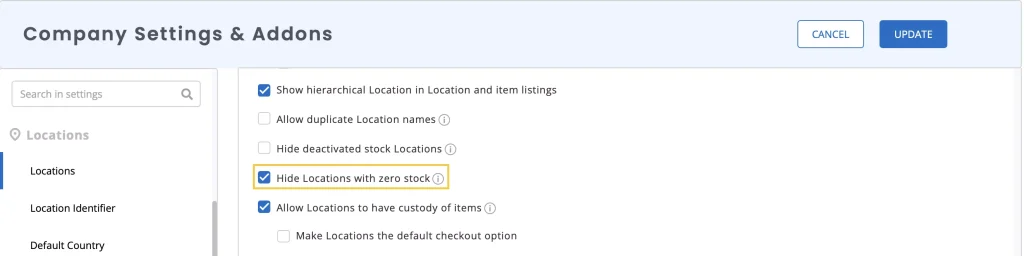
Once enabled, locations are automatically hidden when their stock quantity reaches zero.
This applies to individual and mass actions for checkout, sale, stock removal, reservations, transfers, and retirement. Hidden locations are also excluded from the Request Portal, Quick Item Center location fields, and Location Stock View on Asset Stock and Inventory listing pages.
