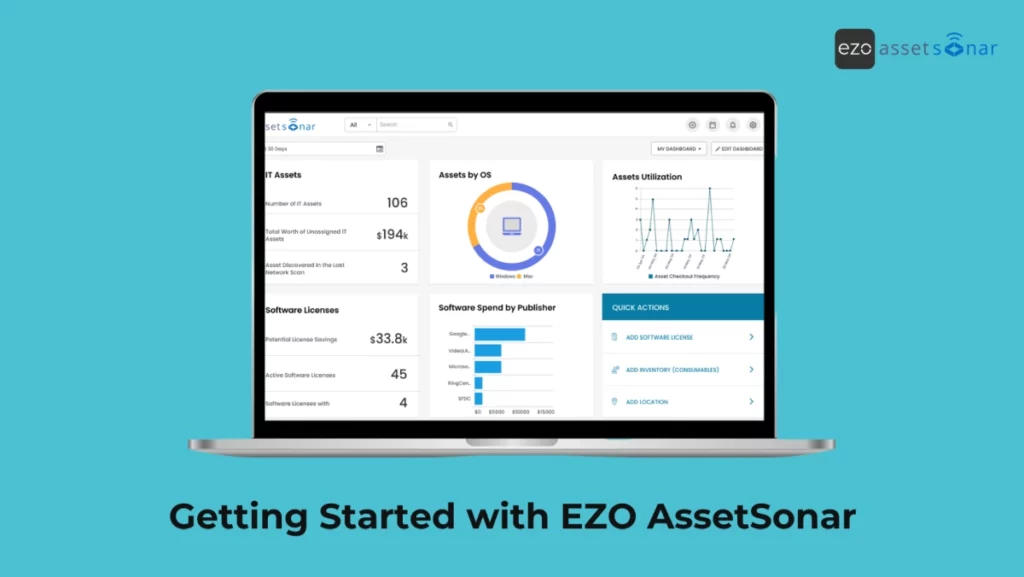
Whether you’re tracking IT assets across multiple offices, optimizing software license costs, or preparing for a security audit, EZO AssetSonar helps you centralize your entire IT ecosystem in one place.
Our platform brings your hardware, software, and SaaS into a single system so you can see who’s using what, cut waste, and stay compliant.
EZO AssetSonar is a powerful tool, but you have to start somewhere. Follow these steps in order, and you’ll get a working ITAM setup without wandering around the app.
Enhance Visibility of Your IT Assets
Step 0: Clarify What You Want to Track
Before you begin, decide on the scope you want to focus on first. EZO AssetSonar supports three major motions:
- Hardware Asset Management (HAM): End-user devices, servers, network infrastructure, peripherals, warranties, custody
- Software Asset Management (SAM): Installed apps, SaaS, cloud apps, software licenses, usage, compliance
- Complete ITAM (HAM + SAM): End-to-end lifecycle across hardware, software, and patch management
EZO AssetSonar is extensive, so you don’t have to configure everything on day one. For the initial pass, choose the track that aligns with your immediate goals so you can focus on what is most important to you from the guide below:
- “I want to see all my devices in one place.” → Start with hardware discovery.
- “I want to understand software/SaaS usage and licenses.” → Start with software & licenses.
- “I need audit readiness + cost control.” → Follow all steps below in order.
Step 1: Log In and Set Up Your EZO AssetSonar Account
- Log in to EZO AssetSonar using the company name you signed up with. For example, if your company name is ABC Digital Services, your login URL will be:
abcdigitalservices.assetsonar.com
Note: You can update your subdomain anytime under Dashboard → Settings → Company Settings & Add Ons → Company Profile.
- You may also log in by going to the EZO AssetSonar Sign In Page and entering your email.
- Once logged in, review and update your company and account settings as needed.
Step 2: Set Up Asset Discovery Sources
2.1. Install the EZO AssetSonar ITAM agent (recommended)
Whether your priority is hardware visibility, software inventory, or complete ITAM, the best first step is installing the ITAM Agent. You can begin directly from your dashboard.
The AssetSonar ITAM Agent is compatible with Windows, macOS, and Linux. You can deploy it individually or mass-deploy it to your entire device fleet—though it’s best to test it on a single device before scaling.
For step-by-step deployment guidance, see: [How-To] Install the AssetSonar ITAM Agent on your Computer
This guide walks you through individual and mass deployments. For any questions, contact support@ezo.io.
Watch: How to Install ITAM Agent on Your Windows in EZO AssetSonar
Watch: How to Install ITAM Agent on Your macOS in EZO AssetSonar
Watch: How to Install ITAM Agent on Your Linux in EZO AssetSonar
Once installed, devices begin syncing automatically. You can also trigger a manual sync under:
Items → Assets → Sync Assets
2.2 Connect your MDM / endpoint manager
If your organization uses an MDM or endpoint tool, you can integrate it with AssetSonar as well.
AssetSonar supports the following platforms (each link opens a detailed integration guide):
- Microsoft Intune
- Jamf
- Mosyle Business
- Mosyle Manager
- Kandji
- Google Endpoint Management
- Cisco Meraki
- JumpCloud
- SCCM
- Apple Business Manager (ABM)
2.3 Run network discovery
Use Network Discovery to identify network and infrastructure assets, such as routers, switches, printers, firewalls, and other IP-based devices that are not typically captured through the ITAM Agent or MDMs.
AssetSonar supports Network Discovery through an Open-AudIT integration, which allows you to scan your network and automatically bring discovered devices into AssetSonar for tracking.
At a high level, the process looks like this:
- Set up Open-AudIT in your environment
- Run a network scan for the required IP ranges
- Connect Open-AudIT with AssetSonar
- Review and provision discovered devices into your asset inventory
Once provisioned, these devices can be grouped, assigned locations, and included in reports and audits just like other hardware assets.
For detailed setup instructions and prerequisites, refer to our blog on implementing Network Discovery using Open-AudIT with EZO AssetSonar.
2.4 Add remaining assets via CSV
Any items you want to track that aren’t discovered automatically after installing the ITAM agent:
- Go to Items (Navigation Menu) → Assets / Asset Stock / Inventory → Add Asset → Import via CSV.
- Download the sample CSV.
- Map columns for:
- Asset Name
- Asset Identification Number
- Location
- Group/Category
- Purchase Date / Cost
- Upload and confirm mapping.
For more guidance, you can check:
Discovering and Tracking Peripherals in AssetSonar.
At this point, most of your hardware should be visible in EZO AssetSonar.
Step 3: Bring in Users and Set Up Access
Now that you have your hardware in place, set up who can use the system and what they can access.
3.1 Add users or connect a directory
You can add users manually or import a list via CSV by going to: Members & Access → Add Members / Add Multiple Members
For an overview of members, see:
If you prefer directory sync, you can connect to Google Workspace, SCIM, or LDAP. The guides below walk you through each method:
- Member sync through Google Workspace, SCIM, and LDAP
- User Provisioning via SCIM with OneLogin in AssetSonar
- User Provisioning via SCIM with Azure AD in AssetSonar
- User Provisioning via SCIM with AssetSonar and Okta
Watch: How to Implement User Provisioning via SCIM with Azure AD in EZO AssetSonar
3.2 Configure roles and permissions
Go to Members & Access from the Navigation Menu, where you can manage:
- Members
- Member Activity
- Roles
- Teams
- User Scope
- Sync Logs
These resources explain how to set up and manage access effectively:
- Configure Custom Roles in AssetSonar
- Access Control With The New Custom Roles
- Advanced Access Control To Manage Large Teams In AssetSonar
For an overview of member types, you can read: Different Types of Members in AssetSonar.
Step 4: Organize Hardware into Groups, Locations, and Fields
With devices and users added, the next step is to structure your data so it’s easier to manage and report on. AssetSonar lets you organize items using:
- Packages
- Bundles
- Groups
- Locations
4.1 Packages
Packages are groups of IT assets that are always checked in and out together. Actions like check-in, checkout, reservation, or service can be performed at the Package level instead of individually.
For a full breakdown, check out: Use Packages for Checkouts with IT Asset Tracking Software.
4.2 Bundles
Bundles are more flexible than Packages. Assets inside a Bundle can be checked out separately, making Bundles ideal for grouped but independent equipment.
For details, read: Use Bundles In AssetSonar.
4.3 Groups
Groups help define how assets behave across multiple features, including:
- Item Bundles
- Recurring Services & Maintenance
- Service Triage
- Work Orders
- Depreciation
These guides cover Groups in depth:
- Organize IT Assets By Groups Using IT Asset Tracking Software – Part 1
- Organize Items by Groups using IT Asset Tracking Software – Part 2
- Simplify ITAM Workflows: Set Rules That Auto-Assign Devices To Groups
Watch: How to Organize IT Assets By Groups
4.4 Locations
AssetSonar supports unlimited location nesting, allowing you to track items at any level—from country, state, and city down to a storage room or individual shelf.
For more details, read: Use Default and Stock Locations in AssetSonar.
4.5 Add custom fields for additional context where needed
Examples of useful fields include:
- Encryption status
- Ownership type (Company-owned vs BYOD)
- Cost center
- Lifecycle stage (In Use, In Repair, Retiring)
To learn more, read: Custom Fields in AssetSonar.
Step 5: Track Custody, Reservations, and Availability
Now that your system is populated, begin managing day-to-day activity: who has what, what’s available, and what needs attention.
5.1 Start check-in / checkout
- Go to Items → Assets.
- Select a sample device (e.g., laptop).
- Click Checkout and assign it to a User or Location.
- Set due dates where applicable.
- Repeat for a small batch so you can see custody reports later.
For detailed checkout guidance, you can read the following support blogs:
Checkout Assets to Locations in AssetSonar
5.2 Configure auto-checkout / transfer
The Auto Checkout feature automatically assigns devices to users based on data from integrations (Intune, Jamf, Google Workspace, etc.). This reduces manual steps and ensures accurate custody.
For setup steps, read: Enable Autocheckout in AssetSonar
5.3 Enable reservations and availability calendar
Create recurring reservations to ensure equipment is always available when needed.
Enable Reservations for assets and stock.
Use the Availability Calendar to see whether an item is available, checked out, reserved, or in maintenance.
The calendar gives you a real-time view of booking and usage patterns.
Step 6: Discover Software and Normalize Your Catalog
Now move to the software/SaaS side. Once you have installed the AssetSonar ITAM Agent and/or connected your MDMs (see Steps 1 and 2), AssetSonar begins discovering software across your devices. Cloud software can also be discovered by connecting identity providers (IdPs) and direct SaaS integrations. Here’s how you can organize it all:
6.1 Normalize software
AssetSonar automatically groups similar software installations, components, and versions under standardized product titles so your system and reports stay clean and reportable.
To review and manage normalization:
- Go to Software (Navigation Menu) → Software → Normalization
- Search for any product (e.g., Chrome, Zoom, WinRAR).
- Click it to see all components mapped under a single normalized title.
- If you find duplicates or misclassified titles, merge or reassign them.
Normalization is important because it directly affects:
- License allocation
- Usage tracking
- Compliance reports
- “Installed vs licensed” comparisons
- SaaS/desktop usage insights
Need more details? Read our blog on software normalization in EZO AssetSonar.
6.2 Review discovered software
Once your software is normalized, review the discovered data.
- Go to Software (Navigation Menu) → Software.
- Here, you’ll see:
- A breakdown of software usage
- A view of applications by member
- Unused installations
- Top accessed URLs.
- Switch to the All tab to view the complete list of discovered software.
Read Managed Software View in EZO AssetSonar for more information.
6.3 Track software usage and activity
To track software usage accurately, make sure the right components are enabled:
- On-prem software usage: Requires both the AssetSonar ITAM Agent and the AssetSonar Activity Tracker
- Browser-based/SaaS usage: Aside from the above, it also requires enabling the AssetSonar Chrome Extension.
Once active, AssetSonar begins capturing usage data so you can:
- Identify unused or rarely used apps.
- Flag potential security or compliance risks.
- Understand actual usage patterns before renewing licenses.
- Validate if assigned seats are being used.
To view usage:
- Go to Software (Navigation Menu) → Software
- Open any product to review usage graphs, member-level usage, and installation sources.
- Use filters to sort by discovery type, device groups, locations, or member activity.
If you have the Browser Plugin deployed, you’ll also see SaaS activity (e.g., login frequency, last used, active vs inactive users).
For more details on interpreting usage, read:
Track Software Usage and Uncover Shadow IT in EZO AssetSonar
Monitor Software Utilization and Identify Shadow IT in EZO AssetSonar
6.4 Manage SaaS integrations (Licenses & users)
SaaS integrations are a primary source of truth for cloud software, users, and license assignments.
AssetSonar supports both identity providers (IdPs) and direct SaaS integrations to fetch this data.
We recommend integrating AssetSonar with all your key SaaS applications. Supported integrations include:
- Adobe
- Asana
- Calendly
- Google Workspace Cloud Software
- GitHub
- Hubspot
- Microsoft 365
- Notion
- Slack
- Workspace One
- Zoom
You can also connect IdPs, such as Azure AD or Google Workspace (See Step 3), to automatically bring in users and associated cloud software.
Once synced, AssetSonar provides real-time visibility into:
- License assignments
- Seat utilization
- Inactive users
- Subscription counts
- Renewal schedules
- Usage frequency
Based on these insights, you can reclaim unused seats or reassign licenses directly.
6.5 Add and manage software licenses
Once software is discovered and normalized, you can add entitlement data manually where integrations are not available.
To add licenses:
- Go to Software (Navigation Menu) → Software Licenses
- Click Create Software License
- Fill in the required details and click Create
Note: Software must be discovered and/or added to AssetSonar before a license can be added manually.
For a deeper understanding of license tracking and compliance, refer to:
- Manage Software Licenses And Ensure Compliance With AssetSonar
- Manage Software License Entitlements For Your Users And IT Assets
- Allot License Keys in AssetSonar
- Manage Software License Renewals in AssetSonar
- Track, Verify, and Reclaim Software Usage with License Audits in EZO AssetSonar
6.6 Identify unused or underutilized licenses (License optimization)
After setting up discovery and licenses, visit the License Optimization page.
Here you’ll find:
- Users with assigned seats but no recent activity
- Devices with installed software but no usage
- SaaS apps with high cost but low adoption
- Potential savings from reclaiming or downgrading licenses
- Overlapping tools (e.g., Zoom + Google Meet + Teams)
This is where AssetSonar helps you cut costs — unnecessary spend becomes immediately visible.
To review optimization data:
- Go to Software → License Optimization.
- Here you will find all your licenses with the following information conveniently visible:
- Non-Entitled Seats
- Inactive Member Seats
- Unused Seats
- Cost Per Seat
- Total Cost
- Potential Savings
So, in a single glance, you will know what licenses you can optimize and how much you will save on them annually.
- Click on any license to view its details or optimize it.
For details of the optimization workflows:
6.7 Uninstall software remotely (Where supported)
If you discover high-risk or unapproved software — or simply need to clean up unused installs — the AssetSonar ITAM Agent supports uninstalling on-prem software on compatible platforms. We recommend using it with software metering to see if any blacklisted or unwanted software is being used…which you can then uninstall through AssetSonar directly.
To initiate an uninstall:
- Go to Software (Navigation Menu) → Software.
- Then click on the All tab to view the list of all the detected software.
- Click the … (Ellipsis) icon against the software you wish to uninstall and then click Uninstall Software to uninstall the software.
This is particularly useful for:
- Removing shadow IT
- Cleaning unused installs before audits
- Responding to security incidents
- Standardizing app baselines across devices
For more information, read our detailed blog:
Remotely Uninstall Unauthorized On-Prem Software in EZO AssetSonar
6.8 Your software setup checklist
By this point, your SAM foundation should include:
✔ Software discovered via Agent/MDM
✔ Browser Plugin deployed (if tracking SaaS/web usage)
✔ Normalized catalog with merged titles
✔ Licenses added for at least 3 business-critical apps
✔ SaaS integrations connected where applicable
✔ License Optimization reviewed
✔ At least one cleanup action taken (reclaim, unassign, or uninstall)
✔ Set up Patch Management
If all of these are complete, you now have:
- A clean software inventory
- SaaS visibility
- License compliance insight
- Active license waste detection
- Ability to remove unwanted apps
- Patch any identified vulnerabilities
- Accurate reporting going forward
This is the level most IT teams need before moving into alerts, audits, workflows, and automation.
7. Ensure Security Compliance for your Hardware & Software
If you have the AssetSonar ITAM Agent installed, AssetSonar provides integrated patch management and vulnerability visibility to help maintain security compliance across supported Windows, macOS, and Linux devices.
Backed by NIST vulnerability data and live agent scans, Patch Management replaces fragmented tools with one centralized workflow. This guide walks you through enabling the module, investigating CVEs, deploying or scheduling patches, and staying proactive with alerts and digest.
To view patch information:
- Go to Patch Management from the navigation menu.
- The Overview page contains patch compliance KPIs and a high-level view of the vulnerabilities detected by AssetSonar.
- You may switch to the Vulnerabilities page to view details of the detected vulnerabilities and take action.
- Click on the title of the vulnerability to view its details, add a patch, schedule, or deploy it immediately.
For detailed information on Patch Management, including an extensive guide on how to add, schedule, or deploy a patch, check out our detailed blog on:
Automate Vulnerability Monitoring and Patching in EZO AssetSonar
Step 8: Set Up Alerts and Automations
With your hardware and software foundations in place, you can now reduce manual oversight by configuring alerts and workflow automations. These keep you ahead of renewals, risks, overdue assets, and lifecycle events without having to constantly check the system.
8.1 Configure key alerts
Email Alerts enable you to closely track all activities related to your IT assets so you never miss out on any updates. Manage Alerts in AssetSonar by subscribing to events or actions that generate emails. You can also switch to a daily digest of Alerts to ensure that all information reaches the interested parties.
For a detailed guide on how to identify and configure the alerts based on your requirements, take a look at the following blog:
Identify Types of Alerts in AssetSonar
8.2 Enable workflow automations
Workflow Automations help you remove repetitive tasks and ensure consistency across your IT processes. You define the conditions, and AssetSonar performs the actions automatically.
Examples of useful automations include:
- When a user is deactivated, → Auto-revoke licenses and transfer custody
- When an asset moves to “Retired,” → Trigger a service ticket or mark for disposal
- When a license nears expiry → Auto-create a work order for Procurement
- When usage drops to zero → Flag a seat for reclamation
To create automations:
- Go to Automations → Workflow Automations.
- You will be displayed a list of all the existing automation workflows.
- Click Create New Workflow.
- Configure your Trigger (e.g., status change, user event, etc.).
- Add Conditions if you want to narrow the event.
- Define your Actions (notifications, updates, webhooks, tasks).
- Test with a low-impact workflow before scaling.
For a deeper understanding of how to build effective workflows, see the following blog:
Automate IT Workflows in EZO AssetSonar
Step 9: Connect Your Service Desk
Linking AssetSonar with your helpdesk ensures tickets always contain asset context. This eliminates guesswork and speeds up diagnosis, as technicians can instantly see assigned devices, software licenses, usage, and service history.
AssetSonar integrates with:
Zendesk
Streamline Request Management With AssetSonar’s Zendesk Help Center Integration
Empower Employees and Customer Self-Service with AssetSonar’s Service Catalog for Zendesk
[How-to] Enhance IT Support With Service Catalog Workflows in AssetSonar
Jira
Set Up AssetSonar’s Integration With Jira
Step 10: Stay on top of Audits – Build Dashboards and Reports That Matter
Now that your system contains real hardware, software, licenses, reservations, and custody data, you can use Dashboards and Reports to gain ongoing visibility into your IT environment.
9.1 Customize your dashboard
Your dashboard acts as your daily command center. You may create a variety of dashboards for all your needs and customize them based on your requirements.
To customize:
- Go to Dashboard (Navigation Menu) and click on Edit Dashboard.
- Then you may click on New Header to create a new section of the dashboard or click Manage Widgets to add or remove widgets added to the dashboard. Configure it once and refine it as your IT processes evolve.
- You may also create different dashboards for a variety of purposes by clicking on My Dashboard and then clicking on Create New Dashboard.
For detailed guidance on how to use EZO AssetSonar Dashboard optimally, we recommend you take a look at the following blogs:
Use AssetSonar Dashboard: Keep Track of Your Key Metrics
Get Instant Access To Key Business Intelligence: Add Graphs And Tables To Dashboard
Set Up Customized KPIs for Users with Dashboard by Role in AssetSonar
10.2 Run and schedule reports
Reports help you validate custody, ensure compliance, track costs, and maintain audit readiness. You may access reports by clicking on Reports from the Navigation Menu.
To use reports optimally, we recommend you go through the following blogs:
Generate Custom Reports in AssetSonar
Use Item Reports in AssetSonar
Set Up Tags for Reports in AssetSonar
Make Informed Business Decisions With Graphs For Custom Reports In AssetSonar
Generate Zendesk Ticket Reports In AssetSonar For Detailed ITSM Insights
Generate Jira Issue Reports In AssetSonar
10.3. Use audit tools
AssetSonar includes built-in audit workflows to verify asset presence and correctness.
You can run:
- Item Custody Verification: Confirm users have the assets assigned to them.
Read: Use Custody Verification in AssetSonar
- Location Audits: Verify physical presence at offices, labs, and warehouses.
Read: Ensure Accountability and Transparency with Location Audits in AssetSonar
- Software License Audit: Confirm usage before renewals, reassign unused seats, and enforce license accountability across the organization.
Read: Track, Verify, and Reclaim Software Usage with License Audits in EZO AssetSonar
Step 11: Use the Mobile App for On-the-Ground Work
For field teams, warehouse staff, or distributed offices, the AssetSonar mobile app makes everyday IT tasks far easier to handle on the go.
With the Mobile App (iOS & Android), you can:
- Scan items using the camera, Bluetooth scanner, or RFID to quickly pull up details or take actions
- Check assets in or out, extend checkouts, or reserve items directly from the item card
- Verify custody and asset stock during audits without returning to a workstation
- Search and browse all assets, stock, software, bundles, and packages through the Item Center
- Create items via scanning, including Assets, Asset Stock, or Inventory items
- Manage software licenses and view entitlements on the go
- Track work orders, services, vendors, and locations, including map-based location views
- Respond to mentions and assignments right from the dashboard
You can download the AssetSonar apps here:
For guidance on using the mobile app, read the Getting Started Guide for EZO AssetSonar Mobile App.
Need Help?
Check out EZO AssetSonar Blogs or email us at support@ezo.io.





