License key allotment capability in AssetSonar allows IT administrators to add and store multiple license keys so they can manage them across different devices in the organization.
Now let’s see this capability in action:
Adding License Keys for Existing Software
From the software license listing page, go to the detail page of a particular license and scroll down to view the License Keys table. Here is a snippet of the table:
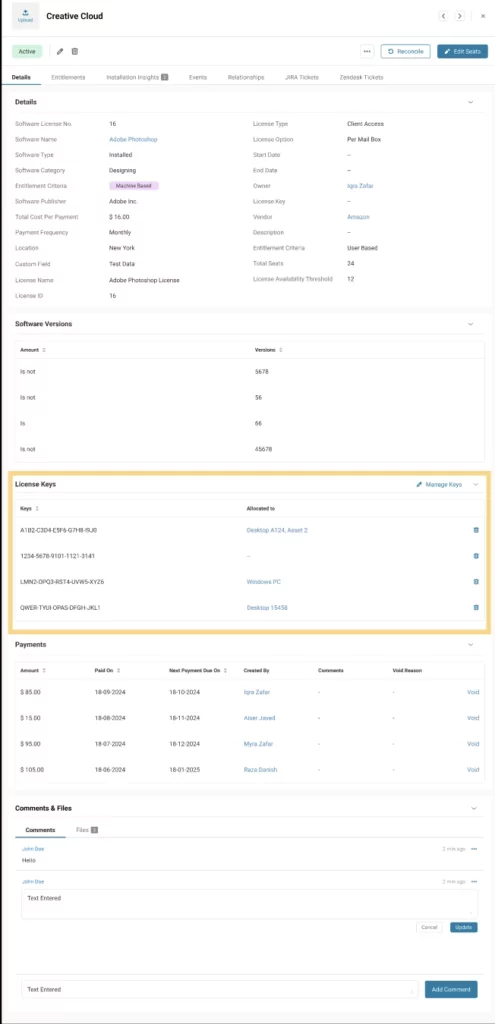
Please note that a single license key can be allocated to one user who can use the software on multiple machines. A single license key can also be allocated to multiple users who can share the license amongst themselves.
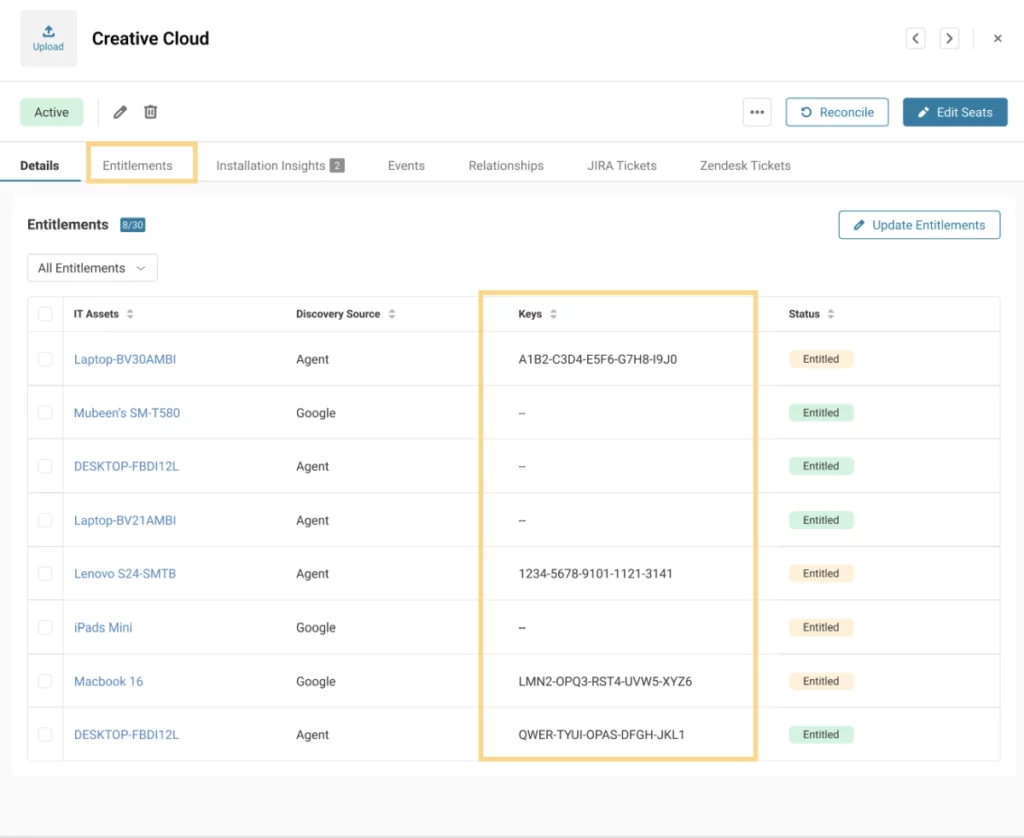
You can also view the license key details under the ‘Entitlements’ tab on the software details page.
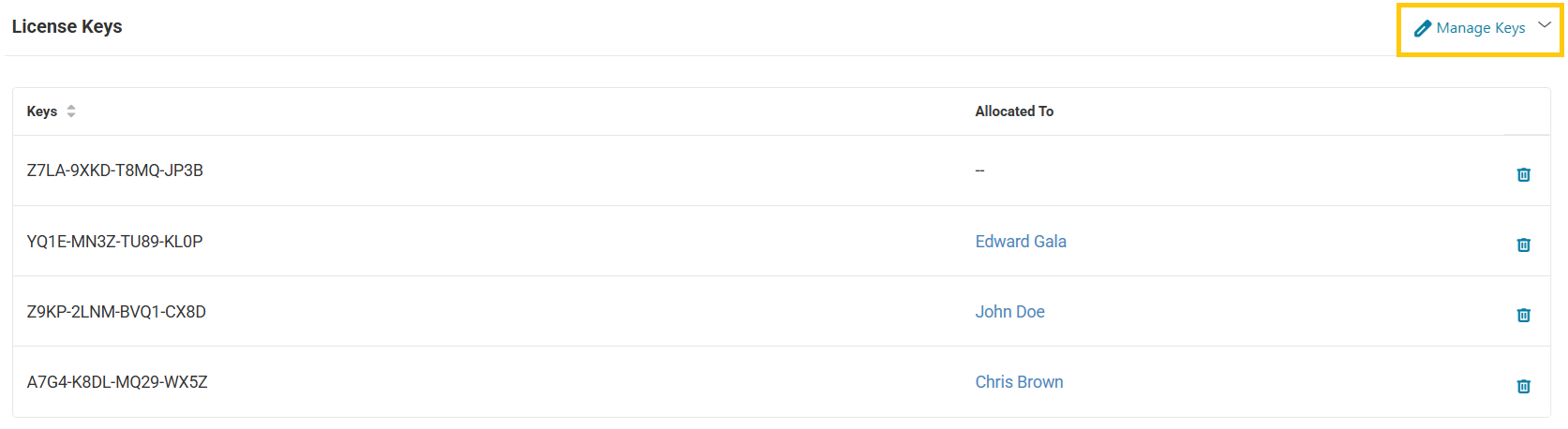
You can add, remove, or allocate these keys from the ‘License Keys’ table on the main detail page of a software license. Click on the ‘Manage Keys’ button on the table as shown below:
A new pop-up will open where you will get an option to add a new license key and the user or asset to whom the key is being allocated. However, adding the user or asset when adding license keys is not mandatory. Here is a snippet of the pop-up:
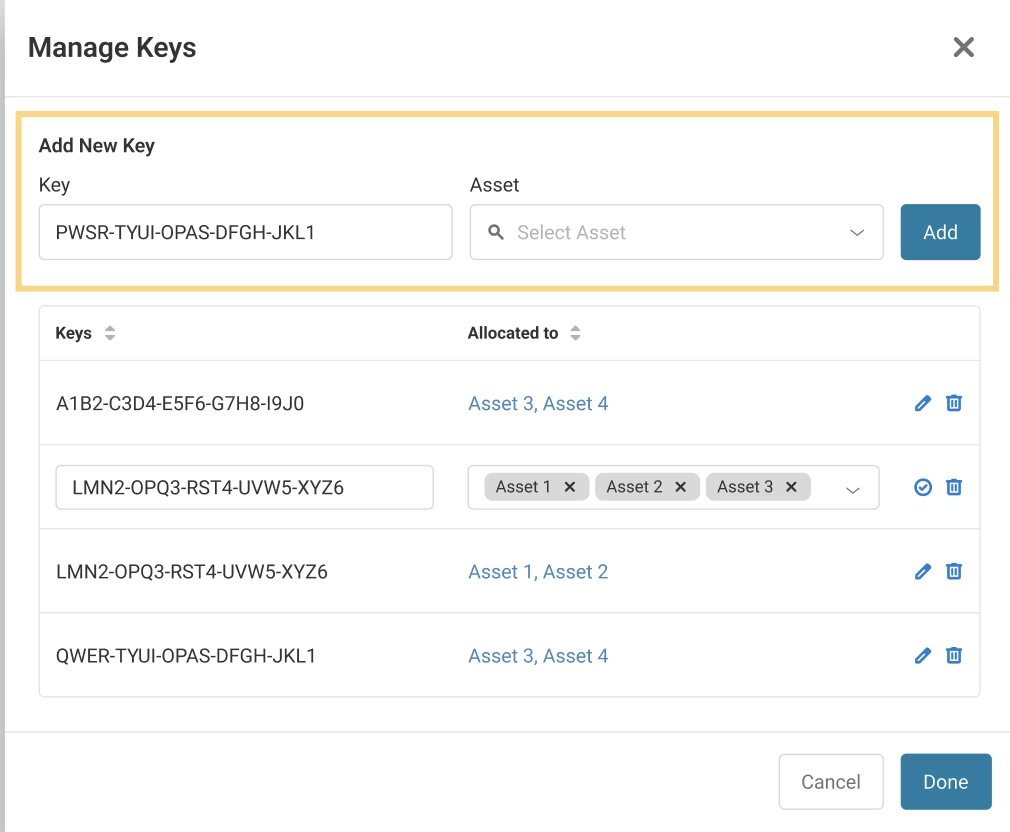
Please note that all license keys have to be unique. The system will not allow you to enter the same key twice.
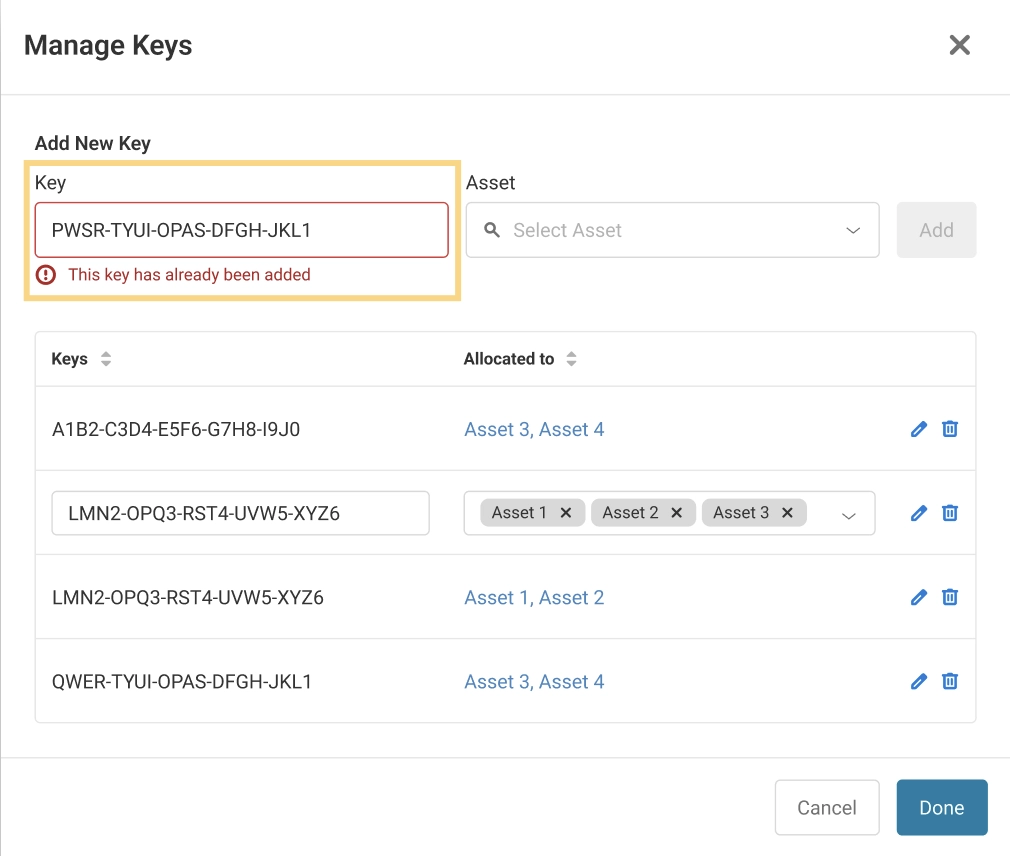
You can allocate the license keys to users or machines via a dropdown of options under the ‘Asset’ field. This field name will be dependent upon the entitlement criteria of the license. For a user-based license, the field will be ‘User,’ while for a machine and user-machine-based license, the field will be ‘Asset.’ Please note that the system will only show you the users or machines that are entitled. You cannot allocate a key to an untitled user or asset.
Adding License Keys for New Software
Now, let’s see how you can add license keys while adding a new software license in AssetSonar. On the ‘Create Software License’ form, scroll down to the ‘License Keys’ section. Here is a snippet of this section:

Here, you can add all the license keys associated with the software license. Please note that you cannot allocate these keys to assets or users while creating the software license.
Adding License Keys from Purchase Orders (POs)
When an IT administrator receives a license through a Purchase Order, they have to specify the number of seats they receive. Once they have entered the number of seats, they can then add the corresponding license keys in the system.
From the Purchase Order’s detail page, go to ‘Receive Items’ and then turn the toggle on for ‘Add License Keys’.
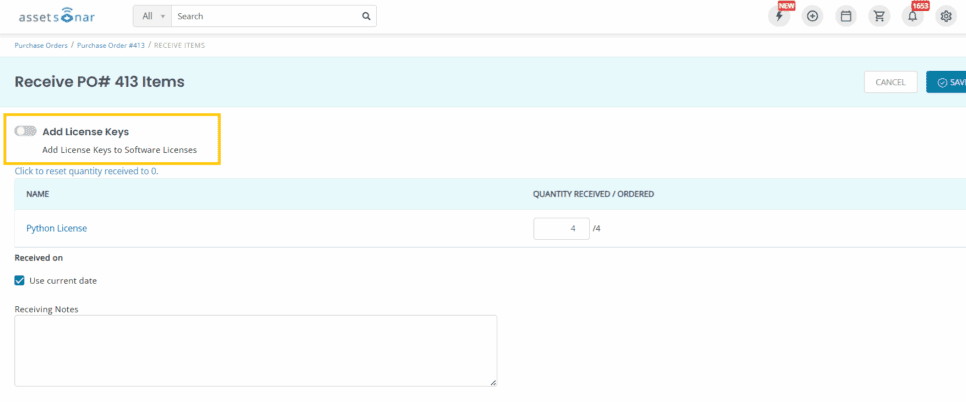
Once you have turned on the toggle, you’ll be able to add the license keys
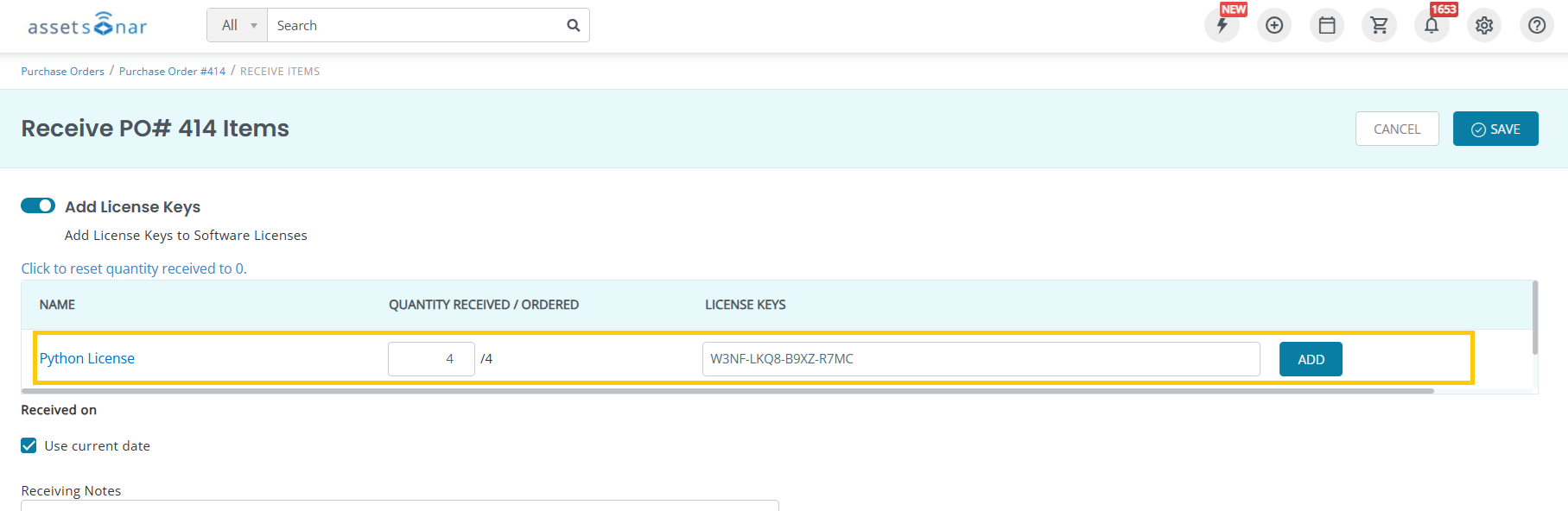
This field will automatically get disabled once you have entered the number of license keys up to the number of seats received.
Once you have successfully entered the license keys, they’ll start showing up under the ‘License Keys’ table on the corresponding software license details page.
Adding License keys when importing licenses via CSV sheet
Users can also add license keys to the software license while importing the license via CSV sheet. They can do so by entering all the license keys as comma-separated values in a cell and mapping it with the License Key Field in the mapping.
