TeamViewer access is often spread across IT staff, support teams, and contractors. Without centralized user data, IT teams must manually review accounts and license assignments every time to identify users who no longer need access or a seat.
The TeamViewer integration brings your company’s users and their last activity into AssetSonar. You can review TeamViewer access from the software record, spot inactive users ahead of renewals, and use synced members for license entitlements.
This article covers how to create a script token in TeamViewer, connect it to AssetSonar, review the synced data, and set up license entitlements.
Note: To set up this integration, you need administrator access to your TeamViewer company account and access to Settings in AssetSonar. TeamViewer API access is available only on supported TeamViewer plans.
1. Create a Script Token in TeamViewer
AssetSonar uses a TeamViewer script token with permission to view users. Create the token from your TeamViewer profile.
- Sign in to TeamViewer as a company administrator.
- Click your profile icon and select Edit profile.
- Open Apps & Tokens.
- Click Create app or token.
- Select Create Script token and enter a recognizable name, such as AssetSonar user sync.
- Under the permissions list, go to User management and select View users. Leave all other permissions cleared.
- Click Save.
- Copy the new token from the Apps & Tokens list and store it securely until you add it to AssetSonar.
Note: TeamViewer does not let you edit a script token after you create it. To change its permissions, delete the token and create a new one, then reconnect the integration in AssetSonar with the new token.
2. Connect TeamViewer to AssetSonar
- Go to Settings → Integrations → Cloud Software → Direct SaaS Integrations.
- Find the TeamViewer card and click Connect.
- In the overlay, paste the script token into the field.
- Click Add to complete the connection.
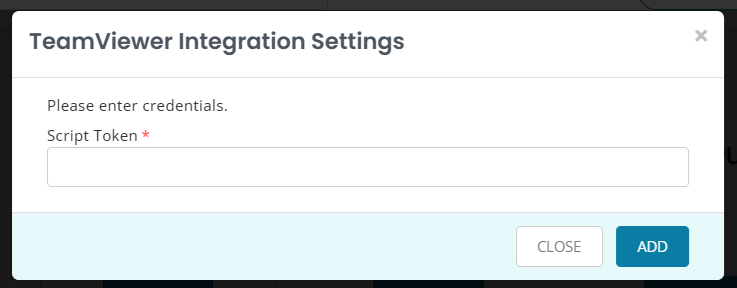
Once the connection is established, AssetSonar runs a full sync of your TeamViewer company users.
Note: If the token is deleted in TeamViewer or was created without the View users permission, AssetSonar cannot sync TeamViewer users.
3. Review the TeamViewer Software Record
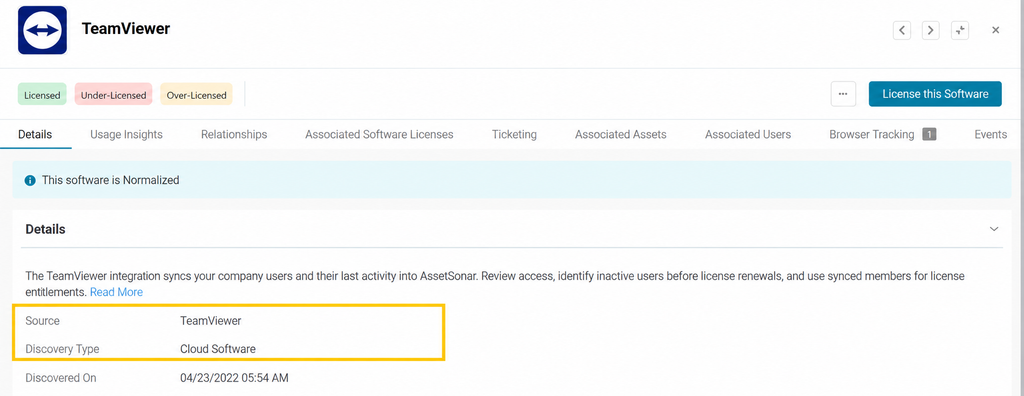
After you connect the integration, AssetSonar creates a software record named TeamViewer, if one does not already exist. The record is set with:
- Discovery Type: Cloud Software
- Source: TeamViewer
To open the record, go to Software → All, search for TeamViewer and click on it to open its details.
4. Review Synced TeamViewer Users
On the TeamViewer software record, open the Associated Users tab. AssetSonar syncs each TeamViewer company user as a cloud software member, with the following details:
- Member Email: The user’s TeamViewer email address. AssetSonar uses this to match TeamViewer users to existing members.
- Display Name: The user’s name in TeamViewer.
- Active Status: Whether the user is active or inactive in TeamViewer.
- Last Activity At: The user’s last access date in TeamViewer.
The sync includes both active and inactive TeamViewer users. Use Last Activity At to identify users who have not used TeamViewer recently and may no longer need a seat.
5. Set Up License Entitlements for TeamViewer
Create a TeamViewer license in AssetSonar to track seats and assign them to synced users.
- Go to Software → Software Licenses.
- Click Add Software License, or open an existing TeamViewer license.
- Select TeamViewer as the software imported from the integration.
- Enter the license details, such as seats, cost, and renewal date, and save the license.
The license supports auto-entitlements. AssetSonar matches synced TeamViewer members to the license by email. To learn how entitlement modes and sync settings work, see assign and manage software license entitlements.
6. Keep TeamViewer Data in Sync
After the initial sync, AssetSonar syncs TeamViewer users periodically, so new users, deactivated users, and updated activity dates appear without manual updates.
If users are missing or not updating, check the following:
- The script token still exists under Apps & Tokens in TeamViewer.
- The token includes the User management → View users permission.
- The user’s TeamViewer email matches their member email in AssetSonar.
Once your TeamViewer users are syncing, you can review inactive seats with software license optimization or confirm usage before renewal with license audits.
If you have any questions, our support team can help. Reach out to us at support@ezo.io.
