Your company domain/URL can be configured to have an additional web address, meaning yourcompany.com can also support requests.yourcompany.com. One way to do this is to add a CNAME record (also known as Canonical Name record) to your domain.
To add a CNAME to your domain, you’ll need to log into your Domain Registrar’s DNS manager. In case you forgot who you bought your domain from, search for your domain at http://reports.internic.net/cgi/whois.
Here are the steps for adding a CNAME in GoDaddy. Skip steps 1 to 2 if you have a different registrar.
1. Log in to your GoDaddy DNS account.
2. Click on the user icon in the top right, then go to My Products > your chosen domain > DNS.
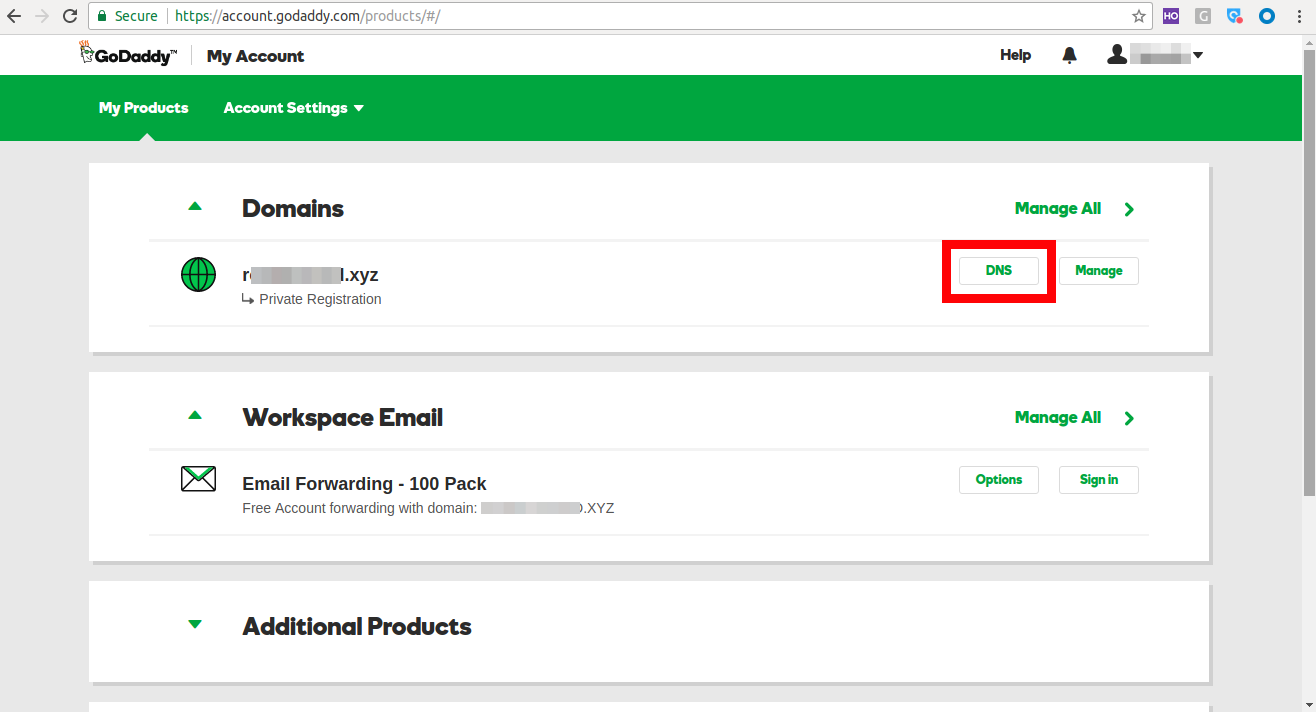
3. On the Records page, click the ‘Add’ button on the bottom right:

4. Choose ‘CNAME’ from the dropdown:

5. In the ‘Host’ field, enter the CNAME you want to use with your current URL (for example ‘requests’ for requests.mywebsite.com)
6. In the ‘Points To’ section, enter your WebStore URL (for example, yourcompanyname.assetsonar.com)
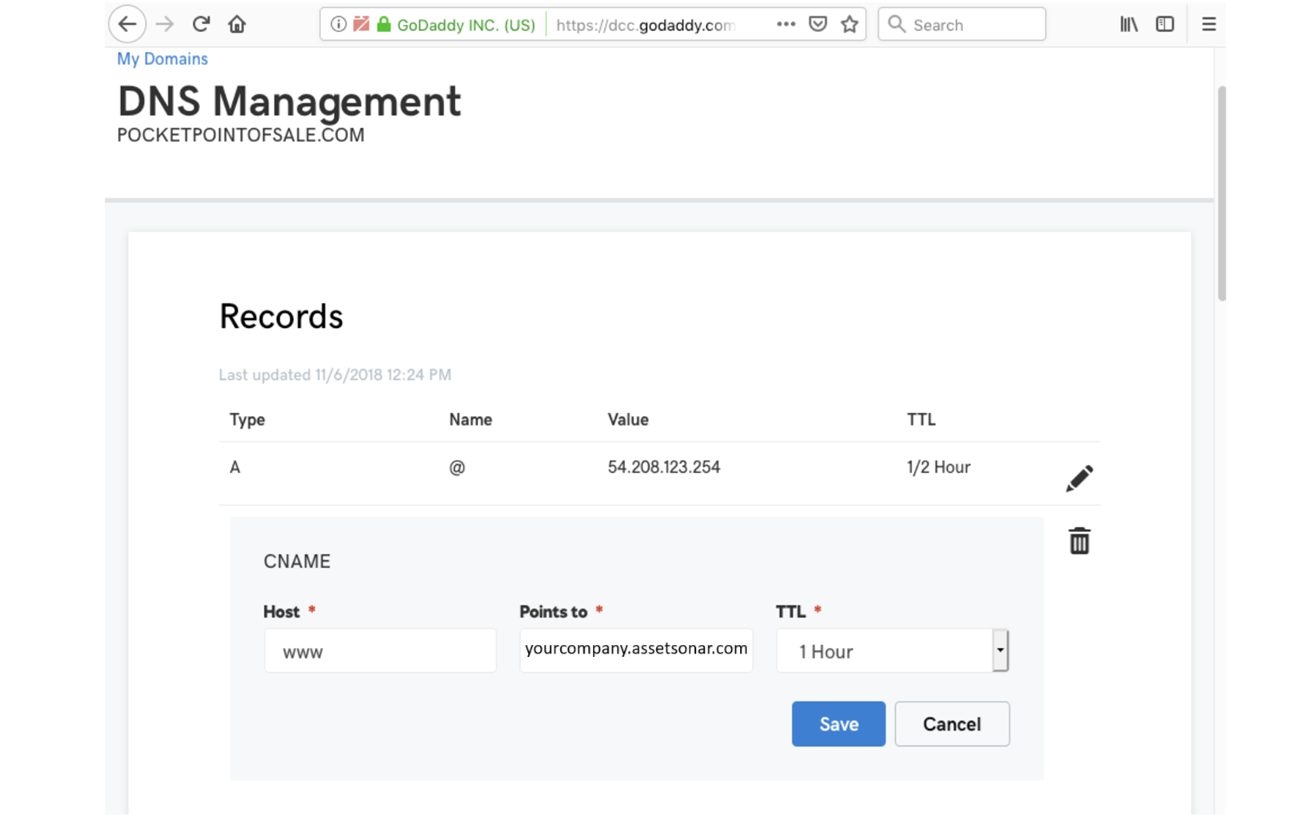
You can also use your Admin login URL if you don’t have a Webstore and want your staff to use your corporate URL (for example, yourcompanyname.assetsonar.com).
7. Click ‘Save’.
Note: It can take up to 72 hours for the changes to be made.
