AssetSonar’s Google Drive integration lets you keep backup copies of your asset and operational data in your organization’s existing Google Drive account. Enable daily backups to upload data automatically, or export documents and reports when needed.
After you connect an account, AssetSonar creates an AssetSonar Backup folder in Google Drive for your backup data.
Before You Begin
- Use an AssetSonar account with the permission to edit settings.
- Have access to the Google account you want to use for backups. Your organization may require administrator approval to authorize the integration.
1. Connect Your Google Drive Account
- Go to Settings → Integrations → Data Backup.
- Click Add Google Drive Account.
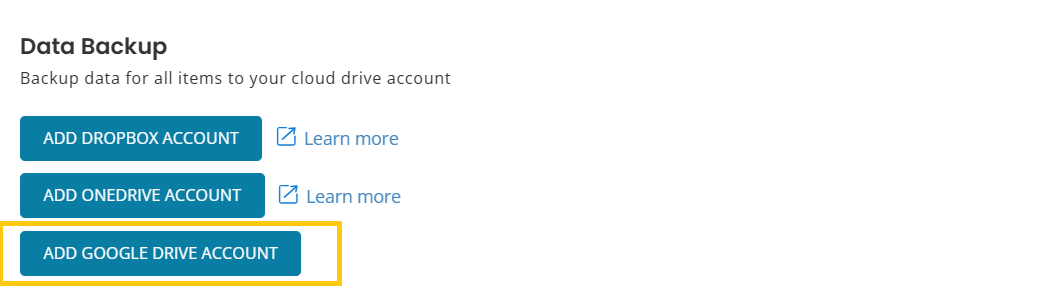
- Select the Google account you want to use for backups. Sign in if prompted.
- On Google’s permission screen, review the requested access to view, edit, create, and delete the specific Google Drive files used with the app. Click Continue to authorize the connection.
- You are redirected to AssetSonar. Under Google Drive, confirm that Enabled – Connected to Google Drive is selected.
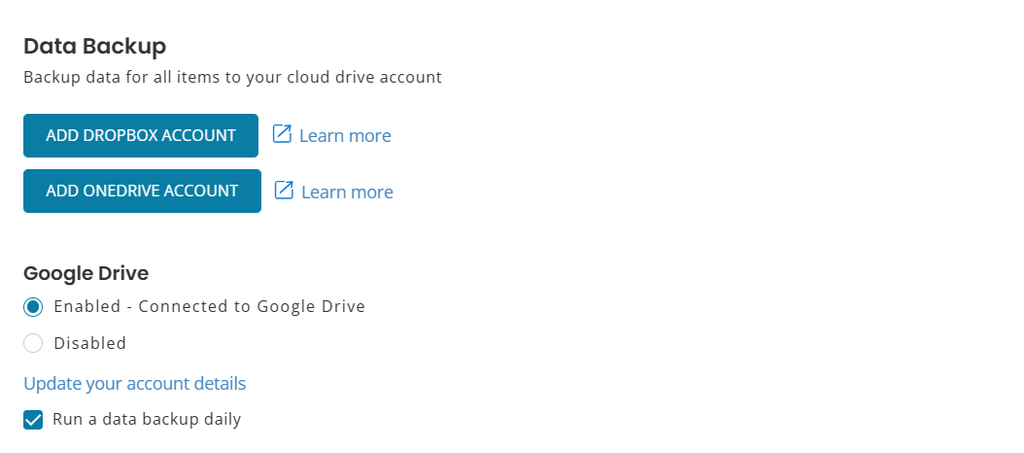
The Run a data backup daily checkbox is checked by default and would ensure that your data is backed up daily.
The backup coverage includes:
| Data | Included records |
| Assets | All active assets |
| Asset transactions | Check-in and checkout events |
| Inventory | Inventory records and line items |
| Asset Stock | Asset Stock records and checkout events |
| Discovery and audits | Asset scans and asset audits |
| Members and vendors | Member and vendor lists |
| Services | Service records |
| Documents | Document records |
Structured backup data is uploaded as CSV files. You can open these files in applications such as Google Sheets or Microsoft Excel.
3. Find Your Backup Data
Sign in to the connected Google Drive account and open AssetSonar Backup.
Review the uploaded files to access your backed-up AssetSonar data. Check this folder after a scheduled backup to confirm that files have been uploaded.
4. Export Documents to Google Drive
You can also export documents directly from the Documents listing.
- Go to More → Documents.
- Open the Export dropdown.
- Select Google Drive.
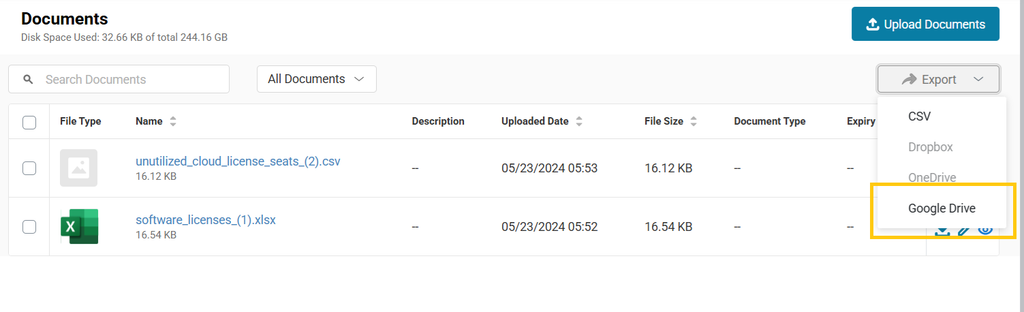
After the export completes, open the connected Google Drive account to review the exported documents.
5. Export Reports to Google Drive
Export a report when you need a copy of its results in Google Drive.
- Go to Reports and open the required report.
- Apply any relevant filters and run the report.
- Click Export in the top-right corner.
- Select Google Drive.
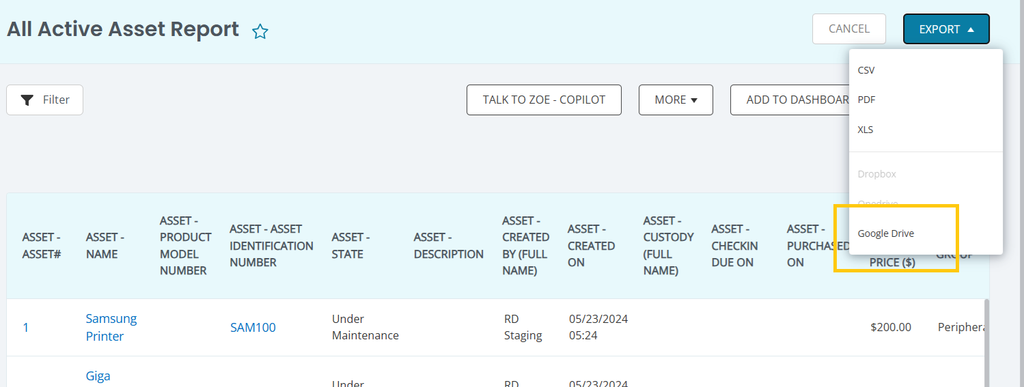
AssetSonar uploads the report as a CSV file to the connected Google Drive account. Open the exported file to review or share the report results.
If you have any questions, our support team can help. Reach out to us at support@ezo.io.
