The Claude integration syncs members and pending invitations from your Claude Enterprise organization into AssetSonar. It gives IT teams one place to see who holds a Claude seat, including seats reserved by invitations that haven’t been accepted yet, alongside the rest of your software inventory.
After you connect the integration, AssetSonar creates a Claude cloud software record, imports your organization’s members, and keeps the list current on each sync. Members removed from your Claude organization are closed out automatically, so seat counts reflect who actually has access.
This article covers how to create a Claude Admin API key, connect it in AssetSonar, review synced members, and use them for license entitlements.
Before you begin: This integration works only with Claude Enterprise. Claude Team and Pro plans don’t provide the Admin API that AssetSonar uses. You’ll also need the Primary Owner of your Claude organization to create the API key. In addition, you must be an AssetSonar Admin with Settings access.
1. Create an Admin API Key in Claude
AssetSonar connects to Claude with an Admin API key that has read-only access to your organization’s member list. Only the Primary Owner can create a key with this access.
- Log in to claude.ai as the Primary Owner of your organization.
- Go to Organization settings → API.
- In the Keys section, click + Create key.
- Enter a name that identifies the key, such as AssetSonar Integration.
- Select the read:members scope. This scope lets AssetSonar read your organization’s members and pending invitations.
- Create the key, then copy it and store it in a password manager or secrets vault.
Note: Claude shows the full key only once. If you lose it, create a new key and replace it in AssetSonar, as described in section 7. Scopes also can’t be changed after a key is created, so if the key is missing read:members, create a new key with that scope selected.
Note: If your Claude Enterprise account includes multiple linked organizations, the Primary Owner can create a key for all linked organizations or restrict it to one.
2. Connect Claude in AssetSonar
- In AssetSonar, go to Settings → Integrations → Direct SaaS Integrations.
- On the Claude card, click Connect.
- In the Claude Admin API Key field, paste the key you copied from Claude.
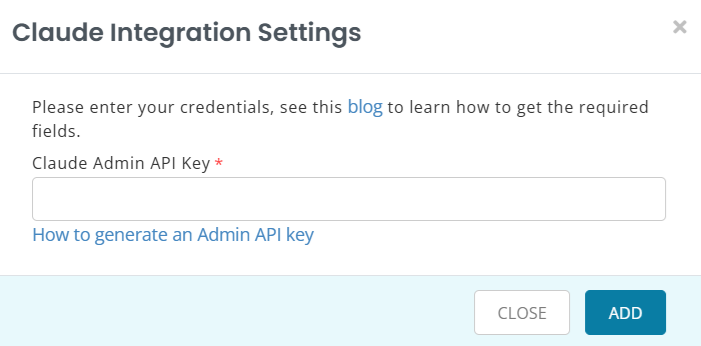
- Click Add and then Update.
AssetSonar checks the key with Claude before it saves the connection. If the check fails, the connection isn’t saved. Confirm that you copied the full key, that it includes the read:members scope, and that it hasn’t been revoked in Claude.
3. Review the Claude Software Record
Once the connection is saved, AssetSonar creates a software record named Claude. If a software named Claude already exists, AssetSonar doesn’t create a second one.
- Go to Software from the Navigation Menu.
- Search for and open the Claude software record.
- Check that the record shows the following values:
- Discovery Type: Cloud Software
- Source: Claude
4. Review Synced Claude Members
AssetSonar creates a cloud software member for every accepted member of your Claude organization. To view them, open the Claude software record and go to the Associated Users tab.
Each synced member includes:
- Email: used to match Claude members with existing AssetSonar users
- Name: the member’s display name in Claude
- User ID: the member’s unique Claude identifier
- Member Since: the date the member joined your Claude organization
Pending invitations
An invitation that hasn’t been accepted still holds a seat in your Claude organization. AssetSonar shows pending invitations as reserved seats, so they count toward seat utilization instead of being left out.
To review seat usage across your licenses, see verify software usage and reclaim seats with license audits.
5. Use Synced Members for License Entitlements
Create a license for Claude to track purchased seats and costs. With automatic entitlements, AssetSonar uses synced Claude members to assign seats on the license, matching members to users by email.
- Go to Software → Software Licenses and click Add Software License.
- Select Claude as the software, then enter the seats purchased, cost, renewal date, and billing details and then save the license.
- The system will automatically entitle the licenses to the members when the license is for the discovered Claude app.
For details on entitlement modes, sync types, and switching sources, see assign and manage software license entitlements. To compare purchased seats against assigned seats, see manage software licenses and maintain compliance.
6. Keep Claude Members in Sync
On each sync, AssetSonar compares your Claude organization’s members and pending invitations with the members already synced:
- New members: added as Claude cloud software members. If the license uses automatic entitlements, they’re assigned a seat.
- New pending invitations: shown as reserved seats.
- Removed members: if a member is no longer in your Claude organization and doesn’t have a pending invitation, AssetSonar closes out their assignment, since the seat has returned to Claude’s pool.
Disconnecting the integration leaves the existing Claude software record, synced members, and license entitlements in place, but stops further updates. When you reconnect to the same Claude organization, AssetSonar resumes syncing the existing data.
7. Replace the Claude Admin API Key
Replace the key if it’s lost, revoked, missing the read:members scope, or due for rotation under your security policy. Claude doesn’t let you edit a key’s scopes after it’s created, so each of these cases needs a new key.
If the current key still works, create and connect the new key before you revoke the old one. This keeps the sync running without a gap.
Create a new key in Claude
- Follow the steps in section 1 to create a new key with the read:members scope.
- Copy the new key. If the old key still works, leave it active for now.
Update the key in AssetSonar
- Go to Settings → Integrations → Direct SaaS Integrations.
- On the Claude card, click Update Credentials.
- In the Claude Admin API Key field, paste the new key.
- Click Update.
AssetSonar checks the new key with Claude before saving it, the same way it does when you first connect. If the key belongs to the same Claude organization, your existing data stays in place. If the key belongs to a different Claude organization, the previously synced organization’s data is overwritten with data from the new organization.
Revoke the old key in Claude
- Once AssetSonar is using the new key, go to Organization settings → API in Claude.
- In the Keys section, revoke or delete the old key.
Note: If the Claude Admin API key stops working, AssetSonar displays an error banner. Claude member updates cannot sync until you replace the key with a working one.
If you have any questions, our support team can help. Reach out to us at support@ezo.io.
