AssetSonar’s field mapping functionality enables users to bring additional information from third-party mobile device management (MDM) integrations directly into AssetSonar. IT managers can select and map specific data fields that are important to their operations, enabling a more streamlined and meticulous approach to IT asset management. By allowing precise control over imported data, this functionality provides scalability and offers better flexibility and customization for third-party integrations.
Benefits of Field Mapping in AssetSonar
Field mapping in AssetSonar is a perfect fit for organizations with growing IT infrastructures. IT departments that are looking to enhance their monitoring and tracking capabilities can greatly benefit from AssetSonar field mapping. Here is how this feature can bring value to your business:
- Data flexibility: Users can choose and map relevant native or custom fields from MDMs without needing developer support.
- Scalable solution for MDM integrations: The feature is designed to promptly support increasingly complex workflows for data retrieval from fields not supported in AssetSonar natively, without waiting for our IT team to do it.
- Automation: This feature reduces the manual intervention of creating and populating custom fields individually by automating the field mapping process and syncs.
- Customization catering to data needs: It tailors the system to individual business needs, allowing for unique data management setups.
Now let’s dig deeper into the functionality to understand how it works and what its use cases are.
Enabling Field Mapping in AssetSonar
Field mapping functionality is built into every MDM integration setting. For now, this capability is available for Microsoft Intune, Jamf, and Google Workspace. We will go through the field mapping functionality in Microsoft Intune settings.
To begin with, go to Settings -> Integrations -> Microsoft Intune Integration. Click ‘Enabled’ and hit ‘Update’. You’ll be able to view all the additional options for the integration. Now check the option for ‘Enable Field Mapping’ and update the settings again.

Mapping New Fields in AssetSonar
Once you have updated the functionality, you’ll be able to see a new button titled ‘Add New Fields’.

Click on the button and a new overlay will appear as shown below:

You can now start mapping a new field from Microsoft Intune to AssetSonar.
Under the ‘Field from Intune’ tab, you can choose the Intune field that you want to fetch to AssetSonar. You’ll also be able to view the exact API field for more accuracy and scalability. For example, if you want to add the compliance state field to your asset detail page, you can choose to bring that field over from Intune. Here is a snippet of the dropdown:
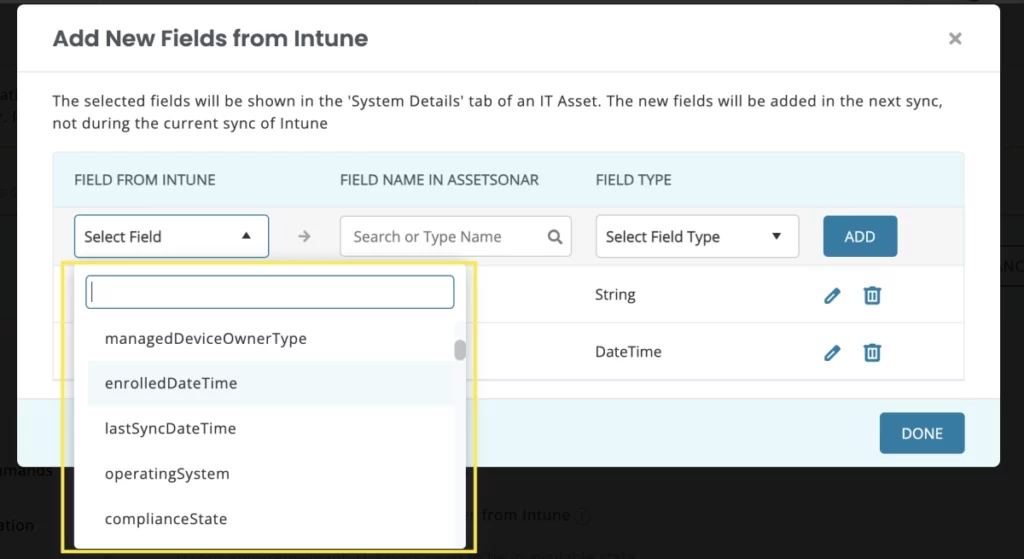
Next, you’ll have to choose the field name you want to assign to this field in AssetSonar. Please note that the new field name should not be a custom field name that already exists in AssetSonar.
However, if you have already created the exact field name in AssetSonar, a dropdown will show you the name and you’ll be able to select it as shown below:

Please note that only the fields that have been created through ‘Add new fields’ workflow will be shown in this dropdown. You wouldn’t be able to view the fields that you have created via the Custom Fields module.
On the other hand, if a new field needs to be created, you’ll be able to view the prompt ‘No results found – New field will be added’. A new field will be created against the field name you assign it to.

The next tab is the Field Type. You can either choose the field type to be a string or datetime. Please note that string accommodates every response that comes through an API. Once you have chosen the field type, click the ‘Add’ button to create the new field mapping in AssetSonar. Click on ‘Done’ to finish creating the field mapping.

Once you have created the fields successfully, you can test them to ensure that they are working properly. From Microsoft Intune settings, click on ‘Test Fields’.
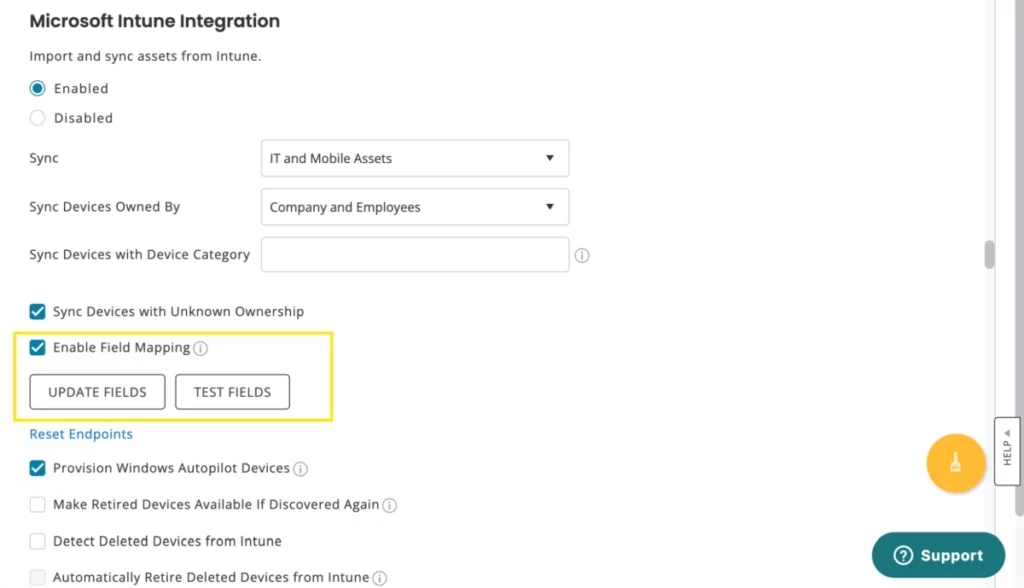
A new overlay will appear as shown below:

Add the name or the serial number of the asset that is synced through the Intune integration and click on ‘Test Mapping’. If the mapping is successful, you’ll be able to see the green ticks as shown below:
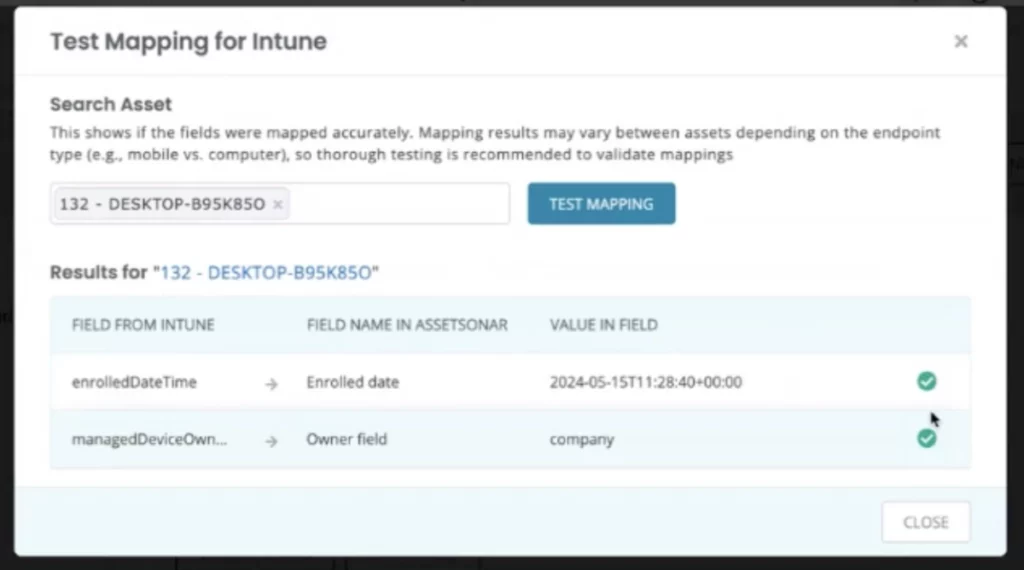
If you haven’t accurately mapped the fields or have made any HTTP errors, connection errors, or data errors, you’ll see red crosses instead.
Viewing Field Mappings
You’ll be able to view the new fields in the system details tab of the devices synced through Microsoft Intune.

Please note that all the newly created fields will appear a few minutes after creating the field mapping and the field will be populated after the next successful sync.
Please also note that this functionality can be availed if multiple MDMs are being used across the network. You can create fields for multiple MDMs and map them accordingly.
