Employee onboarding requires coordination between IT, HR, managers, security teams, facilities, and other stakeholders. Before a new employee starts, teams may need to prepare hardware, assign software, configure access, collect approvals, and confirm that everything is ready for the employee’s first day.
AssetSonar’s Onboarding Center helps you standardize this process using structured workflows. You can organize onboarding work into stages, create tickets, tasks, approvals, and emails, and track the progress of each employee from one place.
Here’s how to create and track employee onboarding workflows in AssetSonar.
1. Go to the Onboarding Center
From the navigation menu, go to Automations → Onboarding.
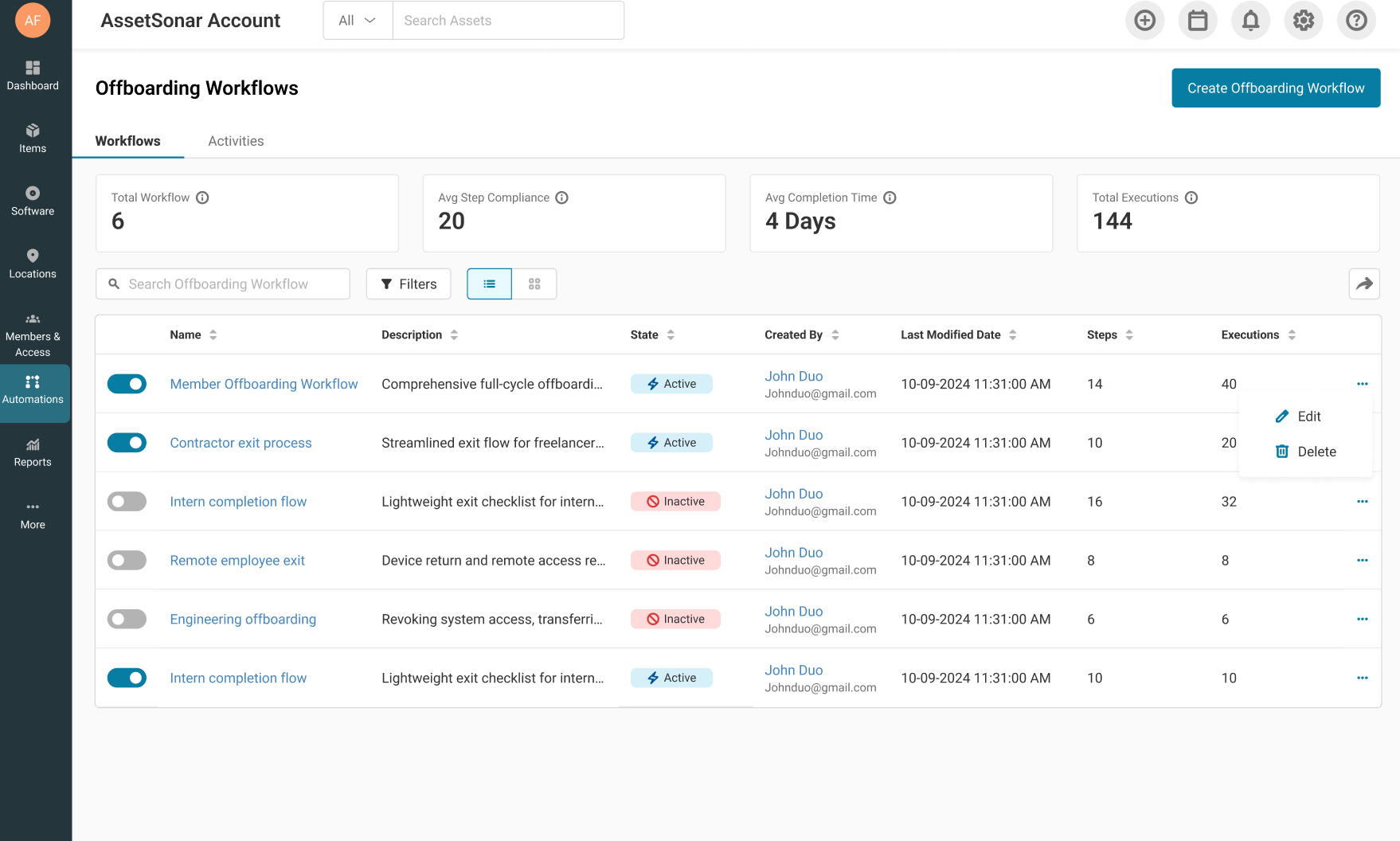
The Onboarding Center includes two tabs:
- Workflows: Shows the onboarding workflow templates configured in your account.
- Executions: Shows the onboarding requests initiated through those workflows.
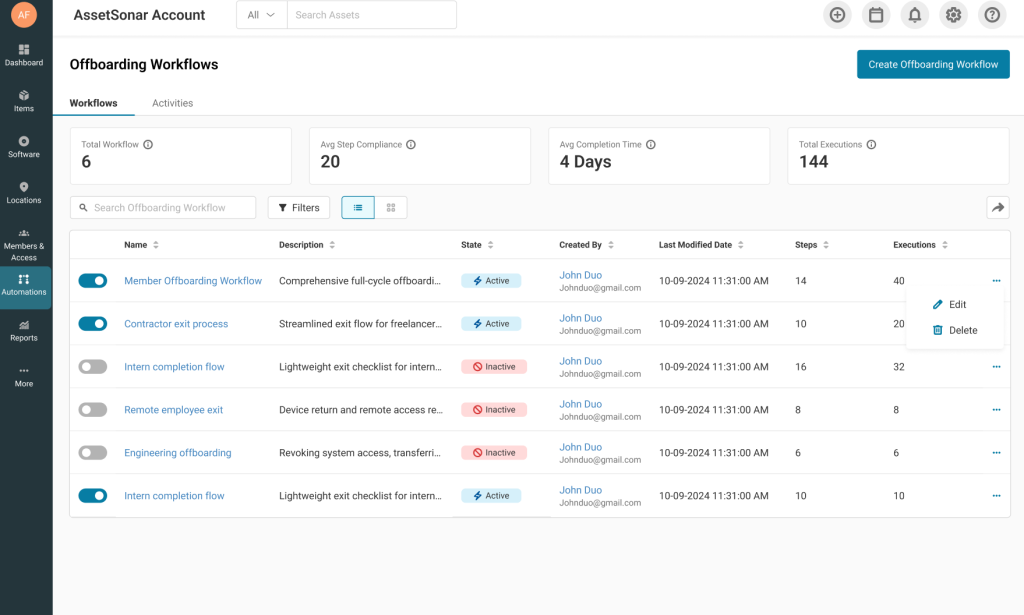
The Workflows tab also displays information such as the workflow status, number of steps, execution count, creator, and last modified date.
2. Create an onboarding workflow
Click Create Onboarding Workflow.
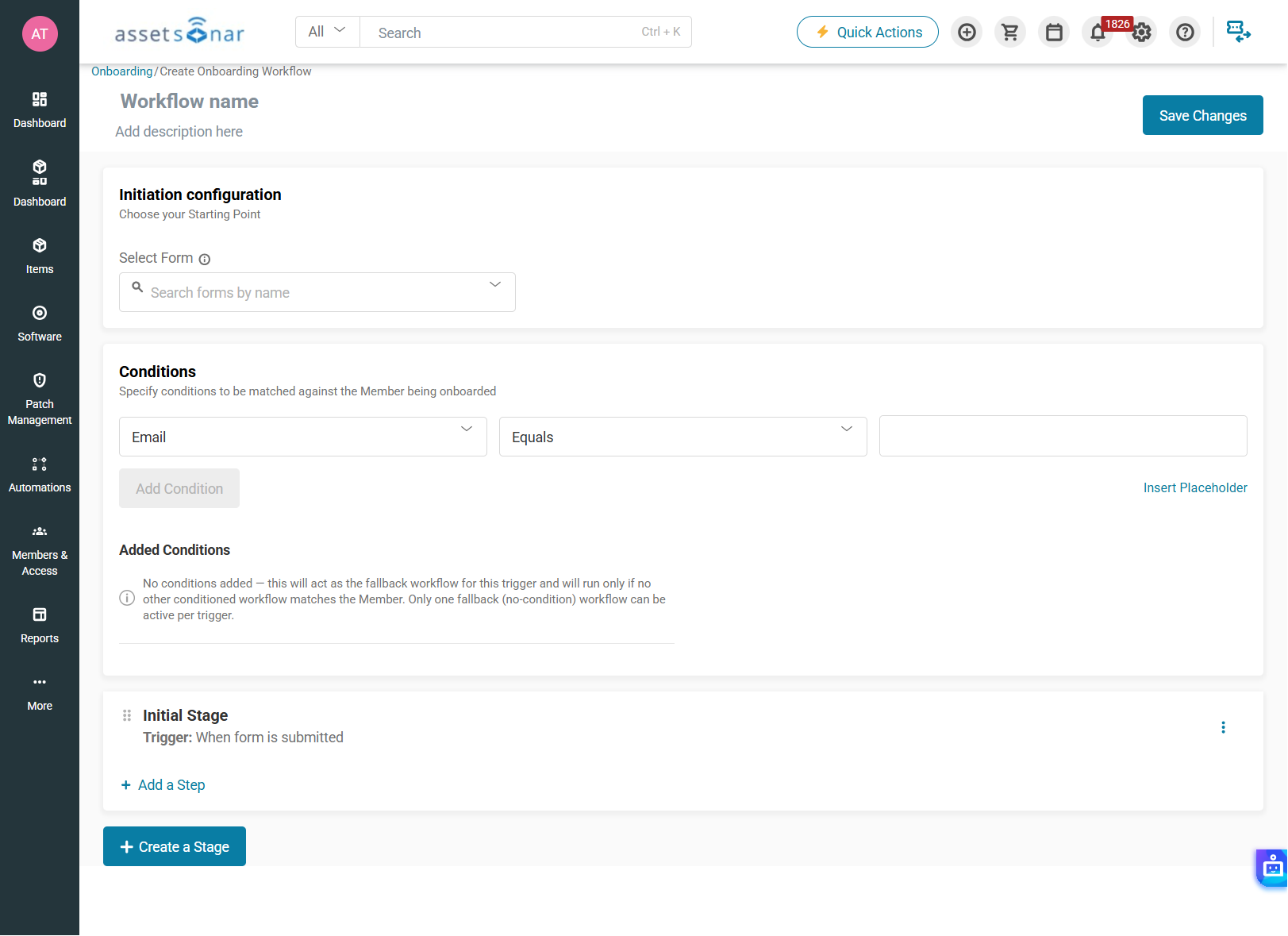
Enter a name and description that clearly identify the workflow. For example, you may create separate workflows for full-time employees, contractors, interns, executives, or remote employees when their onboarding requirements differ.
An onboarding workflow acts as a reusable template. It contains the initiation form, stages, and steps that AssetSonar uses whenever someone starts a new onboarding request.
3. Select the initiation form
The Initiation Configuration section determines which Service Catalog form starts the onboarding workflow.
Select the appropriate onboarding form and click Preview to review its fields.
The form should capture the information required to begin onboarding, such as:
- Employee or member being onboarded
- Start date
- Department
- Role
- Manager
- Work location
- Equipment or software requirements
- Additional notes
The exact fields can vary according to your organization’s onboarding process.
To create or update the form, go to Administration → Forms. For complete instructions, see our guide on [ITSM | How-To] Create and Configure Service Catalog Forms in AssetSonar.
4. Create workflow stages
Stages organize onboarding work into logical phases. For example, you could create separate stages for request approval, pre-arrival preparation, first-day setup, and onboarding completion.
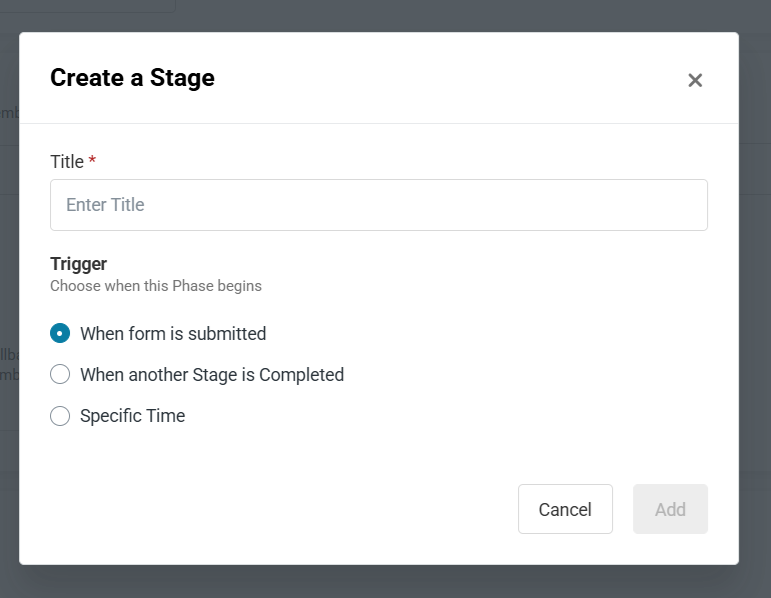
Click Create a Stage and enter a title for the stage.
Next, select when the stage should begin. Available triggers include:
- When form is submitted: Starts the stage immediately after the onboarding request is submitted.
- When another Stage is Completed: Starts the stage after all the steps in a selected upstream stage have been completed.
- Specific Time: Starts the stage on a specified day after the onboarding form is submitted.
For example, an initial approval stage can begin when the form is submitted, while device preparation can begin after the approval stage is completed.
All steps inside an activated stage begin together. Steps are not completed sequentially within the stage. If certain work must wait for earlier work to finish, place it in a separate stage and use the completed-stage trigger.
Multiple stages can also run simultaneously when their respective trigger conditions are met.
5. Add steps to each stage
After creating a stage, click Add a Step.
You can add steps using:
- Add from Standard List: Select from the preconfigured onboarding steps available in AssetSonar.
- Add Custom Step: Create a step specifically for your organization’s onboarding process.
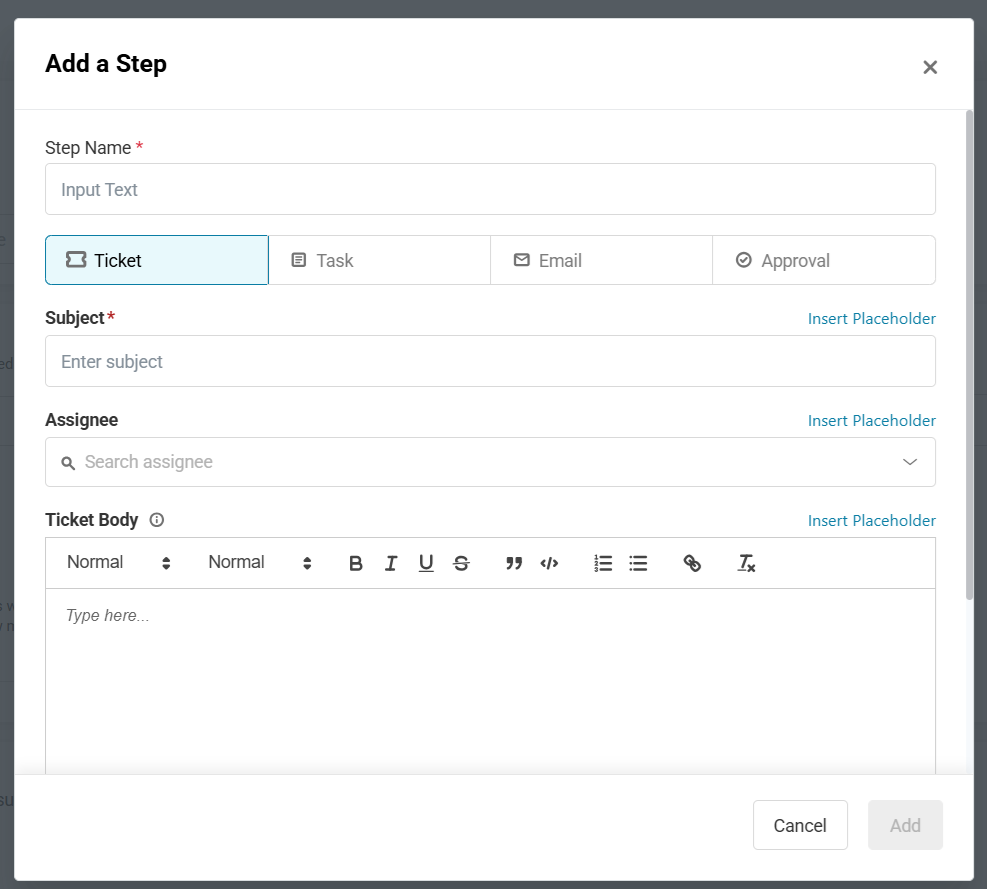
AssetSonar supports four step types:
- Ticket: Creates a child ticket under the main onboarding ticket. Use tickets when a separate team or technician needs to manage a distinct piece of work.
- Task: Creates a task on the main onboarding ticket. Tasks can also include supported linked actions.
- Approval: Creates an approval request for the designated approver.
- Email: Sends an email to the configured recipient.
Each step type has its own completion condition:
- A ticket is completed when it is marked as Closed or Solved.
- A task is completed when it is marked as Done.
- An approval is completed when it is approved.
- An email is completed when it is sent.
When every step within a stage is completed, AssetSonar marks the stage as complete and evaluates whether any dependent stages should begin.
6. Save and activate the workflow
Once you have added the required stages and steps, review the complete workflow.
Make sure that:
- Every stage has the correct trigger.
- Each step has the appropriate type and assignee.
- Dependent stages reference the correct upstream stage.
- Parallel stages can run independently.
- The selected initiation form captures the required employee information.
Save the workflow and turn on its activation toggle when it is ready for use.
If a workflow has never been used, you can edit it directly. After the workflow has been used for at least one onboarding request, editing it creates a new version. Existing onboarding executions continue using the version with which they started and are not affected by the changes.
This prevents updates to a workflow from disrupting employees who are already being onboarded.
7. Initiate an onboarding request
To start an onboarding process, open the Service Catalog form associated with the active workflow.
Enter the required employee information and submit the form.
AssetSonar then:
- Creates the main onboarding ticket.
- Associates the correct onboarding workflow with the ticket.
- Creates an execution for tracking the onboarding request.
- Evaluates the stage triggers.
- Activates any stages configured to begin when the form is submitted.
- Creates the relevant tickets, tasks, approvals, and emails.
The main onboarding ticket acts as the parent record for the complete process.
8. Track onboarding executions
To view active and completed onboarding requests, go to Automations → Onboarding → Executions.
The Executions tab shows information such as:
- Ticket
- Onboarding Member
- Workflow
- Created By
- Created On
- Ticket State
- Steps Completion
Use the search and filters to locate a particular employee, ticket, or workflow. You can also export execution information to a CSV file.
Clicking the ticket, workflow, or onboarding member opens the corresponding detail page.
The Steps Completion column helps you identify onboarding requests that are complete, delayed, or waiting for action. For example, 6/10 means that six of the workflow’s ten steps have been completed.
9. Track the workflow from the onboarding ticket
Open the main onboarding ticket to review and complete the work associated with the request.
The ticket’s right pane contains two views:
- To Do List: Shows the tasks and approvals associated with the ticket.
- Workflow Checklist: Shows the complete onboarding workflow organized by stage.
The Workflow Checklist displays:
- Stage title and trigger
- Number of steps in each stage
- Number of completed steps
- Step type, such as Ticket, Task, Approval, or Email
- Completion status for each step
- Skip option for incomplete steps
- Execute option for tasks with supported linked actions
Completed steps display a green check.
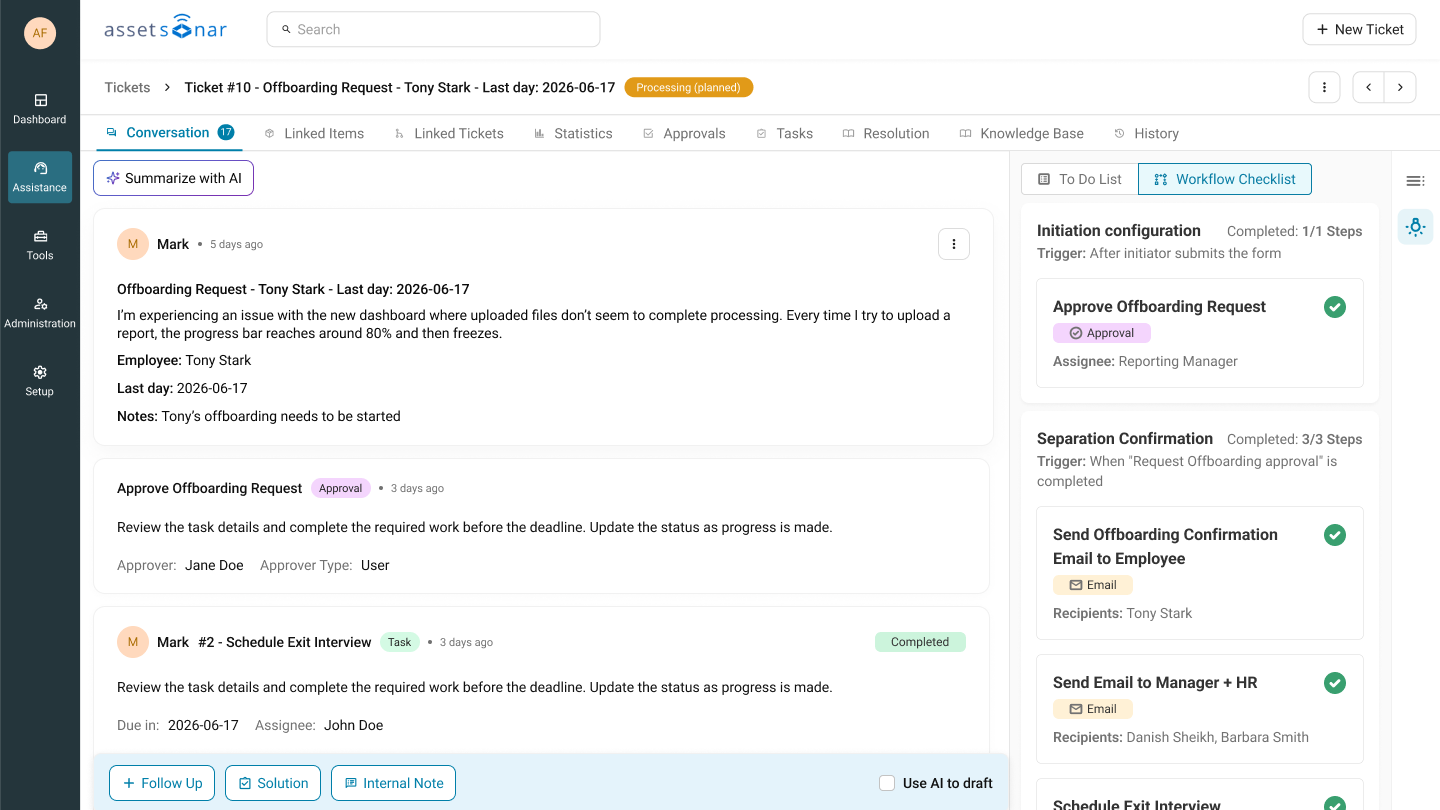
The checklist is a live view. When a task, ticket, approval, or email step is completed from another supported location, the checklist updates to reflect its latest status.
10. Handle rejected approvals and delayed steps
If an onboarding approval is rejected, the approval step and its stage are marked as halted. Any stage waiting for that halted stage to finish will not begin automatically.
Other independent stages continue running according to their own triggers. For example, a stage scheduled for a particular day can still begin even if an unrelated approval stage has been halted.
If work was completed outside AssetSonar or a step is no longer required, an administrator can manually:
- Mark the step as Done.
- Skip the step.
AssetSonar records who applied the override and when it was applied. It then checks whether the stage can be completed and whether any dependent stages should begin.
Use these options carefully so that the workflow continues to provide an accurate record of the onboarding process.
11. Monitor onboarding performance
The Workflows tab includes KPI cards that provide an overview of onboarding activity:
- Total Workflows: Number of onboarding workflows configured in the account.
- Steps On-Time %: Percentage of workflow steps completed within their due dates.
- Average Completion Time: Average time taken to complete the parent onboarding tickets.
- Total Executions: Number of onboarding workflow executions.
Use these metrics to identify recurring delays, approval bottlenecks, and stages that regularly require manual intervention.
12. Complete the onboarding request
When every step in a stage is completed, the stage is marked as complete. When all stages are complete, the overall onboarding execution is also marked as completed.
AssetSonar does not automatically close the main onboarding ticket. Review the completed workflow and manually close or solve the ticket after confirming that all required onboarding work has been completed.
Standardize every employee onboarding process
AssetSonar’s Onboarding Center gives IT teams a repeatable way to coordinate employee setup across different stakeholders. By connecting forms, stages, tickets, tasks, approvals, emails, and live execution tracking, teams can reduce missed work and make sure employees receive what they need before their first day.
Need help creating your first onboarding workflow? Reach out to us at support@ezo.io — we’re happy to assist.
