AssetSonar can automatically update an IT asset’s location when its discovered internal IP address matches a range mapped to a Location. Use this to associate devices with offices, buildings, or other named locations based on their reported network information.
Before You Begin
Use an account with permission to manage locations and company settings. Devices must have a discovered internal IP address for location matching to work.
1. Enable Automatic Location Updates
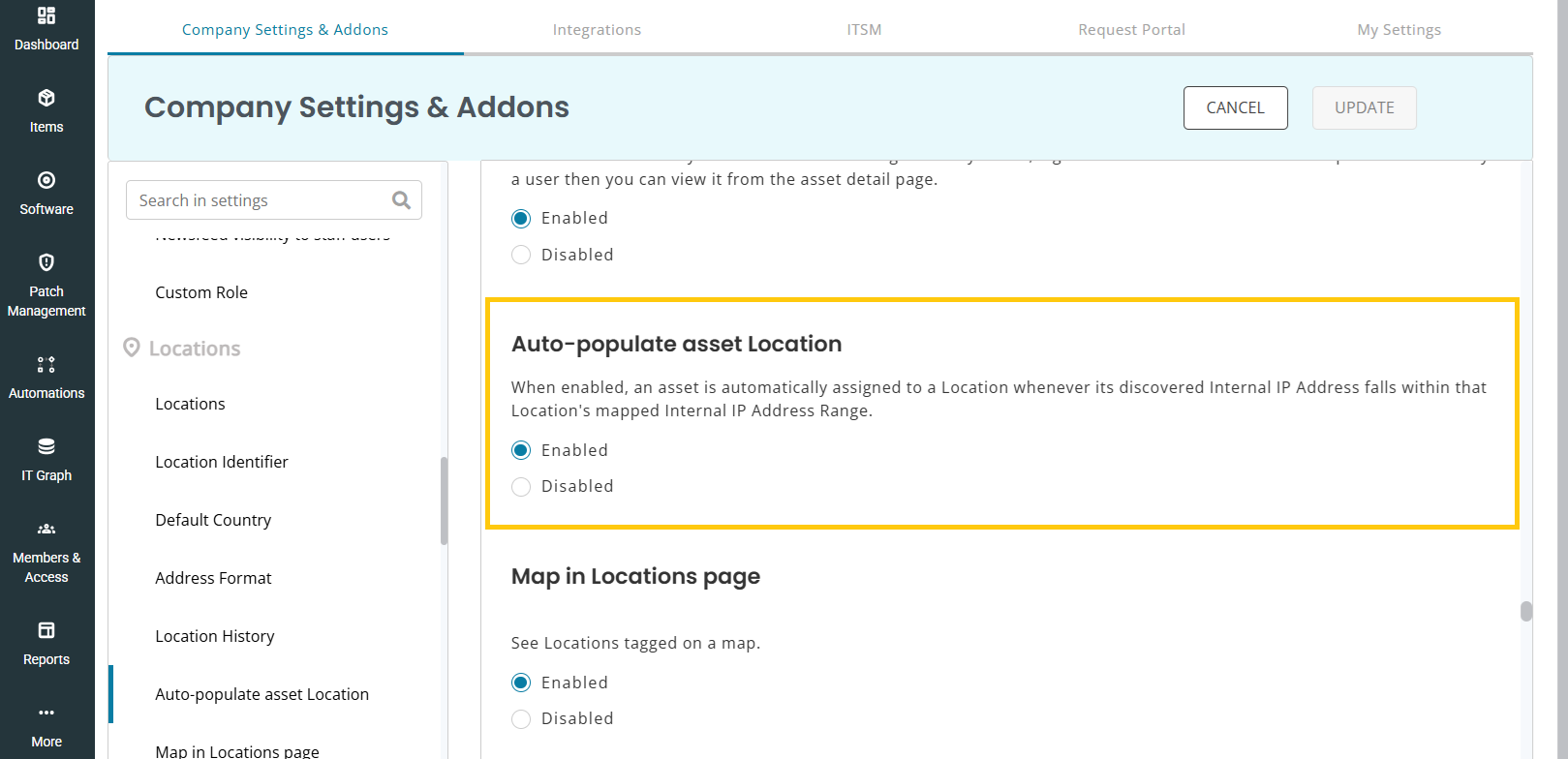
- Go to Settings → Company Settings & Addons → Locations.
- Under Auto-Populate Asset Location, select Enabled, then click Update.
With this setting enabled, AssetSonar updates an asset’s location when its discovered internal IP address matches a configured range.
2. Map an IP Range to a Location
Once automatic location updates are enabled, you can map an internal IP range to a location so AssetSonar can automatically assign matching devices to it.
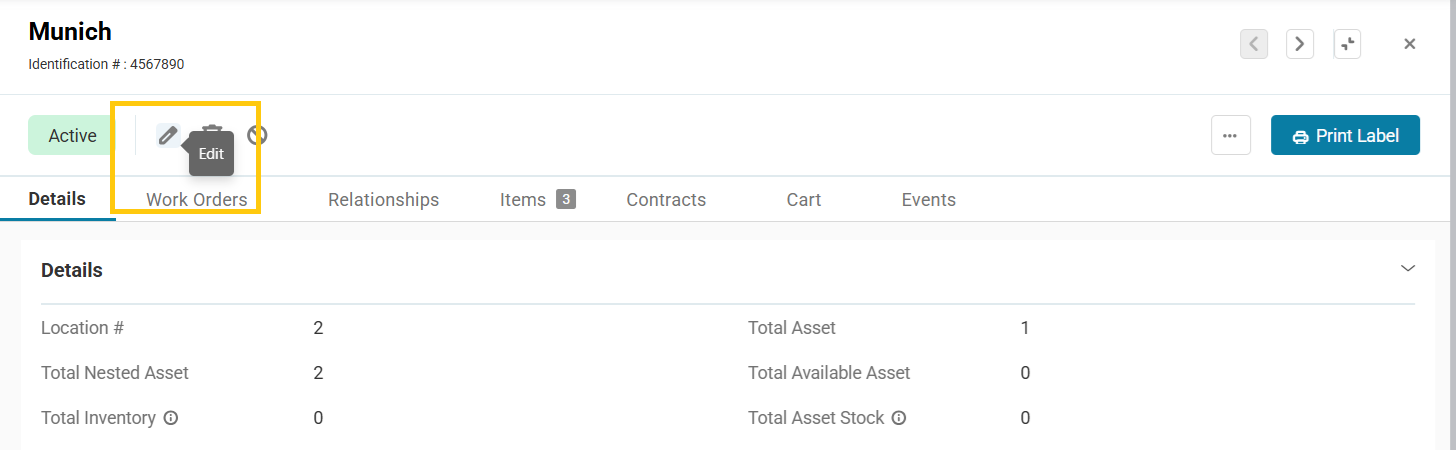
- Go to More → Locations and click on Create Location or open an existing location to edit it.
- In the Internal IP Address Range, enter the location’s subnet in CIDR notation. For example, enter 10.20.30.0/24 for your New York Office.
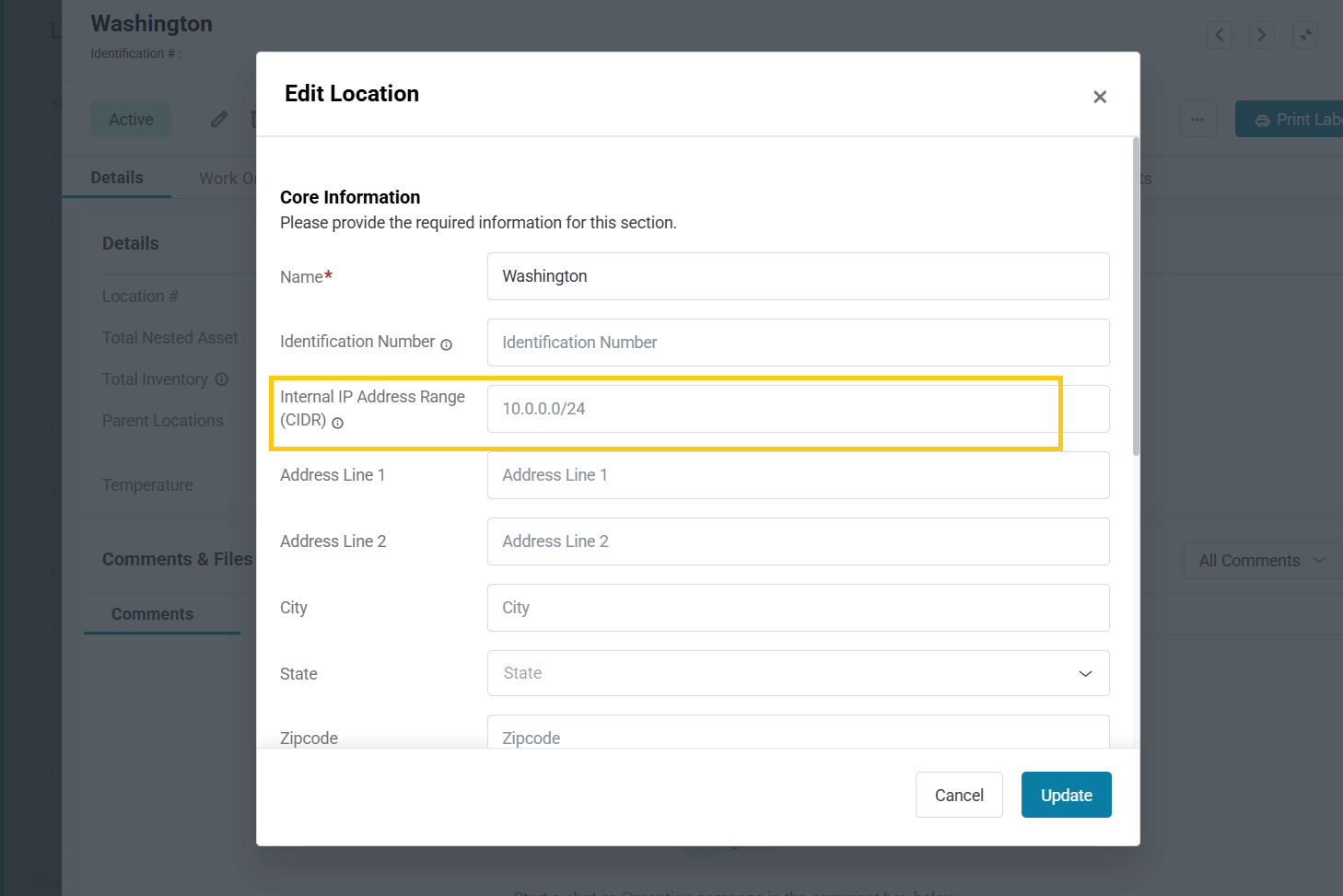
- Save your changes.
You can also configure IP ranges for nested locations.
3. Check the Asset’s Location
- Go to Items → Assets and open a discovered IT asset.
- Review its discovered Internal IP Address.
- Check that its Location matches the location mapped to that range.
For example, a device reporting 10.20.30.45 matches the New York Office range 10.20.30.0/24.
4. Report on Location Mappings
Create a custom report to review the internal IP ranges configured for your locations alongside the assets assigned to them.
- Go to Reports and click Create Custom Reports in the top-right corner.
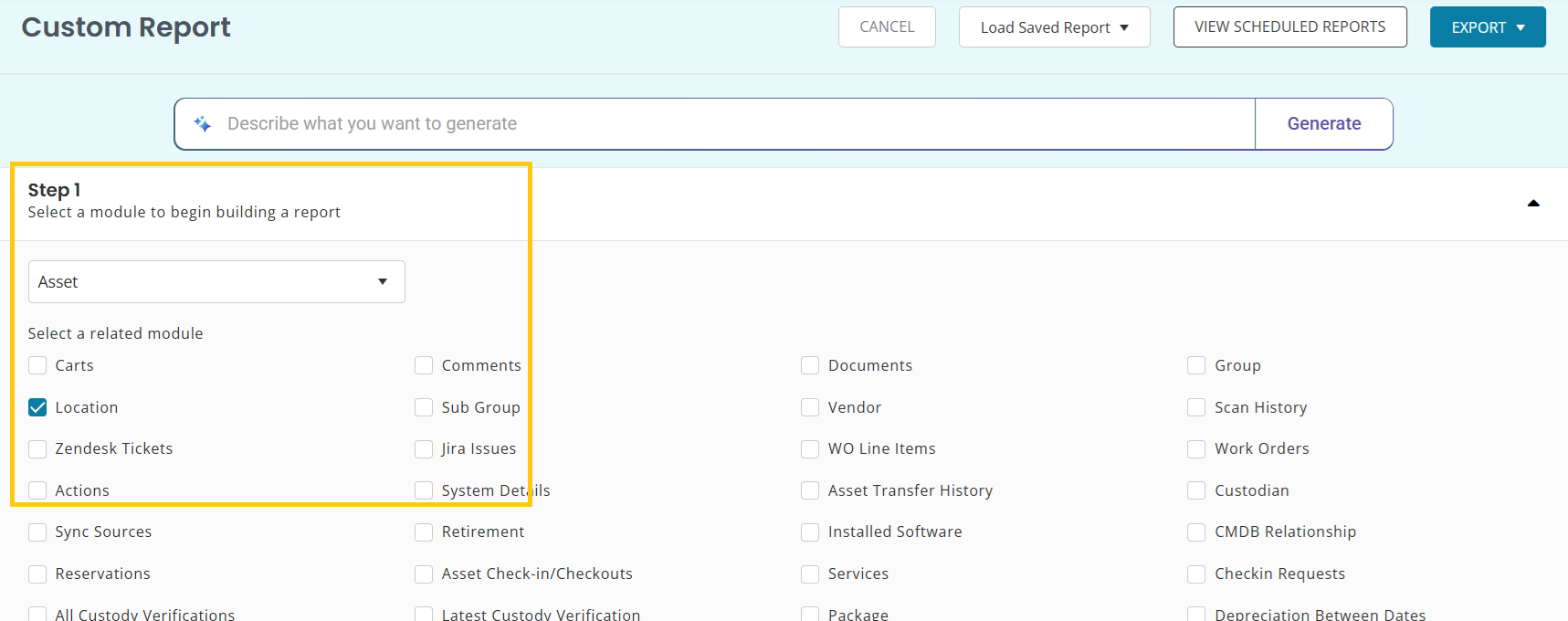
- Select Asset as the primary module and then Location as a related module.
- Add Location – Internal IP Address Range (CIDR) to the report columns.
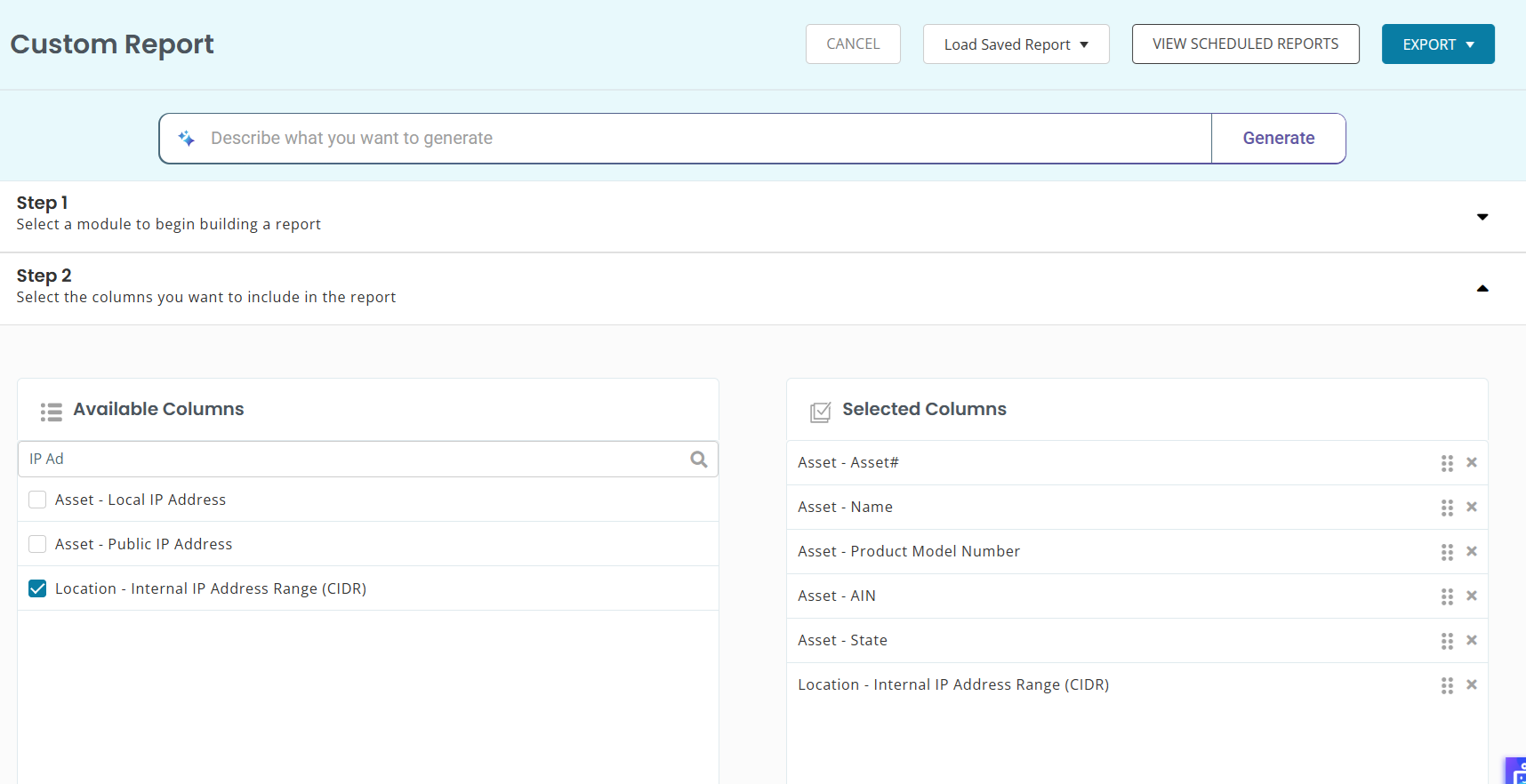
- Apply a location filter if you want to review a particular office.
- Click Run Report to review asset assignments and the configured location IP ranges.
- You may also save the report.
One use case would be to filter the report to your New York Office to review its assigned assets and configured internal IP range.
For additional guidance on filters, exports, and scheduling, see Generate Custom Reports.
For assistance, contact support@ezo.io.
