AssetSonar enables mass label scanning to help you process IT Assets quickly. In this post, we’ll take you through setting up a Barcode scanner on your AssetSonar mobile app. To learn how to use AssetSonar to set up a Barcode scanner on your PC or Mac, click here.
AssetSonar mobile app comes with Barcode scanning baked right in, using your phone or tablet’s camera to scan items quickly. However, if you have devices that are hooked up to terminals for self-service, or you’d rather use an external Barcode scanner for some other reason, we’ve got you covered.
Contents
1. Configuring AssetSonar
1) Go to Settings → Add Ons → Handheld Scanner Integration → Barcode Reader, and enable this option.

2) Additionally, check the option to ‘Enable lookup based on time delay of input, useful for quick scans’.

3) Save your settings.
2. Configuring the Scanner
1) Make sure that the scanner is HID-compliant and can interact directly with your device as an input. The scanner connection with your phone or tablet may be based on Bluetooth.
2) Open a notepad or a document and scan an AssetSonar-generated Barcode. It should appear on the notepad.
3) Make sure that there is no line break with the input. This means that if you scan the same Barcode twice, it should appear in the same line twice. Say your Barcode is ABC123.
Scanning it twice should print:
ABC123ABC123
However, your Barcode ABC123 might be scanned as:
ABC123
ABC123
If this is the case, the scanner is putting an Enter/Return value after the sequence it is scanning. Use your scanner’s manual to see how to remove this suffix. There should be a Barcode label in the manual’s configuration options with a name similar to ‘Suffix Off’. Scanning it should remove the Enter/Return input. Do the scanning test with a notepad or a document again to see that there are indeed no suffixes or prefixes with the Barcode being scanned.
3. Using the Scanner
1) Open the AssetSonar mobile app. Go to the Items tab, click on the ‘+’ icon, and select the Barcode Scanner option.

2) Tap this option to go to the scanning page
3) Scan as many items as you want. You’ll see them being listed on the page.
4) Take a second between each scan to ensure that the Barcode has been read.
5) Hit the ‘Completed’ button at the end of the page when done.
6) Take actions on the scanned list, and you’re done!
4. Tackling the keyboard input issue
Once the scanner is connected to your iPad/iPhone/Android Device, it’s treated as keyboard input. This means that the device confuses the scanner with the keyboard. Therefore, you won’t be able to use the keyboard alongside a connected scanner.
Here are three quick solutions to this problem:
4.1. Keep the device’s Keyboard On/Off Barcode label handy
Look for this barcode in the scanner’s configuration guide:
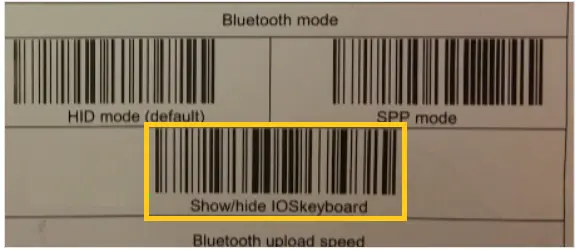
Scan this Barcode once you’re done scanning an IT Asset. This will enable your device’s keyboard. Scan it again when you’re about to scan labels, and the control will be shifted from the keyboard to the Bluetooth-connected scanner.
4.2. Set a time-out when the scanner is idle
If your scanner doesn’t have a Keyboard On/Off option, you can edit the sleep settings to a reasonably low time (such as 30 seconds). This will disconnect the scanner automatically if it’s idle for 30 seconds.
The scanner will be connected back as soon as you press the scan button. This means you can scan Barcodes, hit ‘Completed’, choose an action, and just pause a little to ensure that 30 seconds have elapsed since your last scan. You’ll then be able to use the device’s keyboard.
When you need to use the scanner again, press the scan button and it will be reconnected. Typically there are beeps and a colored LED indication to show whether or not the scanner is connected.

4.3. Switching the scanner on and off
If the scanner is specifically designed for an iPad or Android Tablet, it should have a button to connect and disconnect the Bluetooth. Alternatively, it may have a gesture (such as long-pressing the main scan button) that does the same. While the scanner is switched on and connected, scan the Barcodes and then simply switch it off. Use the keyboard now to type in the text if required, and you’re done.
And, that’s all about using an external Barcode reader with the AssetSonar mobile app.
