Major Incidents help your IT team coordinate the response to critical service disruptions, such as a company-wide outage or severe service degradation. A dedicated record captures the business impact, response ownership, related work, and progress toward restoring service.
After service is restored, a Post Incident Report (PIR) records the root cause, resolution, and follow-up actions. A Major Incident can be closed after the report is approved, child tickets are resolved, and tasks are completed.
1. Create a Major Incident
- Open Tickets in your ITSM workspace.
- Click + New Ticket and select Major Incident.
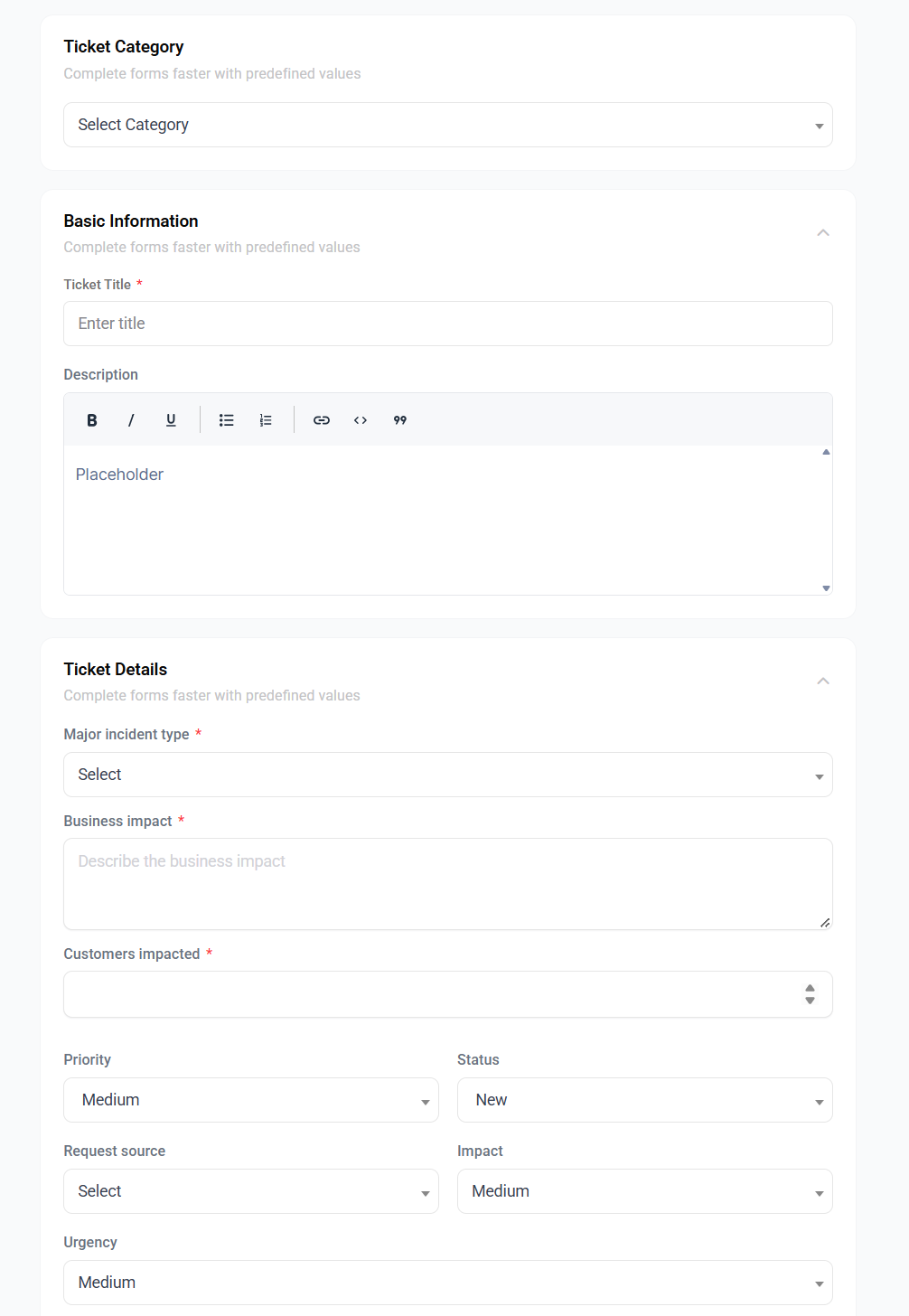
- Complete the standard ticket details, including the description, category, priority, and urgency.
- Complete the Major Incident impact fields:
| Field | What to enter |
| Major incident type | Select the disruption type. Default options include Critical Service Degradation, Total Service Outage, and Partial Outage. |
| Business impact | Describe the affected services, business operations, and consequences of the disruption. |
| Customers impacted | Enter the number of affected customers. |
Save the record.
2. Promote an Existing Incident
If a standard incident develops into a critical disruption:
- Open the incident.
- Select Promote to Major Incident.

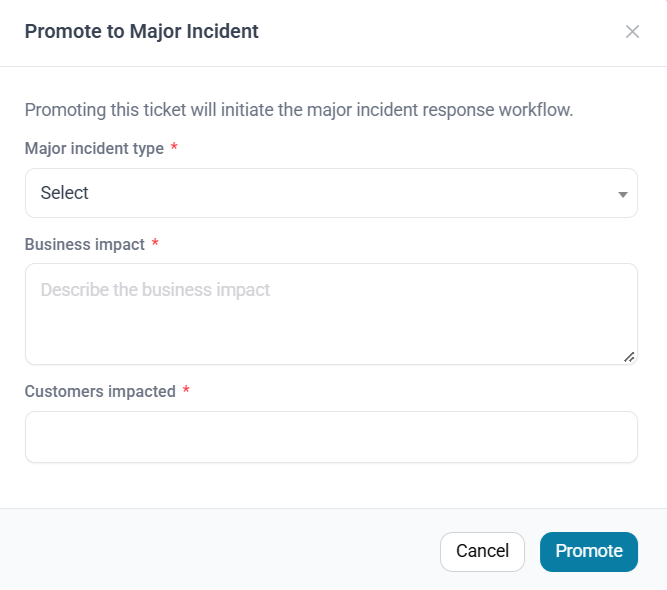
- Review the existing ticket information populated in the confirmation dialog.
- Complete the required impact fields and confirm the promotion.
Continue managing the response from the resulting Major Incident record.
3. Validate and Coordinate the Response
During Approval, the Major Incident Manager validates the incident, assigns the responsible group, and identifies the primary technician.
Use the Major Incident record to coordinate the response:
- Conversation: Record updates and communicate about the disruption.
- Tasks: Track work assigned to the response team.
- Approvals: Manage required approvals.
- Items and IT Graph: Review affected items and their relationships.
- Relevant Tickets: Review related work.
- History: Review changes made to the record.
The details pane displays the incident’s status, priority, SLA information, impact details, and Declared By information.
Major Incident Statuses
| Status | Meaning |
| New | The Major Incident has been created. |
| Approval | The incident is awaiting validation and response ownership. |
| Processing (Assigned) | The assigned team is actively working on the incident. |
| Processing (Planned) | Work is scheduled or depends on planned execution. |
| Pending | Progress is paused while waiting on an external dependency or vendor. |
| Solved | Service has been restored and the critical impact mitigated. A PIR is generated. |
| Closed | The report is approved, child tickets are resolved, and tasks are complete. |
4. Restore Service and Generate the PIR
When service has been restored and the critical impact mitigated, change the Major Incident status to Solved.
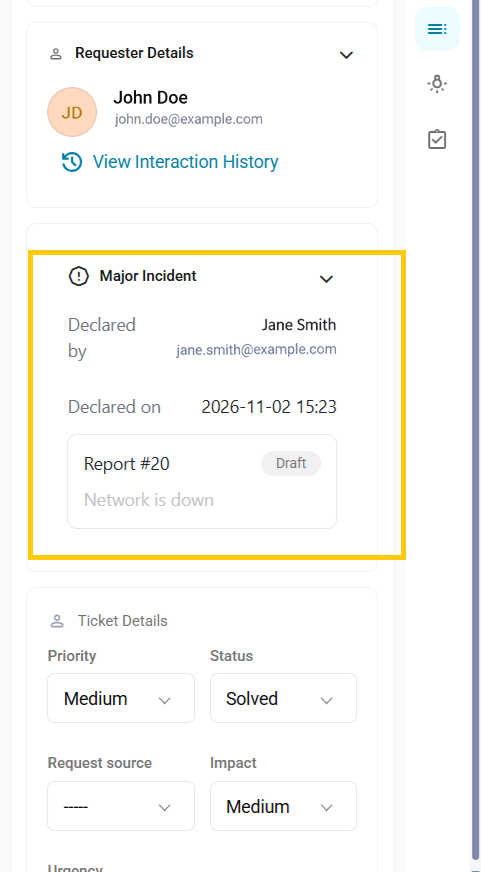
AssetSonar automatically generates a draft Post Incident Report (PIR), which you can access from the side pane:
5. Complete the Post Incident Report
Click the generated PIR draft as shown above and review its five sections:
| Section | Information to review or complete |
| Overview | Title, description, assignee, team, and impact details. |
| Metrics & SLA | Incident creation and promotion timestamps, first response time, and resolution time. Breached response or resolution targets are highlighted. |
| Root Cause Analysis | Symptoms and diagnosis, root cause category, detailed technical root cause, and residual impact. |
| Resolution | Type of fix and resolution notes. Fix options include Not Solved, Temporary Fix, Permanent Fix, and Workaround. |
| Follow-ups | Create or link action items, including tickets, Problems, and Changes. |
Complete the report and submit it through the approval workflow.
The PIR has its own statuses: Draft, Pending Approval, Approved, and Published. Its approval is separate from the initial validation of the Major Incident.
6. Close the Major Incident
Before changing the status to Closed, make sure:
- The PIR has been submitted and approved.
- All child tickets have been resolved.
- All tasks have been completed.
AssetSonar blocks closure when these requirements are not met.
For further assistance, contact us at support@ezo.io.
