If your IT team already keeps troubleshooting guides, how-to documents, and standard operating procedures in Microsoft SharePoint, you can bring them into AssetSonar without recreating them. The SharePoint integration imports content from the sites, document libraries, and folders you choose, and keeps each imported article linked to its source document.
Imported articles appear alongside the articles you create in AssetSonar, so agents can find answers without leaving the service desk to search SharePoint. SharePoint stays the source of truth: imported articles are read-only in AssetSonar, and changes made in SharePoint sync automatically.
This article explains how to connect SharePoint, choose what to import, review imported articles, and manage syncing over time.
Before you begin
- You must be an Account Owner or Admin with access to settings.
- You need a Microsoft account with access to the SharePoint sites, document libraries, and files you want to import.
- Your organization may require a Microsoft administrator to approve the requested permissions.
- Supported file formats are PDF and DOCX.
1. Connect SharePoint
- In AssetSonar, go to Settings → ITSM and select Knowledgebase Integrations from the left sidebar.
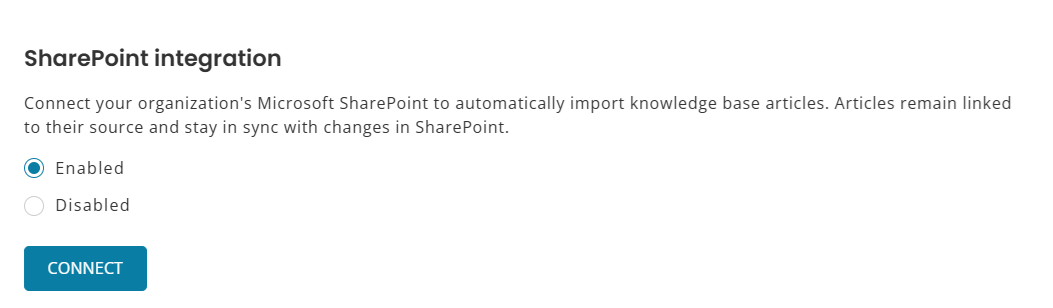
- Under SharePoint Integration, select Enabled and click Connect.
- You are redirected to Microsoft. Sign in with the account that has access to the SharePoint content you want to import.
- Review and approve the requested permissions:
| Permission | What it allows |
| Sites.Read.All | Read SharePoint sites and their content on behalf of the signed-in user. |
| Files.Read.All | Read files the signed-in user can access. |
| User.Read | Sign in and read the connected user’s profile. |
- After approval, you are redirected to AssetSonar.
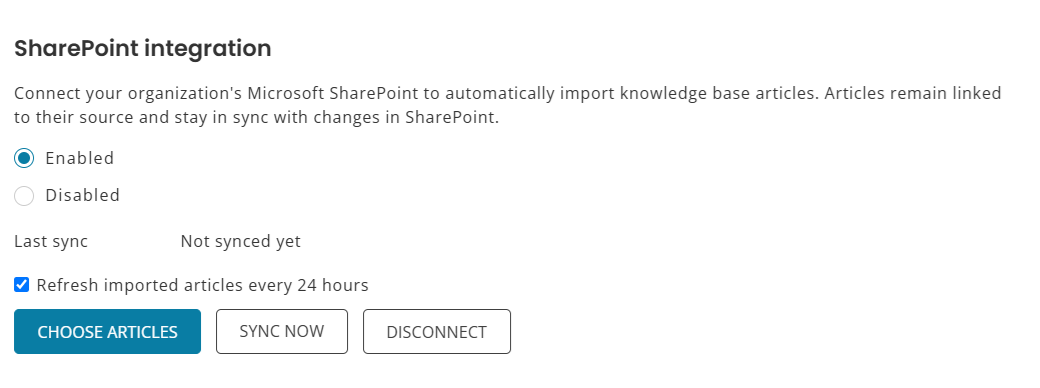
The SharePoint integration settings now display Choose Articles, Sync Now, and Disconnect.
The integration uses read-only access. AssetSonar does not create, edit, or delete content in SharePoint.
2. Select the SharePoint content to import
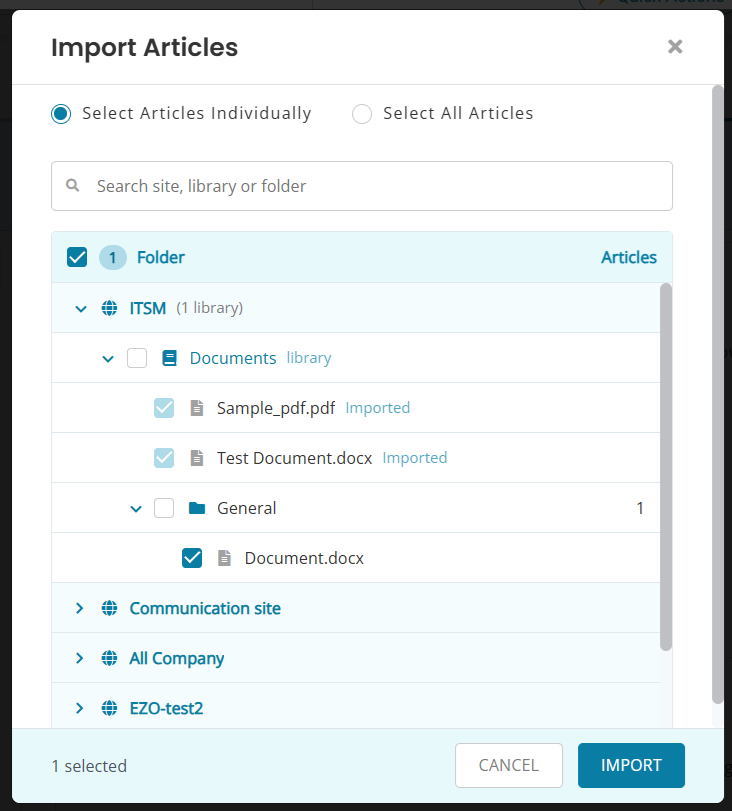
- On the SharePoint integration settings, click Choose Articles to open the Import Articles window.
- Select one of the following options:
- Select Articles Individually: choose specific folders or files to import.
- Select All Articles: import articles from every SharePoint site listed in the window.
- If you chose Select Articles Individually, expand a site, then expand a library to see its folders and files. To find content quickly, enter a name in the Search site, library, or folder field.
- Select the checkbox next to each folder or file you want to import. The number of selected items appears at the bottom of the window.
- Click Import.
After you click Import, the message “Import started. Articles will appear in the knowledge base shortly.” appears on the SharePoint integration settings. The import runs in the background, so you can keep working in AssetSonar while it completes.
3. Review your imported articles
- Go to ITSM → Tools → Knowledge Base.
- Check the Source column. Imported articles show a SharePoint label, and articles created in AssetSonar show Internal.
- To see only imported articles, use the Source filter and select SharePoint.
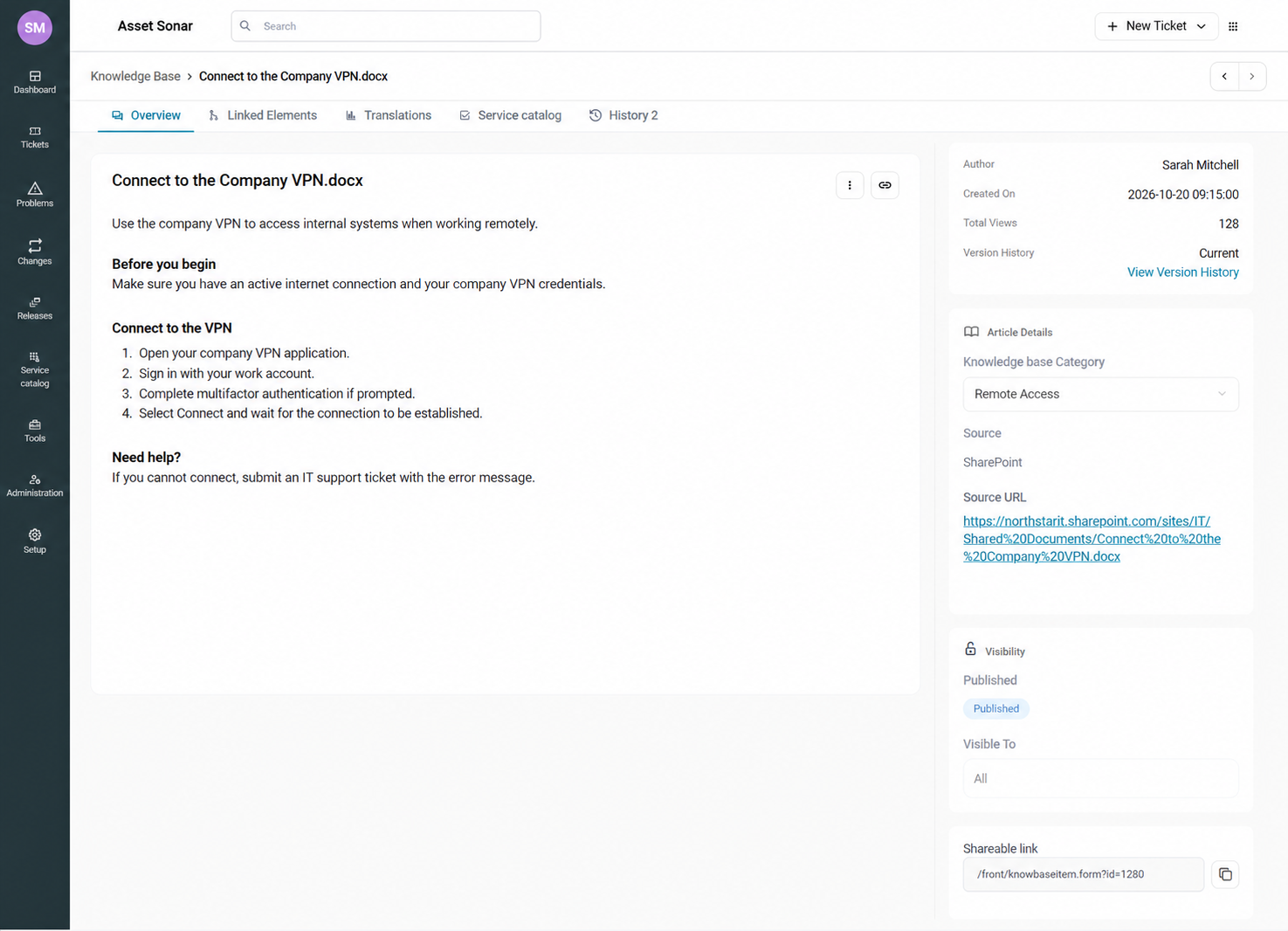
- Click an imported article to open it.
On the article detail page:
- The right-side panel shows the Source label alongside Author, Created On, and Total Views.
- Under Article Details, click the Source URL to open the original SharePoint document.
AssetSonar fills in each imported article’s fields from SharePoint:
| Article field | Taken from SharePoint |
|---|---|
| Subject | The document’s file name |
| Content | The document’s content |
| Description | The first 300 characters of the content |
| Knowledgebase Category | The folder the document is stored in |
| Visible Since | The date the document was created in SharePoint |
| Author | The document’s author in SharePoint, matched to an existing AssetSonar user by email. If no matching user exists, the Account Owner is shown as the author. |
Your SharePoint folder structure is recreated as nested Knowledge Base categories, so articles keep the same organization they had in SharePoint. To review or adjust categories, see configuring Knowledge Base categories.
Important: SharePoint access permissions are not imported. Before employees use the Knowledge Base, review who can see your imported articles. For details, see controlling article visibility and access in ITSM.
4. Keep imported articles up to date
Imported articles are read-only in AssetSonar. To change an article, edit the source document in SharePoint, and the update syncs to AssetSonar.
You can manage syncing from the SharePoint integration settings:
- Refresh imported articles every 24 hours: When selected, AssetSonar refreshes imported articles from SharePoint every 24 hours. This is selected by default.
- Sync Now: Click to pull the latest changes from SharePoint right away.
- Last sync: Shows when articles were last synced from SharePoint. Before the first sync, it shows Not synced yet.
The following table shows how changes in SharePoint affect your Knowledge Base:
| Change in SharePoint | Result in AssetSonar |
|---|---|
| A new file is added | A new article is created with the SharePoint source label. |
| A file is edited | The article’s subject, content, and description are updated. |
| A file is deleted | The article is moved to the draft state and is no longer visible to the users. |
| A file is moved to another folder | The article’s SharePoint link and category are updated. |
To create articles that you manage entirely in AssetSonar, see create and publish knowledge articles.
5. Disconnect SharePoint
- Go to Settings → ITSM and click Knowledgebase Integrations in the left sidebar.
- Under SharePoint integration, click Disconnect.
- When prompted, click Proceed to confirm the disconnection.
Articles you already imported stay in your Knowledge Base after you disconnect. They no longer sync with SharePoint.
If you have any questions, our support team can help. Reach out to us at support@ezo.io.
