Accurate IT asset records are essential for reliable inventory, lifecycle management, reporting, and compliance. Records that have not synced recently, contain invalid serial numbers, or exist as duplicates can make it difficult to determine what assets are actually present in your IT environment.
AssetSonar provides dedicated IT Asset Accuracy indicators that help administrators identify these data-quality issues and take corrective action directly from the Items module.
A discovered IT asset is considered accurate when it has synced within the last 30 days and has a valid BIOS serial number that is not duplicated across the organization’s inventory.
1. Review IT Asset Accuracy
Go to Items → Overview.
At the top of the page, you can view the following indicators:
- IT Asset Accuracy
- Outdated IT Assets
- IT Assets with Invalid Serial Numbers
- Duplicate IT Assets
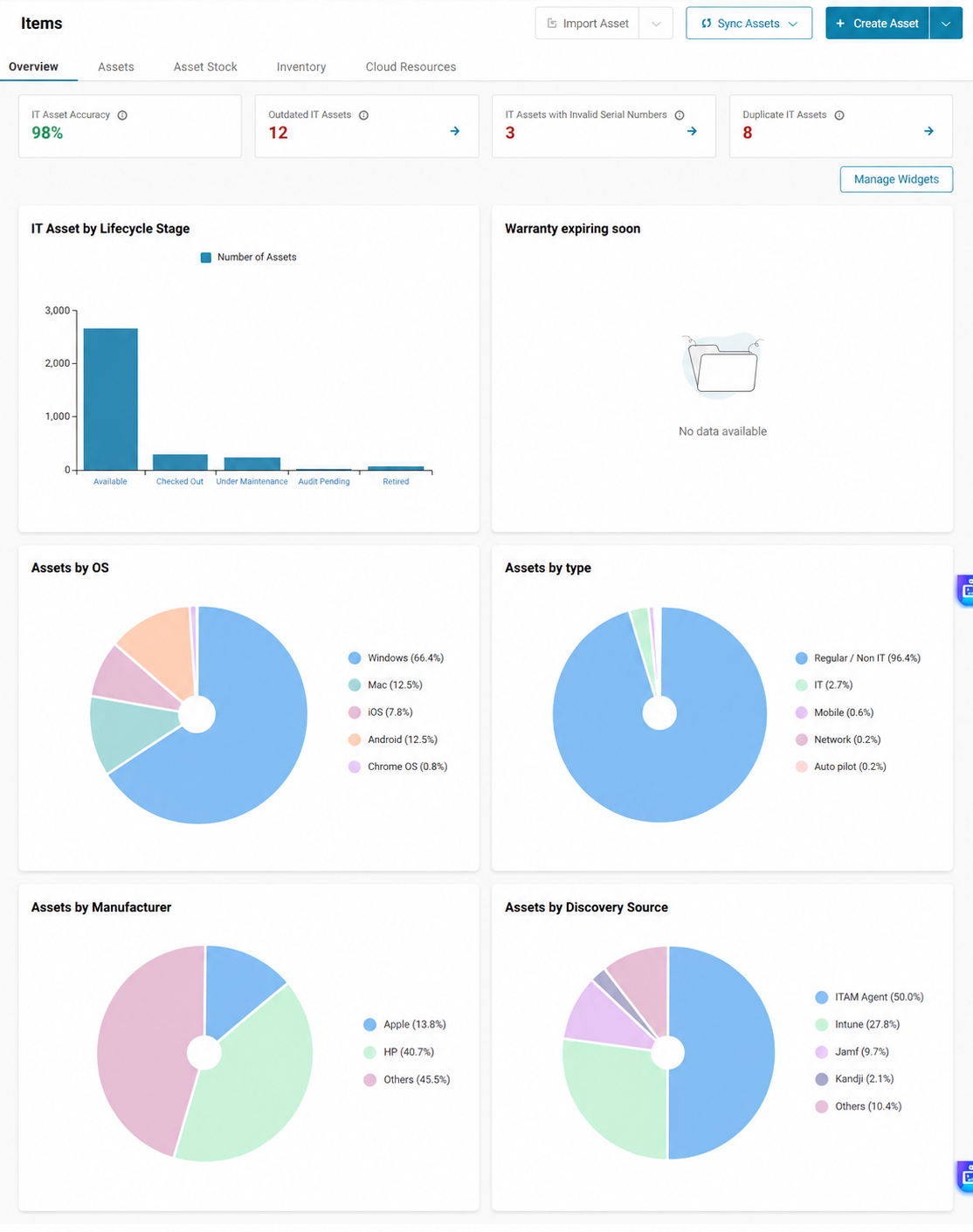
The IT Asset Accuracy card shows the percentage of discovered assets that:
- Have synced within the last 30 days.
- Have a valid BIOS serial number.
- Have a unique BIOS serial number with no duplicates.
The accuracy percentage appears green at 90% or above and red below 90%. The remaining indicators appear green when there are no affected assets and red when one or more assets require attention.
You can click the arrow on each of the remaining cards to review and correct the underlying issues.
2. Review Outdated IT Assets
The Outdated IT Assets card shows discovered assets that have not synced with the AssetSonar Agent or another discovery source in more than 30 days.
Click the arrow on the card to open the list of outdated assets.
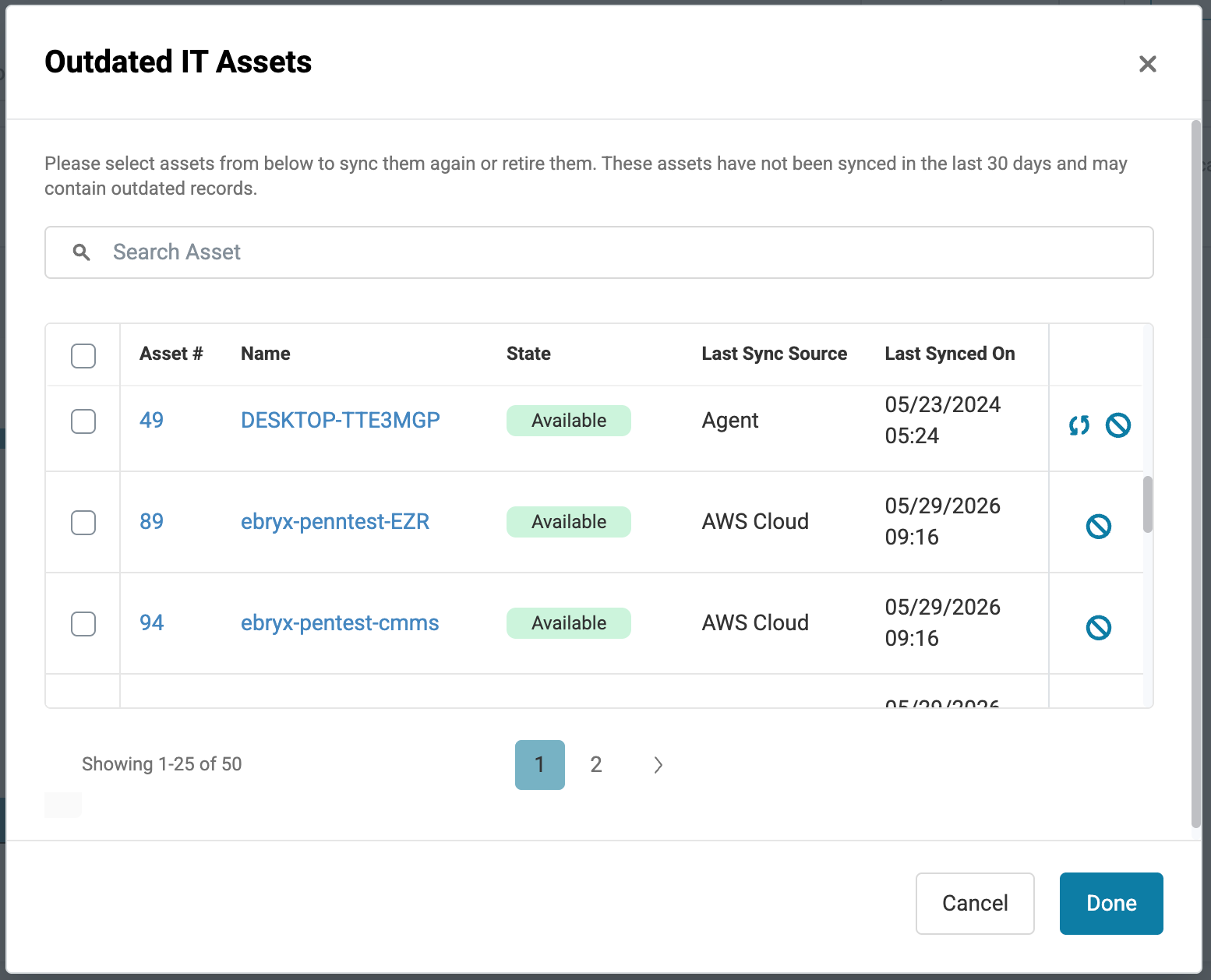
You can take the following actions:
- Sync Now: Sync an asset again using its discovery source.
- Retire: Retire an asset that is no longer active or required.
You can perform these actions on individual assets or select multiple assets and take the action in bulk.
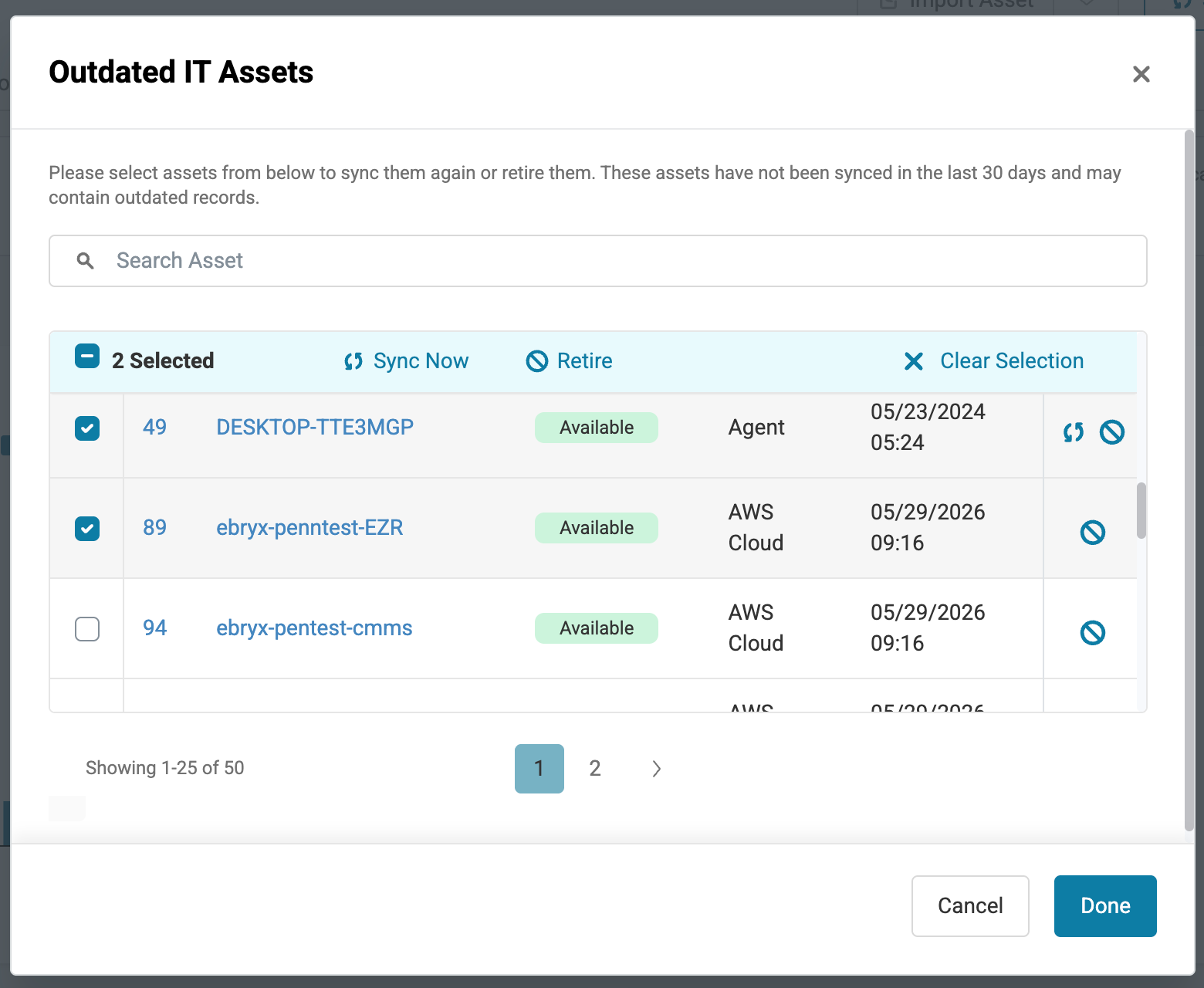
When syncing multiple assets discovered through different sources, AssetSonar syncs each asset using its last sync source.
3. Correct Invalid Serial Numbers
The IT Assets with Invalid Serial Numbers card highlights discovered assets with a missing, blank, or placeholder BIOS serial number.
Click the arrow on the card to review the affected assets.
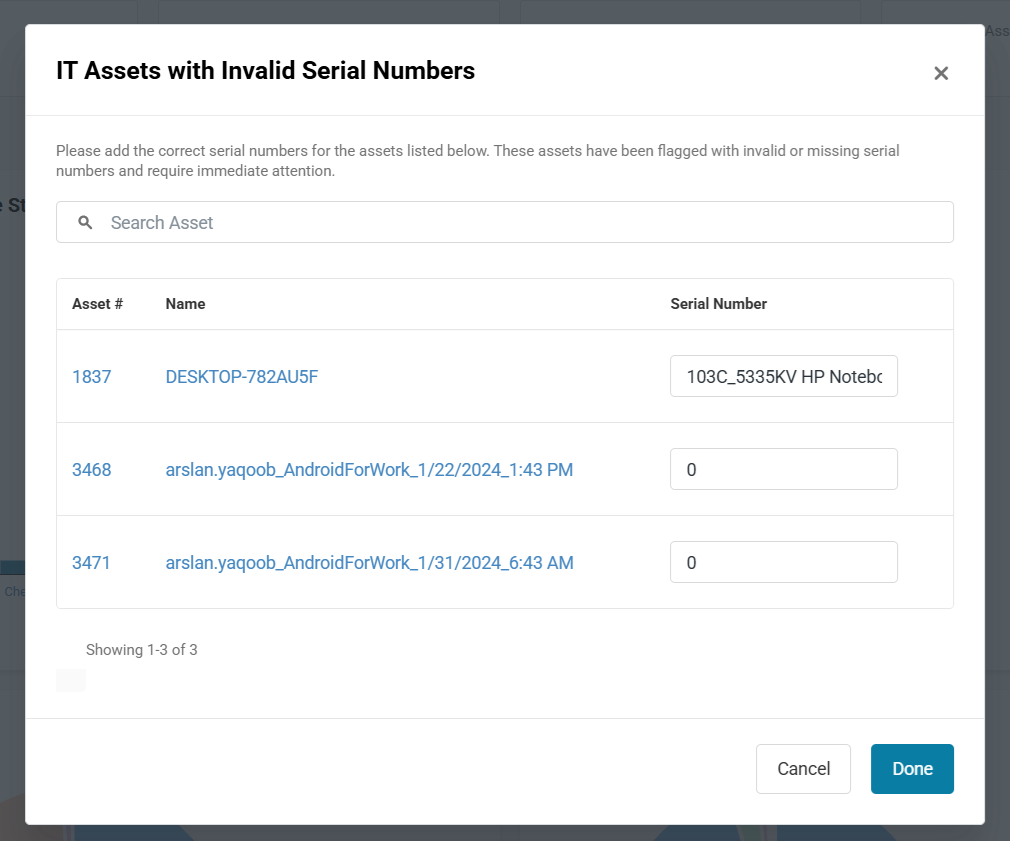
You can edit the Serial Number directly from the listing. Enter the correct serial number and save your changes.
4. Review and Merge Duplicate IT Assets
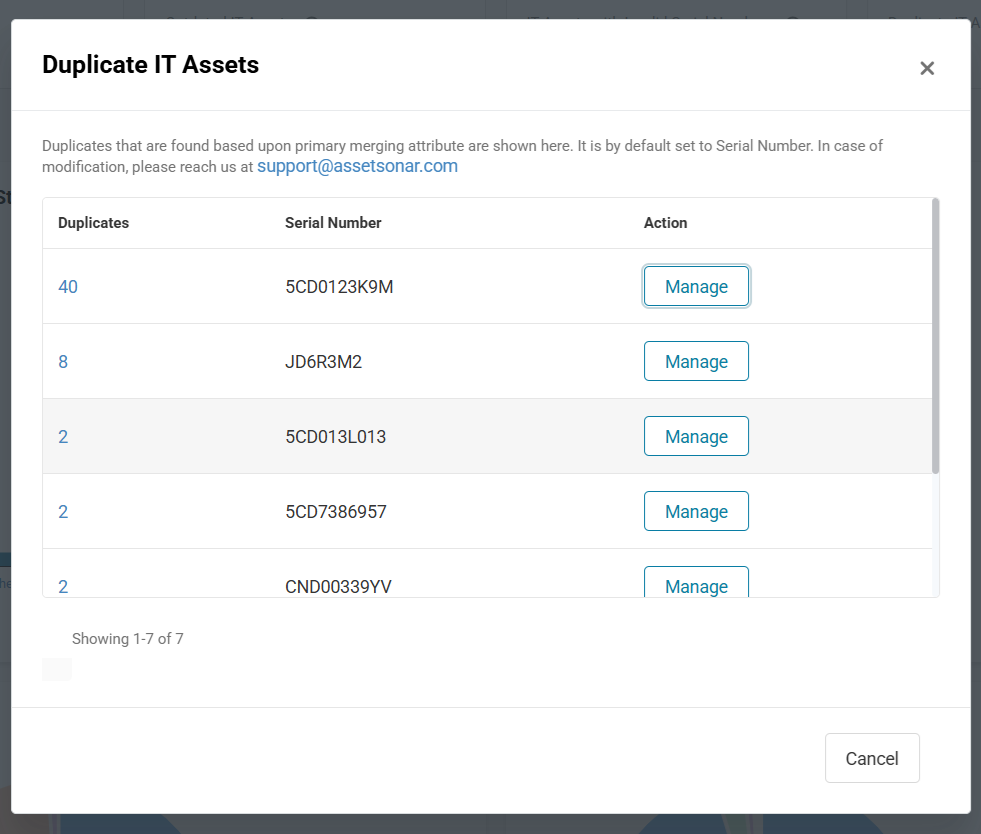
The Duplicate IT Assets card shows discovered assets that share the same valid BIOS serial number.
Click the arrow to open the duplicate review window.
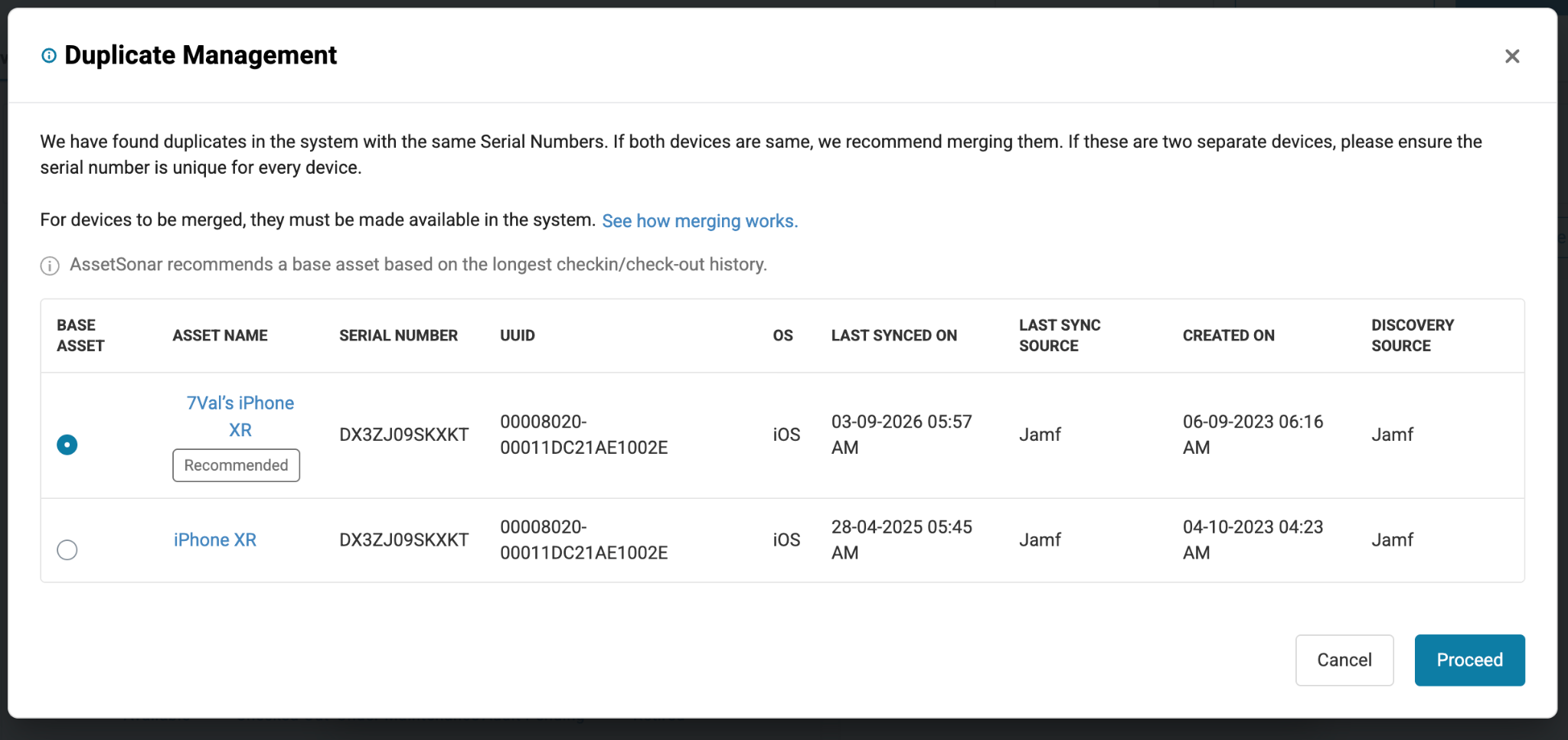
AssetSonar groups records that share the same BIOS serial number so you can compare the assets before merging them.
Select the asset that you want to retain as the base record and click Merge. The other duplicate records are then merged into the selected asset using AssetSonar’s duplicate-merging logic.
The Duplicate IT Assets indicator specifically identifies duplicates based on valid BIOS serial numbers.
5. Keep Your IT Asset Data Accurate
Regularly review the accuracy indicators under Items → Overview to identify records that need attention.
Sync active assets whose information has become outdated, retire assets that are no longer part of your environment, correct missing or invalid BIOS serial numbers, and merge genuine duplicate records.
As these issues are resolved, the IT Asset Accuracy percentage provides an overall view of how much of your discovered IT asset inventory is both current and uniquely identifiable.
