Tracking warranty coverage across hundreds of HP laptops and desktops becomes difficult fast—especially when teams rely on manual checks or scattered spreadsheets. With AssetSonar’s HP Warranty Integration, you can automatically sync warranty data for all HP devices. This ensures real-time accuracy without depending on third-party tools or manual updates.
Centralizing HP warranty data in AssetSonar helps IT teams:
- Identify devices under active warranty.
- Plan repairs and schedule service before coverage expires.
- Streamline vendor coordination.
- Improve audit readiness.
- Make better procurement and retirement decisions.
This blog walks you through how to:
- Enable the HP Warranty Integration.
- Sync HP warranty details.
- View and manage HP warranty information inside AssetSonar.
Note: This is a beta feature. If you need more information or help setting it up, you can reach out to us at support@ezo.io.
Automate Warranty Tracking Across Top OEMs
AssetSonar provides native integrations with major hardware manufacturers to keep your entire IT fleet’s warranty data automatically up to date. If your organization manages a mixed-device environment, you can configure seamless tracking across all your endpoints.
Explore our dedicated setup guides for your specific hardware vendors:
- Dell Devices: Automate Dell Warranty Integration
- Lenovo Devices: Automate Lenovo Warranty Tracking
1. Enable the HP Warranty Integration
To get started:
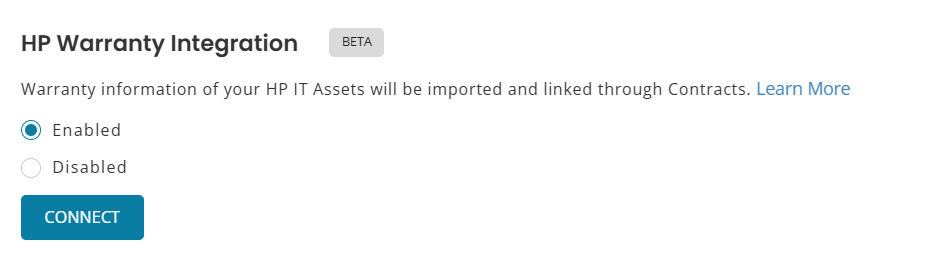
Go to Settings → Integrations → HP Warranty Integration and click Enabled.
Once you click enabled, you will be displayed the Connect button.
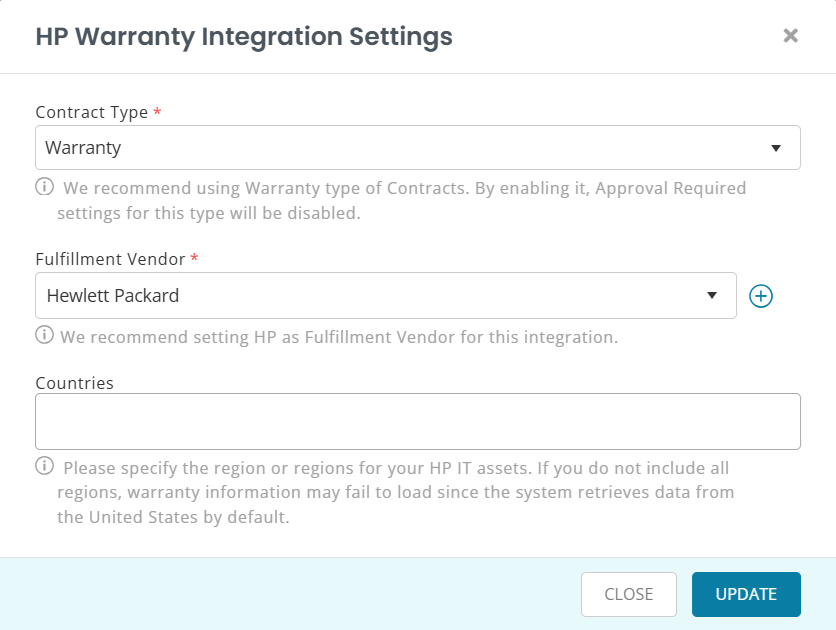
When you click the Connect button, you will see the option to enter integration details. Enter
- Contract Type
- Fulfillment Vendor
- Countries
Note: The system retrieves the information for the United States by default. If your HP IT assets are in other regions, please enter those in the form. The warranty information may not load properly otherwise.
Important:
- Contract Type is pre-filled as Warranty. We recommend that you do not change this to ensure correct mapping of warranties.
- Additionally, we recommend setting the Fulfilment Vendor to HP.
Once you enter the details and click Add, AssetSonar will pull HP warranty information directly from HP’s warranty service and attach it to your HP assets.
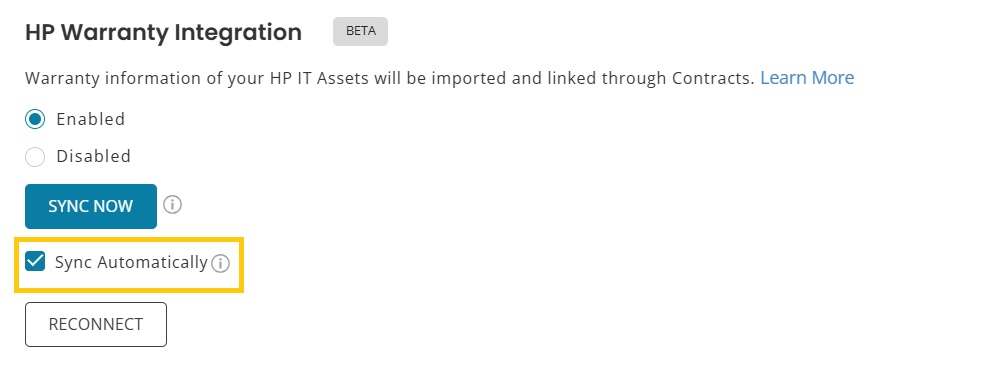
Additionally, the setting will now update to show:
- Sync Now button
- Sync Automatically checkbox
2. View HP Warranty Contracts in AssetSonar
You can view synced HP warranty contracts in two places:
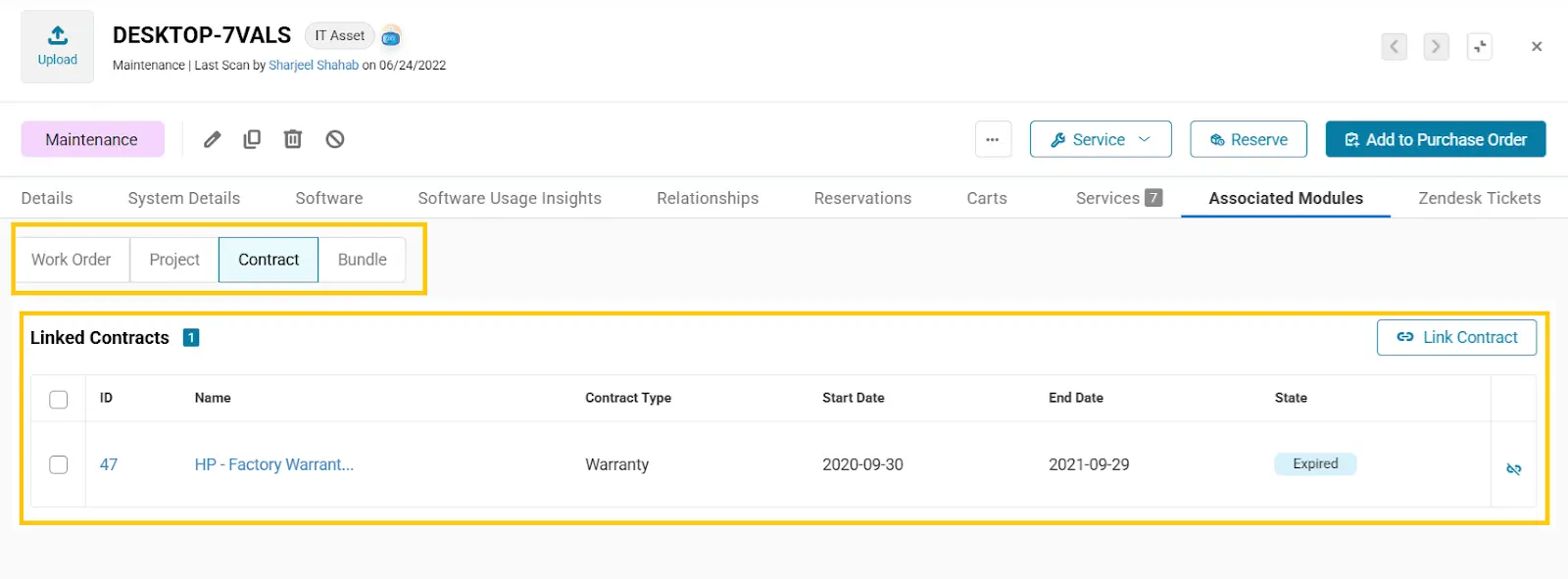
A. From the Individual Asset View
Go to Items (Navigation Menu) → Assets → [HP Asset] → Contracts tab. You’ll see the warranty contract linked to the device, including all synced details.
B. From the Contract Listings Page
Go to More (Navigation Menu) → Contracts, then search for HP. You’ll see a list of all the HP warranty contracts synced to your account.
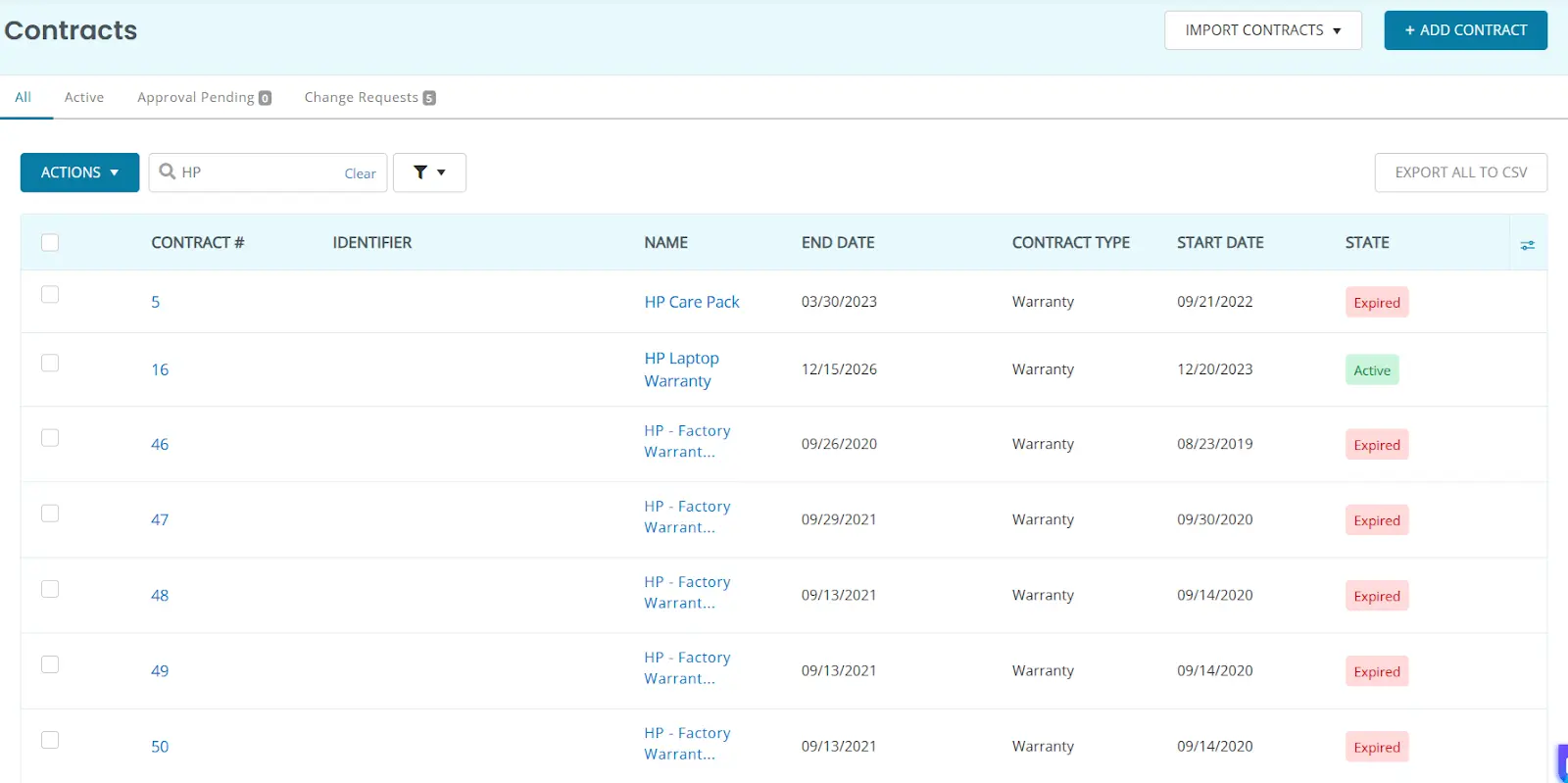
Click on any warranty to view its details.
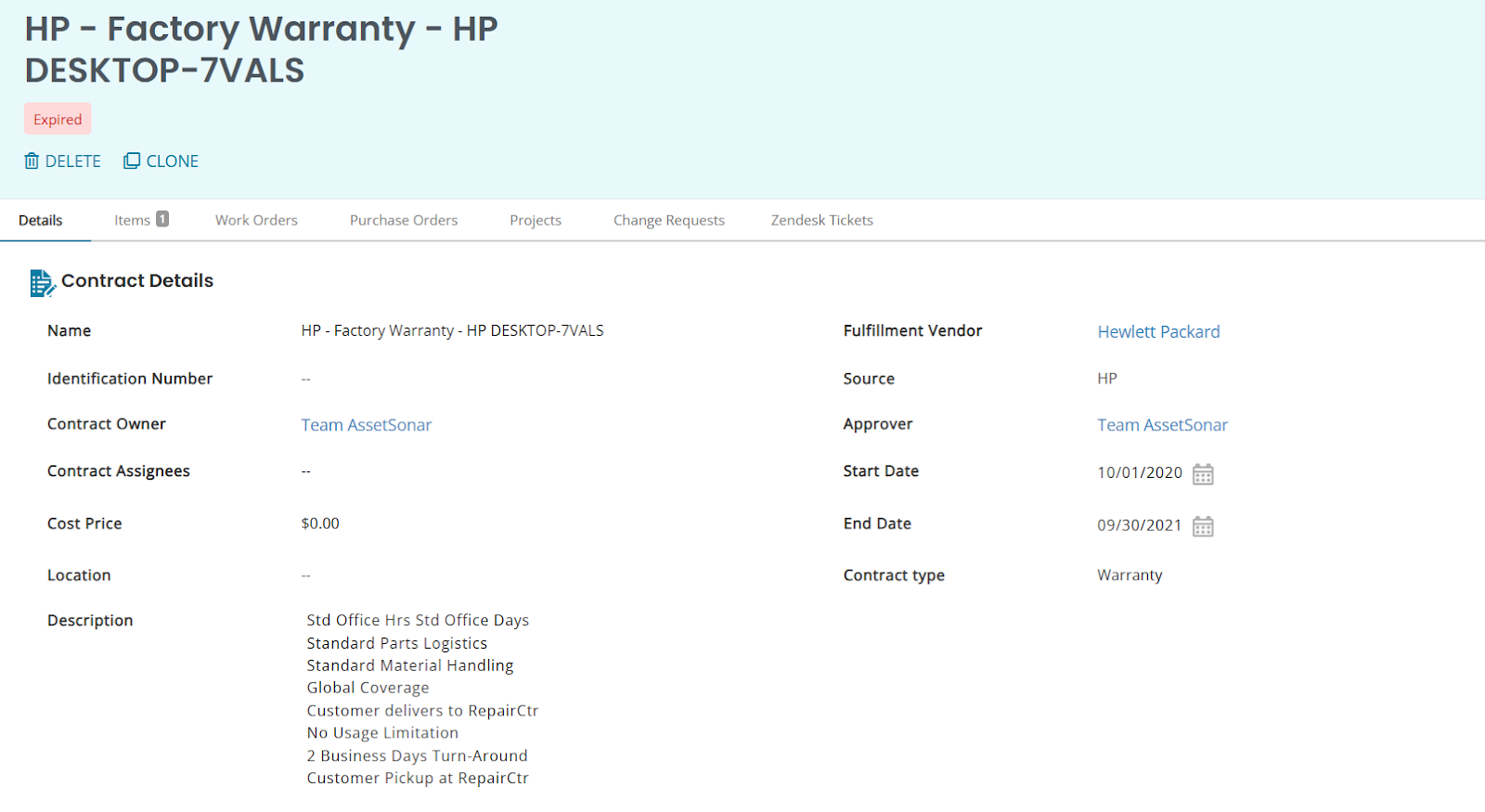
From there, switch to the Items tab to see all HP assets covered by that warranty.
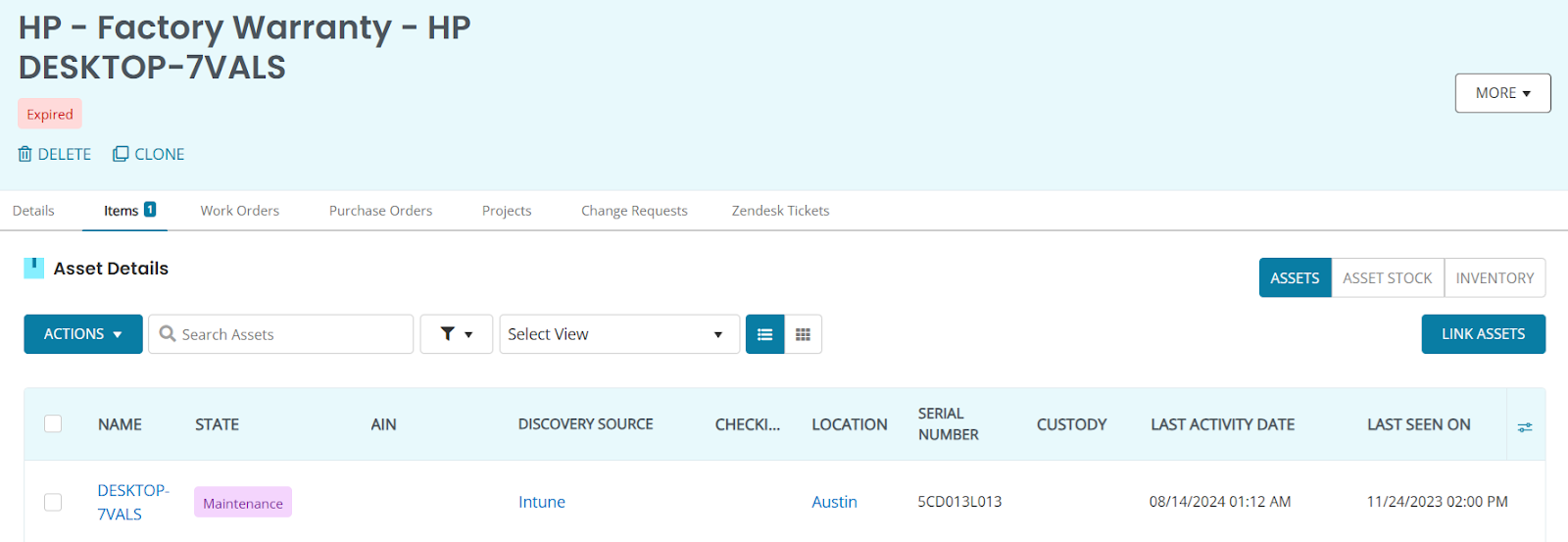
No manual linking is required; AssetSonar auto-links each HP device to its correct warranty contract based on serial number.
Ready to Automate Your HP Warranty Tracking?
With AssetSonar’s HP Warranty Integration, your IT team can centralize warranty information, eliminate manual lookups, prevent accidental warranty lapses, and strengthen vendor coordination.
If you need help getting started, email us at support@ezo.io—we’re happy to assist.
