Offboarding an employee requires coordination between IT, HR, managers, and other stakeholders. Without a structured process, teams may miss important steps such as access revocation, hardware retrieval, software license reclamation, exit interviews, or final approvals.
AssetSonar helps teams initiate offboarding through ITSM forms and track each request from the Offboarding Center. Once an offboarding workflow is configured, teams can monitor progress, view the assigned workflow, and track how many steps have been completed.
Here’s how to initiate and track employee offboarding requests in AssetSonar.
1. Before you begin
Before initiating an offboarding request, make sure an offboarding workflow has already been created and activated. To set up a workflow first, read our guide on [How-To] Create Offboarding Workflows in AssetSonar.
If your workflows are already set up, you may review offboarding workflows by going to Automations → Offboarding → Workflows.
You should also have a Service Catalog form available for offboarding requests. Always assign the Offboarding category to such forms. This form will capture key information, such as the employee being offboarded and their last working day.
2. Open the offboarding request form
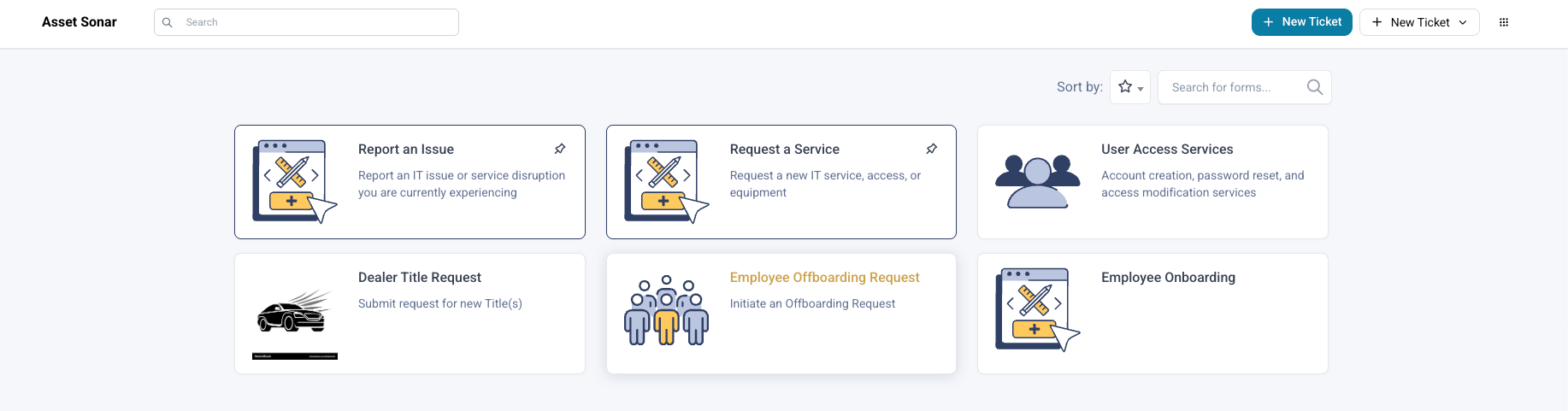
Go to your ITSM Service Catalog and open the Employee Offboarding Request form.
This form is the starting point for the employee offboarding process. The form configured as the initiation trigger starts the offboarding process. The same form can be associated with multiple offboarding workflows. When this happens, AssetSonar uses the configured workflow conditions to determine which workflow applies to the member being offboarded.
3. Fill out the offboarding request
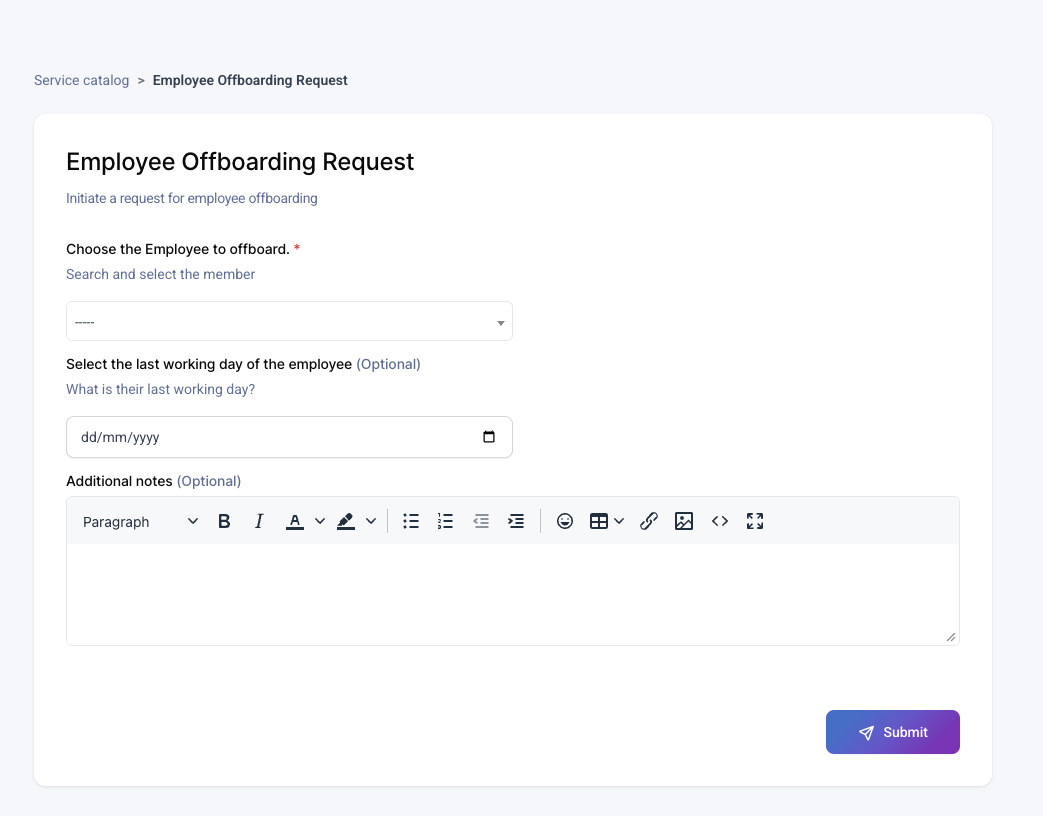
Enter the required information in the form.
A standard offboarding request form may include:
- Select the Member to offboard
- Last Working Day
- Additional Notes
Select the employee who is leaving the organization and add their last working day. Use the notes field to add any extra context for IT, HR, or the employee’s manager.
4. Submit the request
After completing the form, submit the request.
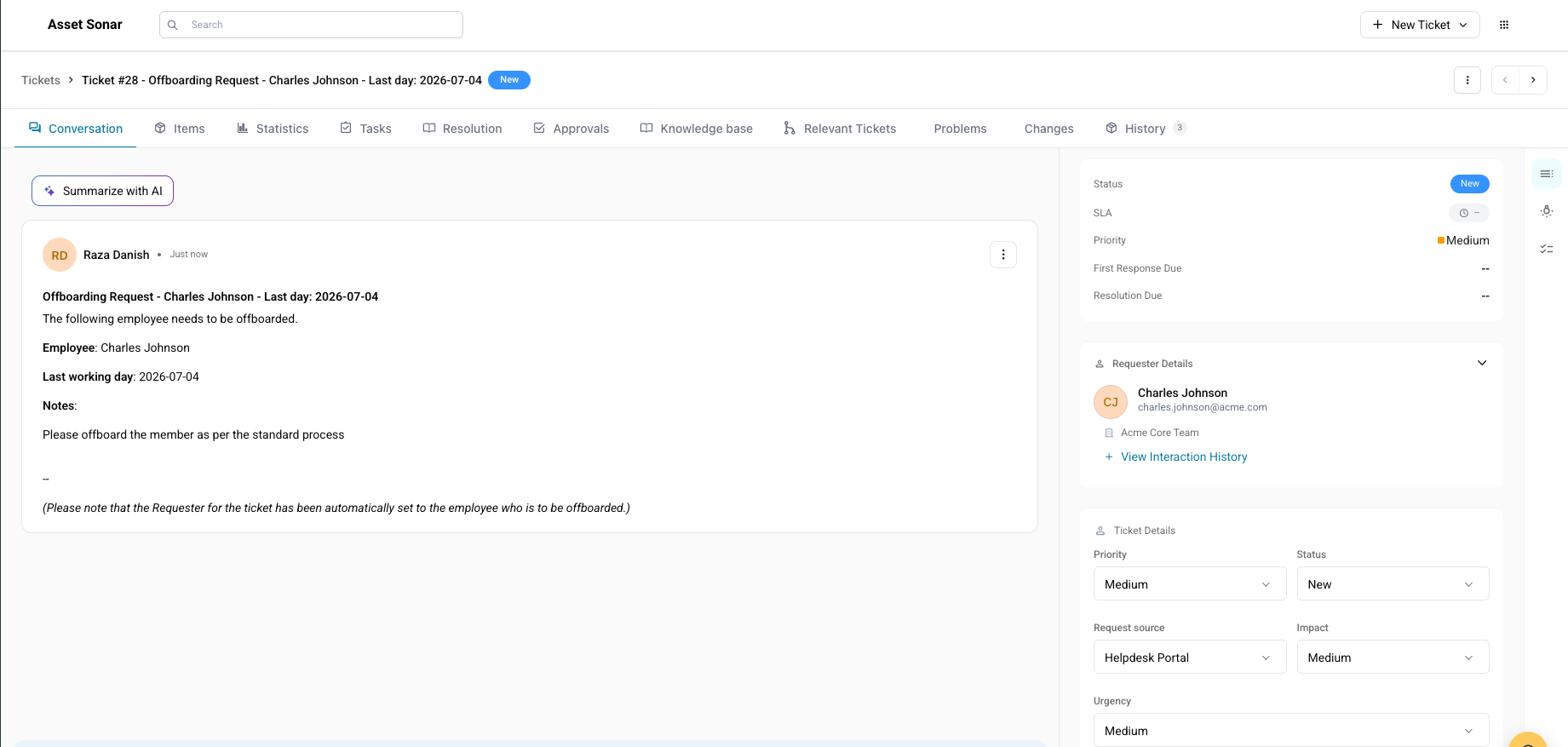
AssetSonar creates an offboarding ticket based on the submitted form. The ticket includes the information provided in the form, such as the member being offboarded and their last working day.
This ticket becomes the parent record for tracking the offboarding request.
5. Understand the offboarding workflow
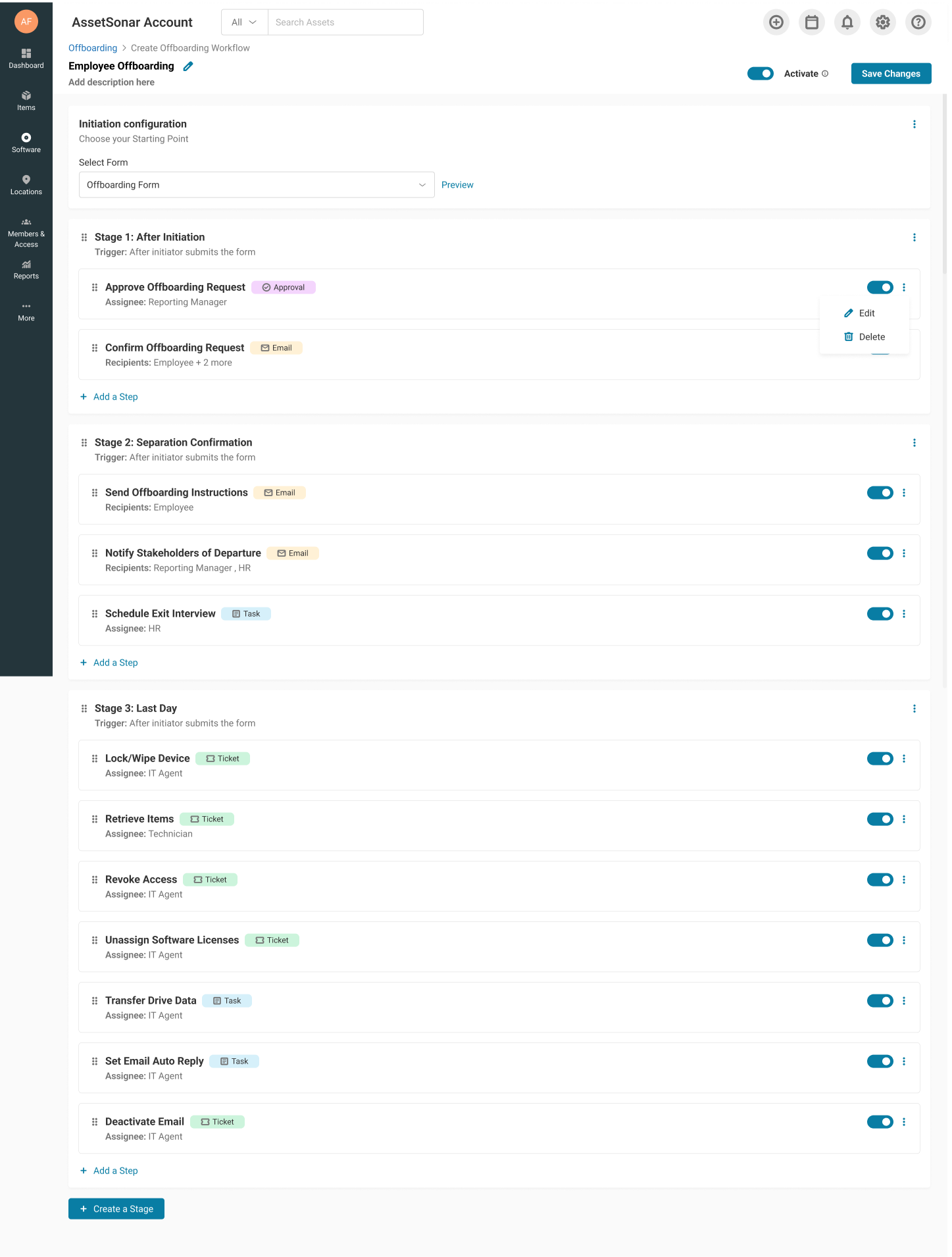
If multiple offboarding workflows use the same initiation form, AssetSonar evaluates their conditions in sequence and automatically selects the first workflow whose conditions match the member being offboarded. If none match and a fallback workflow without conditions has been configured, the fallback workflow runs instead.
The workflow assigned to the request determines which stages and steps are used for the offboarding process.
A typical employee offboarding workflow may include stages such as:
- After Initiation
- Separation Confirmation
- Handoffs
- Last Day
- Closure
Each stage contains specific steps assigned to the relevant stakeholders.
For example, a standard IT offboarding workflow may include:
| Stage | Example Steps |
| After Initiation | Approve Offboarding Request |
| Separation Confirmation | Send instructions to the employee, notify manager and HR, schedule exit interview |
| Handoffs | Create work handoff ticket, document shared credentials and service accounts |
| Last Day | Retrieve hardware, revoke access, reclaim licenses, transfer data |
| Closure | Final approval from manager and IT |
6. Track offboarding activity
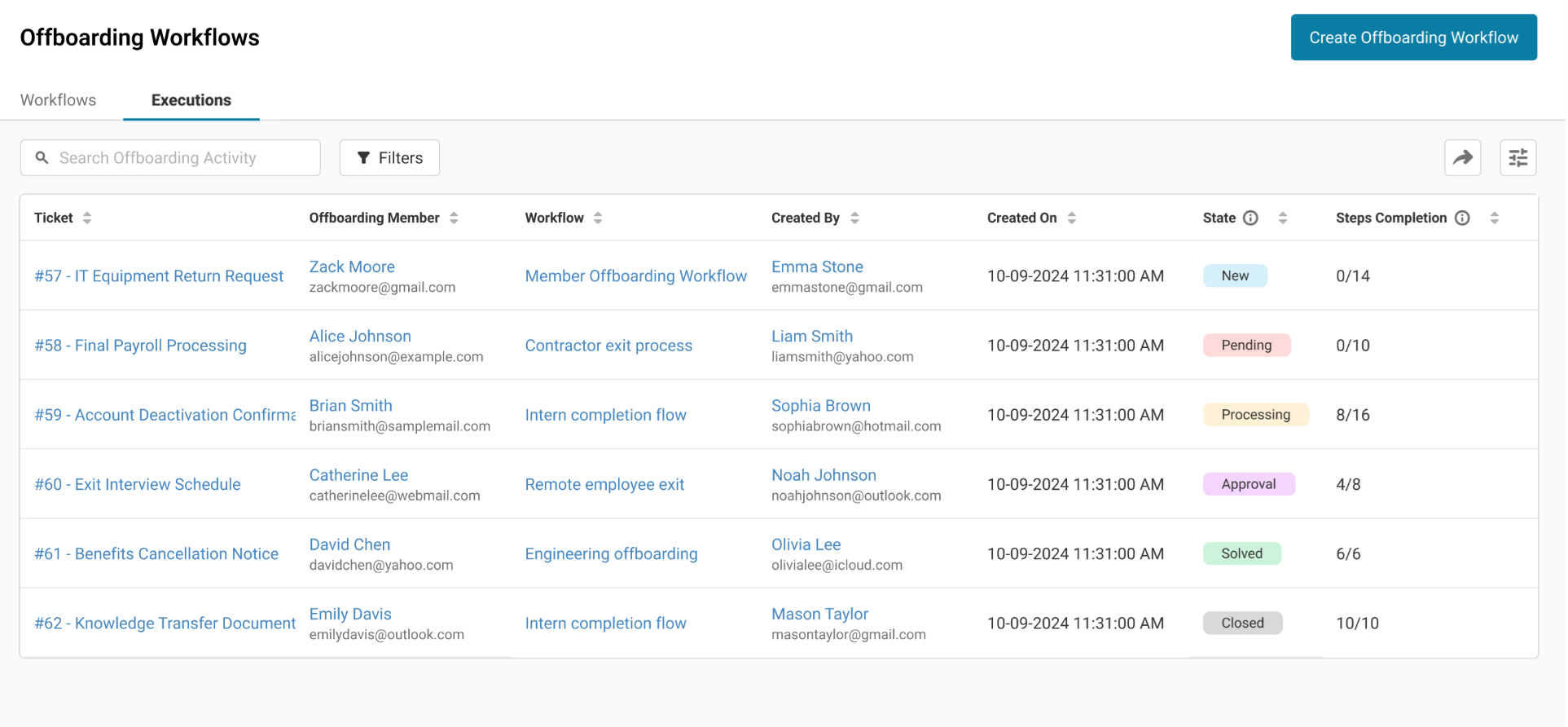
To track submitted offboarding requests, go to Automations → Offboarding → Executions.
The Executions tab shows initiated offboarding requests and their current progress.
Each activity includes:
- Ticket
- Offboarding Member
- Workflow
- Created By
- Created On
- State
- Steps Completion
Use this view to track the current state of each offboarding request and identify the ones that still need action.
7. Review the offboarding ticket
Open the ticket linked to the offboarding activity.
The ticket shows the offboarding request details and any associated work created for the process, such as tasks, child tickets, and approvals.
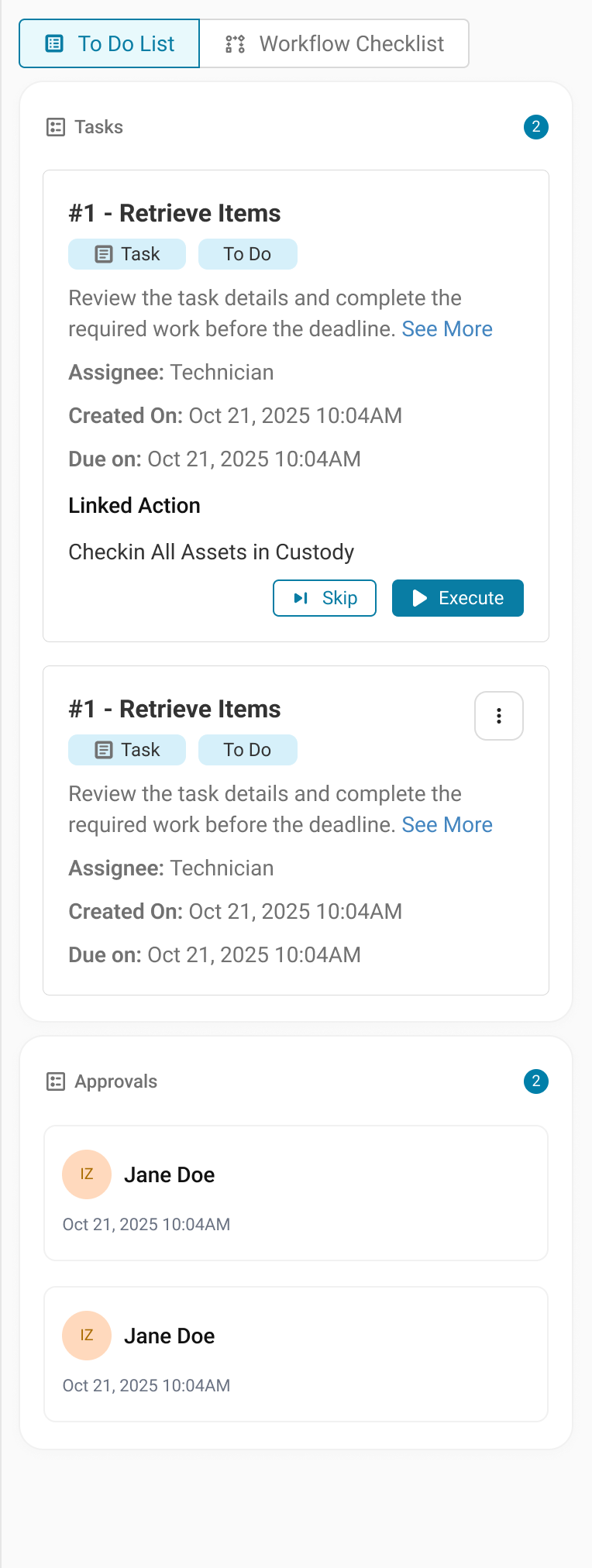
On an offboarding ticket associated with a workflow, use the right pane to switch between To Do List and Workflow Checklist. To Do List retains the ticket’s existing tasks and approvals.
Workflow Checklist groups the workflow steps by stage, displays each stage’s trigger and completed-step count, and updates in real time as work is completed.
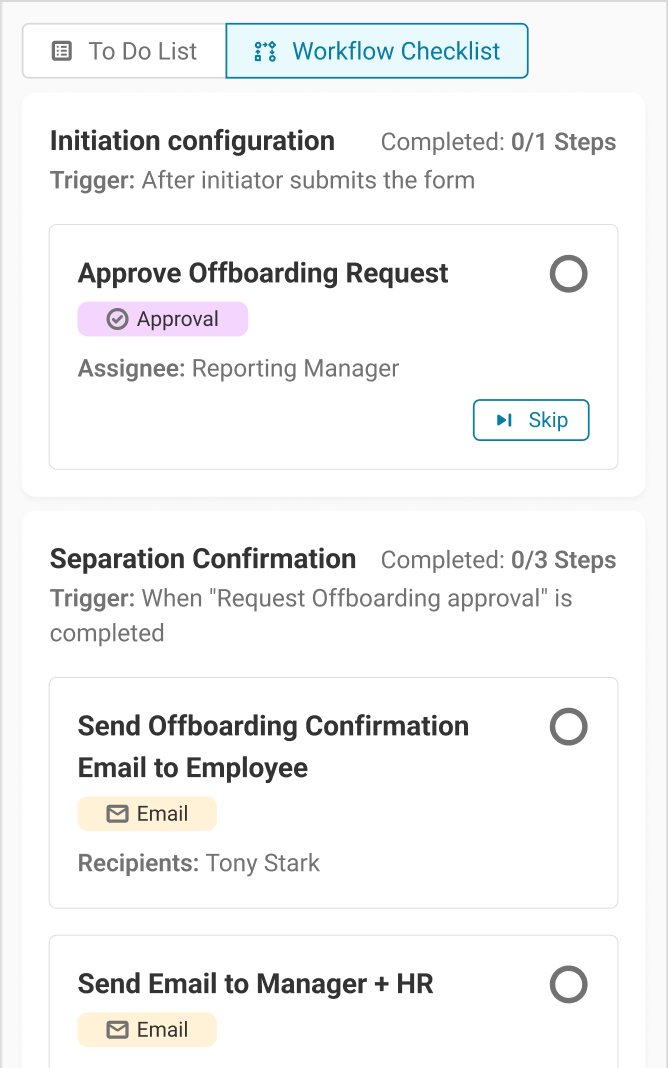
Completed steps display a green check. Incomplete steps include a Skip option, while task steps with a linked action also display Execute.
Depending on your workflow setup, the ticket may include actions for:
- Manager approval
- HR follow-up
- Exit interview scheduling
- Work handoff
- Hardware retrieval
- Software license reclamation
- Account deactivation
- Data transfer
- Final closure approval
8. Complete assigned work
Each stakeholder should complete the work assigned to them from the offboarding ticket.
For example:
- The reporting manager can approve the offboarding request and complete handoff-related work.
- HR can schedule and complete the exit interview.
- The IT team can retrieve hardware, revoke access, reclaim software licenses, and deactivate accounts.
- The technician can check in returned devices and update asset custody.
As tasks and approvals are completed, the offboarding request moves closer to completion.
9. Monitor step completion
Return to Automations → Offboarding → Executions to monitor overall progress.
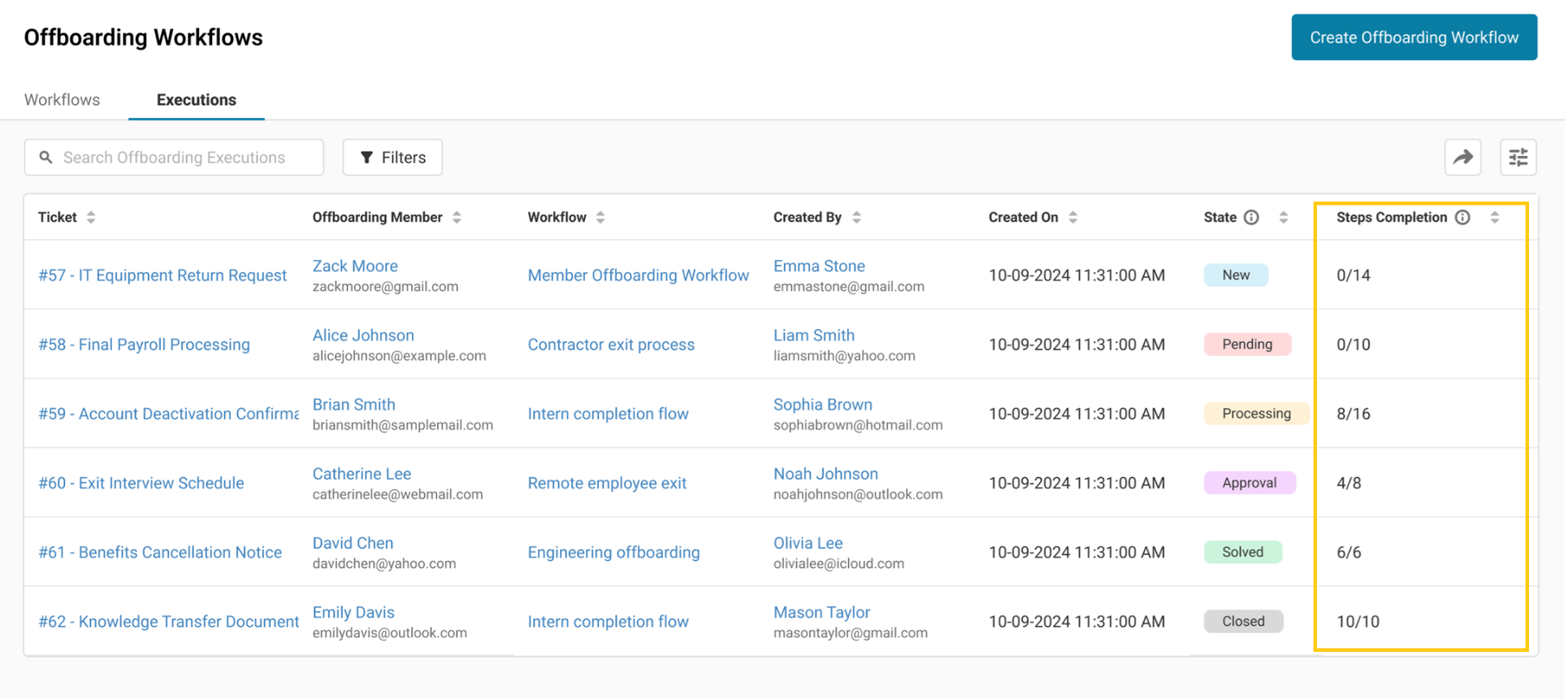
The Steps Completion column shows how many steps have been completed out of the total steps in the workflow.
For example, if the column shows 6/15, it means 6 out of 15 steps have been completed for that offboarding request.
Use this column to identify requests that are delayed or still need action from IT, HR, or managers.
10. Use workflow metrics for visibility
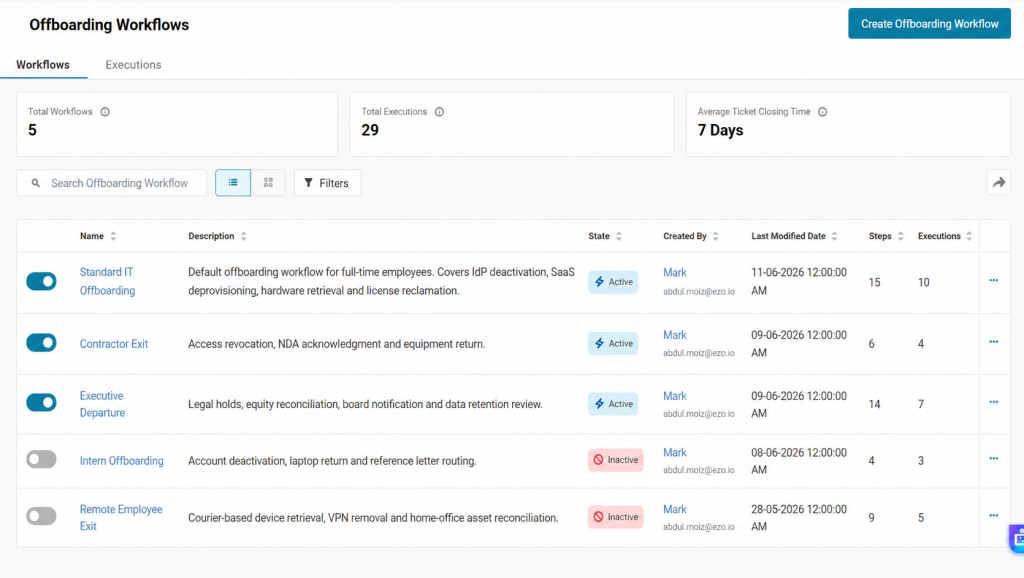
The Workflows tab also includes KPI cards that help you monitor offboarding performance across your account.
These may include:
- Total Workflows
- Avg Completion Time
- Total Executions
Use these metrics to understand how many workflows exist, how often they are being used, and how efficiently offboarding work is being completed.
11. Close the offboarding request
Once all required steps are completed, the offboarding request can be closed according to your organization’s process.
A final closure step may ask the manager and IT team to confirm that:
- Access has been revoked.
- Hardware has been retrieved.
- Software licenses have been reclaimed.
- Required data has been transferred.
- HR and handoff steps have been completed.
After confirmation, the offboarding ticket can be marked as Closed or Solved.
Keep every employee exit on track
AssetSonar’s Offboarding Center helps IT and HR teams track employee departures from request initiation to closure. With workflows, stages, activities, and step completion tracking, teams can reduce missed tasks and keep every stakeholder aligned during offboarding.
Need help setting up or tracking offboarding workflows? Reach out to us at support@ezo.io — we’re happy to assist.
