DocuSign licenses can be difficult to track when user assignments, seat usage, and billing details live outside your software asset management system. Without a direct sync, IT teams may have to manually compare DocuSign users against license records to understand who has access and how many seats are in use.
With AssetSonar’s DocuSign integration, you can connect your DocuSign account, import license details, and sync active users into AssetSonar. This helps you review DocuSign license usage and assigned users directly from your software and license records.
This guide walks you through creating a DocuSign custom app, connecting DocuSign with AssetSonar, importing the DocuSign license, and reviewing synced users.
Note: For the current setup, customers need to create a Private Custom Integration in DocuSign before connecting it with AssetSonar.
1. Create a DocuSign Custom App
Before connecting DocuSign in AssetSonar, create a custom app in your DocuSign developer account. This gives you the Client ID and Client Secret required to connect the integration.
To create the app:
- Sign in to your DocuSign Developer account.
- Go to Admin → Integrations → Apps and Keys.
- Click Add App and Integration Key.
- Enter a clear app name, such as AssetSonar DocuSign Integration.
- Copy the Integration Key. You will enter this in AssetSonar as the Client ID.
- Select Private Custom Integration.
- Under Authentication, click Add Secret Key.
- Copy the Secret Key. You will enter this in AssetSonar as the Client Secret.
Note: Save the Integration Key and Secret Key securely. DocuSign may not show the secret again after it is generated.
2. Add the Redirect URI in DocuSign
The redirect URI tells DocuSign where to send the user after authorization. Add AssetSonar’s DocuSign callback URL to your DocuSign app so the authorization flow can be completed successfully.
In your DocuSign app settings:
- Go to Additional Settings.
- Find the Redirect URI field.
- Add the following redirect URI: https://app.assetsonar.com/users/auth/docusign/callback
- Save the app.
Warning: The redirect URI must be added exactly as shown above. If it is missing or entered incorrectly, DocuSign authorization may fail when you try to connect the integration in AssetSonar.
3. Select the Production Account in DocuSign
After creating the app, connect it to the production DocuSign account you want AssetSonar to sync.
To select the production account:
- Return to the Apps and Keys listing in DocuSign.
- Find the app you created for AssetSonar.
- Open the app actions.
- Select Go Live Account.
- Log in when redirected.
- Select the production DocuSign account you want to connect.
Once this is complete, go to your DocuSign production account and open Admin → Integrations → Apps and Keys. Confirm the app is available and configured with the required credentials.
4. Retrieve Your DocuSign Account ID
AssetSonar also requires the Account ID for the DocuSign account you want to sync.
To retrieve it:
- Go to your DocuSign production account.
- Open Admin → Integrations → Apps and Keys.
- Copy the Account ID for the production account you want to connect with AssetSonar.
Keep this value ready along with the Client ID and Client Secret.
5. Connect DocuSign in AssetSonar
Once your DocuSign custom app is ready, add its credentials in AssetSonar.
To connect DocuSign:
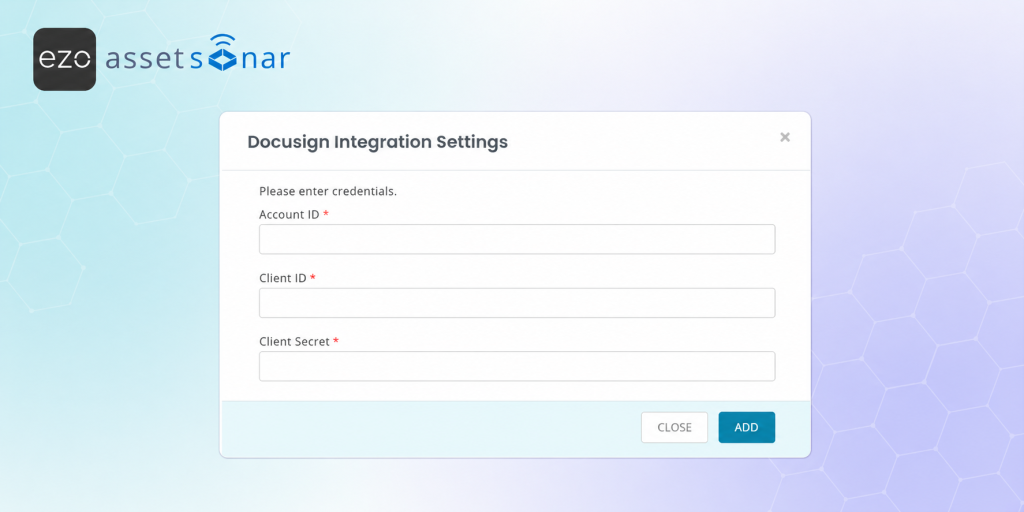
- Go to Settings → Integrations → Direct SaaS Integrations → DocuSign.
- Click Connect.
- Enter the following details:
- Account ID
- Client ID
- Client Secret
- Click Add to continue.
- When redirected to DocuSign, sign in and authorize access.
After authorization is complete, AssetSonar connects with DocuSign and displays the Import License action for the integration.
6. Import the DocuSign License
After the integration is connected, import your DocuSign license into AssetSonar.
To import the license:
- Return to Settings → Integrations → Direct SaaS Integrations → DocuSign.
- Click Import License.
- Select the DocuSign license you want to import.
- Review the license details shown in the import form.
- Save the license.
AssetSonar auto-populates available license details such as:
- Total Cost
- Payment Frequency
- Start Date
- End Date
These values are pulled from DocuSign and are not editable during import.
Once the flow is complete, AssetSonar creates the DocuSign software license.
7. Review Synced Users and Entitlements
After the license is imported, AssetSonar syncs active DocuSign users and links them to the created license.
To review the imported license:
- Go to Software → Software Licenses.
- Open the imported DocuSign license.
- Review the associated users and entitlement details.
The synced users appear as associated users on the DocuSign software record and as entitled or assigned users on the DocuSign license.
Note: AssetSonar only considers DocuSign users with the active status for license syncing.
8. Sync DocuSign License Data Later
Use the sync option when you need to refresh DocuSign license or user information after the initial import. It auto syncs regularly too.
To sync DocuSign license data:
- Go to Software → Software Licenses.
- Open the Sync Software Licenses action.
- Select DocuSign.
- Run the sync.
This updates the synced license and user data based on the latest information available from DocuSign.
Ready to Track DocuSign Licenses in AssetSonar?
With the DocuSign integration, AssetSonar helps you centralize DocuSign license visibility, track active users, and manage entitlements from your software license records.
Need help setting up the DocuSign custom app or importing your license? Reach out to us at support@ezo.io — we’re happy to assist.

![[How-To] Automate Apple Device Onboarding with AssetSonar’s Apple Business Manager (ABM) Integration](https://cdn.ezo.io/wp-content/uploads/2025/10/29182422/How-To-Automate-Apple-Device-Onboarding-with-AssetSonars-Apple-Business-Manager-ABM-Integration.webp)
![[How-to] Automate Software Tracking with Slack Integration in AssetSonar](https://cdn.ezo.io/wp-content/uploads/2025/01/20124914/Zoom-integration-scaled-1.webp)
![[How-to] Effectively Manage Adobe Licenses with Adobe and AssetSonar Integration](https://cdn.ezo.io/wp-content/uploads/2025/01/13082508/Adobe-Integration-scaled.jpg)