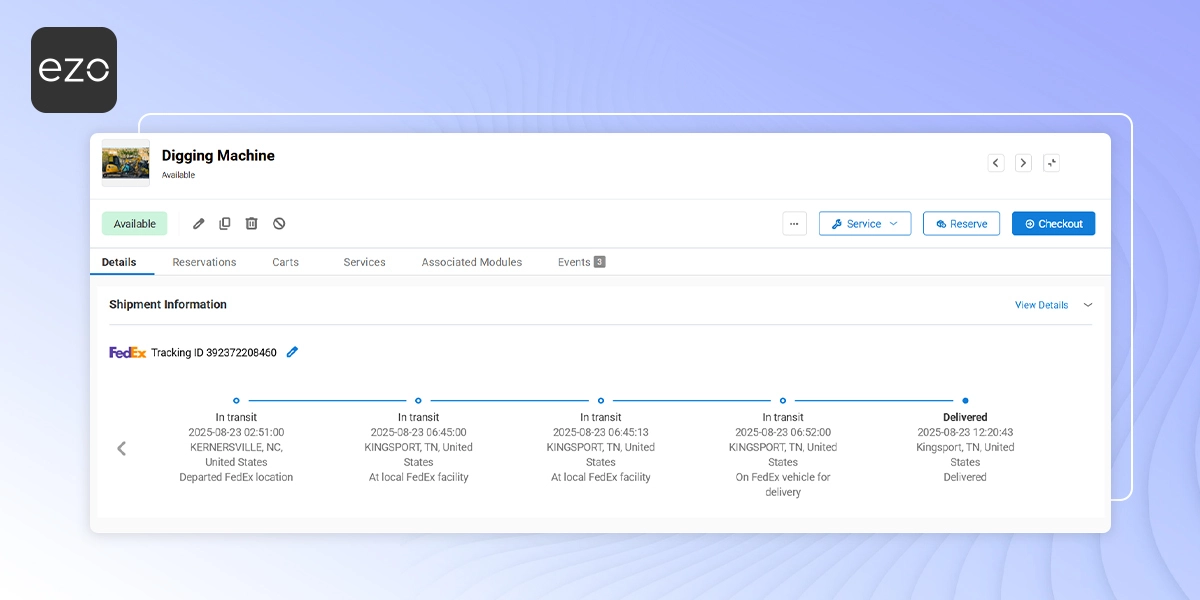
When devices are sent out for repair, replacement, or return, IT teams often lose visibility once the asset leaves their custody. Tracking shipment status across carrier portals often requires switching between tools and asset records, which can make it harder to maintain consistent visibility during repair and return workflows.
With the FedEx integration in EZO, you can track shipment status directly against assets already in your inventory. This helps you see when a device was shipped, where it is in transit, and when it reaches its destination—without leaving EZO.
This guide covers the beta release of the FedEx integration: tracking shipment status for assets in EZO.
1. Enable the FedEx Integration
- Go to Settings → Integrations → Shipment Integration and locate FedEx Integration.
- Click Enable and then click Update.
Under FedEx Integration, you’ll also find an option to make the Tracking ID mandatory on specific workflows. Check the boxes next to the workflows where a Tracking ID should be required:
- Asset Checkout: When shipping a device out.
- Asset Check-in: When receiving a device back.
- Service/Maintenance: When sending an asset for repair.
- Asset Creation or Edit: Manual entry on the asset detail form.
- Bulk Import: During mass asset creation or update via CSV.
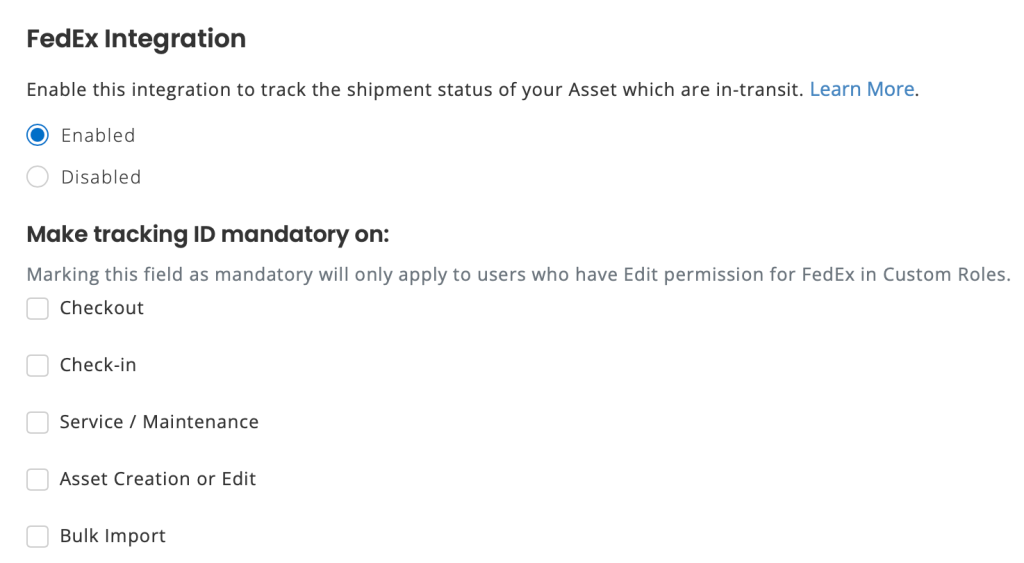
When a workflow is selected, users will not be able to complete that action without entering a Tracking ID. A validation message will appear if they try to proceed without filling it in.
2. View Shipment Information on an Asset
Once a Tracking ID is added, EZO fetches shipment data from FedEx and displays it in a new section on the asset’s detail page.
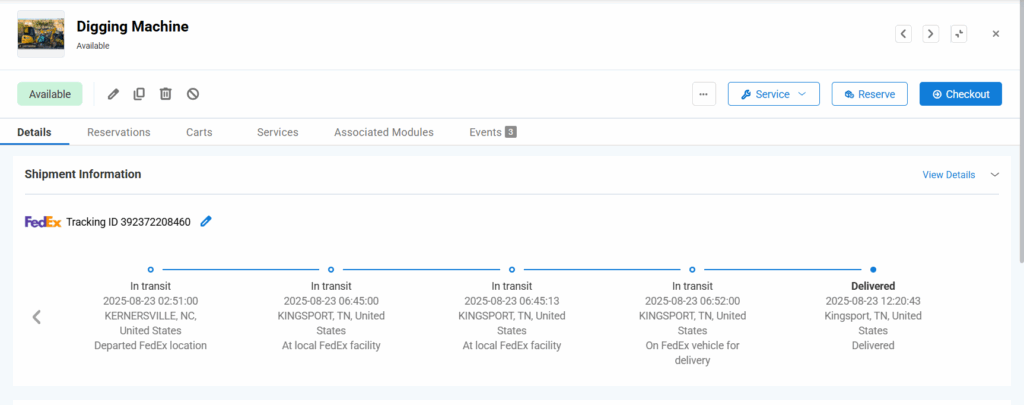
For each tracking ID, EZO shows a shipment timeline with scan events returned by FedEx. Shipment events are displayed newest first, making the current status immediately visible.
This timeline helps you quickly answer:
- Has the device left the origin?
- Is it still in transit?
- Has it reached the destination?
5. Reporting on Shipment Data
Shipment Information is also available in Custom Reports.
You can:
- Add Shipment Information as a sub-module for Assets
- Include shipment fields as report columns
- Build reports for assets currently in transit or recently delivered
This is useful for audit trails, repair tracking, and logistics oversight.
With shipment tracking now tied directly to assets, teams can monitor repair and return workflows without switching tools or manually checking carrier portals.
3. Track Multiple Assets with One Tracking ID
You can assign the same FedEx Tracking ID to multiple assets when they are shipped together in a single package. This is useful when several devices, tools, or other assets share one shipment and therefore have the same tracking number.
To associate multiple assets with the same shipment, simply enter the same FedEx Tracking ID for each asset. EZO allows the duplicate value without requiring a different tracking number for each asset.
Note: Use the same Tracking ID only when assets are part of the same FedEx shipment. Each asset can still have its own Tracking ID when it is shipped separately.
4. Configuring Custom Role Permissions for Tracking ID
By default, only admins can edit the Tracking ID field. If your team has members managing tracking data outside of an admin role, you can grant them access through custom roles.
To do this,
- Navigate to Members & Access → Roles and create a new role or open an existing one.
- Click on Advanced Permissions and select the FedEx module.
- Here, you’ll see the following options:
- View: Allow the user to view the Tracking ID field.
- Edit: Allow the user to edit the Tracking ID field.
- For each permission, select the scope of access:
- Only Items: The permission applies only to items within the user’s item restrictions.
- All Items: The permission applies to all items with no restrictions.
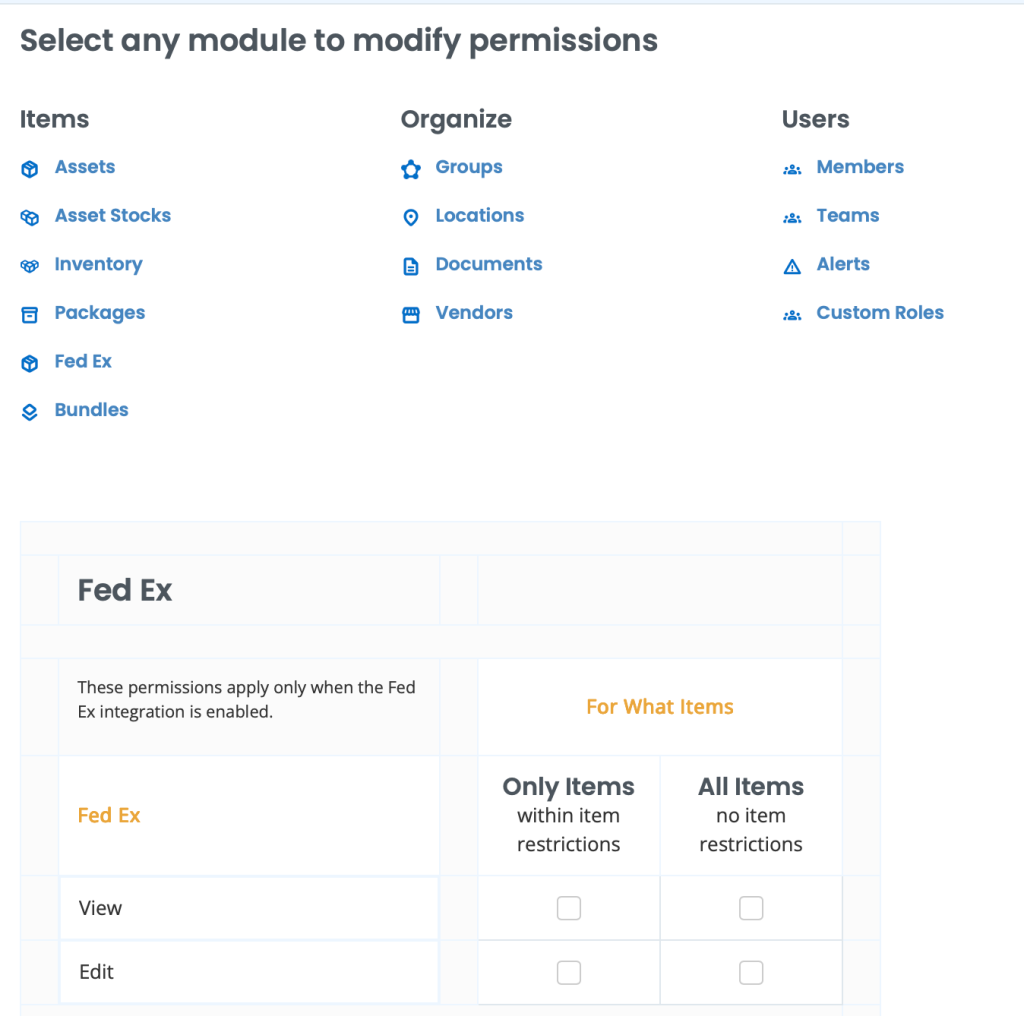
Users with Edit access will be able to update the Tracking ID field the same way an admin currently can.
Note: The FedEx permissions section is only visible on accounts that have the FedEx integration enabled.
Ready to Track Asset Shipments Inside EZO?
With the FedEx integration enabled, you no longer need to jump between carrier portals to check shipment status. EZO keeps shipment updates tied directly to the asset’s lifecycle—helping you reduce delays, losses, and manual follow-ups.
If you need help setting up the FedEx integration or troubleshooting shipment data, contact support@ezo.io.