
Disclosure: EZO publishes this guide and develops EZO EAM, one of the six products included. Products are listed alphabetically rather than ranked, and each is assessed against the same criteria. EZO EAM’s documented limitations and documentation gaps are reported using the same labels as those of other products, and EZO EAM is the only product that also underwent a limited hands-on test. Readers should keep this relationship in mind when evaluating the guide’s use-case suggestions, which are not scores or rankings.
Introduction
Spare parts tracking software helps maintenance teams identify the right part, verify quantities across storage locations, and record parts usage. Often grouped under maintenance inventory or MRO (maintenance, repair, and operations) inventory software, these tools track parts, stock levels, locations, and movements. CMMS (computerized maintenance management system) and EAM (enterprise asset management) platforms extend this functionality by connecting inventory records to work orders and assets.
A planner sees 12 bearings listed as on hand in the system. When a technician checks the shelf, however, only 10 are there, and one of those is tagged as damaged. The record has two separate problems. Two bearings were withdrawn for an open work order, but the system doesn’t deduct them until the work order is closed. The damaged bearing, meanwhile, was never marked as unfit for use, leaving only nine bearings in usable condition. One gap stems from a delayed inventory deduction; the other from an unrecorded change in stock condition. Both affect the accuracy of the inventory record, but they require different controls.
This guide compares six options: EZO EAM, Fiix, Limble, MaintainX, Sortly, and UpKeep. Key differences include transaction timing, maintenance linkage, location controls, purchasing, and total configuration cost. These differences determine how accurately each system tracks parts as they are reserved, issued, consumed, returned, and counted. Validate that accuracy through your own pilot rather than relying on vendor claims.
The comparison below summarizes documented stock-deduction behavior, reservation controls, and plan requirements, and identifies what still needs vendor verification. It suggests options to evaluate for different maintenance workflows, rather than declaring one overall winner.
Key Takeaways:
- A tool’s deduction timing determines how long system records can differ from physical stock. Unrecorded condition changes, such as damaged stock, create a separate discrepancy.
- Posting count adjustments without reconciling parts withdrawn for open work orders can create additional inventory errors.
- A low-stock trigger may generate an alert, task, purchase request, or purchase order recommendation.
- A CMMS with parts inventory can link consumption to the work order and asset, while an inventory-first tool like Sortly links usage to jobs.
- When a parts system connects to an ERP (enterprise resource planning) system, define which system owns on-hand quantities to prevent conflicting records.
- Entry plans vary: some exclude purchasing, cycle counting, or parts inventory. Compare plans against your workflow requirements.
- Test whether technicians can quickly record partial returns on their usual mobile devices, as planners rely on accurate return records.
Spare parts tracking software at a glance
The six tools fall into two groups, with one variant:
- CMMS platforms with built-in parts inventory: Fiix, Limble, MaintainX, and UpKeep.
- Inventory-first: Sortly, which uses its job functionality to track items assigned to and returned from specific jobs.
- Variant: EZO EAM, an asset and inventory management platform whose work-order functionality comes from the CMMS add-on on Premium and is included in Enterprise.
Sources supporting these classifications and the table cells are linked in the respective product profiles. The tables summarize documentation reviewed on November 10 and 11, 2026; only EZO EAM was also tested hands-on. The evidence labels are defined below this table, while the transaction terms (reserved, issued, consumed, returned) are explained in “Trace parts through issue, consumption, and return.”
| Product | Best suited when | Work-order parts usage | Plan needed for work-order parts tracking | Key limitation to confirm |
|---|---|---|---|---|
| EZO EAM | Parts and equipment records are managed in one system. | Documented: Inventory is linked to an asset on a work order, with quantity and cost recorded. Tested (one account): Stock was deducted when the work order was completed. | Premium with the CMMS add-on, or Enterprise (CMMS included); Advanced offers basic service records only | Work-order reservations and returns of unused parts |
| Fiix | Work-order usage needs to update purchasing records. | Documented: Saving the quantity used updates stock. | Any plan for usage (Free has user limits); Professional for cycle counts; purchasing plan needs confirmation. | Stock reservations, partial returns, and pack conversion are not publicly verified. Verify in your demo. |
| Limble | Parts need to be reserved for upcoming tasks. | Documented: Parts are reserved when added and deducted when the task is completed. | Premium+ (Limble’s plan name); Enterprise for multi-location support, cycle counts, and units of measure. | Independent bin quantities are not publicly verified. Verify in your demo. |
| MaintainX | Planners need to distinguish on-hand stock from committed stock. | Documented: Part statuses are available. Stock is deducted when a part is marked as Issued; closing the work order automatically marks any remaining unissued parts as Issued. | Premium or Enterprise; Enterprise for multi-location support and cycle counts. | Offline parts transactions and plan availability for offline use. |
| Sortly | Inventory needs to be tracked by job rather than maintenance history. | Partial: Jobs can include a work-order reference link. | Any plan for job-based usage (including Free); Ultra for purchase orders and stock counts. | Whether jobs can support your maintenance work-order requirements. |
| UpKeep | Work orders need to support parts allocation and location tracking. | Conflicting: The help documentation and product page specify different deduction points. | Premium; Professional for locations; purchasing plan needs confirmation. | Deduction timing and purchasing plan. |
Documented parts transactions by product
The next two tables compare how each vendor handles the transactions that affect spare parts inventory accuracy, based on its documentation. Each cell carries one of five labels:
- Documented: The vendor’s help documentation or how-to guide demonstrates the stated outcome. Any relevant plan restrictions are noted after the label. Claims supported only by a product page are identified separately.
- Partial: The documentation confirms part of the stated outcome but does not establish the full behavior. The cell identifies what remains unconfirmed.
- Conflicting: The vendor’s own sources provide different accounts of the same behavior. The cell identifies both versions.
- Tested: The outcome was not established through documentation but was observed during hands-on testing of one EZO EAM account on November 11, 2026. Testing covered two behaviors: work-order stock deduction and the Return action on an in-progress work order. Only EZO EAM was tested, and results may vary across configurations.
- Not publicly verified: The capability was not confirmed in the public first-party sources reviewed. This does not mean the capability is absent; ask the vendor to demonstrate it. Verify in your demo.
| Product | Reserved versus available stock | When work-order stock is deducted | Releasing or returning an unused part |
|---|---|---|---|
| EZO EAM | Partial: General inventory reservations by quantity, location, and date. Work-order allocation not publicly verified. Verify in your demo | Tested: At work-order completion. Linking parts to an open or in-progress work order left stock unchanged. | Partial: Cart-issued inventory returns to its original location. Tested: Stock is not deducted before work-order completion. In testing, the Return action therefore had no effect on stock for an in-progress work order. Returns after completion were not tested. |
| Fiix | Not publicly verified. A planned quantity exists, but no documented stock reservation was found. Verify in your demo | Documented: When the quantity used is entered, and the work order is saved. | Setting the quantity used to zero returns the full issued quantity through the work log (web only). Partial-quantity returns are not publicly verified. Verify in your demo |
| Limble | Partial: Reserved when added to a task. Release of any unused reservation at completion not publicly verified. Verify in your demo | Documented: At task completion. | Partial: Removing a part before completion releases it. Reversal after completion not publicly verified. Verify in your demo |
| MaintainX | Documented: Available stock is calculated by subtracting Reserved, Kitted, and Staged quantities from total stock (Premium and Enterprise). | Documented: Stock is deducted when parts are marked as Issued. Closing the work order automatically marks any remaining parts as Issued. | Partial: Removing a part restores availability. Returns after close not publicly verified. Verify in your demo |
| Sortly | Partial: The catalog guide defines reserved stock, while the jobs guide describes job-folder movements. Verify how these models apply to the evaluated account. | Conflicting: The jobs guide states that stock assigned to a job is moved into a job folder, while newer help documentation describes it as reserved until used. | Documented: Users can select unused quantities through the “Return Items” option when completing a job. |
| UpKeep | Documented: Allocated quantity for incomplete work orders (Premium and above). | Conflicting: On add (help doc) versus at close-out (product page). | Not publicly verified. Verify in your demo |
| Product | Counting and adjustment | Pack-to-each conversion |
|---|---|---|
| EZO EAM | Partial: Location audits check quantities and flag excess counts (Premium and above). Verify how audit findings are reviewed and how authorized users make separate stock corrections, including the retained reason and audit trail. | Documented: Packaging units convert to base units. |
| Fiix | Documented: Cycle counts (Professional and above). An “Audit trail” feature on Enterprise. | Not publicly verified. Verify in your demo |
| Limble | Documented: Cycle counts (Enterprise). Users can be required to provide a reason when manually decreasing stock. | Documented: Stock units and bulk purchasables (Enterprise). |
| MaintainX | Documented: Cycle counts (Enterprise). Notes required on manual removals. | Not publicly verified. Verify in your demo |
| Sortly | Documented: Stock counts (Ultra and above); custom transaction reasons (Advanced and above). | Partial: Custom units. Conversion not publicly verified. Verify in your demo |
| UpKeep | Documented: Adjustments shown in the inventory-lines guide (Professional and Enterprise); cycle counts on Enterprise. | Not publicly verified. Verify in your demo |
None of the six products’ documentation explains how stock counts handle parts issued to open work orders. This remains unverified for all six products, including EZO EAM. Step 5 of the test scenario below checks this.
The low-stock comparison appears in the section “Understand exactly what replenishment automates,” which shows the purchasing step associated with each trigger.
Pricing models and onboarding compared
The six vendors use different pricing models, so their entry prices are not directly comparable. All prices are in US dollars and reflect the information listed on November 10 and 11, 2026, with billing terms included where specified by the vendor. Entry plans generally exclude the parts and purchasing features covered in this guide.
Pricing information comes from the pricing pages linked in each product profile, except for Limble, whose price is taken from a cost guide. Trial requirements also vary: EZO EAM’s Essential, Advanced, and Premium plans and UpKeep’s Essential and Premium plans do not require a payment card. Sortly’s 14-day trial requires one. Fiix and MaintainX offer free plans, while Limble’s pricing page does not specify whether a trial is available.
Plan names vary by vendor. Throughout this guide, “and above” includes the named plan and all higher tiers, while “Premium+” refers specifically to Limble’s plan of that name. The plans are listed below in ascending order:
- EZO EAM: Essential, Advanced, Premium, Enterprise
- Fiix: Free, Basic, Professional, Enterprise
- Limble: Standard, Premium+, Enterprise
- MaintainX: Basic, Essential, Premium, Enterprise
- Sortly: Free, Advanced, Ultra, Premium, Enterprise
- UpKeep: Essential, Premium, Professional, Enterprise
| Product | Pricing basis | Published entry price (billing term) | Documented onboarding and implementation |
|---|---|---|---|
| EZO EAM | Tracked items; CMMS add-on per admin user | US$44.75 per month billed annually, or US$48 billed monthly (Essential, 100 items); US$81.41 per month billed annually at the calculator’s default of 500 items | Included: Onboarding assistance with each license. Optional: Additional group or individual training |
| Fiix | Per user | Free plan (limited users); Basic US$45 per user per month (billing term not stated; monthly or annual available) | Paid: Five implementation packages, quote only |
| Limble | Per user, priced by calculator | Pricing is available through a calculator only. A March 2026 cost guide lists the Standard plan starting at US$28 per user per month (billing term unspecified), but this plan does not include parts inventory. | Included: Customer success managers and custom onboarding plans. Paid: Migration, data import, and integration services |
| MaintainX | Per user | Free Basic plan; Essential US$20 per user per month (annual; US$25 monthly) | MaintainX lists guided, expert-led, and custom implementation options; Premium and Enterprise include a dedicated specialist and a three-week onboarding program |
| Sortly | Per account, with item, user, and active-job caps | Free plan (100 items, one user, two active jobs); Advanced US$49 per month (monthly) | Included: A customer success manager on Enterprise; no paid implementation package found |
| UpKeep | Per user | Essential US$24 per user per month (billing term not stated) | Paid options: US$500 for training only; US$1,500 Quickstart (setup, migration, and training within 45 days); US$5,000 expanded training; Enterprise implementation quote only |
Sources for this table include the EZO EAM support, Fiix implementation, Limble implementation, and MaintainX implementation pages. The pricing pages linked in each product profile also provide onboarding details for MaintainX, Sortly, and UpKeep. EZO EAM’s information comes from a support page rather than an implementation page.
How we evaluated the software
This comparison is based on documentation research, not vendor demonstrations or customer interviews. Vendors were not asked to clarify the conflicting information identified. Hands-on testing covered only two EZO EAM behaviors on one account: work-order inventory deduction and the Return action on an in-progress work order. No other product was tested hands-on. Since the products were not tested side by side, none receives a score or a “best overall” designation. Ease of use was also not assessed.
Findings are based on each vendor’s help documentation, pricing pages, and integration and implementation materials, reviewed on November 10 and 11, 2026. Each product profile links to its sources and identifies findings supported by marketing pages rather than help documentation. The product profiles also provide the sources for the comparison tables. The onboarding, integration, and reporting tables list their sources separately.
All six products were assessed against the same criteria, covering inventory transactions, work-order functionality, stock counting, unit conversion, low-stock replenishment, integrations, reporting, onboarding, and the configuration and cost required to access these capabilities. The comparison tables examine inventory transaction workflows across products, while the sections following the product profiles cover integrations, reporting, and data imports. Part identification, location models, mobile operation, and purchasing approval and receipt are discussed as buyer considerations rather than evaluated comparatively.
The products were selected for their relevance to maintenance parts tracking. This is a focused comparison, not an exhaustive market review. Other platforms, including eMaint and Fracttal, offer parts modules but were not assessed. Enterprise EAM suites are also outside the scope of this comparison. Teams standardizing spare parts across multiple plants can consult our multi-plant spare-parts EAM comparison, which examines cross-site governance and procurement architecture. The comparison tables identify questions that vendor documentation does not resolve, and the relevant product profiles discuss them.
Do you need an inventory tool or a CMMS?
Start with the records you need to maintain, not the product category. An inventory tool tracks what a part is, where it is stored, and how many units remain. A CMMS with parts inventory adds maintenance context: why a part was issued, which work order used it, which asset it supported, and what it cost. The level of detail available depends on the platform and its configuration.
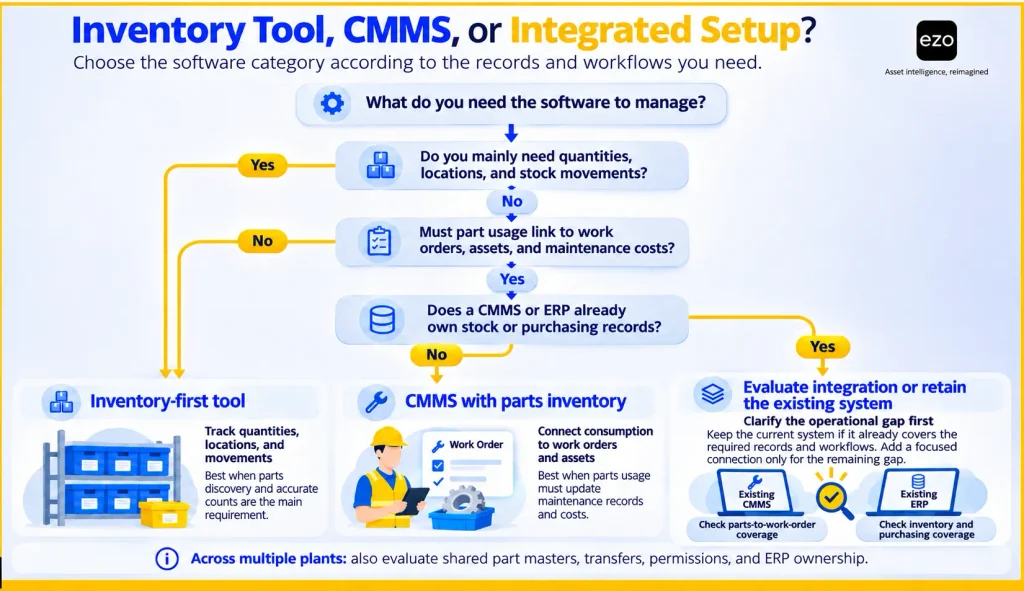
| Situation | Evaluation direction |
|---|---|
| The main need is finding parts and recording quantities and movements | Evaluate an inventory-first tool such as Sortly, and confirm that job-level usage, returns, and counts meet your needs before paying for a CMMS |
| Parts usage must affect job records, maintenance costs, and planned work | Evaluate native work-order consumption and the package it requires |
| Inventory, maintenance work, and purchasing all matter | Evaluate CMMS-linked tools on the plan that includes purchasing, or the ERP connection that handles it |
| A CMMS or ERP already owns stock or purchasing records | Decide which system owns each record before adding another (see “Decide which system owns stock and purchasing” section) |
| Procurement standardization across plants is central | Prioritize a cross-site part master, transfers, permissions, and ERP ownership; the multi-plant comparison linked in “How we evaluated the software” covers them |
Six spare parts tracking tools for maintenance teams
EZO EAM
Best suited when: Maintenance teams need parts inventory linked to equipment records, with consumption costs attributed to assets through maintenance work orders.
Key capabilities:
- Each inventory item uses a shared barcode or QR code to identify its units, while quantities are tracked separately by stock location, as explained in EZO EAM’s inventory tracking documentation.
- Users can link an inventory item to an asset through an active maintenance work order and specify the quantity and location. EZO EAM’s work-order documentation explains how linked inventory, quantities, and associated costs appear on the work order. When consumed-inventory cost tracking is enabled, and a costing method is selected, the cost breakdown identifies these entries as “Consumed Inventory.” The Linked Inventory report also shows these costs by work order.
- In our hands-on test of one account, stock was deducted only when the work order was completed. Adding a part to an open or in-progress work order left both the stock count and the Quantity Consumed column unchanged. Once the work order was completed, the system deducted the linked quantity and updated Quantity Consumed. If the linked parts have also been physically withdrawn, a shelf count before completion may be lower than recorded stock by the net quantity withdrawn and not yet deducted.
- Location-based stock thresholds trigger email alerts and in-app notifications when inventory falls below a specified level. Packaging units also support conversion from cartons to base units when adding stock or creating purchase orders, as described in EZO’s inventory control guide.
Watch points:
- Work-order functionality requires the CMMS add-on on Premium. Enterprise includes CMMS capabilities.
- Advanced offers basic service records that can consume inventory. EZO describes these as a way to record service events without tracking the full maintenance cycle. Recurring services and service triage are handled through the CMMS workflow.
- Deleting a completed service record replenishes its consumed inventory when service deletion is enabled. This is a side effect of deleting the record, not a way to return unused parts, as the service record itself is removed.
- Inventory issued through carts has a documented return workflow. Returning or correcting parts consumed through work orders requires separate verification. The reviewed documentation describes reordering through a manual “Add to Purchase Order” action.
- The offline mobile app (Enterprise) lets technicians view work orders, add work logs, and complete checklist items for up to 20 cached work orders. Offline parts issuance and returns are not documented.
Not publicly verified: Public documentation does not establish whether linking inventory to a work order reserves the quantity or reduces availability for other work. It also does not explain whether location audits automatically post adjustments, how parts are returned after work-order completion, or how packaging-unit conversion handles partial packs. Verify how audit findings are reviewed and how authorized users make separate stock corrections, including the retained reason and audit trail. Ask EZO’s team to demonstrate these workflows on the plan you intend to purchase.
Pricing and access:
Pricing
Plans are priced by the number of tracked items rather than users. The EZO EAM pricing page uses a price calculator. At its default setting of 500 tracked items and annual billing, Essential, Advanced, and Premium cost US$81.41, US$117.11, and US$142.10 per month, respectively. At those displayed rates, annual totals are US$976.92, US$1,405.32, and US$1,705.20, respectively.
At 500 tracked items with monthly billing, the same plans cost US$96.86, US$144.48, and US$177.80 per month. The FAQ’s starting prices refer to the calculator’s lowest setting of 100 tracked items: US$44.75, US$52.25, and US$57.50 per month with annual billing, or US$48, US$58, and US$65 per month with monthly billing.
Stock limits are separate from tracked-item limits. Plan prices scale with the number of tracked items, while stock units represent the combined quantities held as inventory and asset stock. Essential, Advanced, and Premium support 5,000, 15,000, and 30,000 stock units, respectively. Enterprise offers unlimited stock units and requires a custom quote.
EZO’s pricing page does not define what counts as a tracked item or provide a worked example. Teams should confirm how part records, serialized equipment, and stock quantities count toward these limits before committing.
The CMMS add-on is priced per admin user, while other user roles are free. Its price is not published, so ask EZO’s team for a quote. Essential, Advanced, and Premium include unlimited users subject to a fair usage policy. Purchase orders are available from Advanced onwards.
Essential, Advanced, and Premium also include a free 14-day trial without requiring a payment card. However, the pricing page does not specify whether the trial includes the CMMS add-on. Confirm this with EZO before using the trial to test work-order inventory consumption.
Fiix
Best suited when: Maintenance teams need parts consumption recorded against work orders, with low-stock thresholds triggering purchase requests.
Key capabilities:
- Fiix work orders record planned and actual part quantities. Saving a work order after entering the quantity used updates inventory levels on all plans, including Free, which has user limits. See Fiix’s work-order parts documentation.
- Each stock location has its own on-hand, minimum, and maximum quantities. Optional aisle, row, and bin text fields allow more precise location tracking, but separate stock quantities for individual bins are not established. Fiix explains these fields in its parts records documentation.
- On Professional and Enterprise, recorded part usage that takes stock below its configured minimum can automatically generate a purchase request on the Purchase Planning Board. Users can then convert the request into a purchase order through the purchase request workflow.
Watch points:
- Fiix’s returns guide demonstrates a full reversal by setting the actual quantity used to zero. It does not establish the procedure for a partial return; test that separately. The reviewed documentation does not explain how to record a partial return, such as reducing the recorded usage from two parts to one.
- Fiix’s returns documentation states that parts cannot be removed from a work order through the mobile app.
- Fiix’s pricing page lists an “Audit trail” feature only on Enterprise, while parts-usage reports are available from Basic. Confirm what additional stock-change information the Enterprise audit trail provides.
Not publicly verified: Public documentation does not establish whether Fiix supports reservations for planned work, partial returns, or pack-to-each conversion. Ask Fiix to demonstrate these workflows before committing.
Pricing and access: Fiix offers a Free plan with limited users and unlimited parts inventory, Basic at US$45 per user per month, Professional at US$75 per user per month, and quote-only Enterprise plans. Paid plans can be billed monthly or annually. Cycle counting and multi-site functionality start on Professional. However, Fiix’s pricing page marks purchasing as available on Free, while its purchasing help articles identify Professional and Enterprise as the supported plans. Confirm purchasing availability for your intended plan before requesting a quote.
Limble
Best suited when: Maintenance teams need to reserve parts for upcoming tasks, with low stock generating assigned follow-up tasks rather than just notifications.
Key capabilities:
- Parts inventory, including reservations, is available from Premium+. Adding a part to a task reserves the required quantity, while completing the task deducts the quantity used from inventory. The documentation does not explain how unused reserved quantities are released. Limble also offers an optional setting that prevents task completion when available stock cannot cover the required quantity. See its parts reservation and minimum-threshold documentation.
- When stock falls below its configured minimum, Limble creates a threshold task and assigns it to a user, prompting them to check inventory and arrange replenishment. Users can also initiate a purchase order from the task. The threshold calculation accounts for reserved parts as quantities expected to be used, as explained in Limble’s parts inventory threshold guide.
- Enterprise supports a base stock unit and larger purchasing units for each part. Limble converts received quantities into the corresponding stock units, as explained in its unit-of-measure guide.
Watch points:
- Each part has one location field per site. Independent stock quantities for individual bins are not documented.
- Multi-location transfers, cycle counting, and unit-of-measure functionality are available only on Enterprise.
- In the new mobile app (guide dated September 30, 2026; the legacy app is expected to retire in 2027), technicians can consume parts already linked to a task while offline but cannot add new parts without an internet connection. The new app also does not yet support external barcodes, part transfers, or purchasing. See the Limble mobile app guide.
Not publicly verified: Public documentation does not establish whether Limble supports independent bin quantities, how unused reservations are released when a task is completed, or whether consumption can be reversed on completed tasks. Ask Limble to demonstrate these workflows before committing.
Pricing and access: Part thresholds, QR codes for parts, and offline functionality start on Premium+, while multi-location functionality requires Enterprise, according to Limble’s pricing page. The pricing page uses a calculator rather than publishing fixed plan prices. Limble’s March 2026 CMMS cost guide lists Standard pricing from US$28 per user per month, but Standard does not include parts inventory or the parts features described above.
MaintainX
Best suited when: Maintenance planners need to distinguish physical stock from inventory already committed to work orders.
Key capabilities:
- On Premium and Enterprise, parts move through five statuses: Assigned (linked to a work order without changing quantities), Reserved (set aside and deducted from available stock), Kitted (physically picked and grouped), Staged (moved to a designated pickup area), and Issued (received by the technician, reducing in-stock quantity). MaintainX calculates available stock by subtracting committed quantities from in-stock quantities. Reserved, Kitted, and Staged parts count as committed, while Assigned parts do not. This prevents work scheduled far in advance from reducing reported availability. In-stock quantity decreases only when parts are marked Issued. Closing a work order automatically marks any remaining parts as Issued, as explained in the part statuses and availability guide.
- Removing a part from a work order makes its quantity available again.
- Manual stock removals require a note, as specified in MaintainX’s ordering and restocking documentation.
- Parts can be linked to assets and selected when creating work orders for those assets, as described in MaintainX’s parts documentation.
Watch points:
- Email alerts for low stock go to the escalation team only for parts marked Critical. Other parts display a restock flag but do not trigger the same notification.
- The Parts Restocker, an Enterprise skill in MaintainX’s Smart Hub (labeled beta), generates purchase order recommendations rather than creating orders. Users must review each recommendation and create the purchase order themselves. See the Parts Restocker documentation.
- Multi-location inventory and cycle counting are available only on Enterprise.
- Autodesk completed its acquisition of MaintainX on August 3, 2026, according to Autodesk’s announcement. The announcement does not specify whether MaintainX’s product, plans, or pricing will change. Confirm the product roadmap and contract terms before committing.
Conflicting: MaintainX’s offline mode documentation lists offline mode on all four plans, while its pricing grid shows different plan availability. Confirm which plans include offline access with the vendor.
Not publicly verified: Public documentation does not establish whether MaintainX supports pack-to-each conversion or offline parts transactions. Ask MaintainX to demonstrate both workflows.
Pricing and access: MaintainX offers a free Basic plan. Essential costs US$20 per user per month with annual billing or US$25 with monthly billing. Premium costs US$65 per user per month annually or US$75 monthly, while Enterprise is quote-only. Parts inventory and purchase orders start on Premium, according to the MaintainX pricing page.
Sortly
Best suited when: Teams need to identify parts, track quantities across locations, and record parts usage by job without adopting a full maintenance management system.
Key capabilities:
- Jobs are available on every plan, including Free. Assigning items to a job moves them into its job folder. When completing the job, users select any unused quantities to return to a folder. Items not returned remain assigned to the job as used. Sortly explains this workflow in its jobs documentation.
- Ultra and higher plans support stock counts that identify discrepancies. After review, these discrepancies are posted as count adjustments. Sortly outlines this process in its stock counts documentation.
- Advanced and higher plans support quantity alerts that notify users when an item runs low, as explained in Sortly’s quantity alerts documentation. The article does not specify how these alerts are delivered, while webhooks are listed as an Enterprise feature on the pricing page.
Watch points:
- A job’s work-order link is a reference field, not a native maintenance work order. An Enterprise integration with a work-order system, such as the property-management platform AppFolio, can import external work orders as jobs. However, these remain Sortly jobs rather than native maintenance work orders.
- Sortly’s separate stock and catalog documentation describes job stock as reserved until used. This conflicts with the workflow described in its jobs documentation, and the help center does not date the newer version. The relationship between these documented workflows is not established. Confirm which workflow and functionality apply to the account being evaluated.
Not publicly verified: Public documentation does not establish whether Sortly supports pack-to-each conversion, preventive maintenance scheduling, or asset maintenance histories that link parts usage to equipment records. Ask Sortly to demonstrate these workflows.
Pricing and access: Sortly prices its plans per account, with limits on items, users, and active jobs. Advanced supports 500 items, two users, and five active jobs; Ultra supports 2,000 items, five users, and 10 active jobs; Premium supports 5,000 items, eight users, and 15 active jobs. The Free plan allows 100 items, one user, and two active jobs. Completed jobs do not count toward these limits.
Monthly list prices are US$49 for Advanced, US$149 for Ultra, and US$299 for Premium. Annual prices are US$288, US$888, and US$1,788 a year, respectively, under a first-year 50% new-customer discount. The Sortly pricing page states that annual plans receive a 20% discount after the first year. At an unchanged $49 monthly list price, Advanced would therefore cost $470.40 annually. Confirm the renewal amount at checkout.
Purchase orders start on Ultra, and the 14-day free trial requires a payment card.
UpKeep
Best suited when: Maintenance teams need parts allocated to work orders and tracked across storage locations within a user-based CMMS.
Key capabilities:
- On Premium and above, the Allocated Quantity field shows how many parts are committed to incomplete work orders. UpKeep explains this functionality in its allocated quantity documentation.
- Professional and Enterprise support inventory lines, which track quantities separately by storage location and allow stock transfers between locations. These capabilities are described in UpKeep’s inventory lines documentation.
- On Premium and above, stock falling below its configured minimum triggers notifications and displays a low-stock badge. UpKeep describes this functionality in its low-stock documentation.
- UpKeep’s inventory lines article shows an Adjustments tab that records stock changes, including those resulting from purchase orders. This functionality is available on Professional and Enterprise. Its cycle count guide lists cycle counting as an Enterprise feature.
Watch points:
- UpKeep’s documentation gives conflicting accounts of when stock is deducted, potentially reflecting different configurations or interface versions. Its inventory lines article states that parts are deducted when added to work orders, while its inventory management page says used parts are deducted when the work order is closed. Ask UpKeep to demonstrate the deduction process in the inventory mode you intend to use.
- The mobile app provides view-only access to work-order parts when offline, according to UpKeep’s offline functionality documentation.
Not publicly verified: Public documentation does not establish how unused parts are returned to available inventory after being allocated to a work order. Ask UpKeep to demonstrate this workflow.
Pricing and access: UpKeep offers Essential at US$24 and Premium at US$55 per user per month, without stating the billing term, while Professional and Enterprise are quote-only. Inventory starts on Premium, while inventory lines and offline functionality are available on Professional and above. Premium analytics show 30 days of history, and Professional and Enterprise show full history.
Purchasing availability needs confirmation. UpKeep’s pricing page lists purchase orders under Enterprise, while its inventory lines documentation, which covers Professional and Enterprise, also describes creating purchase orders. Confirm which purchasing capabilities are included in the intended plan before requesting a quote.
What maintenance teams should check before choosing
Identify the right part and its location
A part record is useful only if a technician can match it to the physical item. Two bearings with similar names can differ in bore size or seal type, and a record that does not distinguish between them can send the wrong part to a job. Check whether the system records:
- An internal ID
- The manufacturer part number
- The stock unit
- The storage location, including the bin where necessary
- Compatible assets
- Approved substitutes
- Criticality
- Condition
Teams holding critical spares at remote sites need to see the usable quantity at each site, not just a company-wide total. Your stocking policy also shapes the shortlist because it determines which minimum, maximum, and lead-time fields you need. This guide to spare parts inventory management covers the policy itself.
Ask the vendor: Scan this physical label and show me the usable quantity at this location.
Trace parts through issue, consumption, and return
Reservation, issue, consumption, and return are four distinct events. Reservation commits stock to planned work; issue records its physical withdrawal; consumption records what was actually used; and return records unused parts brought back from the job. Returned parts are released to available stock after their condition is checked. In this guide, on hand means the quantity recorded in the storeroom, which may differ from the physical count; issued means physically withdrawn for a work order; consumed means recorded as used; quarantined means physically present but excluded from usable stock; and available means usable stock not committed to other work.
The point at which inventory is deducted varies by platform. Fiix updates stock when the quantity used is saved, Limble when the task is completed, and MaintainX when parts are marked Issued. Closing a work order automatically issues any remaining parts in MaintainX. Sortly’s documentation describes two different job workflows, while UpKeep’s sources conflict on whether deduction occurs when parts are added to a work order or when it is closed. EZO EAM’s documentation does not specify the deduction point; in the hands-on test described in its profile, stock was deducted when the work order was completed.
When physical withdrawal precedes recorded deduction, the system’s stock record can temporarily exceed the quantity on the shelf. In the opening example, if stock is deducted only when the work order is completed, the record can still show 12 bearings even though only 10 remain on the shelf, of which nine are usable.
A cycle count during this period needs to distinguish the two bearings issued to the work order from the damaged bearing. Otherwise, the variance may be treated as a single stock discrepancy, obscuring both the withdrawal not yet reflected in the stock balance and the change in the damaged bearing’s condition. The system should allow the team to reconcile both while preserving the distinction between parts issued, parts consumed, and parts still usable.
The hypothetical timeline below follows the two withdrawn bearings in a system that deducts stock at work-order completion. The record column shows the recorded quantity, with the difference between the record and the shelf quantity in parentheses.
| Time | Event | Shelf | Record (variance) | What the system records |
|---|---|---|---|---|
| 9 a.m. | Technician withdraws 2 for the open work order | 10 | 12 (+2) | The work order records two required parts; the stock balance remains unchanged until completion. |
| 11 a.m. | Counter finds 10 and adjusts the record | 10 | 10 (0) | A count adjustment of minus 2 |
| 3 p.m. | Technician returns 1 unused, and the linked quantity is reduced from 2 to 1 | 11 | 10 (-1) | Nothing is added back; no stock receipt is posted because the withdrawal had not previously reduced stock. The earlier count adjustment remains unreconciled. |
| 4 p.m. | Work order closes with 1 consumed | 11 | 9 (-2) | A deduction of 1, leaving the record 2 below the shelf |
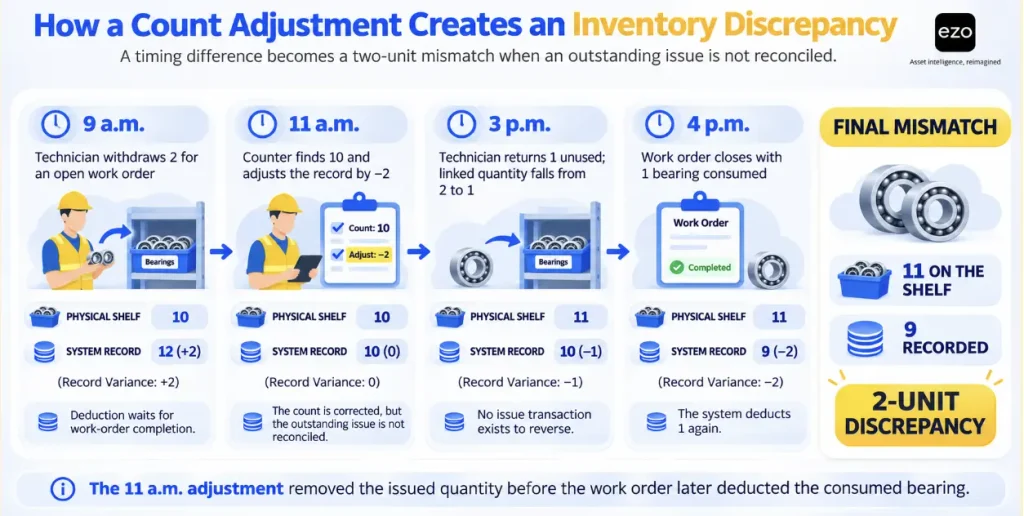
In the example above, the count identified a timing difference, but posting a loss adjustment before reconciling the outstanding issue deducted the same withdrawal twice. Neither deduction point is inherently wrong. Deducting at issue keeps recorded storeroom stock closer to the physical quantity during a job, but removes stock from the record before the actual usage is confirmed. If an unused part is returned but the return is not recorded, the system will understate stock. Deducting at completion waits until usage is confirmed, but leaves the recorded quantity higher than the physical stock while parts are out for a job.
The deciding question is whether the software or counting procedure makes in-flight parts visible: parts withdrawn for work but not yet recorded as consumed or returned. Counters need to distinguish these parts from missing stock before posting an adjustment.
The damaged bearing presents a separate issue. A count confirms quantity, but not usability. The counter must be able to record the bearing’s condition, and the system must exclude it from usable stock. The tables in this guide do not compare damaged-stock or quarantine controls, so test these in step 2 of the scenario below.
Ask the vendor: What happens to stock when a job is canceled, its required quantity changes, or a technician returns an unused part after the work order is closed?
Reconcile counts without erasing the cause
A count records what was found; an adjustment changes the stock record. Check who reviews discrepancies, whether a reason is required, when adjustments take effect, and whether the transaction history preserves both expected and counted quantities.
EZO EAM’s location audits compare each item’s physical quantity with its recorded quantity. When Blind Count, which hides expected quantities from auditors, is enabled, the audit can report surplus variance. It also lists denied and pending items for follow-up. The guide does not describe a separate shortfall measure, so ask how shortages are reported. Limble can require a reason for manual decreases, Sortly supports custom transaction reasons, and MaintainX requires a note when stock is removed. Fiix lists inventory cycle counts on Professional and above on its pricing page, while UpKeep’s inventory lines article shows an Adjustments tab that lists stock changes.
Also ask how the system accounts for stock movements during a count. Does it use a snapshot, transaction cutoff, location freeze, or recount? None of the documentation reviewed for the six products explains this process, so ask each vendor to demonstrate it. An audit can identify a discrepancy, but explaining its cause requires access to the relevant transaction history. EZO’s inventory auditing guide covers the broader process.
Ask the vendor: Show me a count discrepancy and the transaction history that explains it.
Convert pack quantities at receipt
Units of measure matter when stock is received. If a pack of five is recorded as one “each,” the system understates stock by four units. Pack-to-each conversion translates a purchasing unit, such as a pack of five, into its equivalent stock units. Limble documents this functionality on Enterprise (stock units and bulk purchasables), while EZO EAM provides it through packaging units. The documentation reviewed does not establish pack-to-each conversion in Fiix, MaintainX, Sortly, or UpKeep.
Ask the vendor: Receive two packs of five and show me the resulting stock quantity.
Understand exactly what replenishment automates
“Automatic reordering” can refer to several different actions: a threshold notification, a task, a purchase request, a draft purchase order, or an approved or submitted order. Receiving the order is a separate transaction that the system records afterward.
Supplier lead time, expected demand during that period, and safety stock determine when replenishment needs to be triggered. For example, consider a bearing used twice a week, with a three-week lead time and two units of safety stock. Under a continuous-review policy, expected lead-time demand of six units plus two units of safety stock gives a reorder point of eight. Confirm whether the trigger uses on-hand stock, available stock, or inventory position. Check whether thresholds can be configured by item, location, or both, and whether the system records supplier lead times.
The help articles linked in each product profile document the following low-stock behaviors. Approval and receipt workflows were not compared consistently across all six vendors, so the comparison focuses on the actions each system documents when stock falls below its configured threshold:
| Product | What low stock creates | Documented next step | Plan for purchase orders |
|---|---|---|---|
| EZO EAM | Email and in-app alert | A user adds the part to a purchase order | Advanced and above |
| Fiix | Purchase request on the planning board | A user generates the purchase order | Professional and above per help articles |
| Limble | Threshold task for an assigned user | A user starts a purchase order from the task | Premium+ |
| MaintainX | Restock flag; email for Critical parts | Purchase order recommendations on Enterprise (Parts Restocker), which a user reviews before creating the order | Manual purchase orders on Premium and Enterprise |
| Sortly | Alert | No automatic purchase order documented | Ultra and above |
| UpKeep | Notification and badge | No automatic purchase order documented | Enterprise per pricing grid; a help article conflicts |
Three vendors’ marketing pages describe purchase-order automation beyond what their help documentation establishes. MaintainX’s parts inventory page mentions automatic purchase orders, UpKeep’s product page mentions draft purchase orders, and EZO EAM’s inventory tracking page mentions generating purchase orders when stock reaches a threshold. These claims do not explain the exact trigger, approval process, or extent of automation. Ask each vendor to demonstrate the complete workflow on the plan you intend to purchase.
Ask the vendor: When stock reaches the threshold, what does the system create automatically, who handles the next step, and which plan includes this functionality?
Decide which system owns stock and purchasing
An integration logo confirms that a connection exists, but not which system holds the authoritative stock quantity. Decide this before selecting a connector. Otherwise, both systems may record the same withdrawal, resulting in conflicting stock figures.
Limble’s NetSuite setup guide makes these decisions explicit. Teams designate which system is authoritative for on-hand quantities after work-order consumption and choose the direction of item synchronization. They also decide whether purchase orders originate in Limble or NetSuite. The guide warns that some configuration choices cannot be changed after go-live.
| Product | Documented ERP and accounting connections | What syncs, per the vendor | Plan and cost |
|---|---|---|---|
| EZO EAM | Connector: QuickBooks Online. Also: API access and custom integrations | Purchase orders (once confirmed) and work-order expenses, sent from EZO EAM manually; inventory quantities are not described as syncing | QuickBooks on Premium and Enterprise; work-order sync needs CMMS (the add-on on Premium, included in Enterprise); API from Advanced on the pricing page; custom integrations on Enterprise |
| Fiix | SAP (built on Boomi, an integration platform); API | SAP: Parts, stock, vendors, accounts, purchasing, and part consumption, depending on scope | ERP on Enterprise at additional cost; the SAP one-pager lists one-time fees of US$16,500 and US$33,000 without stating which scope each covers, plus US$5,500 a year for Boomi, subject to final scoping |
| Limble | NetSuite, Business Central, SAP S/4HANA, QuickBooks Online | NetSuite (per its setup guide): Parts inventory, vendors, and purchase orders; consumption posts to NetSuite as adjustments or journal entries. The other connectors’ scope was not compared | Premium+ on the pricing grid (the Enterprise card also lists it); additional costs may apply |
| MaintainX | QuickBooks Online; SAP; custom ERP integrations | QuickBooks: Two-way part name, quantity, unit cost, and reorder point (multi-location parts not supported). SAP: Stock counts both ways and purchase orders sent to SAP for approval | QuickBooks on Premium or Enterprise, built as a custom integration with a statement of work and cost estimate; SAP on Enterprise with a paid services package; custom ERP integrations on Enterprise |
| Sortly | QuickBooks Online; API and webhooks | Purchase orders and invoices, sent from Sortly to QuickBooks Online; inventory quantity sync not described | QuickBooks on Premium and above; API and webhooks on Enterprise |
| UpKeep | SAP; API | SAP: Work orders (PM) and purchase orders (MM), both ways; parts are not listed | Enterprise; SAP connector US$5,000 a year |
Sources for this table: EZO EAM’s QuickBooks guide, Fiix’s SAP integration overview, Limble’s integrations directory and SAP S/4HANA integration page, MaintainX’s QuickBooks integration and SAP integration documentation, Sortly’s QuickBooks Online integration guide, and UpKeep’s SAP integration documentation. API access and custom-integration availability come from the pricing pages linked in each product profile.
The documentation also leaves some integration questions unresolved. EZO EAM’s developer page describes API access as available to all paying clients, while its pricing page lists API access from Advanced. The two descriptions conflict. No named ERP stock-sync connector appears in its integrations directory, although custom integrations are offered on Enterprise. UpKeep’s integrations page describes two-way connections to Oracle, NetSuite, and Dynamics, but its help center does not document the corresponding synchronization workflows. Clarify these differences with the vendors rather than treating marketing claims or pricing-page descriptions as conclusive.
The integrations fall into two broad categories. EZO EAM’s and Sortly’s accounting connectors exchange purchasing, expense, and billing documents rather than stock quantities. The documentation reviewed does not establish that either vendor synchronizes on-hand inventory through these connections. By contrast, MaintainX’s QuickBooks connector and the ERP integrations offered by Fiix, Limble, and MaintainX include stock or consumption data.
For these connections, decide which system owns the authoritative stock quantity and how updates are synchronized. Two-way quantity synchronization, such as that offered by MaintainX’s QuickBooks connector, requires particular attention. Even with one designated system of record, duplicate messages, failed syncs, changed IDs, and unit mismatches can corrupt stock records. Confirm that the integration uses shared transaction IDs, prevents duplicate entries, provides an error queue with retries, and supports reconciliation reports. Test the process by deliberately triggering a failed sync.
Integration evaluation should also cover single sign-on, user permissions, API access, and data ownership. These determine who can access connected systems, which records they can change, and how information is governed across platforms. EZO’s EAM procurement evaluation guide covers these considerations in more detail.
Ask the vendor: After a technician consumes a part, which system updates the on-hand quantity first, and what does the other system show until synchronization is complete?
Check what the reports can show
Parts reports differ in whether they link consumption to individual work orders and how much transaction history they retain. Check both. A report that shows consumption without identifying the associated work order offers limited traceability, while a short transaction history may not support longer-term usage analysis.
| Product | Parts reports documented | Plan notes |
|---|---|---|
| EZO EAM | Stock Summary, Low Stock, Inventory Value, and line-item inventory reports; a Linked Inventory report with work-order cost (see the profile) | Standard inventory reports on all plans (pricing page); custom reports from Advanced; the Linked Inventory report needs work-order (CMMS) access |
| Fiix | Parts used in work orders, low stock by location, first-in, first-out (FIFO) stock value, purchase history, cycle count summary | Report library from Basic |
| Limble | Prebuilt per-part reports and a Total Parts Cost widget | Basic reports on all plans; multi-location reporting on Enterprise (pricing page) |
| MaintainX | Part transaction export to CSV, with the transaction type on each row | Premium and above; report builder on Enterprise (pricing page) |
| Sortly | Inventory summary and activity history; low stock; item flow | Low stock from Advanced; item flow from Ultra; activity history visible for 1 month on Free, 1 year on Advanced, 3 years on Ultra, and without limit on Premium (pricing page) |
| UpKeep | Parts consumption report and a part inventory events trail | Premium and above; analytics show 30 days of history on Premium and full history on Professional and Enterprise |
Sources: EZO EAM item reports, Fiix report library, Limble parts reports, MaintainX part transactions, Sortly reports, and UpKeep parts analytics. Plan notes marked “pricing page” come from the pricing pages linked in each profile.
A count discrepancy discovered in March may require transaction records from January to explain it. UpKeep’s Premium analytics window (30 days) and Sortly’s Free activity-history window (1 month) do not provide 90 days of history on those plans, although neither source states that the underlying records are deleted. Check whether retention limits vary by plan and whether they apply to transaction records, audit logs, reports, or exports.
Costing methods also differ. Fiix reports FIFO stock value, while EZO EAM applies the costing method selected for consumed-inventory cost tracking. Ask how a partial return affects the cost already posted to a work order.
Ask the vendor: Show me every transaction for one part over the last 90 days, including its associated work order, user, and reason. Can I access the same history on the plan I intend to purchase?
Test parts transactions and permissions on mobile
Test how easily technicians can record a partial return on their usual device. Planners and inventory controllers rely on these records later, so the system must restore available stock while preserving the transaction history.
All six vendors document scanning in their mobile apps (EZO EAM, Fiix, Limble, MaintainX, Sortly, UpKeep). However, offline work-order access does not necessarily include offline parts transactions. EZO EAM documents offline work logs and checklist items for up to 20 work orders (Enterprise); Limble allows technicians to consume parts already linked to a task; UpKeep provides view-only access to work-order parts; and MaintainX’s offline documentation covers work-order updates but not parts transactions. Offline parts transactions were not established for Fiix or Sortly.
Confirm who can issue, return, or adjust stock through the mobile app and whether these permissions differ from those available on the web.
Ask the vendor: Show a technician returning one unused part on mobile, from scanning the item to confirming the updated available quantity.
Test your shortlist with one maintenance-parts scenario
Run every shortlisted tool through the same scenario using identical data. This is a hypothetical evaluation scenario, separate from the examples above; its values do not describe any vendor’s observed behavior.
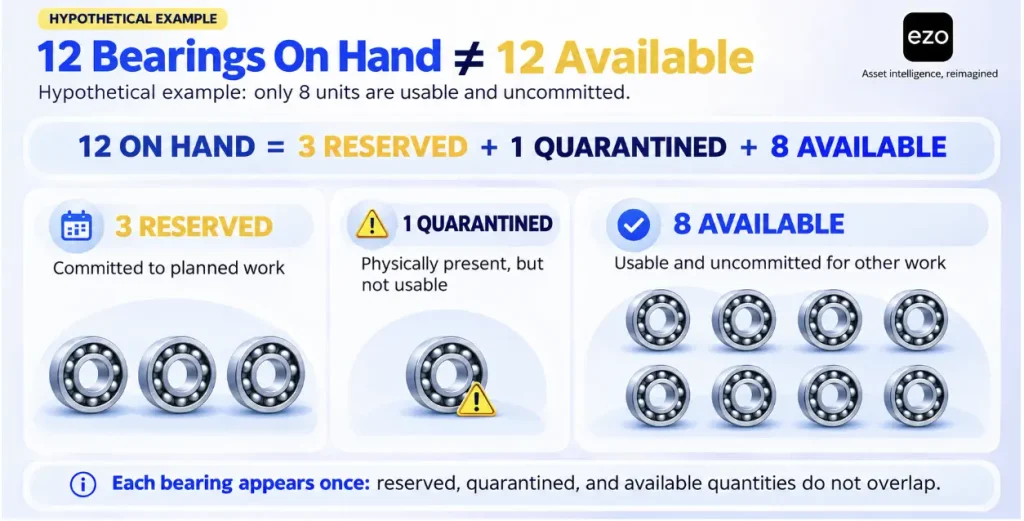
Start with 12 bearings physically on hand. Three are reserved for a planned job, and one is quarantined as unusable. The quarantined bearing is separate from the three reserved bearings. Under this policy, usable stock available for other work is 12 minus 3 minus 1, or 8.
The system should distinguish between 12 physically on-hand bearings, 3 reserved, 1 quarantined, and 8 available for other work. Displaying 12 as the physical quantity is not necessarily wrong. Reporting 12 as available for new work, however, answers a different question from the one the planner needs to ask.
Some tools may track quarantined stock in a separate location or status rather than include it in the on-hand quantity. Accept either approach if the system can account for all 12 bearings and demonstrate that only 8 are usable and uncommitted.
| Step | Scenario | Expected result | What to inspect |
|---|---|---|---|
| 1. Create a part | Bearing with internal ID, manufacturer number, stock unit “each,” and shelf location, plus a similar bearing with a different seal type | The correct bearing is identifiable by scanning or searching its exact identifier, and similar bearings are clearly distinguishable | Search and identification from the physical label and part numbers |
| 2. Set stock states | 12 on hand, 3 reserved, 1 quarantined | Physical on hand 12; reserved 3; quarantined 1; usable 11; available for other work 8. | How the tool represents each state |
| 3. Record job usage | Issue 2 from the reservation; use 1 and return 1 unused | One unit physically used; one returned and released; one remains reserved. Physical stock is 11, including one quarantined unit; nine are usable and uncommitted. Recorded consumption and stock follow the demonstrated posting model; on hand follows the tool’s documented deduction model (11 if it deducts at issue, 12 until close if it deducts at completion), with any difference explained by the open work order | Remaining reservation, available quantity, job history, and cost, plus when on hand changed |
| 4. Receive stock | Receive 2 packs of 5 | Receipt adds 10 units, by conversion or a documented manual step. Physical on hand becomes 21. Recorded stock becomes 21 under issue-time posting, or 22 before completion under completion-time posting, with the one-unit timing difference reconciled. | Whether the pack converts to 10 units |
| 5. Count during activity | Count while another user records an issue | The count reconciles to the same cutoff, with parts on the open work order explained rather than adjusted; only an unexplained residual is adjusted, with approval and a reason | Transaction timestamps, count cutoff, variance review, and adjustment reason |
| 6. Trigger replenishment | Set the threshold above the balance used by that product’s replenishment rule, then demonstrate the trigger. Record whether the rule uses on-hand, available, or projected stock. | The configured action appears for the named owner | The exact action created and the person responsible |
| 7. Repeat on mobile | Reset to the step 2 state, then record the issue and return on the technician’s device | The same records as step 3 | Taps, scans, time taken, and behavior with the device offline |
| 8. Export records | Export the job and inventory history | Every movement appears with user, timestamp, type, and source document, and a reason where the system captures one | Identifiers, movements, corrections, attribution, and which movements carry no reason |
Before the vendor demonstration, classify each requirement as Must-have, Should-have, or Nice-to-have. Treat a failed Must-have as disqualifying unless the vendor demonstrates a viable solution that meets it.
Record each result in one of five categories: completed natively, completed through a documented manual workaround, requires integration, demonstrated with an incorrect or misleading result, or not demonstrated. Separately, record whether the capability was demonstrated during the evaluation or supported only by documentation. This distinguishes demonstrated functionality from documented claims and makes the basis for each shortlist decision clear.
Measure the pilot and plan the migration
Pair each pilot measure with a check measure
When a measure becomes a target, people tend to improve the number itself, a pattern known as Goodhart’s law. But a better metric does not necessarily mean the underlying process has improved. Pair each measure with a check measure that can reveal what the first might conceal.
For example, consider inventory accuracy alongside the number and value of stock adjustments. This can help establish whether discrepancies are declining because processes have improved or are simply being corrected in the system. Set a baseline before the pilot. For each measure, define the sample window, evidence source, owner, and threshold that must be met before expanding. Our guide to inventory KPIs covers the wider set.
| Measure | What it shows | What it can hide, and how to check it |
|---|---|---|
| Count accuracy by location | The share of counted part-location lines that match the record before any adjustment | It can look good if counters adjust records to match shelves before the count is scored; pair it with adjustment volume, value, and reasons |
| Record lag | The time between a physical issue or return and its recorded transaction | The system log shows only posting time; record the physical time separately for a sample of transactions and compare the two |
| Return recording rate | Recorded returns against a physical sample of unused parts brought back | Unrecorded returns leave no trace in the system; check a manual sample of parts brought back |
| Planned jobs delayed for parts shown as available | Whether “available” can be trusted | It is visible only if delays carry a parts reason code, and a delay can have other causes; check whether displayed availability was correct at the planning cutoff |
| Adjustment volume and reasons | How often the record is corrected, and why | A rising share of generic “count correction” reasons may indicate inadequate cause recording; sample the notes before concluding |
Plan the migration around the first count
- Clean the part master. Consolidate duplicate IDs only after validating the manufacturer part number, revision, specification, unit, and condition. Retain old IDs as aliases and maintain a migration mapping. Add missing manufacturer part numbers and establish one consistent base stock unit for each part before import. Configure purchasing or packaging conversions separately where supported.
- Assign a system and an owner to each record type. Before the first import, decide which system will hold the authoritative records for the part master, stock balances, purchase orders, and work-order usage. Assign an owner to maintain each record type after migration.
- Map locations to the level you will count. Set up locations based on how stock is stored and how often each location will be counted. Use separate bin quantities where picking, replenishment, transfers, or reconciliation require them. Otherwise, a bin locator may be sufficient. You can still record it as a locator to help technicians find parts or keep quarantined stock separate.
- Check import limits. EZO EAM accepts up to 1,000 records or a 10 MB file per import, so keep each file within both limits. Initial stock quantities can only be set through an add import, which creates new items, not an update import. Limble accepts up to 5,000 parts per import, while UpKeep caps import files at 10 MB. Import limits for Fiix, MaintainX, and Sortly were not compared, so confirm them before preparing files.
- Count at cutover. Count stock at each location and use the verified quantities, units, unit costs, and open reservations to establish opening balances. Before go-live, reconcile quantities by part, location, and base unit, alongside record counts and inventory value. Check a sample of about 20 records, agree on a rollback trigger, and assign a sign-off owner. Freeze stock movements at the location until opening balances are posted. If operations cannot pause, log every movement separately and reconcile it against the opening count before releasing the location.
- Start with one storeroom. Run the eight-step scenario in a controlled pilot at one location. Include a representative technician, planner, storeroom user, and purchasing approver, along with a limited set of parts covering both routine and exception transactions. Reconcile physical quantities against the system after each transaction before expanding to the next location.
Choose software around your maintenance workflow
Choose the tool that keeps its inventory records reconcilable with physical stock through the transactions your team actually performs, on a plan that includes those capabilities.
If you primarily need part identification and quantity tracking by location, an inventory-first tool such as Sortly may be sufficient. If parts usage needs to be recorded against work orders and attributed to asset costs, compare CMMS options based on the complete package and add-ons required, not just the entry price. Based on the documentation reviewed, the options align with these use cases:
- Job-based parts usage without maintenance history: Sortly, with jobs on every plan; purchase orders and stock counts are available from Ultra.
- Reserved versus available stock for planners: Limble, with reservations from Premium+, or MaintainX, with part statuses on Premium and Enterprise.
- Usage that feeds purchasing: Fiix, where Professional and Enterprise can generate purchase requests when usage takes stock below its configured minimum.
- Location-level stock on a per-user CMMS: UpKeep, with inventory lines on Professional and above.
- Parts and equipment records in one system: EZO EAM, with work orders available through the CMMS add-on on Premium or included in Enterprise.
Whichever tool you choose, ask the vendor to demonstrate how a count handles parts assigned to open work orders. This reveals whether the system can distinguish in-flight parts from missing stock and reconcile the count without creating another discrepancy.
Evaluate EZO EAM with your own parts and maintenance scenario. Bring the eight-step test above to an EZO EAM demo using your own parts list. Work-order consumption requires the CMMS add-on on Premium, priced per admin user, or the Enterprise plan, which includes CMMS capabilities.