Smartsheet workspaces often include a mix of licensed sheet creators, members, guests, viewers, admins, and group admins. Without this user-level context in AssetSonar, IT teams may have to review Smartsheet separately to understand which users are paid creators, which users only have limited access, and when users last logged in.
With AssetSonar’s Smartsheet integration, you can sync Smartsheet users and last login details into AssetSonar. This helps you review Smartsheet access from your software records, identify users who may need license review, and use synced members for license entitlement workflows.
This guide walks you through generating a Smartsheet API access token, connecting Smartsheet with AssetSonar, reviewing synced users, and using synced members for license entitlements.
Note: Smartsheet API access may require a supported Smartsheet plan, such as Business, Enterprise, or Advanced Work Management. If you do not see the option to generate an API access token, contact your Smartsheet administrator.
1. Generate an API Access Token in Smartsheet
Before connecting Smartsheet in AssetSonar, generate an API access token from your Smartsheet account. AssetSonar uses this token to connect with Smartsheet and sync user data.
To generate the token:
- Log in to Smartsheet as a System Admin.
- Go to Account → Personal Settings.
- Open API Access.
- Click Generate New Access Token.
- Enter a clear token name, such as AssetSonar Integration.
- Generate the token.
- Copy the token and store it securely.
Note: Save the token when it is generated. Smartsheet may not show it again later.
2. Connect Smartsheet in AssetSonar
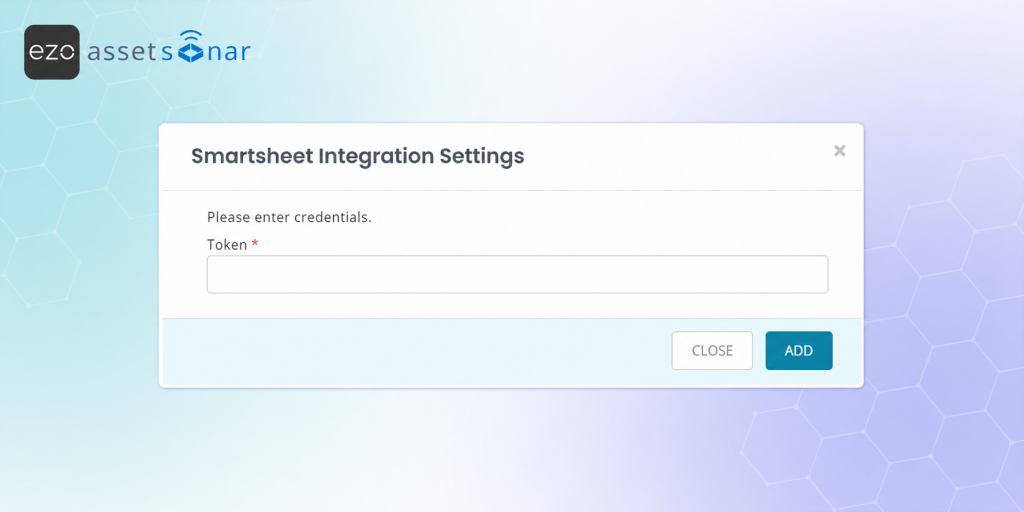
Once the API access token is ready, add it to AssetSonar from the Direct SaaS Integrations section.
To connect Smartsheet:
- Go to Settings → Integrations → Direct SaaS Integrations.
- Locate the Smartsheet card.
- Click Connect.
- In the Token field, paste the API access token generated from Smartsheet.
- Click Add.
After the token is saved, AssetSonar connects with Smartsheet and begins syncing supported user data.
Warning: Make sure the token is generated from a Smartsheet account with the required admin access. If the token is incorrect, expired, or does not have the required access, AssetSonar may not be able to sync Smartsheet users.
3. Review the Synced Smartsheet Software Record
Once the integration is connected, AssetSonar creates a cloud software record for Smartsheet if one does not already exist.
To review the synced software:
- Go to Software → Software.
- Open the Smartsheet software record.
- Review the software details.
AssetSonar marks the synced software with:
- Discovery Type: Cloud Software
- Source: Smartsheet
Use this record to review Smartsheet users synced through the integration and manage the software from your AssetSonar software catalog.
4. Review Synced Smartsheet Users
AssetSonar syncs Smartsheet users as cloud software members and matches users by email where possible.
To review associated users:
- Go to Software → Software.
- Open the Smartsheet software record.
- Go to the Associated Users tab.
- Review the synced users.
Synced user details can include:
- Member Email
- First Name
- Last Name
- Seat Type
- Admin Status
- Last Activity At
AssetSonar uses the synced user email as the primary match key when linking Smartsheet users with existing members in AssetSonar.
6. Use Synced Users for License Entitlements
After Smartsheet users are synced, you can use them when managing the corresponding Smartsheet software license in AssetSonar.
To create or update a Smartsheet license:
- Go to Software → Software Licenses.
- Open an existing Smartsheet license or click Add Software License to create one.
- Select Smartsheet as the software that is imported from integration.
- Add the relevant license details, such as seats, cost, renewal date, and billing information.
- Use the synced Smartsheet members to manage user entitlements.
When auto-entitlements are enabled for the Smartsheet license, AssetSonar can use the synced Smartsheet users to help assign users to the license
Note: Smartsheet does not provide full subscription or billing metadata, such as purchased seats, price, renewal date, or plan details, through the integration. Add and maintain these details on the software license record in AssetSonar.
7. Sync Smartsheet Data Later
After the integration is connected, AssetSonar automatically syncs Smartsheet user information to keep the software record and associated users updated.
You can also run a manual sync when you want to refresh Smartsheet data immediately, such as after adding new users, changing seat types, or updating user access in Smartsheet.
To review or manually refresh the integration:
- Go to Settings → Integrations → Direct SaaS Integrations.
- Open the Smartsheet integration.
- Review the connection status and latest sync information.
- Run a sync if you want to refresh the data manually.
This updates the Smartsheet software record and associated users based on the latest available data from Smartsheet.
Ready to Track Smartsheet Users in AssetSonar?
With the Smartsheet integration, AssetSonar helps you bring Smartsheet user visibility into your software asset management workflow. You can review synced users, track last activity where available, maintain license details, and use auto-entitlements to reduce manual license assignment work.
Need help generating the Smartsheet API token or connecting the integration? Reach out to us at support@ezo.io — we’re happy to assist.

![[How-To] Integrate Lucidchart with AssetSonar for Cloud Software User Tracking](https://cdn.ezo.io/wp-content/uploads/2026/07/06122817/Lucidchart-Integration.png)
![[How-To] Integrate DocuSign with AssetSonar for License and User Tracking](https://cdn.ezo.io/wp-content/uploads/2026/07/06101642/Docusign-Integration.png)
![[How-to] Integrate OneLogin with AssetSonar](https://cdn.ezo.io/wp-content/uploads/2024/11/Onelogin-integration-scaled.jpg)