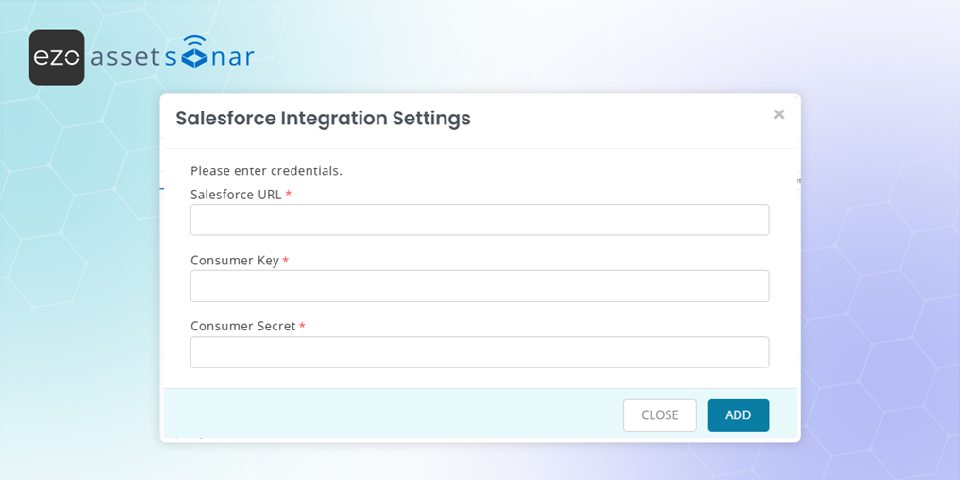
Salesforce licenses are among the most expensive and complex in the SaaS ecosystem, with 25+ license types and pricing often ranging from $75 to $300+ per user, per month. Without visibility, organizations risk paying for unused or overprovisioned licenses. AssetSonar’s Salesforce integration helps IT teams eliminate waste, improve compliance, and gain a single source of truth for Salesforce license usage. This includes support for tracking Certinia managed package licenses, such as Revenue Management, Professional Services Automation (PSA), Billing Central, and Financial Management (Accounting).
This integration extends AssetSonar’s mission of consolidating software and hardware asset data in one place. By connecting Salesforce directly, you can track license seats, entitlements, and user activity in real-time.
Benefits of Salesforce and AssetSonar Integration
- Automated license tracking
Import Salesforce license data directly into AssetSonar to see license assignments, usage, and entitlements without spreadsheets. - Cost control
With accurate seat usage data, you can identify underutilized licenses, avoid over-provisioning, and reduce unnecessary costs. - Improved compliance visibility
Complex Salesforce license structures are automatically mapped to users and profiles, giving you a clear, auditable record for renewals and audits.
Enabling Salesforce Integration
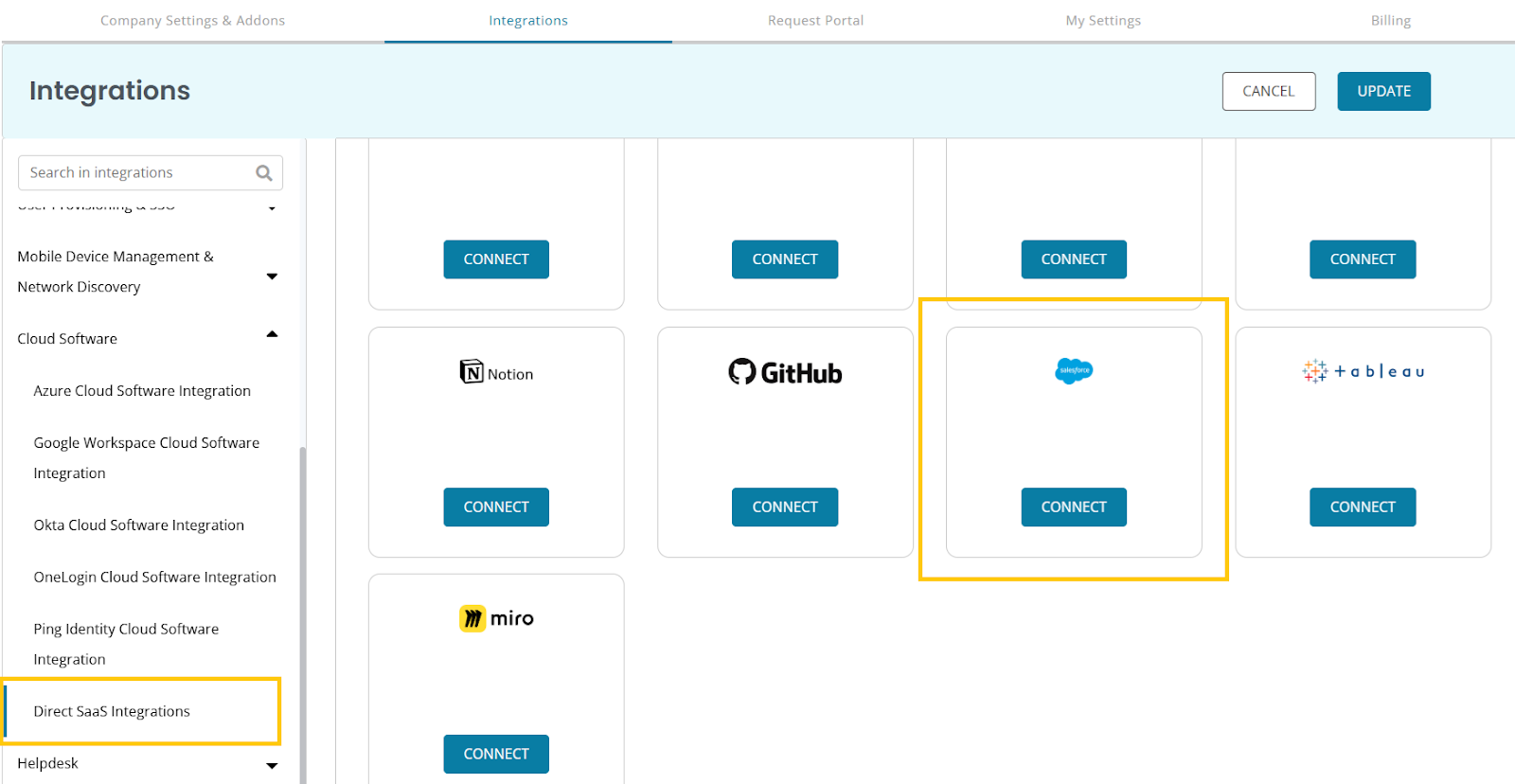
Go to Settings → Integrations → Cloud Software → Direct SaaS Integrations and under the Salesforce logo, click Connect.
A new overlay will appear, prompting you for the following credentials:
- Salesforce URL
- Consumer Key
- Consumer Secret
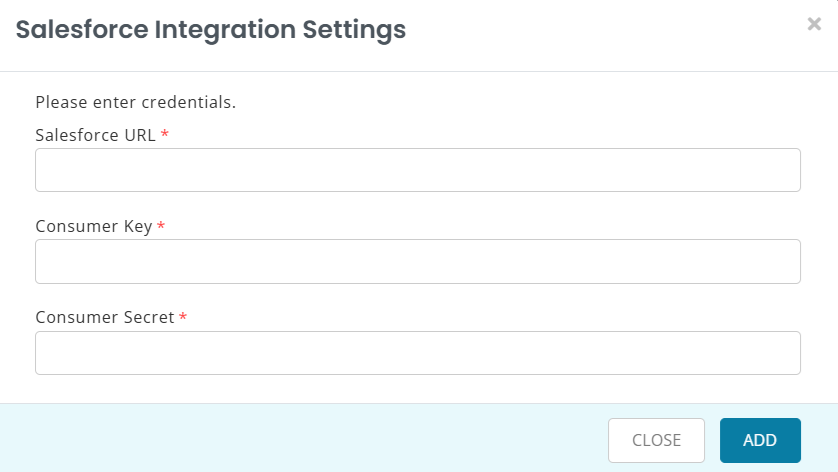
You’ll need to retrieve these from your Salesforce account by creating a Connected App as detailed below.
For the first field, Salesforce URL, enter the URL for your account. For example: https://abc.my.salesforce.com while for Consumer Key and Consumer Secret, you need to follow these steps:
- Go to Salesforce account → Setup.
- Find Apps → External Client Apps → Settings.
- Allow the creation of Connected Apps (if not previously allowed).
- Then click Create New Connected App.
- Enter the relevant information, such as Name and Email. We recommend setting a recognizable name like “AssetSonar Salesforce Integration.”
- Enable OAuth.
- Then add the following scopes:
- Access and manage your data (api)
- Perform requests on your behalf at any time (refresh_token, offline_access)
- Full access (full)
- And check the following boxes:
- Require Secret for Web Server Flow
- Require Secret for Refresh Token Flow
- Enable Authorization Code and Credentials Flow
- Once the app is created, open its detail page.
- Click Manage Consumer details to get the Client ID (Consumer Key) and Client Secret (Consumer Secret), and paste these in AssetSonar.
Once done, the integration will be connected. Now, you may click Import Licenses and select the licenses you want to import into AssetSonar.
Limitations of Salesforce Integration
- Only Salesforce products supported by the integration appear: Sales Cloud, Service Cloud, Analytics Cloud/CRM Analytics, and Experience Cloud.
- Products like Marketing Cloud, Commerce Cloud, MuleSoft, and Slack are not included.
- Users are mapped to licenses based on their Salesforce Profile and UserLicense ID.
Simplify Salesforce License Tracking Starting Today
With Salesforce and AssetSonar integration, you gain clarity into one of the most expensive SaaS tools your business uses. Automate license tracking, identify cost-saving opportunities, and stay compliance-ready — all within AssetSonar.
Need help getting started? Email us at support@ezo.io — we’re happy to assist.