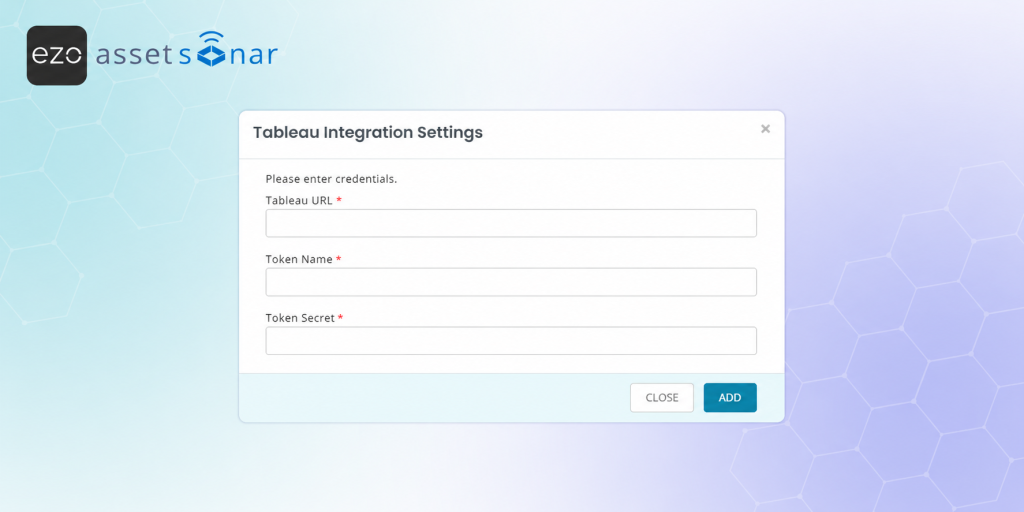
Tableau Online users often have different roles such as Creator, Explorer, and Viewer, and each role affects how licenses are consumed. When this information stays inside Tableau, IT teams have to manually compare users, roles, and last login activity against their software license records to understand who is assigned, who is active, and how seats are being used.
With AssetSonar’s Tableau Online integration, you can bring Tableau license roles, user assignments, and last login details into AssetSonar. This helps you review license usage from your software records, track assigned users by entitlement type, and reduce manual reconciliation before renewals or audits.
This guide walks you through creating a Tableau Personal Access Token, connecting Tableau with AssetSonar, importing Tableau license data, and reviewing synced users and entitlements.
1. Create a Personal Access Token in Tableau
Before connecting Tableau in AssetSonar, create a Personal Access Token in the Tableau site you want to track. AssetSonar uses this token to connect to your Tableau Online account and fetch license and user data.
To create the token:
- Log in to your Tableau Online account.
- Navigate to the Tableau site you want to track in AssetSonar.
- Click the Profile icon in the top-right corner.
- Go to Account Settings.
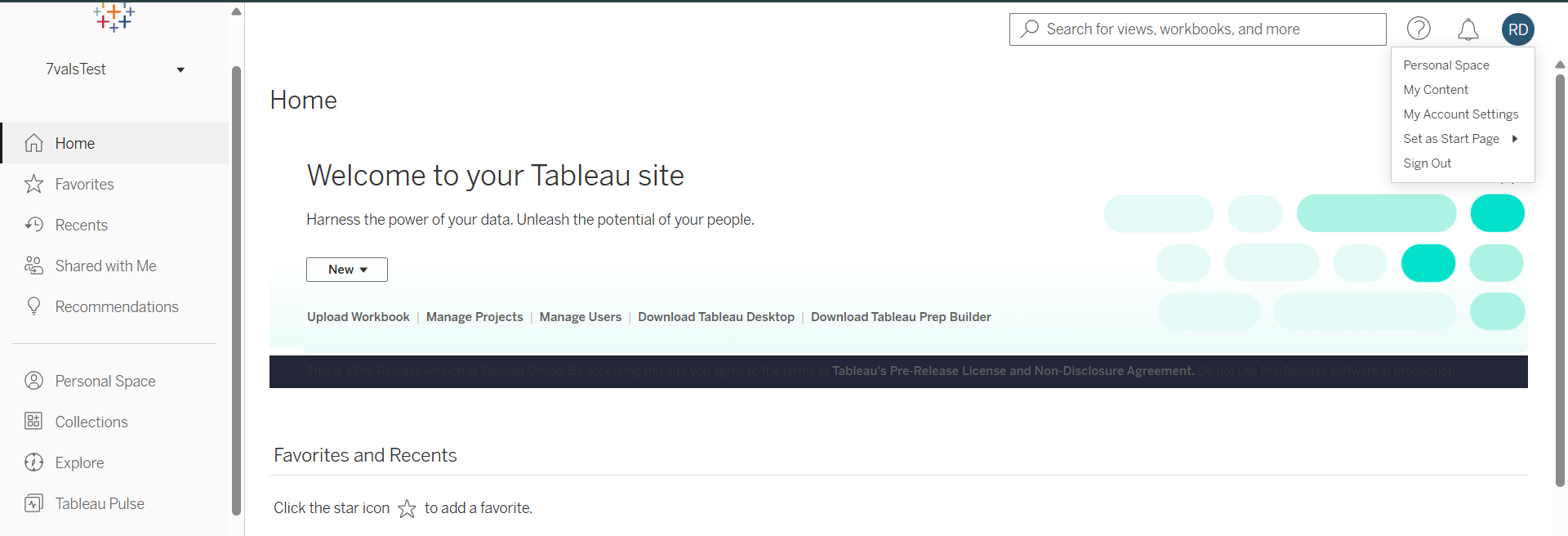
- Copy the Tableau URL for the site.
For example: https://abc.online.tableau.com
Next, create the token:
- Go to Personal Access Tokens.
- Click Create New Token.
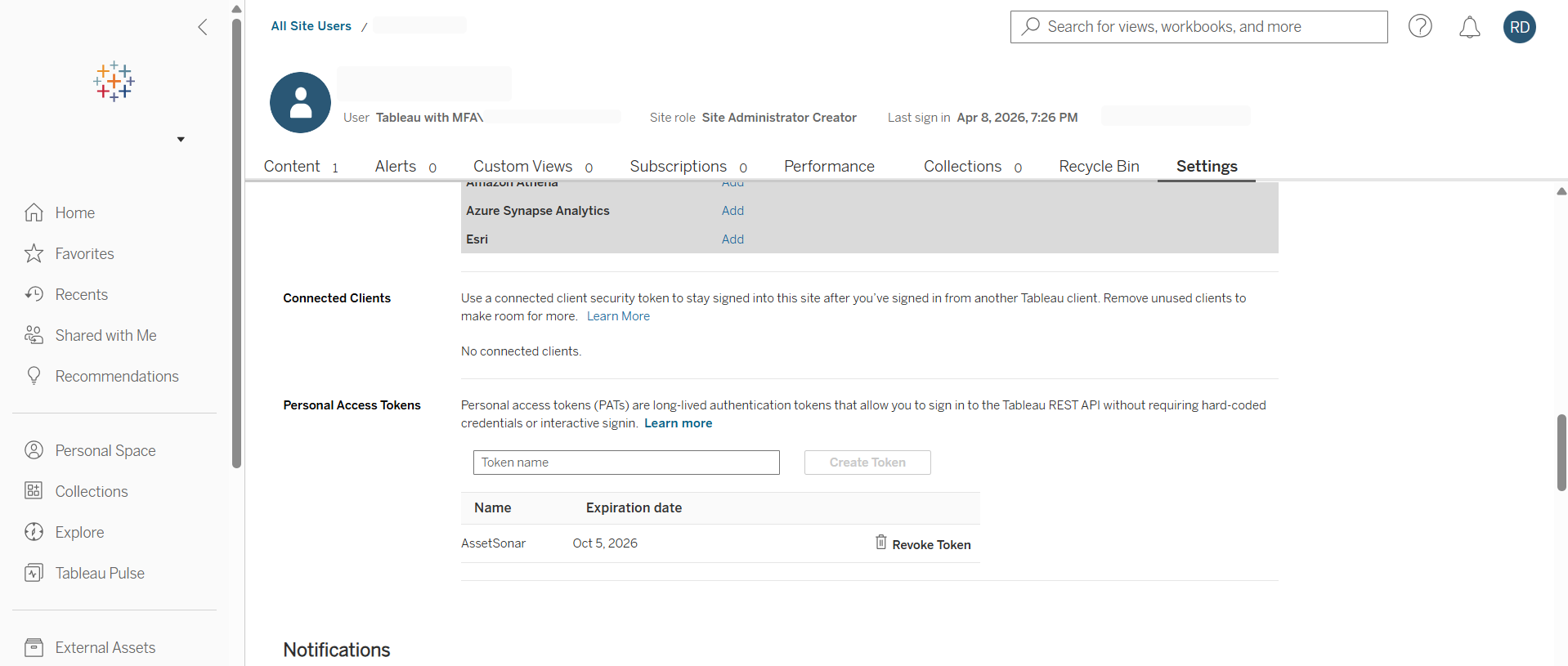
- Enter a clear token name, such as AssetSonar Integration.
- Create the token.
- Copy the Token Name and Token Secret.
Note: Save the Token Secret securely when it is generated. You may not be able to view it again later.
2. Enable Tableau Integration in AssetSonar
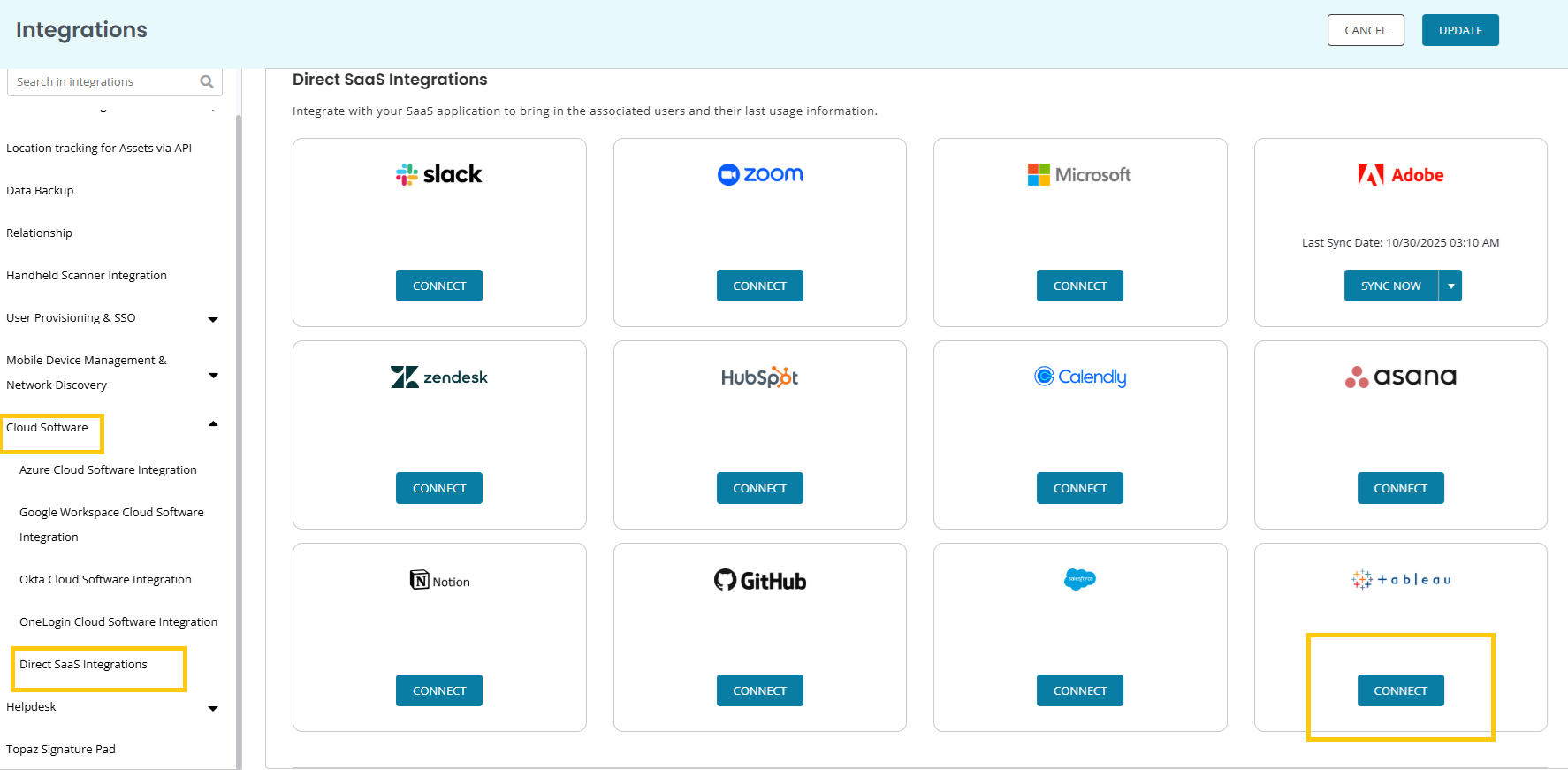
Once you have the Tableau URL, Token Name, and Token Secret, connect Tableau from the Direct SaaS Integrations section in AssetSonar.
To enable the integration:
- Go to Settings → Integrations → Cloud Software → Direct SaaS Integrations.
- Locate the Tableau card.
- Click Connect.
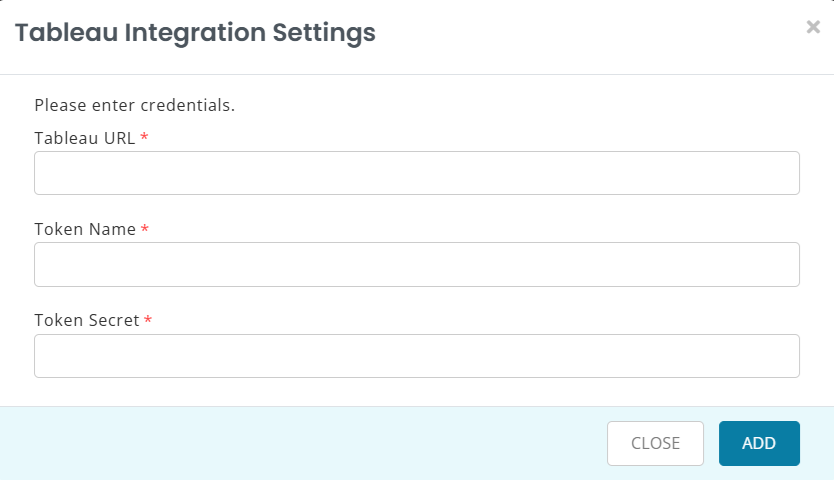
A new overlay opens where you can enter your Tableau credentials:
- Tableau URL: Enter the Tableau site URL you copied from Tableau.
- Token Name: Enter the Personal Access Token name.
- Token Secret: Enter the Personal Access Token secret.
- Click Add.
Once the credentials are saved, AssetSonar connects to Tableau and fetches available license and user assignment data.
Warning: Make sure the Tableau URL, Token Name, and Token Secret are copied correctly. Incorrect credentials may prevent AssetSonar from connecting to Tableau.
4. Import Tableau License Data
After the integration is connected, AssetSonar opens the license import flow or displays the option to import Tableau license data.
To import the license:
- Select the Tableau license you want to import.
- Review the license details fetched from Tableau.
- Enter the Total Seats for the license.
- Complete the import flow.
AssetSonar fetches Tableau license and user data such as:
- License Type
- User Email
- Assigned Role
- Last Login Date
Note: Tableau does not expose the total number of purchased seats through the available API data. You must enter Total Seats during import. The value must be equal to or greater than the number of active Tableau users fetched by AssetSonar.
5. Understand Tableau Role Mapping
Tableau roles are mapped to license entitlements in AssetSonar so you can review assigned users by entitlement type.
| Tableau role | AssetSonar entitlement | Seat consumed? |
| Creator | Creator | Yes |
| SiteAdministratorCreator | Creator | Yes |
| ServerAdministrator | Creator | Yes |
| Explorer | Explorer | Yes |
| ExplorerCanPublish | Explorer | Yes |
| SiteAdministratorExplorer | Explorer | Yes |
| Viewer | Viewer | Yes |
| Unlicensed | — | No |
| ReadOnly | — | No |
This helps AssetSonar group Tableau users into the correct license entitlements during import.
6. Review Synced Users and Entitlements
After the license is imported, AssetSonar syncs Tableau users and links them to the created license.
To review the imported license:
- Go to Software → Software Licenses.
- Open the imported Tableau license.
- Review the associated users and entitlement details.
The synced users appear as associated users on the Tableau software record and as entitled or assigned users on the Tableau license. You can also review usage-related details such as the user’s Last Login Date, where available.
Ready to Track Tableau Licenses in AssetSonar?
With AssetSonar’s Tableau integration, you can centralize Tableau Online license data, review assigned users, and track entitlement usage from your software license records.
Need help setting up the Tableau integration or importing your license? Reach out to us at support@ezo.io — we’re happy to assist.

![[How-To] Set Up AWS Cloud Integration in AssetSonar for Centralized Cloud Resource Visibility](https://cdn.ezo.io/wp-content/uploads/2026/06/11114541/AWS-Integration-Banner.png)
![[How-to] Enable Ping Identity Integration for Complete SaaS Visibility in AssetSonar](https://cdn.ezo.io/wp-content/uploads/2026/06/09102755/assetsonar_ping_identity_credentials_banner.webp)
![[How-to] Streamline Procurement Workflows with the Connection Integration in AssetSonar](https://cdn.ezo.io/wp-content/uploads/2026/04/15115417/Streamline-Procurement-Workflows-with-the-Connection-Integration.jpg)