The search bar on the Items listing pages allows you to look up the desired items. It appears on the top left corner of the page.
Custom attributes are also searched through as part of the general search function, so you can look up items using their custom attribute values.

For this, go to Navigation menu → Items → Asset/Asset stocks/Inventory → Apply filter→ Search
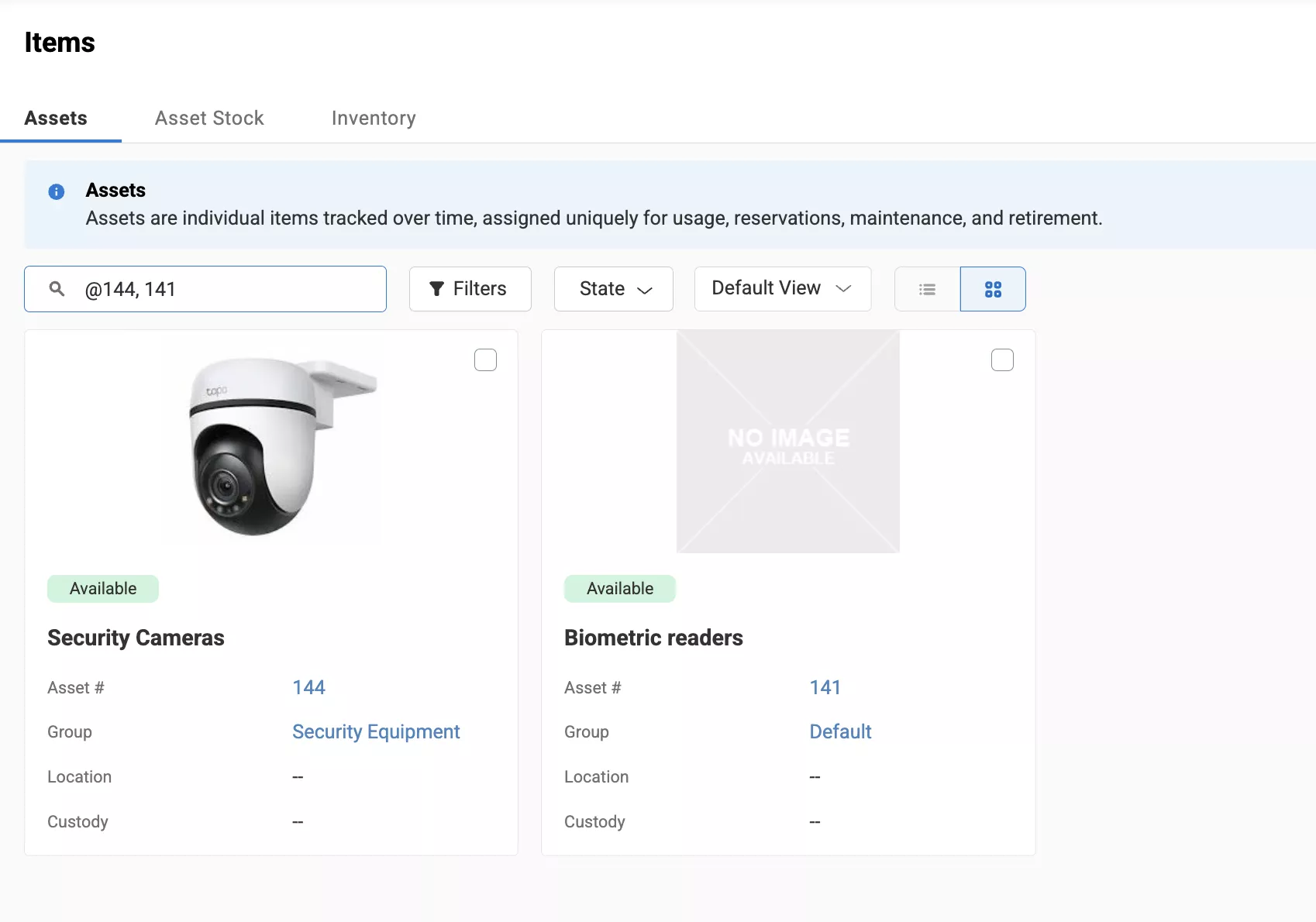
You can also search for multiple items at once using their Asset Identification Numbers (AINs). In the search bar on the Items listing page, just enter @AIN1, AIN2, and so on to look up multiple AINs in a single search. All the entered AINs will appear in the search as shown below:
With the new search option on the Listings page, you can apply filters and search at the same time. Let’s say you want to search for printers at the Baltimore Office. You can search for printers and apply a filter from the dropdown menu and the desired research will appear as follows:

For advanced search, you can filter the items after search or search after applying filters.
Filter items after search
Enter the asset you want to look for in the search bar. The search results will be displayed like this :

You can either choose filters from the ‘Additional Options’ or select from the filter dropdown list.
To choose from the filter dropdown list, click on ‘Assets(1)’

You will be redirected to this page, where you can select the required filter options from the dropdown list

Apply filters before search
Alternatively, you can choose filters before search to display specific assets. Go to the filter dropdown list and choose the required filter.

For instance in the example below, we choose the filter ‘overdue assets’. These are the search results:

You can also apply multiple filters, and the page will display specific results.
Note: This applies to asset, asset stock and inventory search listings pages. The minimum criteria for search is 3 letters; otherwise, you will not be able to search any item.
