EZO assigns an Item # to every item that you add to your account. This can also be referred to as the Asset # and Inventory #, depending on the context. The first item that gets added is #1, the second is #2, and so on.
We’ve also designed a special field called Asset Identification Number (AIN) for businesses that have their own sequence numbers. This field is available with all items (Assets, Asset Stock, and Inventory). It is not mandatory but can be used as an alternative to Asset Numbers to design your own intuitive item identifiers.
Enable the Asset Identification Number
To enable this, go to Settings → Company Settings → Advanced Settings → AIN Options → Use Asset Identification Number (AIN).
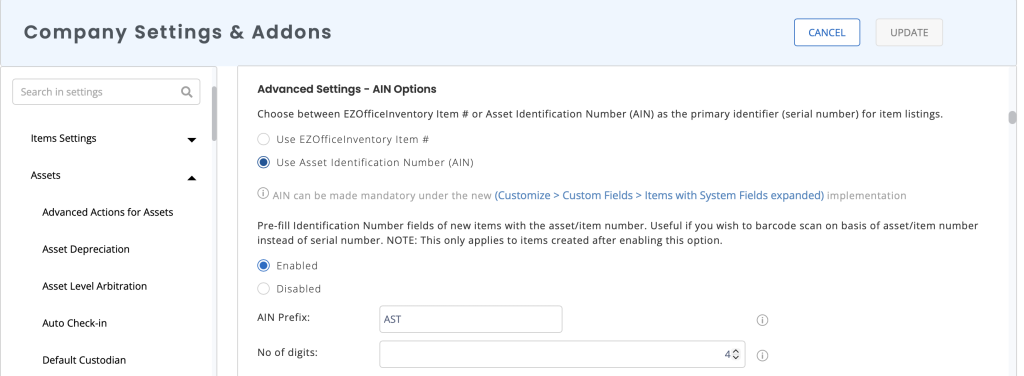
Enable the Pre-fill Identification Number option to automatically populate the Identification Number field for new items with the asset/item number, allowing you to use the asset/item number for barcode scanning instead of the serial number. This applies only to items created after this option is enabled.
Record Your Own Unique Serial Numbers
If you want to have your own serial numbers such as CAR-001, Macbook-Air-49585, BioLab-134, use this field to record them.
If you have more than one serial number to refer to an item, you can always add a text field custom field (under More → Custom Fields → Items → Add Custom Field). These custom attributes also appear in the search results.
Link Your Existing Barcodes
If you have existing barcodes, use this field to link them to EZO items. If you have lab equipment and your microscope already has the barcode: ABC123. You can enter ABC123 in the relevant asset’s Identification Number to link the barcode. You can then use our mobile app or a barcode scanning hardware to scan your microscope. This will pull up the relevant details so you can take your required actions.
You might find it helpful to read about scanning existing barcodes using the mobile app.
Create Barcodes
You can print both QR code and barcode labels. Barcodes are generated from Identification Numbers. Make sure to edit/create a printout template to include barcodes. Do this by going to More → Print Label → Add/Edit. From here, drop the Barcode element on to the designing canvas. If an item doesn’t have an Identification Number, its barcode can’t be created. (Read More)
Key features of AINs
- AINs are unique to every item.
- You can type in @ followed by an AIN in the Search Bar to go directly to the details of the relevant item and take necessary actions.
- AINs can be used in Barcoding (Read More).
- Your item listing can be customized to show AINs instead of the Item #.
- Items are also referenced by their AIN in all alert emails.
