You can use EZO to print professional labels. However, if you’d like to go for commercial printing, you may need to hand over the Print Label Data to your printing service. You can get all your print label data in an Excel sheet by exporting it as a CSV file from your Printout Templates, then share that file with your printing vendor.
Here’s a quick step-by-step process to go about it:
- Find a reliable printing vendor who can deliver/ship samples and labels to you.
- Enable the commercial printing option from Settings → Company Settings → Commercial Printing Label → Enabled.
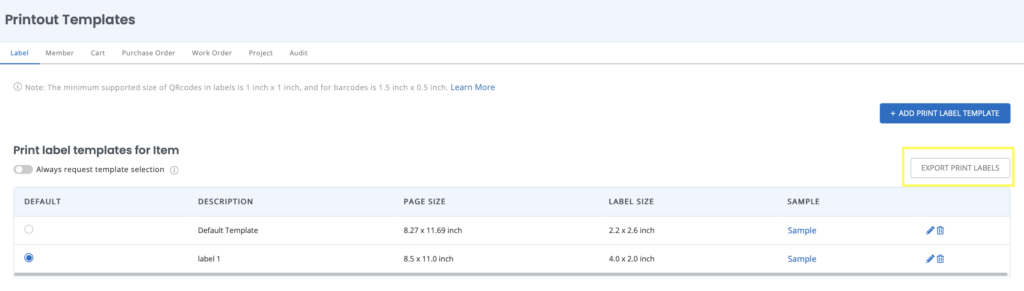
- Export your print label data in CSV from More → Customize → Printout Templates → Export Print Labels. The file opens in Excel.
- If you have a logo on your labels, hand over this image separately.
- The print label data is only for existing items in your account. However, you can pre-provision the future items, if you like.
- Ask your vendors for free samples before confirming the order. These samples should be from the actual data that you provided them.
- Scan the sample QR Codes/Barcodes using EZO mobile app on your iPhone/iPad/Android Device to verify that they can be easily scanned
- Do inspect the samples for durability.
- Once everything looks good, place your order.
Note: Make sure your barcode scanner supports Code 39 barcodes. This helps when you’re using an HID-compliant barcode scanner to scan Print Labels generated via the EZO Label Designer.
What does my printing vendor need to know?
Label Specifications for Printing Vendors
- Template: When exporting, choose a print label template that contains all the data points needed on the label. For example, if Item Name, Item Group, QR Code and Barcode are required, these 4 elements should be in the template. If the CSV doesn’t contain a data point, first select a default print label template that includes it.
- CSV columns: QR Code links are under the QR code column. Barcode sequences are in the Barcode column.
Barcodes and QR Codes: Both are supported in EZO. Barcodes are set up as Identification Numbers with the items, so an Identification Number is essentially the barcode sequence. QR Codes are the URL links to the detail pages of items in EZO. - Contrast: Barcodes and QR Codes should be printed in high contrast (dark color code with light background). Black on a white background is highly recommended for readability.
- Size: We recommend barcodes be at least 0.5″ in height, and QR Codes 1″×1″. The bigger the labels and the fewer the encoded characters, the easier it is for our apps to pick them up through the mobile camera.
- Materials: Consider the label environment and the materials the labels will be used on, along with durability.
Related Articles:
The EZO Print Labels Knowledge Base
How to print on dedicated label printers
Using the Label Designer
QR code vs. Barcode – Best practices and recommendations
