You can manage your stock count using our mobile app. Upon scanning the inventory item’s label, take the appropriate action, such as Add Stock or Sale, to change the inventory count.
To remove stock, go to the detail page of the inventory item you want to remove stock from, using the Inventory Listing Page on the mobile app. For example, Lens cleaning solution (Stock Location: Warehouse in Manhattan) required for a photoshoot (see image below).
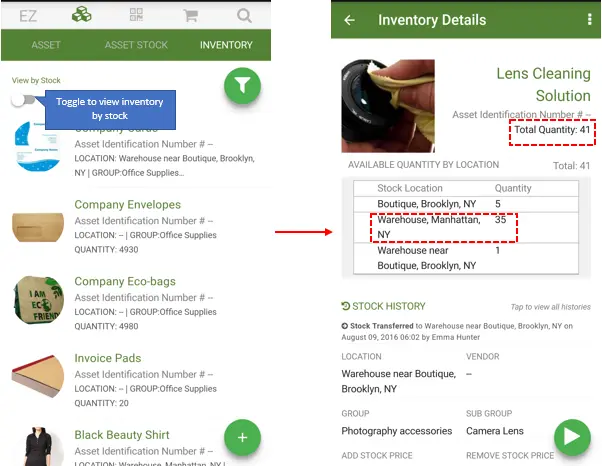
Note: The toggle ‘view by stock’ enables you to view stock quantity based on locations. For example, out of 5000, 500 eco-bags are located in a Warehouse on Brooklyn Road.
Hit the ‘Play’ button. Fill in the required quantity and price e.g. 10 at $5/unit. Click ‘Remove Stock’ when you’re done.

See the change in the inventory detail page once stock has been removed:

