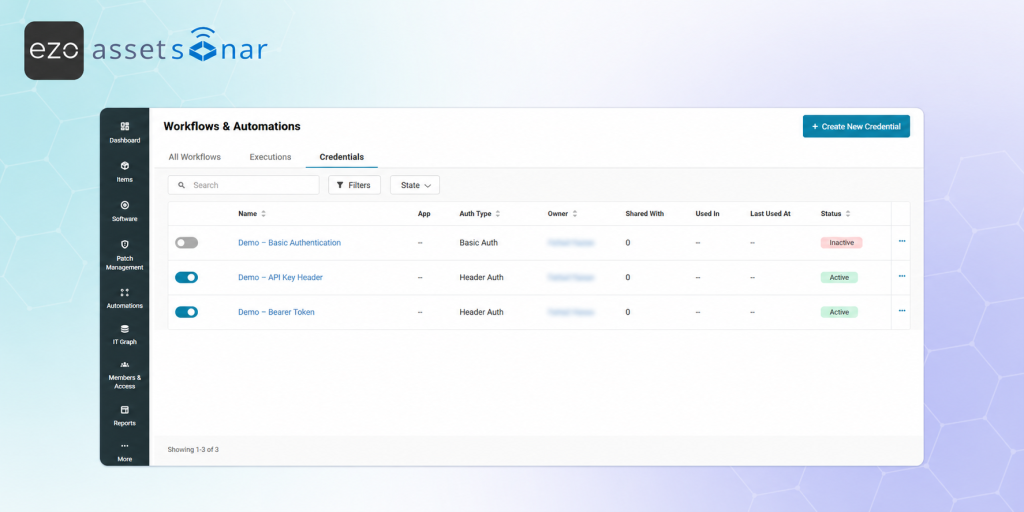
Web Requests and App Connectors often require credentials to communicate with other systems, such as usernames and passwords, Header Auth values, or OAuth2 connections. Saving and maintaining these credentials separately across workflows can lead to duplicated setup, unclear ownership, and unexpected failures when credentials expire or are revoked.
AssetSonar’s Credentials Vault gives you a central place to create, reuse, share, and monitor credentials used across your automations. Credential owners retain control over who can use them, while usage records and execution logs help administrators identify affected workflows and troubleshoot authentication failures.
This guide explains how to create and manage credentials, share them securely with other automation creators, track where they are used, and respond to credential errors.
Before You Begin
Ensure that the Automations module is enabled by going to:
Settings → Company Settings & Add-ons → Automations
Select Enabled, and then click Update.
Admins can create credentials by default. Custom roles require the relevant Workflow Automations permissions. Users who need to share credentials must have both:
- Create or Update Workflows
- Share Credentials
The Share Credentials permission cannot be enabled unless the user also has permission to create or update workflows.
For more information on creating workflows and using external integrations, refer to:
- [How-to] Automate IT Workflows in AssetSonar
- [How-To] Build Web Request Automations Using the Workflow Automation Engine in AssetSonar
- [How-to] Orchestrate IT Workflows Using App Connectors in AssetSonar Automation Engine
1. Access the Credentials Vault
Go to:
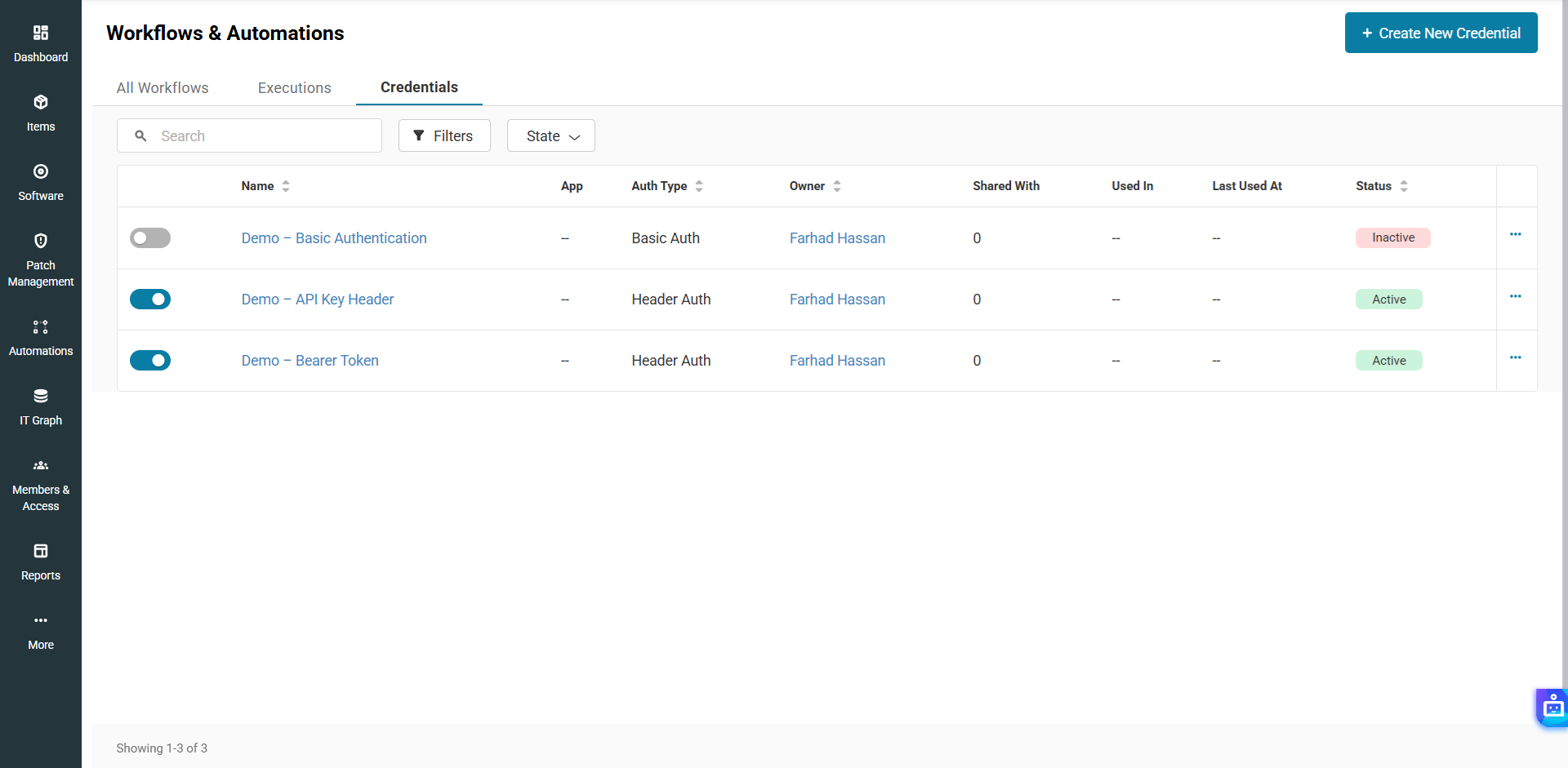
Automations → Workflow Automations → Credentials
The Credentials tab displays credentials that you have created or that another credential owner has shared with you.
2. Create a Credential
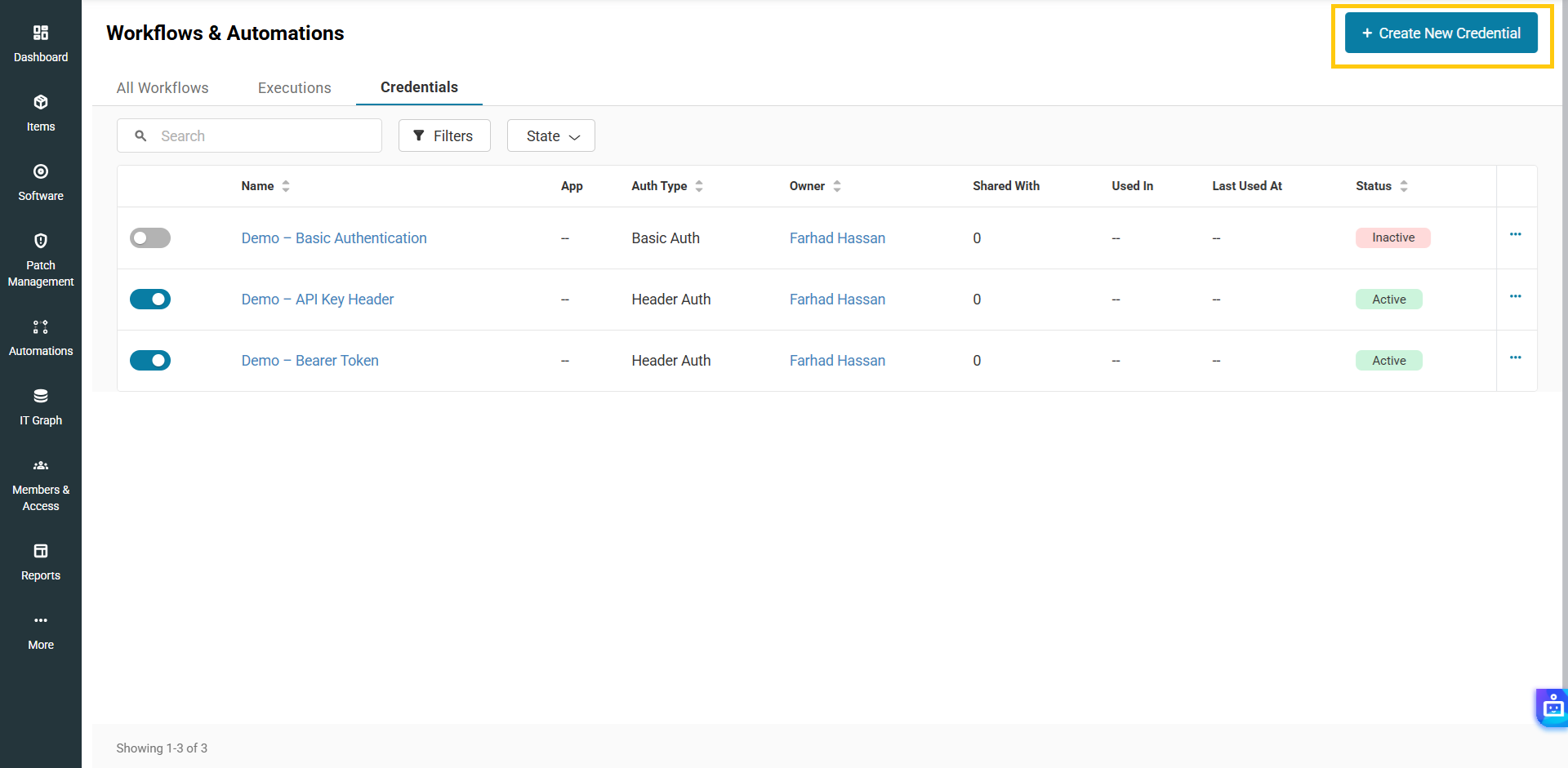
From the Credentials tab, click Create New Credential.
Enter a recognizable credential name, select the relevant authentication type, and provide the required authentication details.
The fields displayed depend on the selected authentication method and the service being connected.
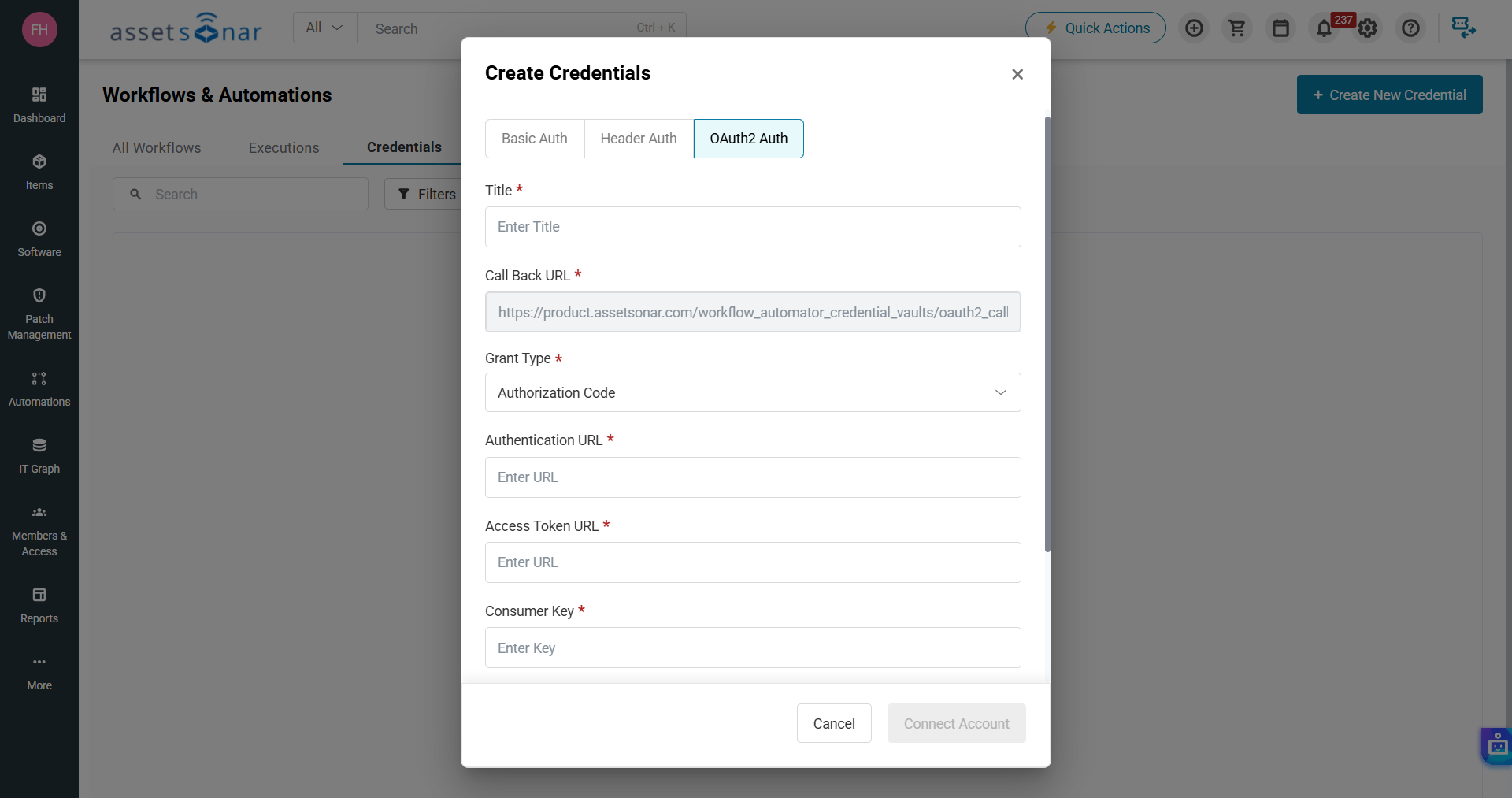
Complete the form and save or authorize the credential.
AssetSonar protects stored authentication information in the following ways:
- Secrets are encrypted when stored.
- Secret values are masked after saving.
- Raw secrets cannot be viewed by other users, including administrators.
- Supported OAuth tokens are refreshed automatically in the background.
3. Use a Credential in an Automation
Credentials can be reused across multiple workflow nodes and automations.
To use one:
- Open or create an automation.
- Add a Web Request or App Connector node.
- Configure the request or connector action.
- Open the Credentials dropdown.
- Select the required credential.
If the credential has not already been created, click Create New Credential, enter or authorize the required authentication details, and select it for the node. Credentials created from a workflow node are also added to the central Credentials tab.
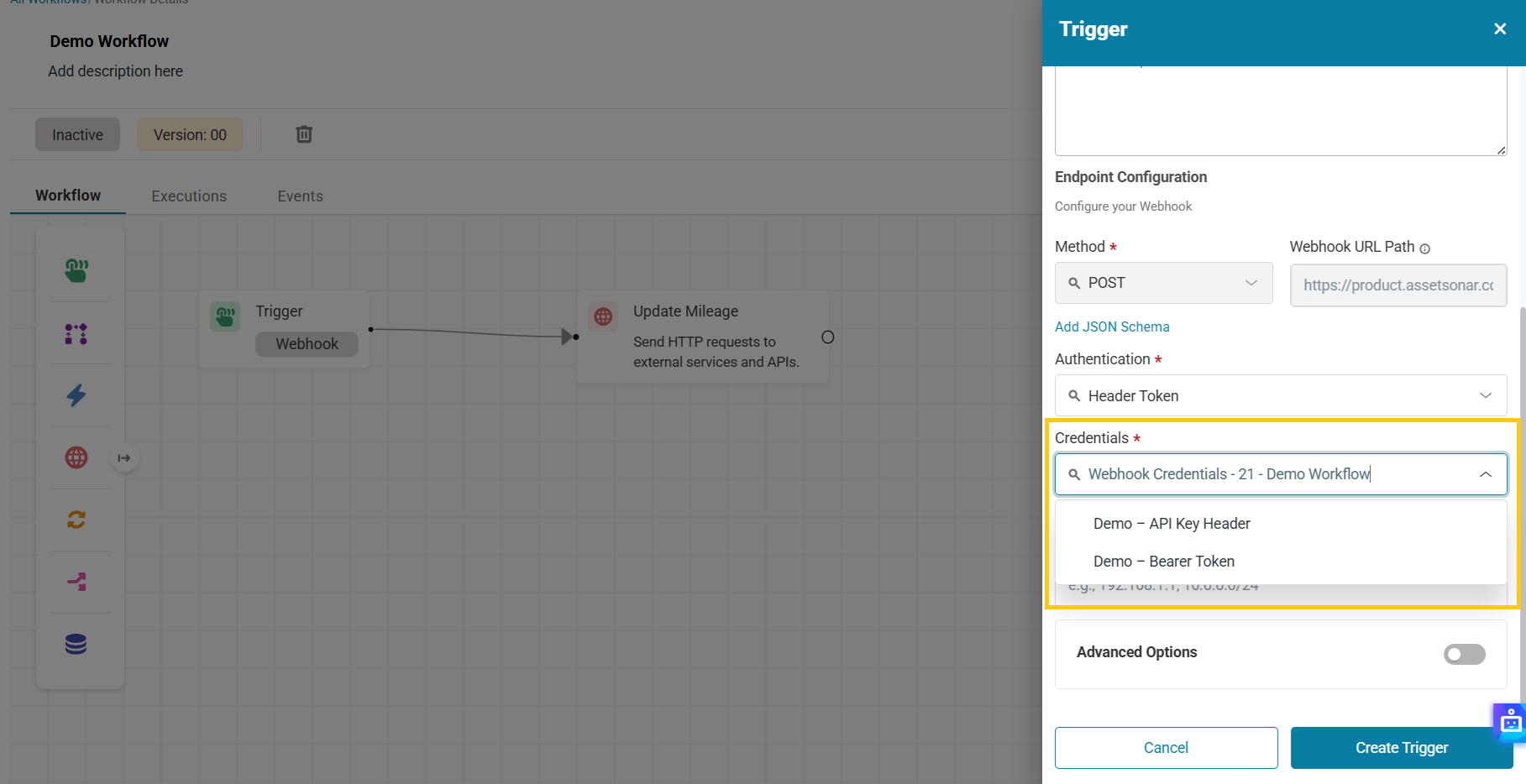
You can select credentials that:
- You created.
- Another credential owner shared with you.
Reusing credentials reduces repeated authentication setup and allows credential updates to be applied centrally across connected workflows.
4. Review Credential Details and Usage
Click a credential’s name from the listing to open its details page.
Credential owners can also access the Edit, Delete, and Share controls from this page.
Updates to a credential apply immediately across all workflows using it. Similarly, marking a credential inactive prevents it from being used in any connected workflows until it is reactivated.
Use the Added In, Shared With, and Events tabs to see which automations use the credential, who has access to it, and its audit history, including creation, updates, access changes, status changes, and usage events.
To delete a credential, first mark it inactive. You may do so from the Credentials listing page or the details page of each credential. Before deleting it, review the Added In tab and replace the credential in any workflows that need to continue running.
The Events tab records credential activity and authentication failures. You can open the related execution record for additional workflow details. If a credential is invalid, expired, revoked, or inactive, the affected workflow returns an explicit authentication error.
Warning: Deletion is permanent, and workflows that still reference the credential will fail during their next execution.
5. Share and Manage Credential Access
Credential owners can share credentials with other authorized automation creators without revealing the stored secret values.
To share a credential:
- Open its details page or click Share from the listing page.
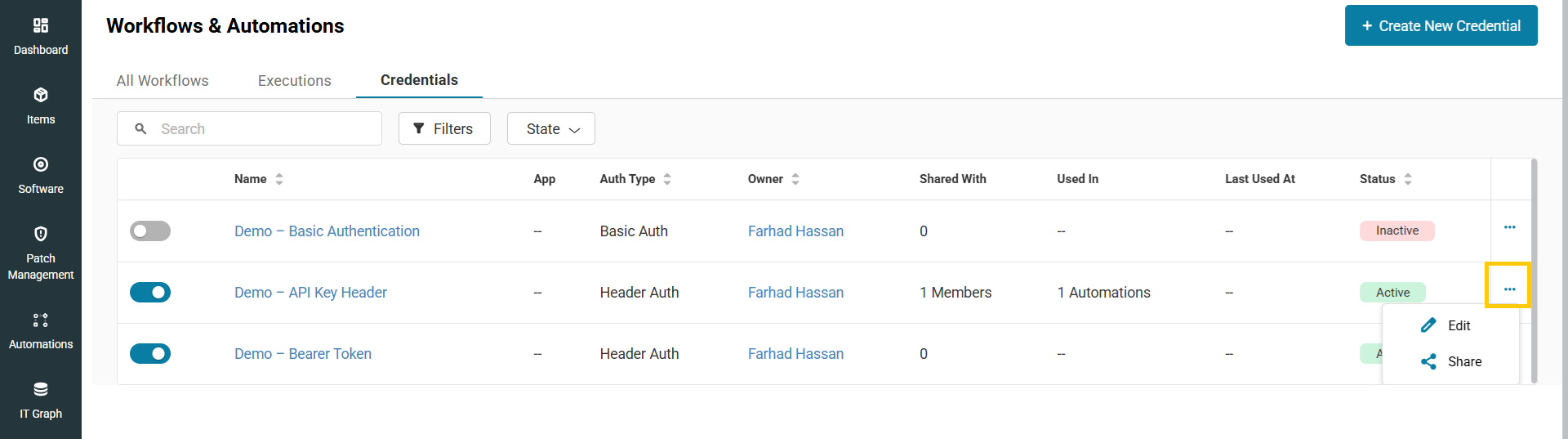
- Select the users who should receive access.
- Confirm the action.
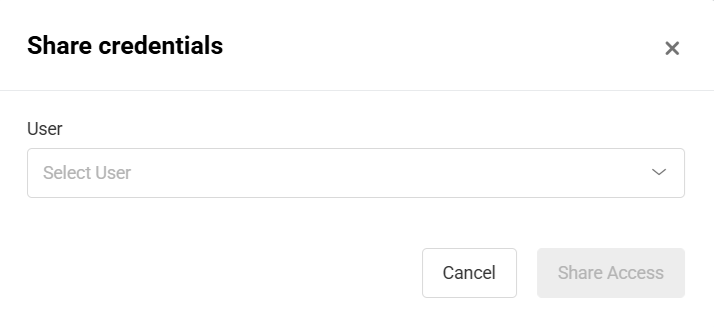
Shared credentials can be used by Admins and custom-role users with permission to create or update workflows. Shared users can select the credential within supported nodes, but they cannot view its secret values, edit or re-authenticate it, delete it, or share it with another user.
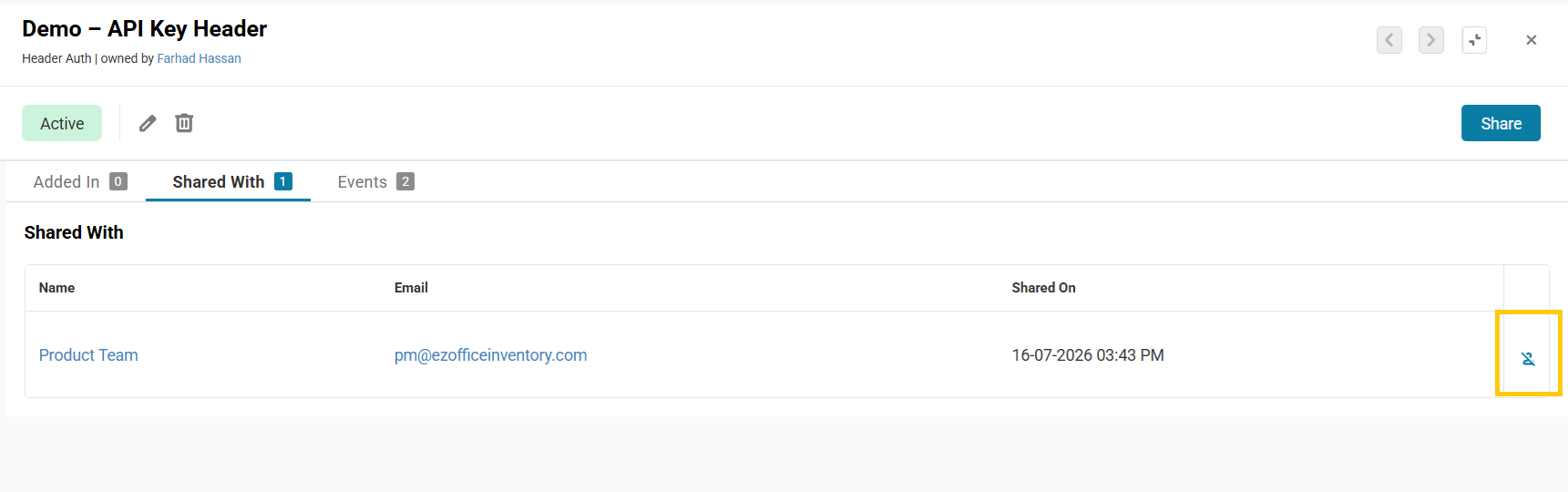
To remove access, open the Shared With tab and click Remove Access against the relevant user. Removal takes effect immediately, and workflows created by that user may fail until another credential is configured.
Note: Replace the credential in affected workflows before removing access wherever possible.
Credential Ownership
Credentials remain owned by the user who creates them. Only the owner can edit, re-authenticate, share, or delete the credential.
Before deactivating a credential owner, review the credentials and workflows associated with that user and configure replacements where necessary. When an owner is deactivated, the credentials they created are deleted, and administrators are alerted about the affected credentials and automations.
Secure Your Automation Connections
AssetSonar’s Credentials Vault lets you securely reuse authentication details without exposing or repeatedly entering sensitive values across workflows. Centralized ownership, controlled sharing, usage visibility, and explicit authentication errors make automations easier to scale and maintain.
Need help configuring or troubleshooting an automation credential? Contact us at support@ezo.io.

![[How-To] Automate IT Asset Lifecycle in AssetSonar: From Procurement to Retirement](https://cdn.ezo.io/wp-content/uploads/2026/07/28072313/AssetSonar-Automated-Asset-Lifecycle-Banner-1200x600-1.png)
![[How-To] Clean and Process Data Using the Data Transformation Node in AssetSonar Automation Engine](https://cdn.ezo.io/wp-content/uploads/2026/03/09100046/Data-Transformation-Node-EZO-Assetsonar.jpg)
![[How-to] Process Arrays and Lists Using the Loop Node in AssetSonar Automation Engine](https://cdn.ezo.io/wp-content/uploads/2026/03/10072110/Loop-Node-EZO-Assetsonar.jpg)