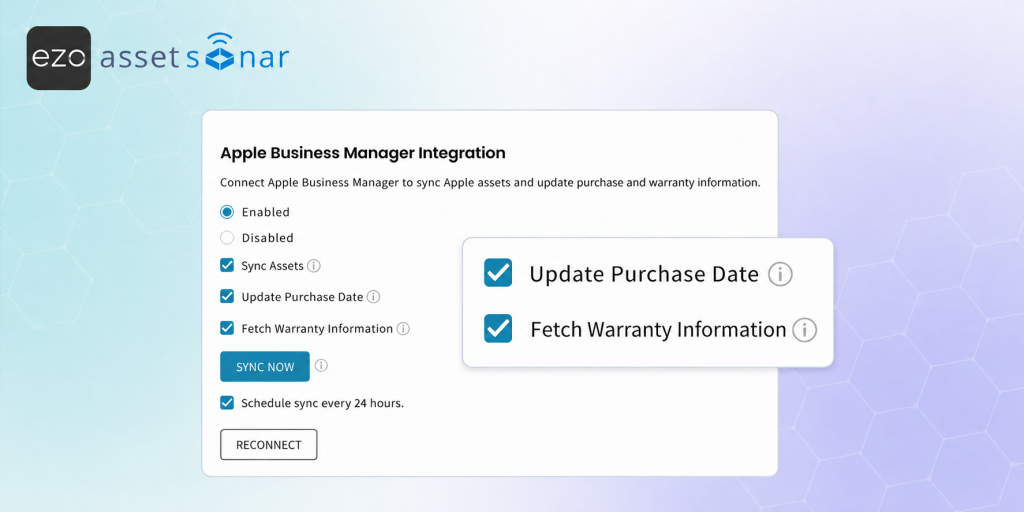
Tracking warranty coverage for Apple devices manually can become time-consuming, especially when new MacBooks, iPads, and iPhones are regularly purchased through Apple Business Manager. Without automated warranty tracking, IT teams may miss coverage windows, delay service decisions, or spend extra time updating contract records by hand.
With AssetSonar’s Apple warranty tracking through Apple Business Manager, you can automatically fetch warranty information for synced Apple devices and create linked warranty contracts in AssetSonar. This guide walks you through enabling warranty fetching, syncing Apple warranty data, and reviewing the created contracts.
Important: Integrating Apple Business Manager with AssetSonar is a pre-requisite for Apple’s warranty integration. If you have not set it up yet, follow the Apple Business Manager integration guide first: [How-To] Automate Apple Device Onboarding with AssetSonar’s Apple Business Manager (ABM) Integration.
Automate Warranty Tracking Across Top OEMs
AssetSonar also supports automated warranty tracking for other major device manufacturers. If your organization manages a mixed device environment, you can also set up warranty integrations for Dell, Lenovo, and HP devices.
1. Enable Apple Warranty Fetching
To start importing Apple warranty information:
- Go to Settings → Integrations → Mobile Device Management & Network Discovery → Apple Business Manager Integration.
- Make sure the Apple Business Manager Integration is Enabled and connected.
- Select Fetch Warranty Information.
- Click Update.
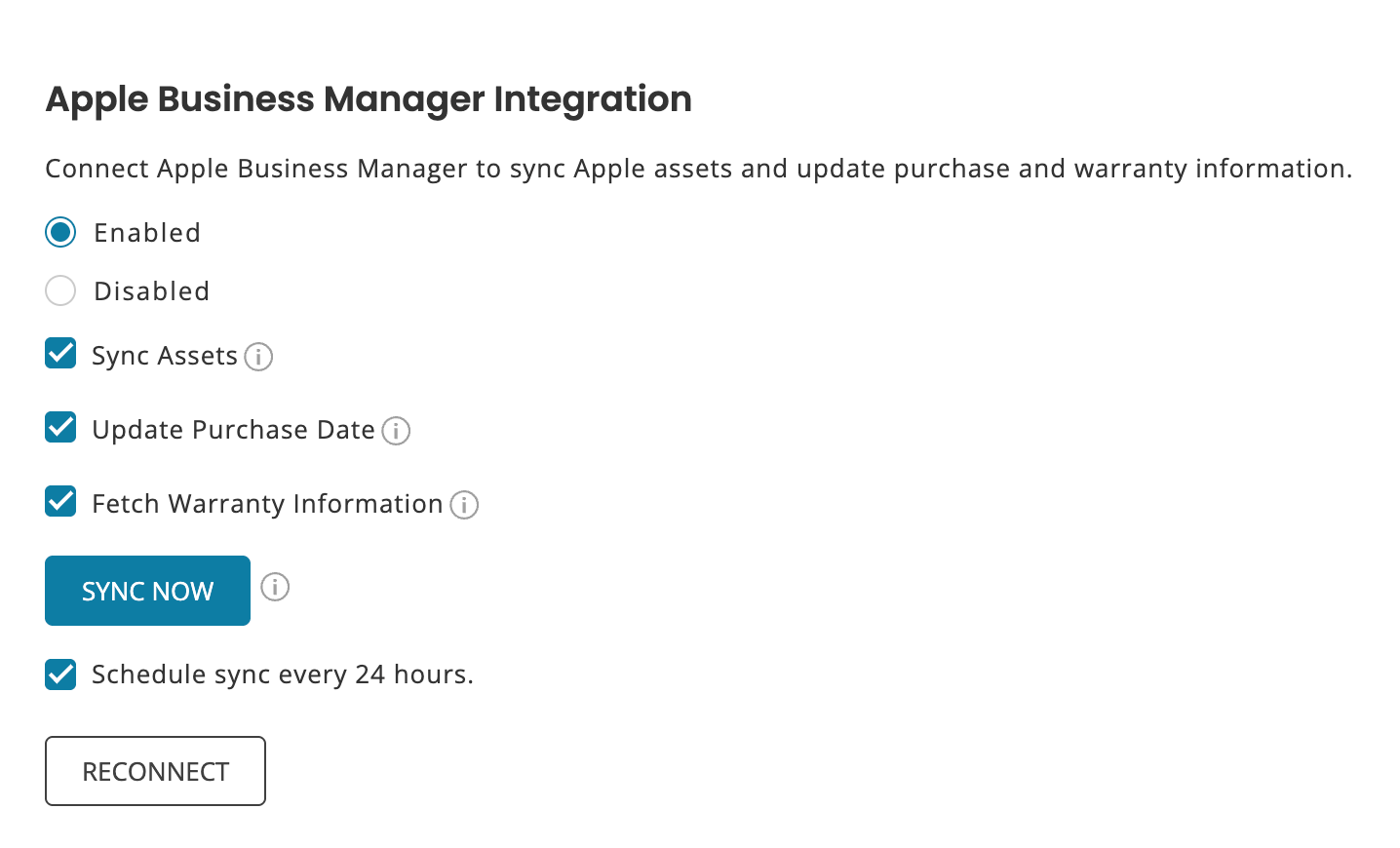
Once this setting is enabled, AssetSonar fetches warranty information for Apple devices synced through Apple Business Manager.
Note: Warranty information is imported and linked through Contracts. The Contract Type is set to Warranty, and Apple is added as the Fulfillment Vendor.
2. Sync Apple Warranty Information
After you select Fetch Warranty Information and click Update, AssetSonar runs a full sync to check warranty coverage for Apple devices already imported through Apple Business Manager.
If warranty information is available, AssetSonar creates warranty contracts based on the fetched coverage data and links each contract to the relevant Apple asset automatically.
Note: This full sync helps fetch warranty details for Apple devices that were imported before warranty fetching was enabled.
3. View Apple Warranty from the Asset Details Page
To review warranty coverage for a specific Apple device:
- Go to Items → Assets.
- Open the relevant Apple asset.
- Click the Contracts tab.
- Open the linked warranty contract to review its coverage details.
Use this view when you want to confirm whether a specific Apple device is still under warranty before sending it for repair, replacement, or service review.
4. View Apple Warranty Contracts from the Contracts Module
You can also review Apple warranty contracts from the Contracts listing.
To view warranty contracts:
- Go to More → Contracts.
- Search or filter for Apple warranty contracts.
- Open the relevant contract.
- Click the Items tab to view the Apple asset linked to the warranty.
Use this view when you want to review Apple warranty coverage across multiple devices instead of checking each asset individually.
Ready to Automate Apple Warranty Tracking?
With Apple warranty tracking through Apple Business Manager, AssetSonar helps you reduce manual warranty lookups, create linked warranty contracts, and keep Apple device coverage data available directly from the asset record.
Need help enabling warranty fetching or reviewing synced contracts? Reach out to us at support@assetsonar.io — we’re happy to assist.

![[How-To] Automate Apple Device Onboarding with AssetSonar’s Apple Business Manager (ABM) Integration](https://cdn.ezo.io/wp-content/uploads/2025/10/29182422/How-To-Automate-Apple-Device-Onboarding-with-AssetSonars-Apple-Business-Manager-ABM-Integration.webp)
![[How-to] Efficiently Manage Apple Devices with the Kandji MDM and AssetSonar ITAM Integration](https://cdn.ezo.io/wp-content/uploads/2023/07/01124141/Efficiently-Manage-Apple-Devices-with-the-Kandji-MDM-and-AssetSonar-ITAM-Integration-1.webp)
![[How-to] Enhance Your Apple Device Management With AssetSonar’s Jamf Pro Integration](https://cdn.ezo.io/wp-content/uploads/2019/12/Enhance-Your-Apple-Device-Management-With-AssetSonars-Jamf-Pro-Integration.png)